How do I create categories and subcategories and put products in them?
The categories you sell by at the till are made in the tree to the left of the product list. A product goes into a category through the Category field on its card, either when you create it or later.
Don't confuse them with Nomenclature Types under the Nomenclature menu. Those are the accounting groups, with their accounts, and they change nothing the cashier sees.
Where to find it: Sidebar → Merchant Center → the Products tab
To create a category or a subcategory:
- In the Categories panel, press + for a new category. For a subcategory, hover over the category it goes into: ⋮ appears in place of the number → New subcategory.
- Type the name under Category. For a subcategory, Parent Category is already filled in.
- Press Save.
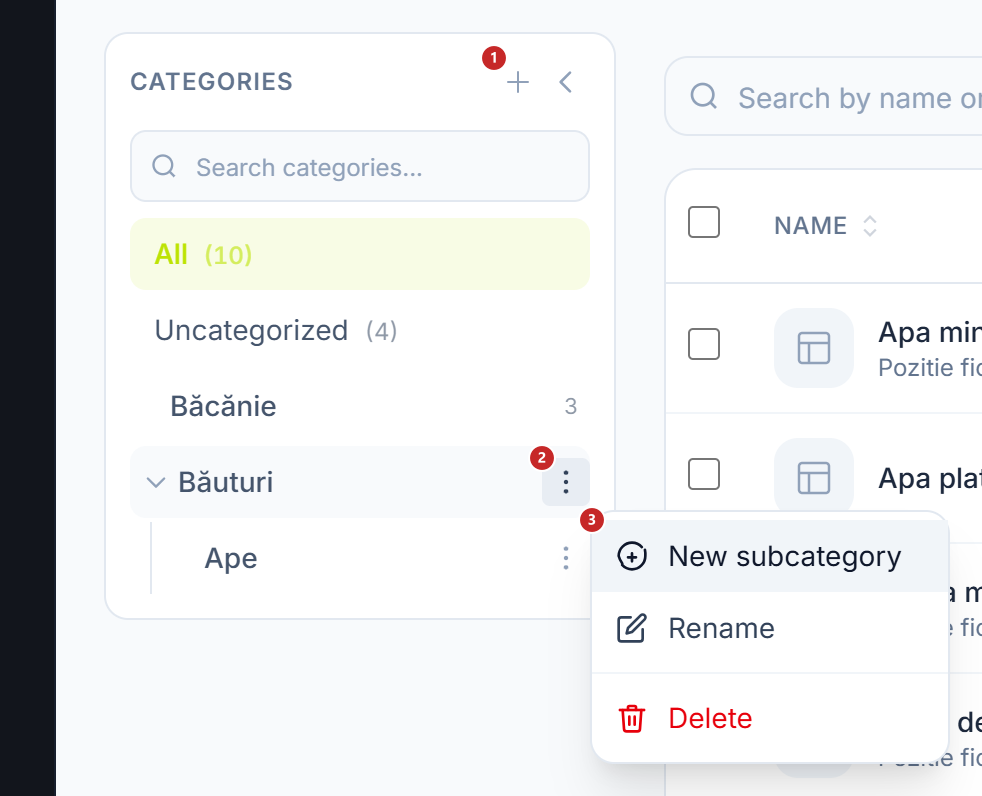
1 New Category · 2 the category's menu · 3 New subcategory
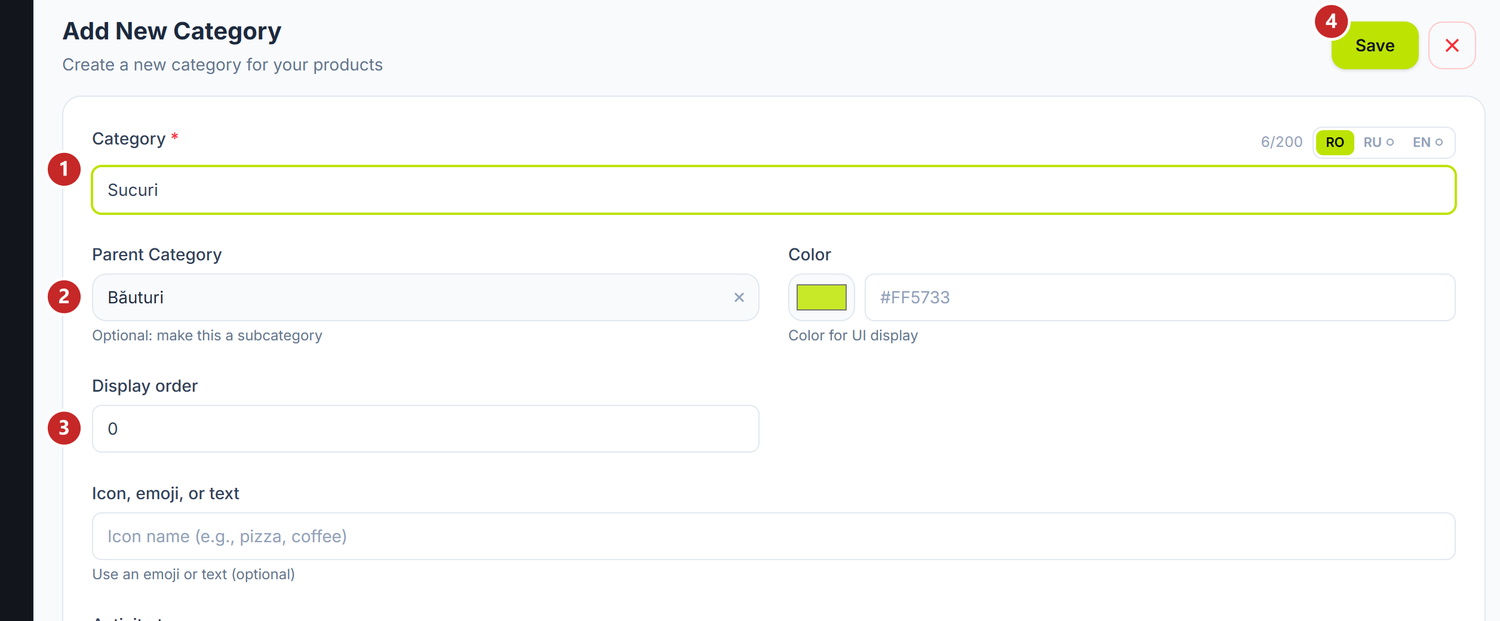
1 Category (the name) · 2 Parent Category · 3 Display order · 4 Save
New categories all start at 0 under Display order and sit in alphabetical order. To arrange them differently, number all of them in the order you want, from 1 up. A single category with 1, among others with 0, ends up last, not first.
If you have tills with different activity types, the form also has the Activity types field. The category's products that have no type of their own reach only the tills with the chosen type. Left empty, the category takes the type of its parent category. More about activity types in Product catalogue.
If you made the category at the root and wanted a subcategory, don't delete it: drag it with the mouse onto the right category and it becomes its subcategory. The panel asks you to confirm, because the move also rearranges the cashier's grid.
To add a product straight into a category:
- In the tree, press the category or subcategory you want the product in.
- Press Add Product, top right of the list. The card opens with Category already filled in.
- Fill in Product name, Price and VAT Rate. Without them the product isn't saved.
- Press Save.
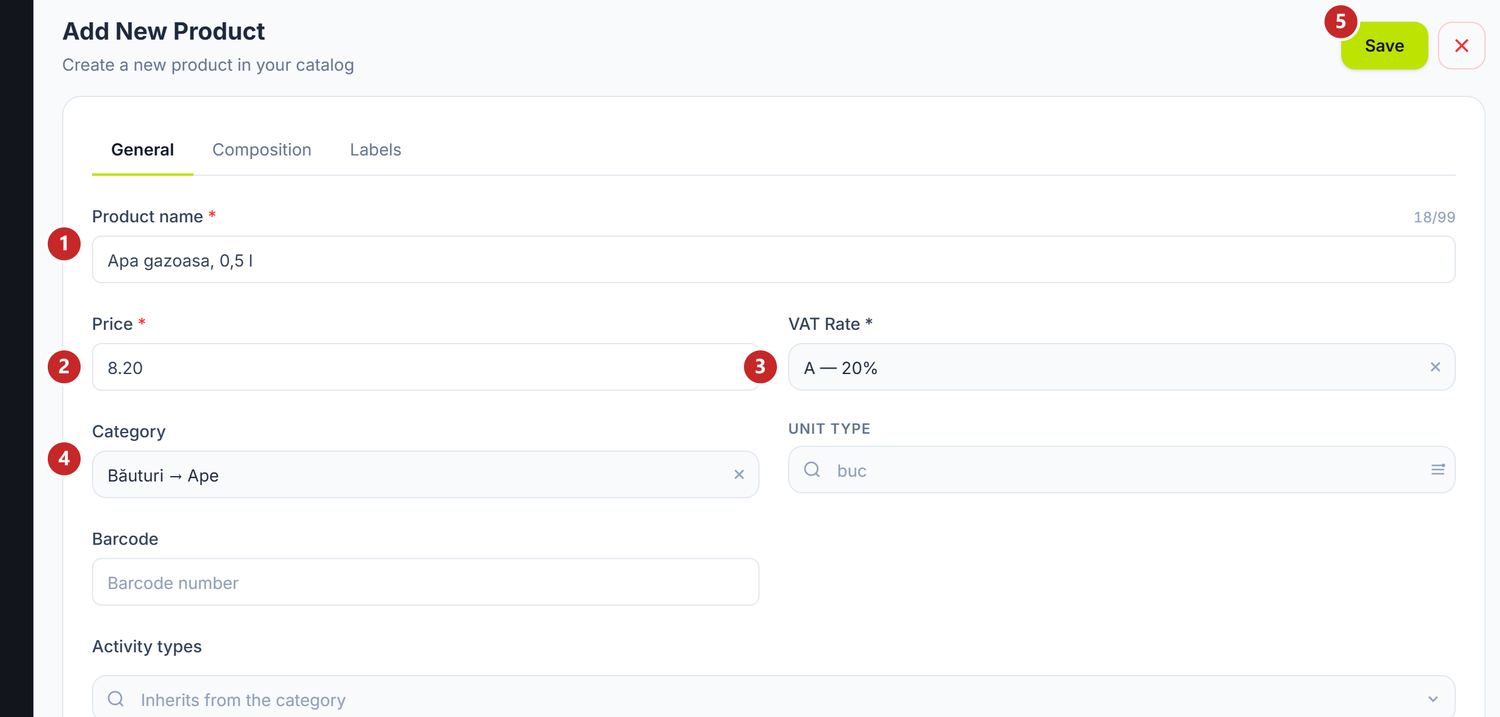
1 Product name · 2 Price · 3 VAT Rate · 4 Category, filled in from the tree · 5 Save
From All or Uncategorized, the card starts with no category and you choose it under Category. Subcategories appear there under the name of their category.
At the bottom of the card is the Also add to accounting nomenclator checkbox. If you keep stock in POSfix, leave it ticked: the product also gets the nomenclature item that stock needs.
To move an existing product to another category:
- Open the product with a double click in the list.
- Under Category, choose the new category.
- Press Save.
To check, press the category in the tree and the list keeps only its products. Include subcategories is on from the start and also shows the products in subcategories; turned off, only those placed directly in the category remain. Products not yet placed anywhere sit under Uncategorized.
The number next to each category counts its products and those of its subcategories, on the same tab as the list: Active, Inactive or All. To see the category on every row, tick Category and Subcategory under Columns.
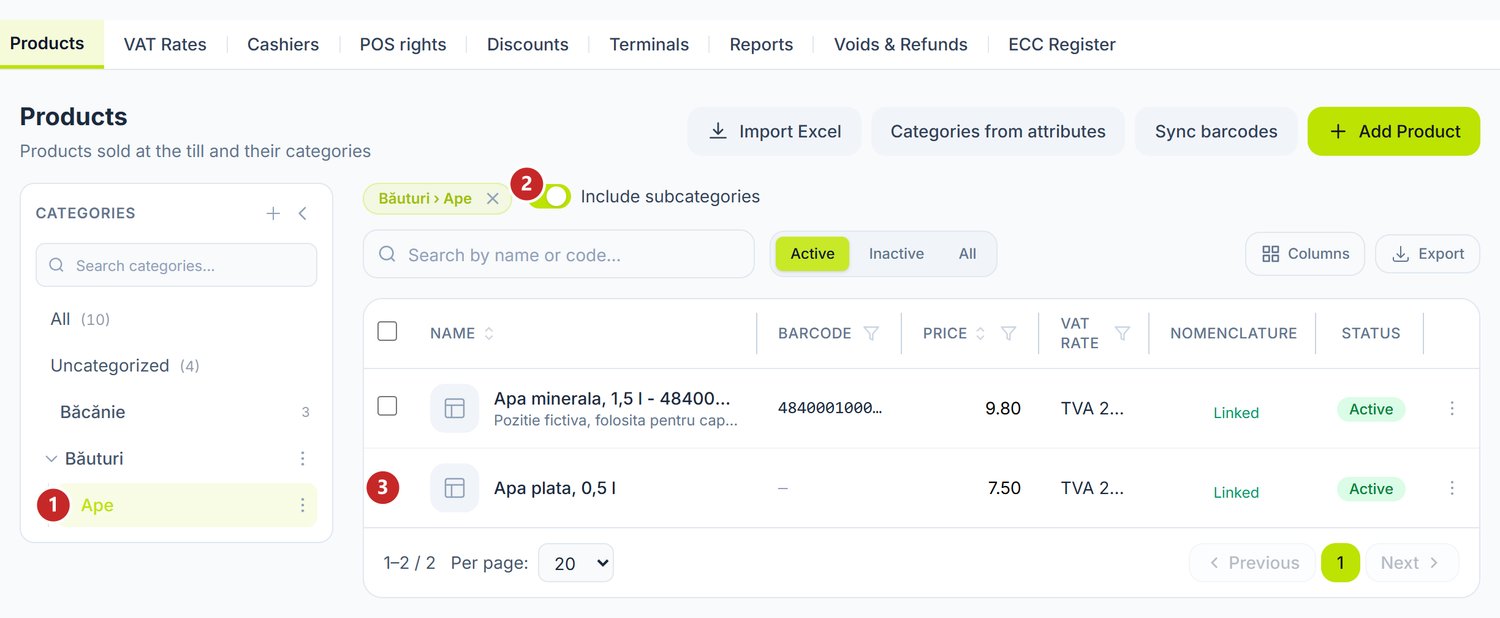
1 the chosen subcategory · 2 Include subcategories · 3 a product placed in the subcategory
To move several products at once:
- Tick the products you're moving in the list. A bar with the actions for the ticked ones appears above the table.
- Press Move to category.
- In the window, press the category or subcategory you're moving them into. The move happens right away, with no further confirm button.
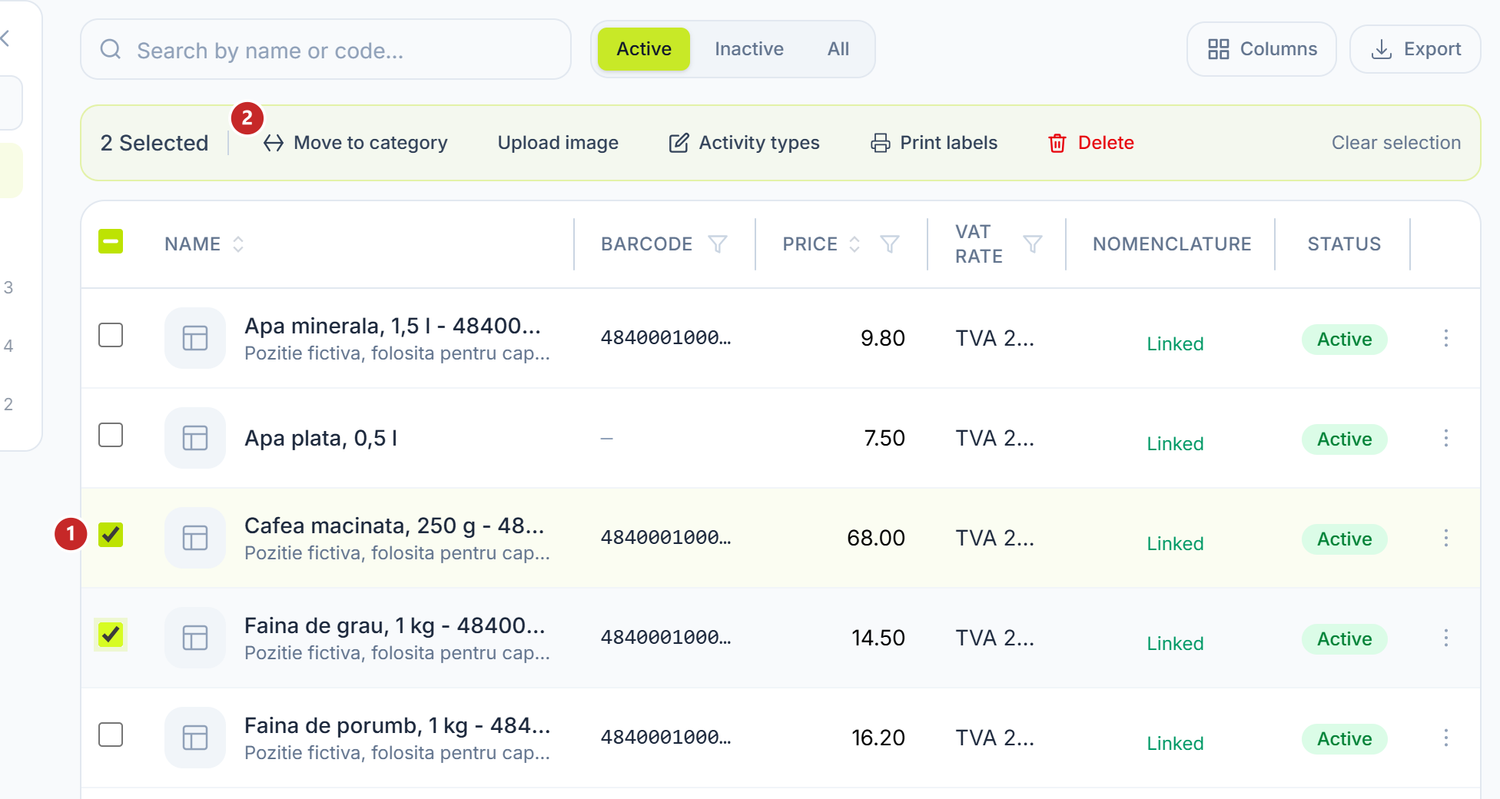
1 the ticked products · 2 Move to category
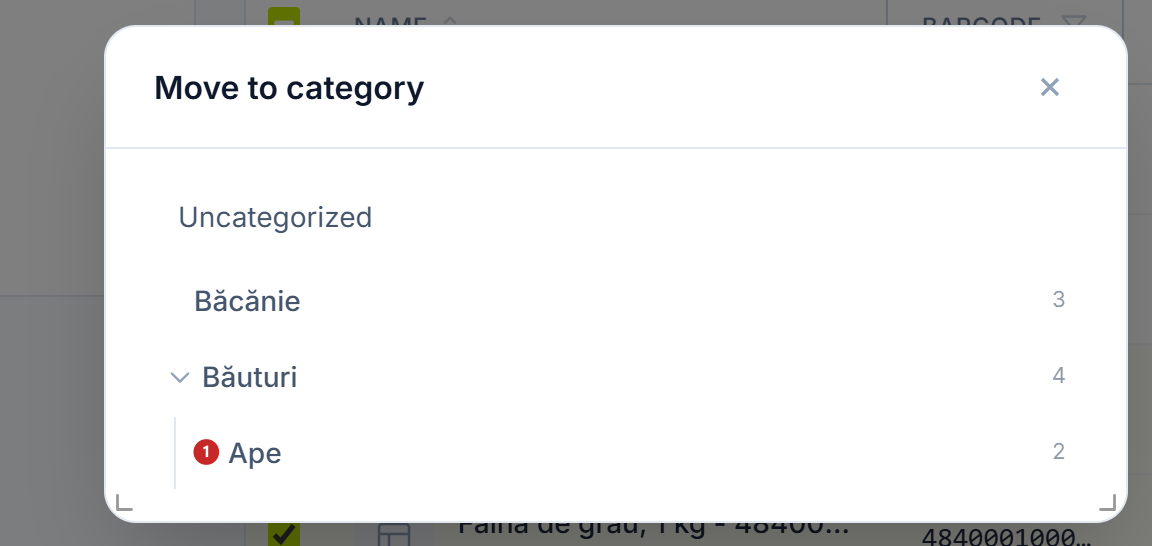
1 the category the products move into
Uncategorized, at the top of the window, takes the products out of their category. You'll also find the same action in the ⋮ menu of a single row.
If you're reorganising hundreds of products, you can also do the move in Excel: Import Excel → Export for editing, change the category in the file and upload it back. Missing categories are created on import. How to write the category in the file is in Product catalogue.
Related pages
- Catalog and VAT rates — the same categories and products, made straight from the Android till.
- Product catalogue — the accounting side of the product and its link with the till card.