Product catalogue
The catalogue is where you pick items from on every document — invoice, goods receipt, stock movement, inventory count. Everything you keep records for goes in here: goods, raw materials, consumables, finished products and services.
What it does not do: it does not hold the shelf price or the POS category. Those live on the POS card, which you create from the item's card.
Where to find it: Sidebar → Nomenclature → the Nomenclature tab
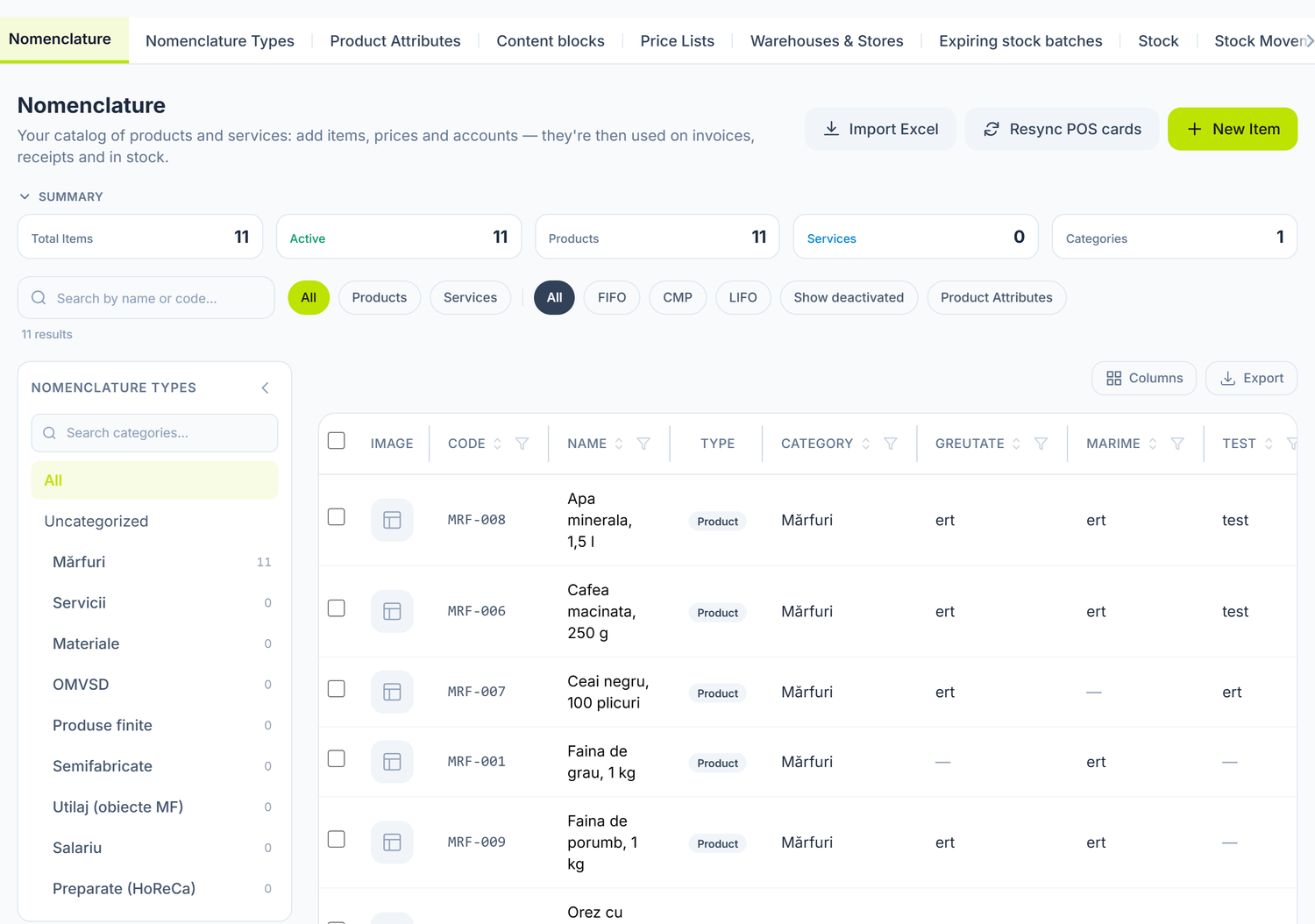
The Nomenclature Types tree sits on the left, the item list on the right. Clicking a type filters the list; All brings it back whole. Once you pick a type, the Include subcategories toggle appears — turned on, the list also shows items from the types beneath it.
Above the list are the filter pills. The first group cuts by the nature of the item — All, Products, Services. The second one by valuation method: All, FIFO, CMP, LIFO. Show deactivated brings back the ones taken out of use and tells you on the pill how many there are, so you don't click into nothing. If you have defined attributes, the Product Attributes pill opens a panel where you filter by their values.
Accounts sit on the category, not on the item
You don't configure accounts on each item. They sit on the catalogue category, and items inherit them. The category here is an accounting classifier, not the POS category: "Goods", "Services", "Materials" and so on. The category you sell by is set separately, on the POS card.
When your organization opens you get nine categories, already wired to the chart of accounts. For most companies there is nothing to change — you put the item on the right category and the rest happens by itself.
Three of them are worth a look before your first issue, though, because in the delivered set they carry accounts that don't match the way most companies use them:
- Services — if the cost account on your organization reads
713.1instead of711.3, fix it. Otherwise the cost of services falls outside cost of sales and gross profit looks larger than it is. - Semi-finished goods — they come configured as something you consume, not something you sell. If you sell them regularly, switch their accounts to the finished-goods ones; otherwise the sale does not land in sales revenue.
- Equipment (fixed-asset items) — this is not stock. Its disposal is recorded from Accounting → Assets, not as a sale of goods. And the category's accounts are the intangible-asset ones, even though equipment is a tangible asset — check them.
Category accounts are changed in one single place, in Nomenclature → Nomenclature Types, and from then on they apply to every item in it.
The item's fields
The card opens as a document tab and is split into tabs: General, Composition, Product Attributes, Labels, Web content, Warehouses & Stores, Price History.
The General tab
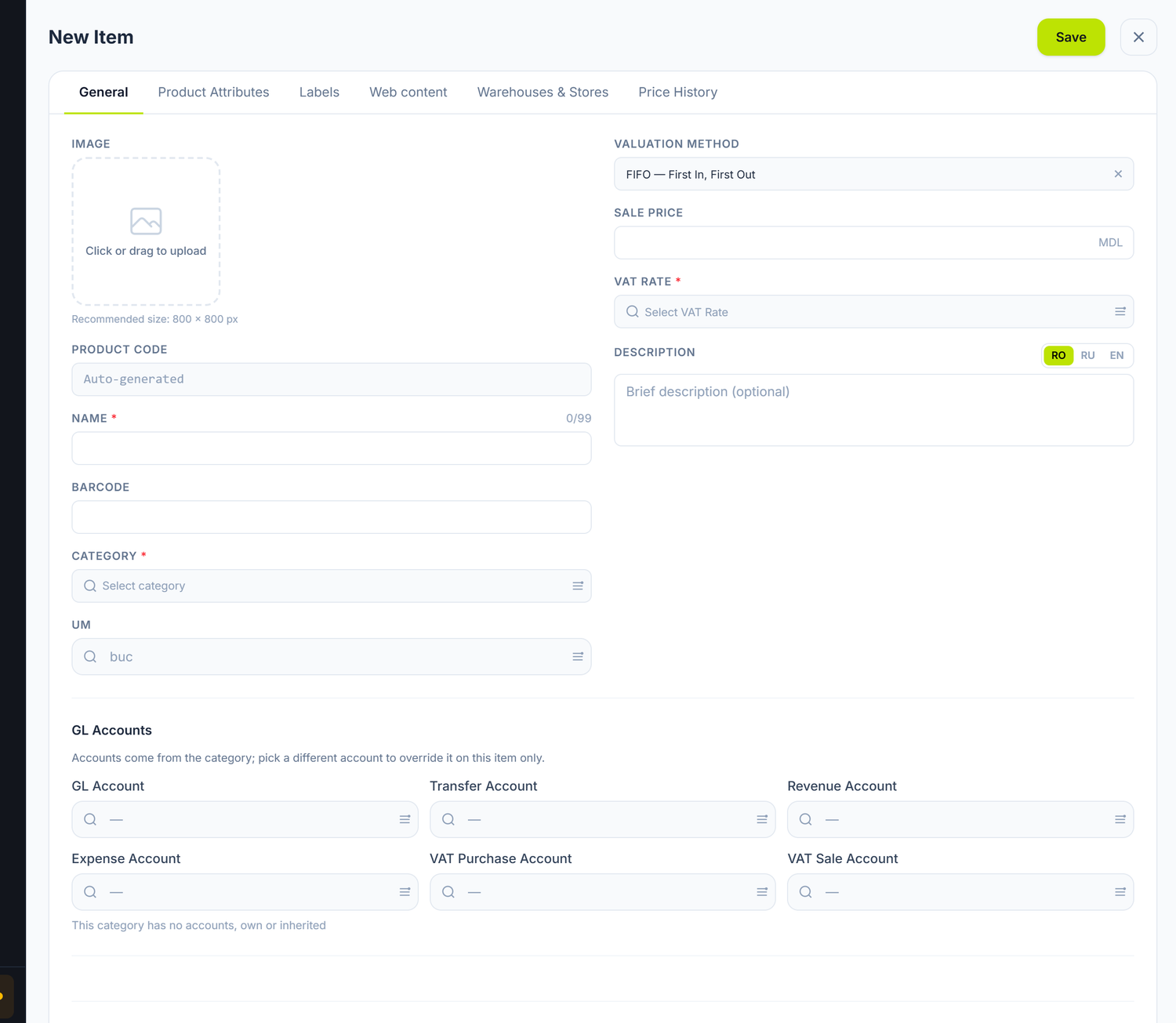
The card opens empty, with Product Code on "Generated automatically" — you don't fill it in. The fields with a red asterisk are the ones it won't save without: the name, the category and the VAT rate. Valuation Method comes in on FIFO. On a service category the field disappears entirely — a service has no stock to value. At the bottom, below the divider, sit the two decisions that change how the quantity is kept (Stock tracking) and how you buy versus how you sell (Packaging units) — both explained below.
| Field | Description | Required |
|---|---|---|
| Image | The item's photo, synced to the till card | No |
| Product Code | Generated automatically on save (10 digits) and cannot be changed afterwards. On an Excel import the code from the file is kept | — |
| Name | The item's name (99 characters at most) | Yes |
| Barcode | EAN-13/EAN-8/UPC barcode for scanning | No |
| Category | The catalogue category, the one that brings the accounts | Yes |
| UM | Unit of measure, from the platform's unit register | No |
| Valuation Method | FIFO, CMP or LIFO — shown only on goods, not on services | No |
| Sale Price | The default catalogue price, in MDL | No |
| VAT Rate | From the rates configured for the merchant | Yes |
| Description | Free text, separate for RO / RU / EN | No |
| Stock tracking | Simple or Measured lots | Yes (Simple by default) |
| Packaging units | Packages with a fixed factor ("1 box = 200 pcs") | No |
| Min Stock Qty / Max Stock Qty | The alert thresholds | No |
| Display order | The position in selection lists. Empty = no preference | No |
| Perishable product (with shelf life) | Turns on expiry tracking per lot | No |
| Shelf life | Days — the lot expires on the receipt date plus this term | No |
The code is allocated automatically by the platform, is unique within the organization and stays unchanged for the item's whole life. The search box in the list takes both the code and the name, so you have no reason to "rewrite it nicely".
The other tabs
- Composition — the informative ingredient label (free text with percentages and allergen marks). It is purely descriptive; it does not stand in for a recipe.
- Product Attributes — the values of the attributes you defined (colour, size, sales category). This is usually where the shop's sales categories end up.
- Labels — the printable sticker text and the print dialog. The tab appears only if label printing is enabled for the organization.
- Web content — multilingual HTML blocks exposed to your website through the public API.
- Warehouses & Stores — the item's current stock in each warehouse: quantity, available quantity, value, average cost, plus the lots with their expiry dates.
- Price History — the purchase history, the sale prices and the make-up of the cost.
Stock valuation methods
You have four valuation methods to choose from on issue: specific identification, FIFO, weighted average cost and LIFO. The choice belongs to your accounting policy and is set on the item's card.
The Valuation Method field offers three values: FIFO, CMP and LIFO.
- FIFO and CMP (weighted average cost) have their own calculator in the platform. Declare them as such in your accounting policy.
- LIFO appears in the field, but the platform does not compute it. An item marked LIFO is issued at weighted average cost, with no warning on screen. You declare one method, the books keep another. For new records choose FIFO or CMP; move the items already on LIFO onto one of the two.
- Specific identification has no value of its own in the field. You get it by tracking lots: choose FIFO and turn on Stock tracking → Measured lots, so each lot carries its own cost.
If you leave the method empty, the issue cost is resolved in this order: the method the document explicitly asks for → the item's method → the warehouse's default method → FIFO. In other words, an item without a method blocks nothing: it is issued on FIFO. Fill it in anyway, so your accounting policy is explicit and not inferred from a fallback value.
FIFO — First In, First Out
The issue cost is computed from the oldest lots in stock. The first items in are the first out.
Example: the "Tehno Plus" SRL shop in Bălți bought laptops:
- Lot 1: 10 pcs × 12,000 lei (January)
- Lot 2: 5 pcs × 13,500 lei (March)
Selling 12 laptops, the FIFO cost is: 10 × 12,000 + 2 × 13,500 = 147,000 lei.
When to choose FIFO:
- Purchase prices vary significantly between lots
- You want a valuation closer to the current value of stock
- You have items with a shelf life (food, pharmaceuticals)
CMP — Weighted Average Cost
The issue cost is computed as the weighted arithmetic average of the receipts held in stock. On every new receipt the average cost is recalculated.
Formula:
WAC = (Value of existing stock + Value of new receipt) / (Existing quantity + Receipt quantity)
Example: the same laptops at "Tehno Plus":
- Opening stock: 10 pcs × 12,000 = 120,000 lei
- Receipt: 5 pcs × 13,500 = 67,500 lei
- WAC = (120,000 + 67,500) / (10 + 5) = 12,500 lei/pc.
- Sale of 12 pcs: 12 × 12,500 = 150,000 lei
When to choose CMP:
- Purchase prices are relatively stable
- You want simpler records — one single cost per item
- You have fungible items (building materials, consumables)
LIFO — why you don't use it here
LIFO starts the issue cost from the latest receipts.
The platform, however, does not compute it. The value is saved on the card, but there is no LIFO calculator: issues are valued at weighted average cost. The screen gives you no warning, and the difference only surfaces in the cost of sales.
Example. You have two lots: 10 pcs × 12,000 lei and 5 pcs × 13,500 lei. With true LIFO the first 5 pieces sold would cost 5 × 13,500 = 67,500 lei. The platform values them at the average cost of 12,500 lei, that is 62,500 lei — 5,000 lei less.
For new records choose FIFO or CMP. If you have items on LIFO, move them onto one of the two and align your accounting policy with the method the platform actually applies.
The method determines the issue cost. Once the item has movements, changing it produces cost differences.
The method is changed from the item's card, but the effect is not retroactive: it applies from the date of the change onwards, and documents already posted keep the cost computed under the old method.
Stock tracking: Simple or Measured lots
On goods items you choose how the quantity is kept:
- Simple — one single quantity in the base unit. This is the usual behaviour and the default.
- Measured lots — each lot carries its own size and its own cost (carpet rolls with different m², bolts, bales). Here you fill in the package label ("roll", "bolt", "box") and, optionally, the standard size of one package, used only for quick entry.
The two do not mix: packaging units with a fixed factor ("1 set = 10 pcs") appear only on Simple tracking — on measured lots a fixed factor would lie, because the size differs from lot to lot.
On each packaging line you pick a Unit and write how much it Holds in the base unit. The Default on receipts checkbox on the line says which package is proposed by itself when you record a receipt — put it on the one you actually buy in. With no checkbox at all, the receipt starts in the base unit.
Display order is a different thing from packages, but also on the card: items with an order come first, in the order given, and the rest stay alphabetical. It works everywhere — in the catalogue, in the product selector and on the till cards. Left empty, it changes nothing.
The link with the till card
A catalogue item does not reach the till on its own. You have three ways, all from the item's card:
- On creation, tick Create POS product — the card is born together with the item.
- On an existing item without a card, press Generate POS product.
- If the product already exists at the till, link it with Link to existing POS product.
Once a link exists, the card shows the linked-card badge, the shelf price and, if that differs from the catalogue price, a warning pointing to the price list. The link can be broken at any time.
Stock thresholds and alerts
The Min Stock Qty and Max Stock Qty thresholds are filled in on the item's card and read in two places:
- In Nomenclature → Stock → Stock Balances, the quantity is coloured: bright red on a negative balance, red below the minimum, amber above the maximum.
- A daily low-stock digest is sent to the organizations that turned the alert on.
The alert works only for items with Min Stock Qty greater than zero. With no threshold (empty or 0) nothing is flagged — not even a negative balance. The thresholds generate no documents automatically; they are strictly a signal.
How the item's setup affects the rest of the system
| What you configure | Where it shows up |
|---|---|
| The category (and its accounts) | Picked up automatically on goods receipts, stock movements, inventory counts, sales documents |
| The FIFO / CMP method | Determines the issue cost on every outbound document |
| The VAT rate | Picked up on the lines of sales and purchase documents |
| The sale price | The fallback value when no price list gives a price |
| Min / max stock | Colours the balances and feeds the daily digest |
| Perishable product | Brings the item into Nomenclature → Expiring stock batches |
Importing from Excel
The Import Excel button in the catalogue list loads items in bulk.

The numbers in the picture are the first three steps below. Export for editing is worth knowing from the start: it takes the current catalogue out in the same format, so the same window also serves for bulk corrections, not just for new items.
To import items:
- Import Excel → Blank template, or Export for editing if you want to start from what you already have.
- Pick the Import mode (what it means, below). Fill the file in and upload it at Excel file (.xlsx).
- Continue — the preview opens, with the count of New, To update and Unchanged items, and with the errors.
- Resolve the category conflicts, if any come up.
- Import N valid rows.
Import mode
The selector decides whether the import stops at the catalogue or also creates cards at the till.
| The choice | What gets created |
|---|---|
| Nomenclature only | Only the catalogue items. Nothing at the till |
| Nomenclature + terminal POS card | The items, plus one sales card for each |
Choose the second option only if you really sell everything you import from the till. Cards created in excess are deleted one by one.
Category conflicts
If the file brings category codes that don't exist yet, the preview lists them under Category conflicts, each with a new pill. For each one you choose:
- Create new — and you write the category name;
- Leave empty — the items come in without that category.
Codes that already exist carry the exists pill and ask nothing of you. Import Excel is also where you export the current catalogue from.
.xlsx onlyThe import accepts Excel .xlsx files exclusively. CSV files are not accepted — convert them to Excel first.
The link with other documents
- Goods receipts — receiving goods from suppliers
- Supplier invoices — the purchase with an invoice; the cost updates the stock
- Sales documents — the sale relieves the stock using the valuation method
- Stock movements — transfer, write-off, surplus, opening stock
- Inventory counts — checking the physical stock against the book stock
- Price lists — the sale prices per item
- The journal register — the journal entries generated when documents are posted
Frequently asked questions
What is the difference between the catalogue and the till products?
The catalogue keeps the accounting records — category, accounts, valuation method, cost. The till card keeps the sale — shelf price, category, image. The two are linked explicitly from the item's card; without a link, they live separately.
Where do I set an item's stock account?
On the item's category, not on the item. Open Nomenclature → Nomenclature, the category tree to the left of the list, and edit the category. The item's card shows you the accounts applied, but cannot change them.
Can I change the valuation method after I have stock movements?
Technically yes, the field can be changed at any time. Documents already posted, however, keep the cost computed under the old method — the change works forwards only.
What happens if the item has no valuation method?
Nothing is blocked. The issue cost is resolved from the warehouse's default method, and if there is nothing there either, from FIFO.
Can I import items from Excel?
Yes, through the Import Excel button in the catalogue list, in .xlsx format exclusively. Download the template first, so the column names match.
How do I set up a service (with no physical stock)?
Choose a category marked as a service (Services, for instance). On such items the valuation method, the stock thresholds and the warehouses tab disappear from the form — a service holds no stock and is invoiced to the revenue account 611.3.
What do I do if I have the same product from different suppliers?
You create one single item. The price difference is handled through the valuation method: FIFO keeps records by lot, CMP recalculates the average on every receipt. Don't duplicate the item for each supplier.
Can I use FIFO for some items and CMP for others?
Yes. The method is chosen per item, not per organization. Make sure your accounting policy states the criterion for choosing.
What do the min and max stock alerts mean?
They are visual signals in Nomenclature → Stock → Stock Balances, plus a daily digest by email. They work only if Min Stock Qty is greater than zero. They generate no documents automatically.
How do I check an item's current stock?
Open the item's card, the Warehouses & Stores tab — you see the quantity, the available quantity, the value and the average cost in each warehouse, plus the lots with their expiry dates. The panel at the top of the card also gives you the total, the average cost, the sale price and the nearest expiry date.
Can I deactivate an item without deleting it?
Yes — Deactivate from the list's context menu. A deactivated item drops out of the selection lists of new documents, but the history stays intact. The Show deactivated toggle brings it back into the list when you need it.
Can I move several items into another category at once?
Yes. Select the items in the list and use Move to category from the context menu. Assign attributes, Upload image (the same photo on every selected item) and Print labels start from there too.
Under Assign attributes you pick an Apply mode: Fill only where empty leaves the values already written untouched, while Overwrite existing replaces them all. The second option cannot be undone — check the selection before Apply.
What do I do if I got the name wrong?
The name can be edited from the card at any time. The code cannot — it is allocated automatically on creation and stays unchanged.
Related pages
- Warehouses — the storage locations for items
- Stock movements — transfer, write-off, surplus, opening stock
- Physical inventory count — checking the real stock
- Price lists — the sale prices per item
- Chart of accounts — the analytical stock accounts (
217)