Sales documents
The sales invoice is the accounting document of the sale: it recognises the revenue, creates the receivable and, for goods, releases them from stock. You use it every time you deliver goods or render services with a fiscal invoice.
Where to find it: Sidebar → Sales → the Sales Invoices tab
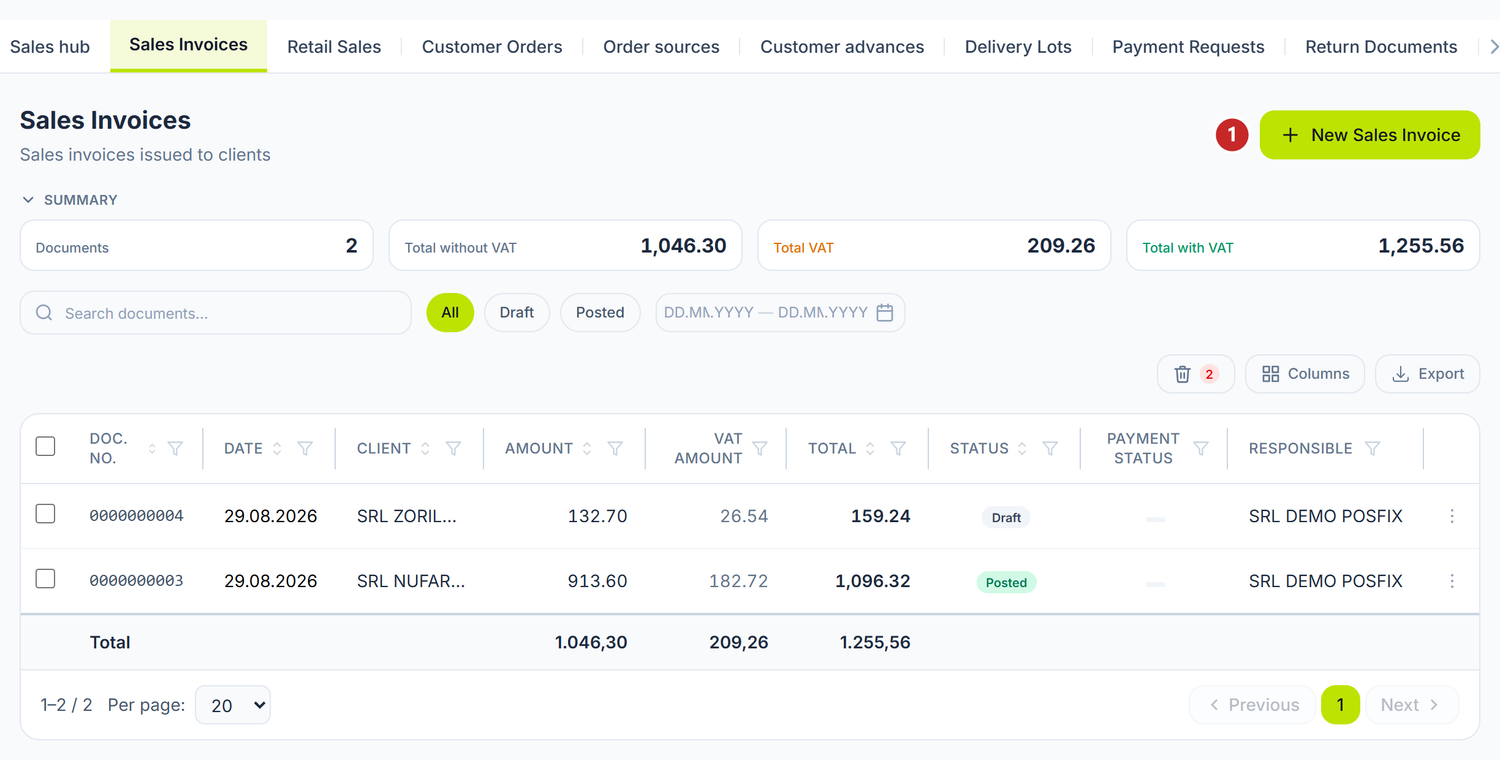
1 new sales invoice
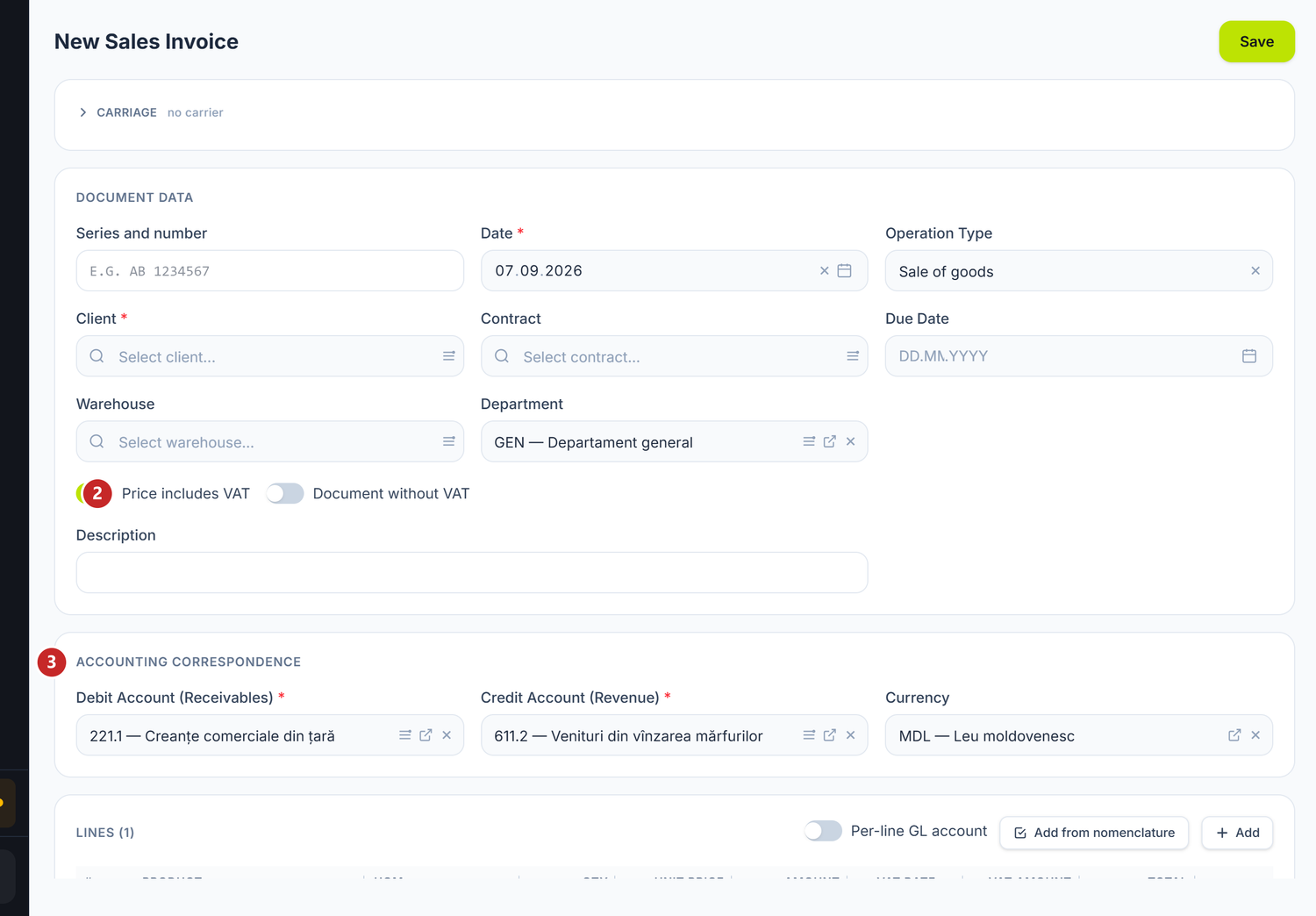
1 the customer · 2 how the typed price is read · 3 the proposed accounts
As with purchases, the Operation Type is the first field to pick: it decides which accounts are proposed and which sections open below. The two switches under it change the way amounts are read: Price includes VAT says the price you typed already contains the tax, and Document without VAT takes the tax out of the whole document.
The figures in the Summary are computed on the filtered set, and the Status column tells you what is still a Draft. The bin on the right holds the deleted documents.
When you need it
- You delivered goods to a customer and you issue a fiscal invoice.
- You rendered services: consulting, transport, repairs.
- You want to issue an e-invoice — the sales invoice is where it starts.
- You collected an advance and now you deliver.
What you do here
- Open Sales → the Sales Invoices tab and press New Sales Invoice.
- Fill in the Date — the date you recognise the revenue on.
- Pick the Operation Type. It decides the default accounts and whether stock moves.
- Pick the Client. Then, if you want separate turnover per agreement, pick the Contract. The selector only shows the chosen customer's contracts; the contract is never filled in for you.
- Fill in Series and number if you use fiscal invoice series.
- Fill in the Due Date — the payment deadline.
- Pick the Warehouse the goods leave from and, where it applies, the Department.
- Check the accounts in Debit Account (Receivables) and Credit Account (Revenue).
- Add the lines: product, quantity, price, VAT rate. With Add from nomenclature you bring in several items at once.
- Check the totals: subtotal, VAT, total.
- Press Save, then Post.
If your organization is not a VAT payer but you left a rate on some line, a yellow warning appears above the lines, naming those lines. It doesn't stop you saving, but posting will be refused — so fix the rates now, not at the end.
Right-clicking a row in the list gives you Copy, Post on drafts, Unpost on posted ones, Pin to Dashboard and Delete. It works on several selected rows too. In the bin view, the menu holds only Restore.
On lines with goods, the Leaves stock column shows you the real quantity leaving the warehouse, after the package conversion. The Cost and Margin columns show you the cost of the sale and the margin, before posting.
The form's fields
| Field | What it means | Required |
|---|---|---|
| Date | The date of the journal entry and of the revenue recognition | Yes |
| Operation Type | Sets the default accounts and whether stock is released | Yes |
| Client | The debtor partner. The receivable is tied to them | Yes |
| Contract | Analytics on the journal entry. It picks up neither currency, nor accounts, nor due date | No |
| Series and number | The series and number of the fiscal invoice, different from the internal number | No |
| Due Date | The payment deadline, used for tracking receivables | No |
| Warehouse | Which warehouse the goods leave | No |
| Department | Splits the sale across departments | No |
| Debit Account (Receivables) | The receivable account | Yes |
| Credit Account (Revenue) | The default revenue account for the lines | Yes |
| Currency | The invoice currency. For foreign currency the rate appears too | No |
The operation type
Operation Type is the field that changes the most in the document. The pair of accounts proposed in the header hangs on it, so does the account the goods leave from, and whether stock is released at all. You choose between Sale of goods, Sale of own products, Service rendering, Retail sale and Export of goods.
What you see change on screen: Debit Account (Receivables) and Credit Account (Revenue) refill themselves when you change the type. With Service rendering nothing is released from stock any more, and Retail sale takes the collection to the cash desk, not to the customer's receivable. Export of goods marks itself as a zero-rated supply — you have nothing extra to tick.
The proposed accounts are only a proposal: you can change them in the header, and with the Per-line GL account switch on each row as well.
What happens on posting
Posting records the revenue and the receivable from the customer, collects the VAT and takes the goods out of the warehouse at their cost. You see the entry from the Show Accounting Entries button.
The document lifecycle
The invoice goes through Draft → Posted → Deleted.
| State | What you can do |
|---|---|
| Draft | Edit anything. It touches neither balances nor stock. You can Delete the document. |
| Posted | Revenue is recognised, stock released, the form locked. You open the entry with the J button. |
To correct a posted invoice, press Unpost from the ⋯ menu. The entry is deleted, stock returns, and the document goes back to Draft.
What to do when…
| Situation | Action |
|---|---|
| You got the price or the quantity wrong | Unpost → correct it → Post |
| The customer returns the goods | You create a return document, you don't unpost the invoice |
| You need to issue the e-invoice | Press Generate e-Invoice on the posted invoice |
| The customer asks for a payment request before delivery | You create a payment request |
What you can do on a posted invoice
| Button | What it does |
|---|---|
| Opens the invoice in printable form, with a choice between portrait and landscape | |
| Create Return | Opens a return document started from this sale |
| Generate e-Invoice | Creates the e-invoice from this invoice's data |
| View E-Factura | Appears in place of the generate button, once the e-invoice exists |
| Unlink e-Factura | Breaks the link with the e-invoice, without deleting it |
When a linked e-invoice exists, the header also shows the fiscal invoice number received from SFS.
Special cases
A sale in foreign currency
You pick the currency and the BNM rate of the document date fills itself in. The lines carry both the price in currency and the equivalent in lei.
Next to the exchange rate sits the Settled in MDL (conventional unit) switch. You turn it on when the invoice is issued in foreign currency but the customer pays in lei. Then the receivable goes to the conventional-unit account, and the differences up to collection are amount differences, not exchange-rate ones. Left off, you expect the money in the invoice currency itself.
A sale with an advance collected earlier
You no longer need a separate settlement document. When the customer has an open advance, the invoice settles it itself on posting — you tick nothing and pick nothing for it.
The accounts come proposed from the operation type chosen in the header. You can change them on the document or on a particular row, but usually you have no reason to.
Example. SRL „Alfa Design" paid 12.000 lei in advance. Your invoice is for 70.200 lei. On posting, the receivable of 70.200 lei is settled with 12.000 lei from the advance. 58.200 lei are left to collect.
For advances in foreign currency, the exchange-rate difference between collection and delivery enters the entry on a separate line, also automatically.
Selling products kept in rolls or bales
On lines with products kept in measured lots, the Allocation column appears, with a button that opens Allocation mode. You have two options, and the choice changes what leaves stock and at what cost:
| Option | What happens |
|---|---|
| By area (m²) | You write only the quantity, and the packages are consumed in order of entry |
| Whole package | You pick the particular roll from the list and its remaining measure is invoiced |
The package list shows you, for each one, how much is left and at what unit cost. If nothing shows, the product has no packages in stock in the chosen warehouse.
After posting, the Consumed packages panel appears at the bottom of the document: which roll left on each line, with the quantity, the average cost and the value. That is where you check what actually left the warehouse.
Lines with different revenue accounts
One invoice can combine goods and services, and then a single revenue account in the header is not enough.
You turn on the Per-line GL account switch, above the lines, next to Add from nomenclature. Only then does the GL Account column appear and you can put a different account on each row — without the switch the column doesn't exist and you look for it in vain. The header account stays the proposal; the one on the row overrides it. Each row generates its own line in the entry, so revenues stay classified correctly.
Retail sale
The Retail sale type proposes the collection on the cash desk, not on the customer's receivable, and takes the goods out of shop stock, not out of the wholesale warehouse.
The proposed stock account is a synthetic one. If you keep analytics, change it in Debit Account or on the row, otherwise the turnover falls on the synthetic account and the analytical ledger stays empty.
Common mistakes
- You pick the wrong operation type. It decides the proposed accounts and which stock the goods leave. Check it before Post.
- You sell with no stock. If the product has no stock in the chosen warehouse, the cost comes out zero and the margin is unrealistic.
- You confuse the sales invoice with the payment request. The invoice does the accounting; the payment request only tracks the payment.
- You apply 20% to products at a reduced rate. Check the rate on every line.
- You forget the warehouse. With no warehouse chosen, the goods don't leave the right stock.
- You leave the synthetic account on a retail sale. Pick the analytical account you keep.
Troubleshooting
| Problem | Cause | Fix |
|---|---|---|
| The stock release doesn't appear | The lines have no products linked to the catalog, or the type is Service rendering | Link the lines to catalog products and check the operation type. |
| The Cost column shows 0 | There is no stock in the chosen warehouse | Check the product's balance. Post the reception first. |
| I can't post, fields are red | Required fields are missing, or lines have zero values | The offending field is marked red. Fill it in and try again. |
| The Generate e-Invoice button doesn't appear | The invoice is a draft, or it already has an e-invoice linked | Post it. If it has an e-invoice, you see the View E-Factura button. |
| The customer's advance wasn't settled | The advance isn't recorded on 523.1, or the balance is zero | Check the 523.1 ledger for that customer. |
| I posted it wrong | The document is locked | The ⋯ menu → Unpost → correct it → post again. |
Frequently asked questions
Is stock released automatically?
Yes. Lines with products linked to the catalog generate the cost line and reduce stock, on posting. You need no separate document.
At what price do the goods leave stock?
At the cost in the product's stock records, for the chosen warehouse. You see it in the Cost column before posting.
What is the difference between the sales invoice and the payment request?
The sales invoice is the accounting document: it recognises the revenue and releases stock. The payment request is the payment-tracking document and generates no journal entry.
How do I handle a discount granted after issuing?
You unpost and correct the prices, if the invoice hasn't gone to the customer. If it has, you issue a new document with negative values for the difference.
How do I record an advance from a customer?
The advance is collected through a bank operation or at the cash desk, on the advances-received account. The sales invoice settles it itself on posting.
The panel does not generate the VAT entry on the advance. You record it by hand in the month of collection — see payment requests.
Does the invoice affect stock?
Yes, on lines with catalog products. Services don't touch stock.
How do I cancel a posted invoice?
The ⋯ menu → Unpost. The entry is deleted, stock returns, and the document becomes a draft again. If the goods really did come back from the customer, use a return document instead.
Can I issue the invoice with no customer?
No. The receivable must be tied to a debtor, otherwise you cannot track collection and you cannot reconcile.
What happens to VAT on a sale in foreign currency?
It is computed in the document's currency and converted to lei at the document's rate. In the VAT return it appears in lei only.
Related pages
- Payment requests — the payment-tracking document, with no accounting effect
- Partners — the customer register
- Contracts — the analytics you pick by hand on the invoice
- Returns — goods returned by the customer
- e-Factura — the electronic invoice generated from the sale
- Bank operations — collecting the receivable