Return documents
A return document reverses a sale or a purchase in the books, in whole or in part. You use it when goods travel back: the customer brings the product to you, or you send it back to the supplier.
Where to find it: Sidebar → Sales → the Return Documents tab
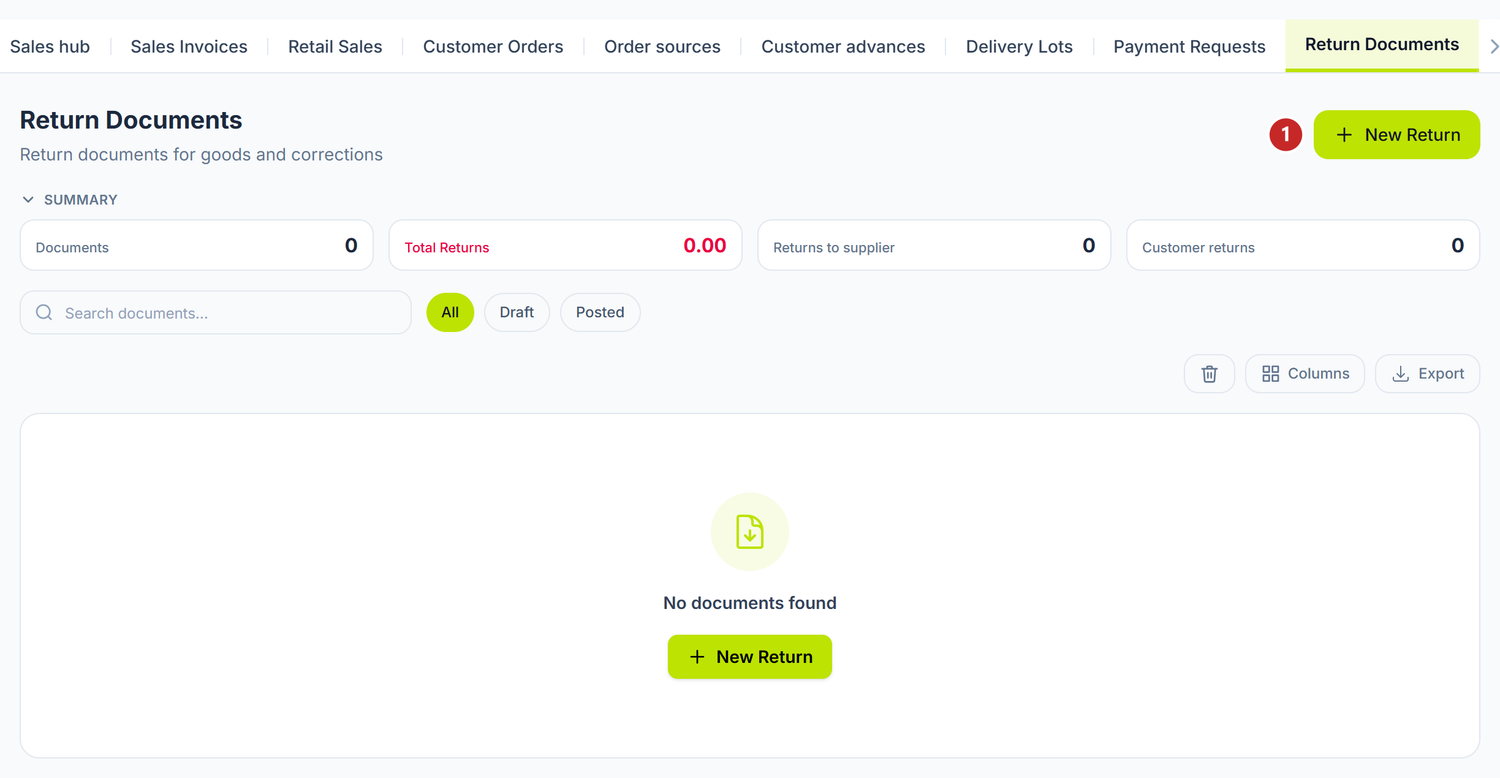
1 new return
The Summary panel at the top of the list has four figures: Documents, Total Returns, Returns to supplier and Customer returns. The last two run in opposite directions — the goods leave, or the goods come back — so you track them separately.
The same register is also available from Purchases → the Return Documents tab. It is the same list; the Return type filter decides what you see.
When you need it
- The supplier sent you faulty or wrong goods.
- You received more than you ordered.
- The customer returns the product to you.
- You delivered the customer something other than what they ordered.
What you do here
- Open Sales → the Return Documents tab and press New Return.
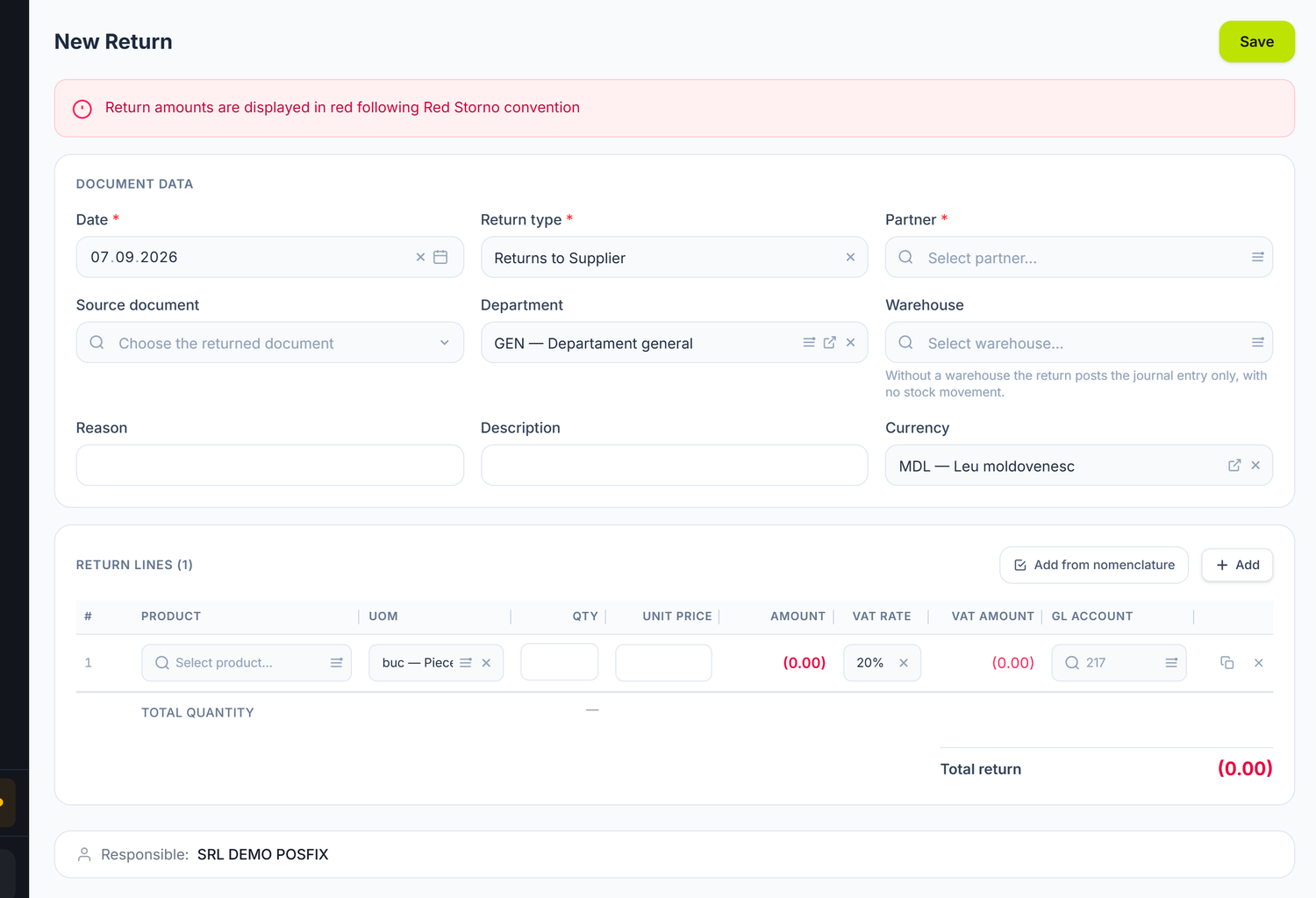
- Fill in the Date.
- Pick the Return type from the drop-down: Returns to Supplier, when the goods go back to the supplier, or Returns from Client, when they come back from the customer. After posting, the field becomes locked text — the type can no longer be changed.
- Pick the Partner.
- Pick the Department if it applies, and fill in the Reason — free text, for instance "Faulty goods".
- Pick the Currency. For a foreign currency you also fill in the rate, and next to it the Settled in MDL (conventional unit) switch appears: you turn it on when settlement happens in lei, not in the document's currency.
- Add the lines: product, quantity, price, VAT rate and, if needed, the GL Account on the row. With Add from nomenclature you bring in several items at once.
- Press Save, then Post.
The return neither deletes nor modifies the original document: it writes a new entry, with the same accounts and negative amounts. The amounts show in red, in brackets, on the form as well.
The form's fields
| Field | What it means | Required |
|---|---|---|
| Date | The date of the storno entry | Yes |
| Return type | Decides the default accounts and the direction of the operation | Yes |
| Partner | The supplier or the customer from the original document | Yes |
| Department | Splits the operation across departments | No |
| Reason | The explanation for the return. It shows in the list and at an audit | No |
| Description | Extra notes | No |
| Currency and the rate | The return's currency. The rate appears only for a foreign currency | No |
The rows carry Product, UoM, Qty, Unit price, Amount, VAT Rate, VAT Amount and GL Account. When some product has packages declared, Moves stock appears too, with the quantity converted into the base unit.
Where the account on the row comes from
The contra account is taken from the original document only when you start the return from there, with Create Return on the sale or on the invoice. That way the storno lands exactly on the accounts the original landed on.
On a return built from scratch the panel has no way of knowing what was sold, so it puts the type's default accounts in. That is why, on an ad-hoc return, you should always check the GL Account column and put the account from the original document there. Otherwise the storno lands on a different account than the sale, and both balances stay inflated.
If the organization is not a VAT payer, the return stornos the gross value on a single line, with no separate VAT line — the tax had never been deducted, it had entered the cost of the item.
A worked example
SRL „Pan Mold" bought 500 kg of flour at 14 lei/kg from SRL „Agro Verde" on 10 March. On 15 March it finds that 80 kg have spoiled.
The return document:
- Return type: Returns to Supplier
- Partner: SRL „Agro Verde"
- Reason: "Spoiled flour — excess moisture"
| Product | Quantity | Price | Amount without VAT | VAT 20% | Total |
|---|---|---|---|---|---|
| Flour type 550 | 80 kg | 14,00 lei | 1.120,00 lei | 224,00 lei | 1.344,00 lei |
On posting, the debt to SRL „Agro Verde" drops by 1.344 lei, and the deductible VAT drops by 224 lei. You see the entry from the J button.
The document lifecycle
The return goes through Draft → Posted → Deleted.
| State | What you can do |
|---|---|
| Draft | Edit freely. It touches no balances. You can Delete the document. |
| Posted | The storno entry exists. The form is locked. You open the entry with the J button. |
To correct a posted return, press Unpost from the ⋯ menu. The entry is deleted and the document goes back to Draft.
What the return document does not do
The return produces the storno journal entry. Warehouse quantities do not move automatically.
A customer return does not storno the cost of sales either. The sale's stock-release line stays where it is. You correct it separately, otherwise the cost of sales stays overstated.
The return has already corrected the value in the stock account, through the storno. The stock movement you make after it is not merely a quantity one: on posting it generates its own entry, on real accounts.
Left on the default accounts, the movement shifts the value a second time and gives birth to a loss or a gain that does not exist. Before you post, override the Debit Account and the Credit Account in the movement's header so the entry does not double the storno, and check the result with the J button.
Example. You stornoed 1.120 lei of goods returned to the supplier. If you make a Write-off on the default accounts, stock drops by another 1.120 lei and a 1.120 lei loss appears that does not exist. The real value left only once.
If you are not sure which accounts to use, ask the accountant to confirm before posting. A wrong entry can be undone, but the wrong balance shows in the trial balance until then.
Special cases
Partial return
You are not obliged to return the whole quantity. You put only the quantity that goes back on the return; the rest stays valid. You can make several partial returns on the same delivery.
Example. Out of 500 kg of flour, you return 80 kg. The document has a single line, of 80 kg. The remaining 420 kg stay in stock and in cost.
Return in foreign currency
You pick the currency and fill in the rate. The lines carry both the price in currency and the equivalent in lei. The receivable or payable account is routed to the currency analytics.
Returns and e-Factura
When the goods travel back, the fiscal document is corrected separately, through e-Factura: you issue an invoice with negative values on the returned lines. The return in the panel stays your internal record; the correction invoice is the fiscal document.
A return after the invoice was paid
You post the return. The debt to the supplier falls below zero, meaning the supplier now owes you. From here you have two routes: either the supplier gives the money back and you record a collection, or you offset the amount against a future purchase, through a debt adjustment.
VAT treatment
- Return to supplier: deductible VAT drops.
- Return from customer: collected VAT drops.
The adjustment enters the VAT ledger of the month you post the return in, not retroactively.
Common mistakes
| Mistake | Consequence | How to avoid it |
|---|---|---|
| You pick the wrong return type | The entry hits the opposite accounts | Check the Return type before posting |
| You post the return and believe stock moved too | The quantity in the warehouse stays unchanged | You record the stock movement separately |
| You make a stock movement "with the same quantities" after the return, on the default accounts | The value moves a second time on 217.1 and a fictitious loss or gain appears | You override the Debit Account and the Credit Account in the movement's header and check the entry with J |
| You make an ad-hoc goods return without starting from the sale | The storno lands on a different revenue account than the sale, and both balances stay inflated | You start the return from the sale, with Create Return, or you put the right account in GL Account, on the row |
| You return at a price other than the original | The balance and the VAT don't close | You use the price from the original document |
| You don't fill the reason in | You have nothing to show at an audit | You write the concrete reason on every return |
| You unpost the invoice instead of making a return | You lose the trace of the real operation | You unpost only for data-entry mistakes |
Troubleshooting
| Problem | Cause | Fix |
|---|---|---|
| I can't post, fields are red | Required fields are missing, or lines have zero values | The offending field is marked red. Fill it in and try again. |
| The entry hits accounts I didn't expect | The Return type is inverted | Unpost, correct the type, post again. |
| Stock hasn't changed after the return | The return only produces the journal entry | Record the movement from Nomenclature → Stock Movements, with the right accounts in the header. |
After the stock correction, 217.1 dropped twice | The movement ran on the default accounts and stornoed the value once more | Unpost the movement, override the Debit Account and the Credit Account, post again. |
| The rate doesn't show | The currency is the base one | The rate appears only for a currency other than the base one. |
| I posted it wrong | The document is locked | The ⋯ menu → Unpost. |
| I can't find the return in the list | The Return type filter or the period hides the document | Adjust the filters at the top of the list. |
Frequently asked questions
Can I make a partial return?
Yes. You put only the returned quantity on the document. You can make several partial returns on the same delivery.
What happens to stock on a return?
Nothing automatic. The return makes the storno journal entry. You correct the quantity from Nomenclature → the Stock Movements tab, but first you put the right accounts in its header: on the default accounts, the movement doubles the value already stornoed.
Does a customer return also storno the cost of sales?
No. The sale's stock-release line stays where it is. You correct it separately, otherwise the cost of sales stays overstated.
Does the return affect VAT?
Yes. A return to the supplier lowers deductible VAT, a return from the customer lowers collected VAT. The adjustment enters the ledger of the month you post it in.
Why do the amounts show in red, in brackets?
Because they are negative. The return is a red storno: the same accounts as the original, with the opposite sign.
How do I tell returns apart in the list?
The Return type column shows you the direction, and the column filter lets you see just one type.
What if I have already paid the supplier's invoice?
You post the return. The debt becomes negative. Either you get the money back and record the collection, or you offset it against a future purchase, through a debt adjustment.
Can I unpost a posted return?
Yes, from the ⋯ menu → Unpost. The entry is deleted and the document becomes a draft again.
I'm returning goods received six months ago. Is there any restriction?
The panel imposes no time limit. Fiscally, though, the adjustment is made in the current month, not retroactively. Check the terms in the contract with the supplier as well.
How do I report returns to SFS?
The adjustments appear automatically in the VAT ledgers of the month of posting and enter the VAT return. You have no separate reporting to do.
Related pages
- Supplier invoices — the purchase a return to the supplier stornos
- Sales documents — the sale a return from the customer stornos
- Stock movements — the quantity correction, separate from the entry
- Offsetting — how you settle the balance left after a return
- e-Factura — the correction invoice with negative values