Partner register
This is where you keep the companies and people you work with: suppliers, customers, or both on the same card. Open the register before your first document, because every invoice needs a partner that already exists.
Where to find it: Sidebar → Partners
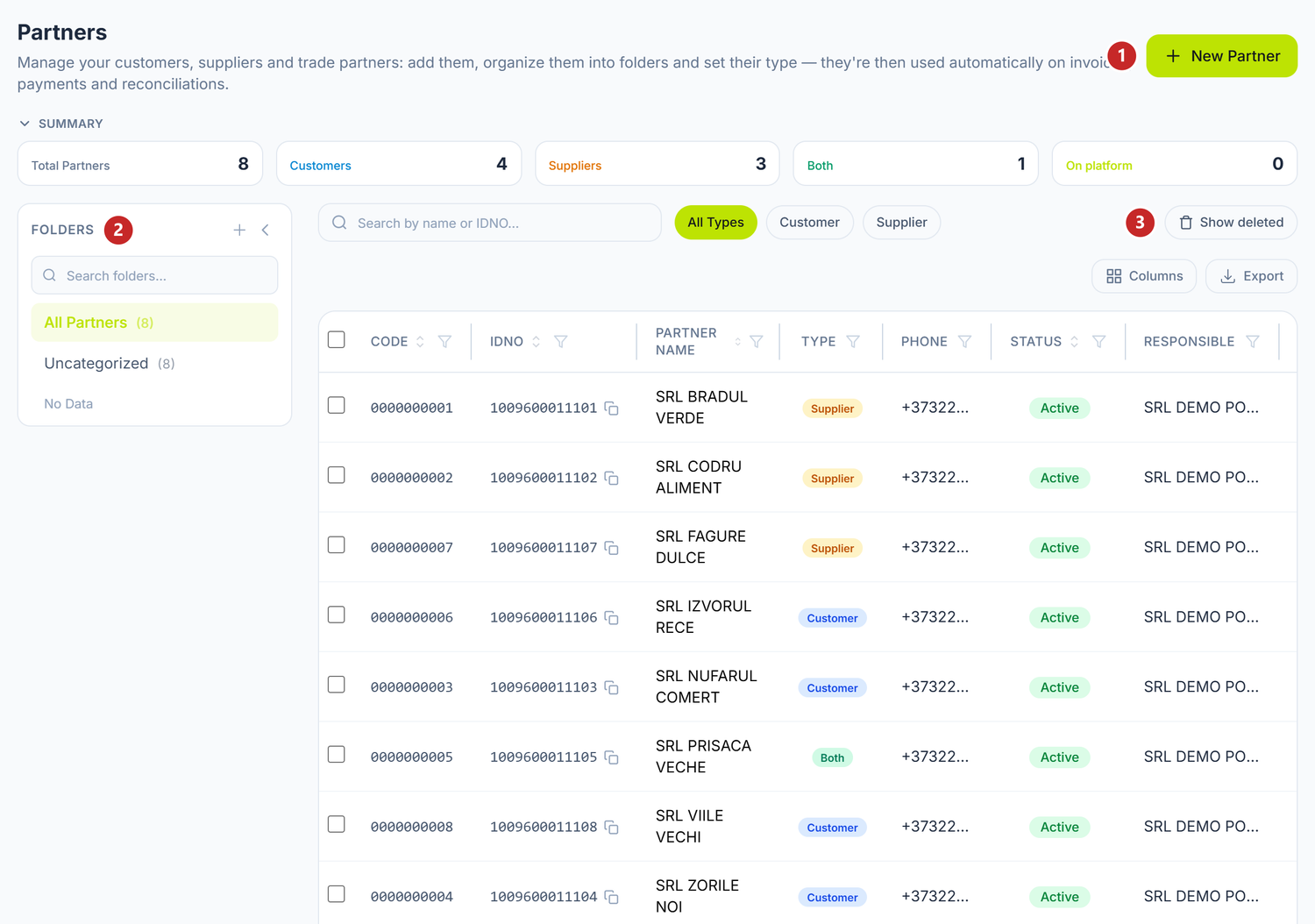
1 add a partner · 2 the folders, on the left · 3 brings deleted partners back into the list
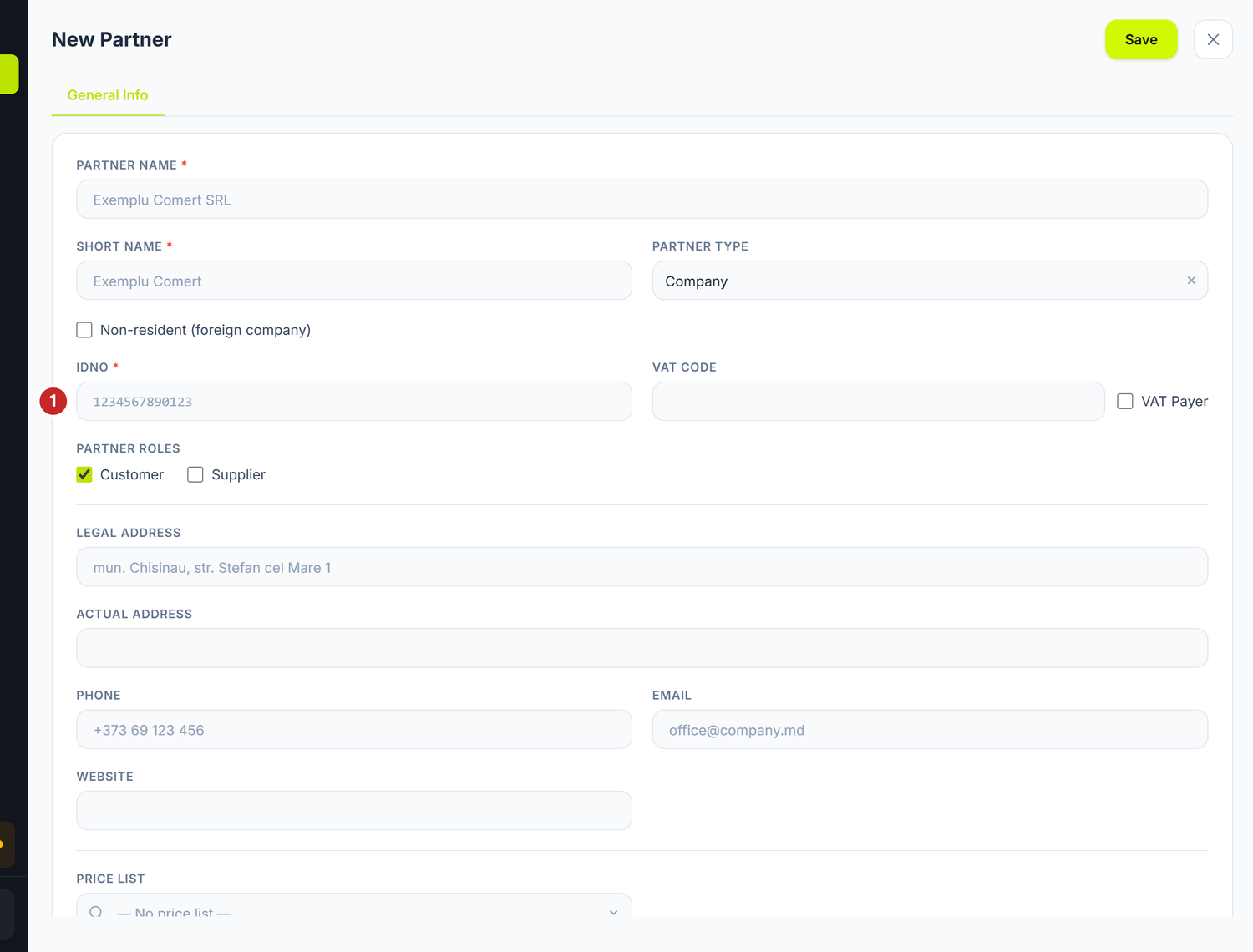
1 the IDNO · 2 the partner's roles
The IDNO is the field everything starts from: as you type, the platform looks the company up in the state registry and fills in the rest. The Client and Supplier ticks decide which documents the partner shows up in — a partner without the right tick never appears in a selector.
Folders sit on the left, the list on the right. The Type column tells you at a glance whether the partner is a customer, a supplier or both, and the counters at the top tally each kind. Show deleted brings retired partners back into the list.
Why you set partners up
- Every commercial document needs a partner. Without one you cannot save the invoice.
- Auto-fill from the State Registry. You type the name, pick the company from the list, and the rest arrives on its own.
- Balances per partner. Receivables and payables are grouped by partner. Duplicate cards fragment the balance.
- e-Factura. A supplier you don't know yet, sitting on an electronic invoice, is created with one click.
What you do here
- Open Partners from the sidebar.
- Press New Partner.
- Choose the Partner Type: Legal Entity, Individual person or Individual entrepreneur.
- Type into Partner name. For legal entities and individual entrepreneurs, suggestions come from the State Registry, with legal form, IDNO and address. Pick the company from the list.
- Fill in Short Name. It is what appears in lists and on documents.
- Check the IDNO (or IDNP). If you typed the code by hand, press Sync from Registry to pull the official data by that code.
- Tick the Partner Roles: Client, Supplier or both.
- Fill in the VAT Code and tick VAT Payer where it applies. The panel checks the status and shows you the result.
- Fill in Legal Address, Actual Address, Phone, Email, Website.
- Pick a Folder and, optionally, a default Price list.
- Press Save.
You don't need the IDNO. Type the first few letters of the name and pick the company from the suggestions. Name, legal form, IDNO and legal address fill themselves in.
The card's tabs
A brand-new partner card shows only the General Info tab. The rest appear after the first save — they need a card to attach to.
| Tab | What you keep there |
|---|---|
| General Info | Names, type, fiscal code, roles, addresses, folder, price list |
| Bank Accounts | The partner's IBANs, with bank and currency |
| Contracts | Their contracts, plus the new-contract button with the partner already filled in |
| Contacts | Contact persons, with one marked as primary |
| POS sales | Receipts issued at the cash register for this partner |
The form's fields
| Field | What it means | Required |
|---|---|---|
| Partner name | The official name, the one in the State Registry | Yes |
| Short Name | How it shows up in lists and in document selectors | Yes |
| Partner Type | Decides which fiscal code is asked for and whether the Registry is searched | Yes |
| Non-resident | Opens the fields for companies from abroad | No |
| IDNO / IDNP | Ties the partner to e-Factura and to the VAT check | No, but in practice yes |
| VAT Code | The VAT payer code, checked automatically against SFS | No |
| Partner Roles | Filters where the partner appears: on purchases, on sales, or on both | Recommended |
| Legal Address | The address printed on documents | No |
| Folder | Groups partners in the tree to the left of the list | No |
| Price list | The prices proposed by default on sales to this customer | No |
| Notes | Internal remarks, they never appear on documents | No |
A partner from another country
Tick Non-resident (foreign company). Two fields open up:
- Country of registration
- Foreign fiscal code — letters and digits are accepted, up to 20 characters
The State Registry search does not work for non-residents. You fill in the name, the address and the code by hand.
Bank accounts
The fastest route is Sync, the button to the left of Add. The panel looks the partner up in the SFS taxpayer registry by fiscal code and adds the accounts it finds. It only brings the ones you don't already have — existing IBANs stay untouched, with the currency and the name you gave them. If the card has no fiscal code, the button doesn't even show up.
When the account isn't at SFS, press Add and fill in:
- IBAN — the panel validates it and, if it recognises the bank identifier, fills in the bank itself.
- Bank — from the list of licensed banks, searchable by name, BIC or IBAN identifier.
- The Account Name and the Currency.
- Default GL Account — the tick that pre-selects the account on payment orders.
For treasury accounts you have the Identify Treasury IBAN button.
Example. SRL „Florăria Dacia" has two accounts: one in lei for domestic collections and one in euro for imports. You mark the lei account as the default. On a payment order to a local supplier, the lei account comes pre-selected.
Contacts
The Contacts tab holds the people you actually talk to, separate from the company phone and email in General Info. Press Add and, in the Add contact window, choose the Contact type — phone, email, SMS, fax, WhatsApp, Viber, Telegram, website or other — then write the Value, meaning the number or address itself.
Name is the label you recognise it by in the list ("Accounting", "Warehouse"), and Notes is left for what doesn't fit in a label. The Primary contact tick brings the one you call first to the front.
Folder hierarchy
You organise partners in folders with a tree structure, shown to the left of the list:
Local suppliers
   Raw materials
   Packaging
   Services
Foreign suppliers
   EU
   CIS
Customers
   Retail
   HoReCa
Folders are made from the tree on the left: Create Folder for a new one, Create Subfolder on an existing folder, plus Rename Folder and Move folder. The tree has two levels — a folder that already has subfolders can no longer become a subfolder itself, and the panel tells you so when you try.
From the list's context menu you move partners with Move to Folder or take them out with Remove from Folder. Both work on a multiple selection too. When you delete a folder, its partners and subfolders stay — they move up to the root.
A deactivated partner
The context menu also holds Copy, Pin to Dashboard and the Enable / Deactivate pair. Deactivating is not deleting: the card stays in the list, with the Status column on Inactive, but it no longer shows up in document selectors. You use it for partners you no longer work with but whose history you still want to see. Deleting is a separate step, with its own bin — see below.
What you can change later
| Action | Possible? | Note |
|---|---|---|
| Change the name | Yes | It applies to new documents |
| Change the IDNO | Yes | Check that you aren't creating a duplicate |
| Add or remove roles | Yes | Removing the supplier role does not delete existing invoices |
| Add bank accounts | Yes | Mark the new account as default if that's the case |
| Move to another folder | Yes | From the context menu, on a multiple selection too |
| Delete the partner | Yes | Reversible — see below |
| Restore a deleted partner | Yes | Show deleted → context menu → Restore |
A deleted partner no longer shows up in lists and can no longer be picked on new documents. Their documents stay untouched. You get them back from Show deleted.
Troubleshooting
| Problem | Cause | Fix |
|---|---|---|
| "Company not found" under the name field | The registry returns no match | Type the exact name. If it still doesn't show, fill in the IDNO and press Sync from Registry. |
| No suggestions at all | The type is Individual person, or you ticked Non-resident | The search only works for resident legal entities and individual entrepreneurs. |
| The partner doesn't appear in the supplier list | It doesn't have the Supplier role ticked | Open the card → Partner Roles → tick Supplier → Save. |
| The partner doesn't appear in selectors at all | It was deleted | Partner list → Show deleted → select → Restore. |
| The IBAN is rejected on save | Wrong format or wrong check digits | Verify the IBAN with the bank. Moldovan ones have 24 characters. |
| "Save the partner first to manage bank accounts." | The partner isn't saved, so the tabs have nothing to attach to | Press Save. The tabs appear straight away. |
| The partner shows up twice | There are two cards with the same IDNO | Move the documents onto one of them, then delete the other. |
Frequently asked questions
Can a partner be both a supplier and a customer?
Yes. You tick both roles on the same card. Reconciliation shows you a single net balance, combining receivables and payables. If you want to settle them against each other, you make a debt adjustment.
What happens if I delete a partner?
They disappear from lists and selectors. Their documents and balances stay. You get them back from Show deleted.
Do the partner's bank accounts update automatically?
Not by themselves, but you don't type them by hand either. In the Bank Accounts tab press Sync and the panel pulls the accounts from the SFS taxpayer registry, by the partner's fiscal code. The button only shows on a saved card that has a fiscal code filled in.
How do I find an existing partner?
The list has a search bar and column filters: code, IDNO, name, phone. You also have the role filter — All Types / Client / Supplier — and the folder tree on the left.
Can partners be imported from another program?
There is no list import. Unknown suppliers on invoices from e-Factura are created with one click. The rest you create by hand, quickly, using the State Registry search.
Is the "VAT Code" field the same as the IDNO?
Not necessarily. The VAT code is the VAT payer code. Tick VAT Payer only if the partner is registered with SFS — the panel checks the status and shows you the result.
Can I have several bank accounts for the same partner?
Yes, as many as you like, in different currencies. You mark the one you use most often as the Default GL Account.
Related pages
- Contracts — the commercial terms you tie to a partner
- Supplier invoices — the purchase document that needs the supplier
- Sales documents — the sales document that needs the customer
- Reconciliation — the mutual balance, per partner
- e-Factura — the electronic invoices tied to the partner