Contracts
A contract is the record card of a commercial agreement with a partner: number, date, type, currency, terms and the scanned document. You tie it to invoices so you can see separately, per contract, how much has been invoiced and how much has been paid.
Where to find it: Sidebar → Sales → the Contracts tab
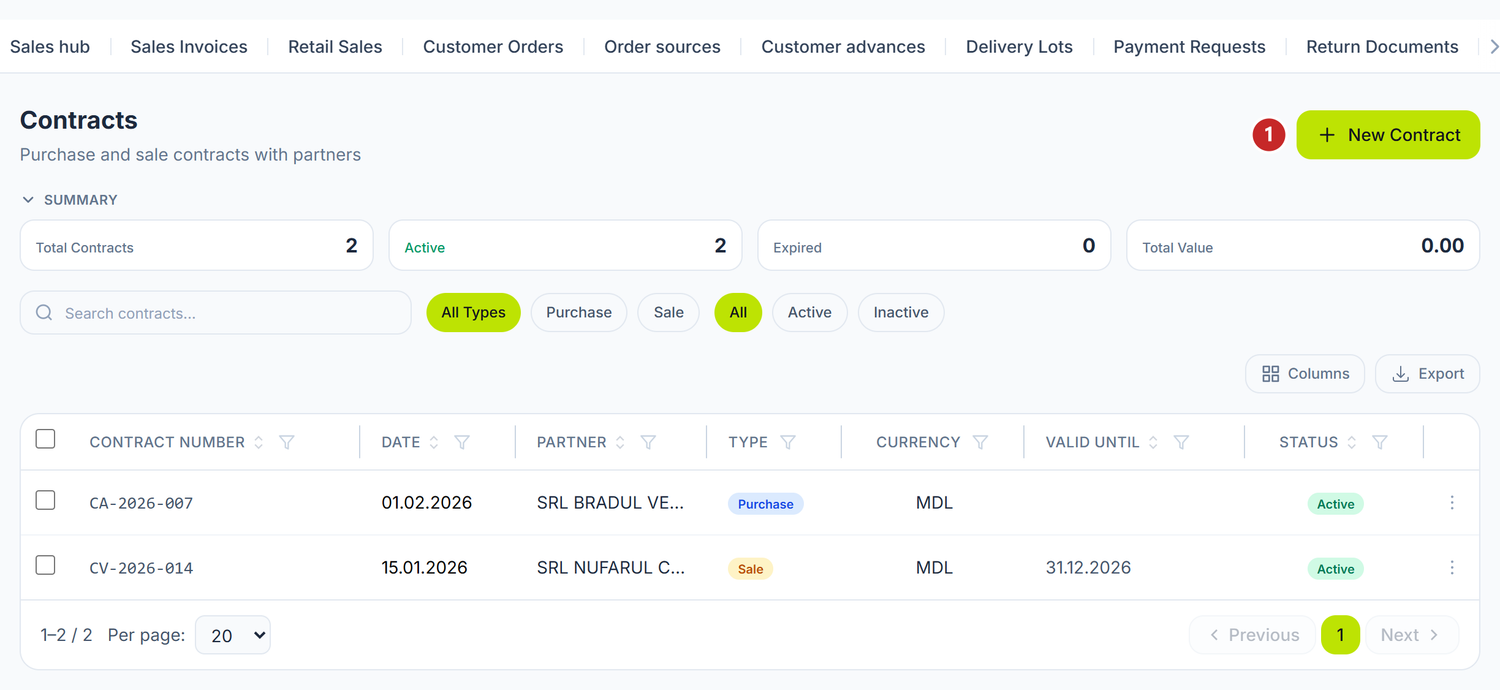
1 new contract
When you need contracts
- Recurring suppliers or customers — you want to see turnover per contract, not just per partner.
- Several agreements with the same partner — one contract in lei and one in euro, tracked separately.
- Keeping track of deadlines — you hold the expiry dates, the contracted value and the payment terms.
- Audit — the scanned contract sits attached to the card, not in a folder on a disk.
The contract changes neither the currency, nor the accounts, nor the due date on the invoice. It is analytics: you pick it by hand on the document, and at posting it lands on the analytics of the receivable and payable accounts. That is how you can track the balance per contract.
What you do here
- Open Sales → the Contracts tab and press New Contract.
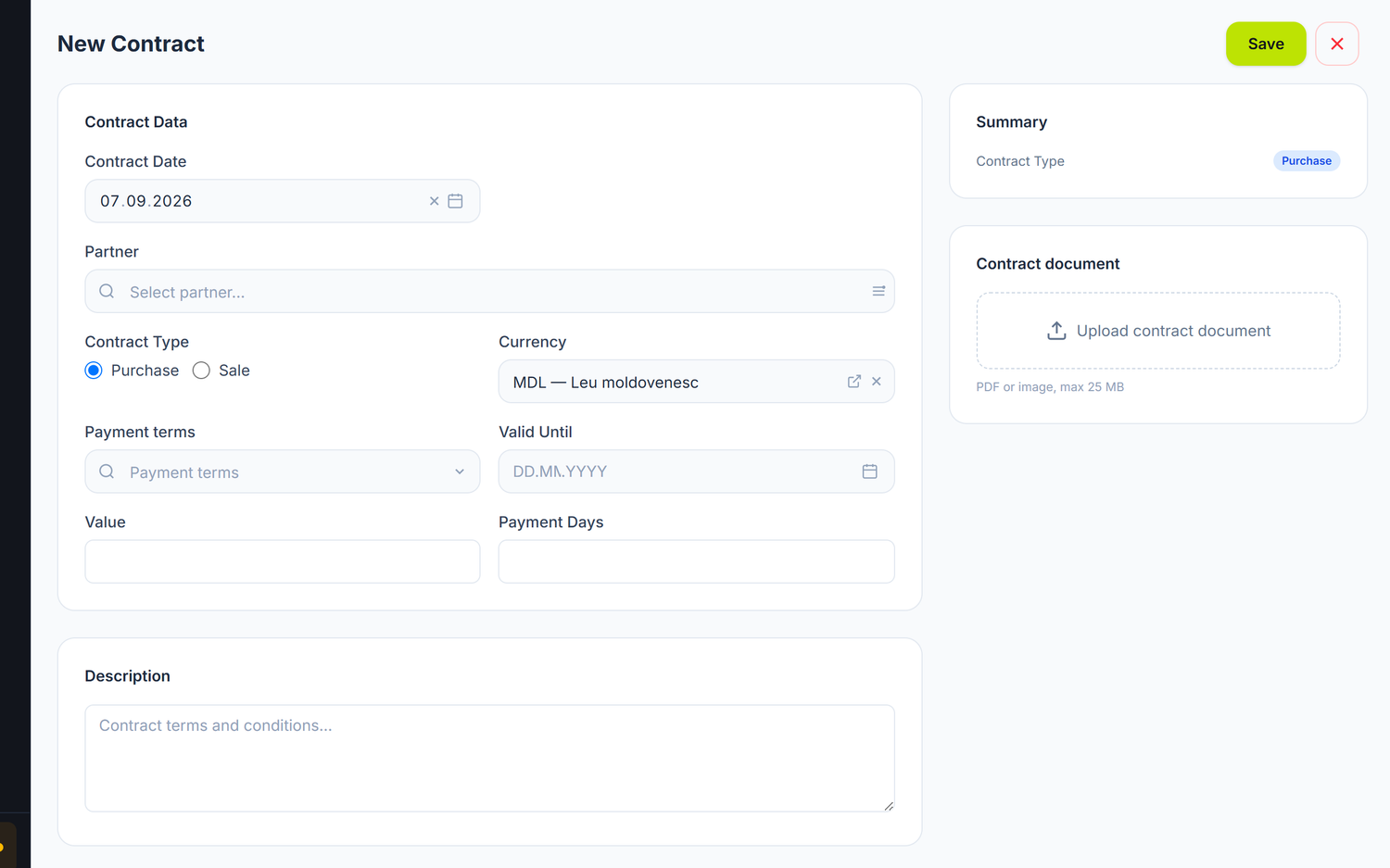
- Fill in the Contract Number and the Contract Date.
- Pick the Partner.
- Pick the Contract Type: Purchase or Sale.
- Pick the Currency.
- Pick the Payment terms and, where it applies, the Payment Days.
- Fill in Valid Until, if the contract has an end date.
- Fill in the Value — the contracted value, for information only.
- Write the terms into the Description.
- Upload the scanned contract with Upload contract document.
- Press Save.
You can also create contracts from the Contracts tab of the partner card. There the partner is already filled in.
The form's fields
| Field | What it means | Required |
|---|---|---|
| Contract Number | The number from the signed contract | No |
| Contract Date | The date of signing | No |
| Partner | Who the contract is with | Yes |
| Contract Type | Purchase or Sale | Yes |
| Currency | The currency agreed on | No |
| Payment terms | How it is paid: one-time, monthly, quarterly, on delivery, in advance or custom | No |
| Valid Until | The expiry date. Empty means open-ended | No |
| Value | The contracted value. Informational, it is never consumed automatically | No |
| Payment Days | The number of days from the invoice to the due date | No |
| Description | The terms and conditions, free text | No |
| Contract document | The scanned contract: PDF or image, up to 25 MB | No |
Payment terms
| Value | What it means |
|---|---|
| One-time | A single payment for the whole value |
| Monthly | Invoicing and payment every month |
| Quarterly | Invoicing and payment every quarter |
| On delivery | Payment happens together with delivery |
| Advance | Payment happens before delivery |
| Custom | Another arrangement, described in the Description |
The "Summary" panel
On the right of the form you have a recap with the contract type, the payment terms, the value, the expiry date and the payment days. You use it as a quick check before saving.
A worked example
SRL „Vinăria Codru" buys bottles monthly from SRL „Glass Mold", in euro.
| Field | Value |
|---|---|
| Contract Number | ACH-2025-003 |
| Contract Date | 15.01.2025 |
| Partner | SRL „Glass Mold" |
| Contract Type | Purchase |
| Currency | EUR |
| Payment terms | Monthly |
| Payment Days | 30 |
| Valid Until | 31.12.2025 |
| Value | 50.000 EUR |
When the accountant records an invoice from SRL „Glass Mold", they pick contract ACH-2025-003 in the Contract field. At posting, the payable lines carry this contract's analytics, so in the account ledger you can tell the turnover on ACH-2025-003 apart from the other agreements with the same supplier.
The contract's state
A contract has two states: Active and Inactive.
| State | What it means |
|---|---|
| Active | It appears in the contract selector on documents |
| Inactive | It no longer appears on new documents. Existing documents stay untouched |
You switch the state from the list's context menu, with Toggle Active.
Expiry is tracked separately, through the Valid Until column in the list. An expired contract does not deactivate itself — you decide whether to extend it or deactivate it.
The contract list
Above the table you have the search bar, the type filter (Purchase / Sale) and the state filter (Active / Inactive). The columns are: Contract Number, Date, Partner, Contract Type, Currency, Valid Until and Status.
Special cases
Several contracts with the same partner
You create one for each agreement: one in lei, another in euro, or one per year. On the document you pick the right contract by hand. The selector only shows the chosen partner's contracts.
An open-ended contract
You leave Valid Until empty. The contract stays active until you deactivate it by hand.
Changing the terms
You have two options:
- Modify the existing contract. Simple, but you lose the trace of the old terms.
- Deactivate the old contract and create a new one. Cleaner for an audit, because the old documents stay tied to the old contract.
The scanned contract
You press Upload contract document and pick a PDF or an image, up to 25 MB. Afterwards you can download it, replace it with Replace file, or delete it.
Common mistakes
| Mistake | Consequence | How to avoid it |
|---|---|---|
| You expect the document to pick up the contract's terms | The currency and the accounts stay the default ones | You check and set them on the document |
| You forget to pick the contract on the invoice | Turnover cannot be tracked per contract | You pick the Contract before posting |
| You deactivate a contract that is still running | You can no longer pick it on new documents | You reactivate it with Toggle Active |
| You keep the signed contract on paper only | At an audit you go hunting for the folder | You attach it to the contract card |
Troubleshooting
| Problem | Cause | Fix |
|---|---|---|
| The contract doesn't appear in the invoice's selector | It is Inactive, or it belongs to another partner | Check the state in the list and the partner on the card. |
| The contract selector is empty | You haven't picked the partner on the document yet | Pick the partner first. The list loads after it. |
| The contract disappears from the selector after I change the partner | The selector empties itself when the partner changes | Pick the contract again, among the new partner's ones. |
| The file won't upload | It exceeds 25 MB or it isn't a PDF or an image | Compress the document or scan it at a lower resolution. |
| I can't find the contract in the list | The type or state filters are hiding it | Switch them to Active and to the right type, or search by number. |
Frequently asked questions
Is the contract mandatory on documents?
No. You use it when you want to track turnover separately per agreement.
Is it filled in automatically on the invoice?
No. You pick it by hand from the Contract field. The selector only shows the contracts of the partner chosen on the document.
Does the contract change the accounts or the currency on the invoice?
No. The accounts and the currency come from the Operation Type and from the document's settings. The contract enters the journal entry as analytics only.
Can I have several active contracts with the same partner?
Yes, as many as you like. You pick them by hand, on each document.
What happens if I modify a contract?
Documents already created stay tied to it and keep their data. The change does not propagate retroactively.
Can I track how much of the contract's value has been used?
The Value field is informational, the panel never deducts from it automatically. You track the turnover in the account ledger on 221.x or 521.x, where the contract appears as analytics on the entry's lines.
How do I search for a contract?
The search bar at the top of the list searches by number, partner and description. You also have filters on type and on state.
What happens when a contract expires?
Nothing automatic. The contract stays Active until you deactivate it. The Valid Until column shows you which ones have expired.
Does the contract in the panel replace the signed contract?
No. The legal document is still the signed one. In the panel you keep its record and attach the scan.
Related pages
- Partners — the card that holds the Contracts tab
- Supplier invoices — the documents you tie purchase contracts to
- Sales documents — the documents you tie sales contracts to
- Account ledger — turnover on the contract analytics
- Reconciliation — the mutual balance with the partner