Payment requests
The payment request is the proforma you send the customer so they pay. It generates no journal entry — its job is to track who paid, how much and when.
Where to find it: Sidebar → Sales → the Payment Requests tab
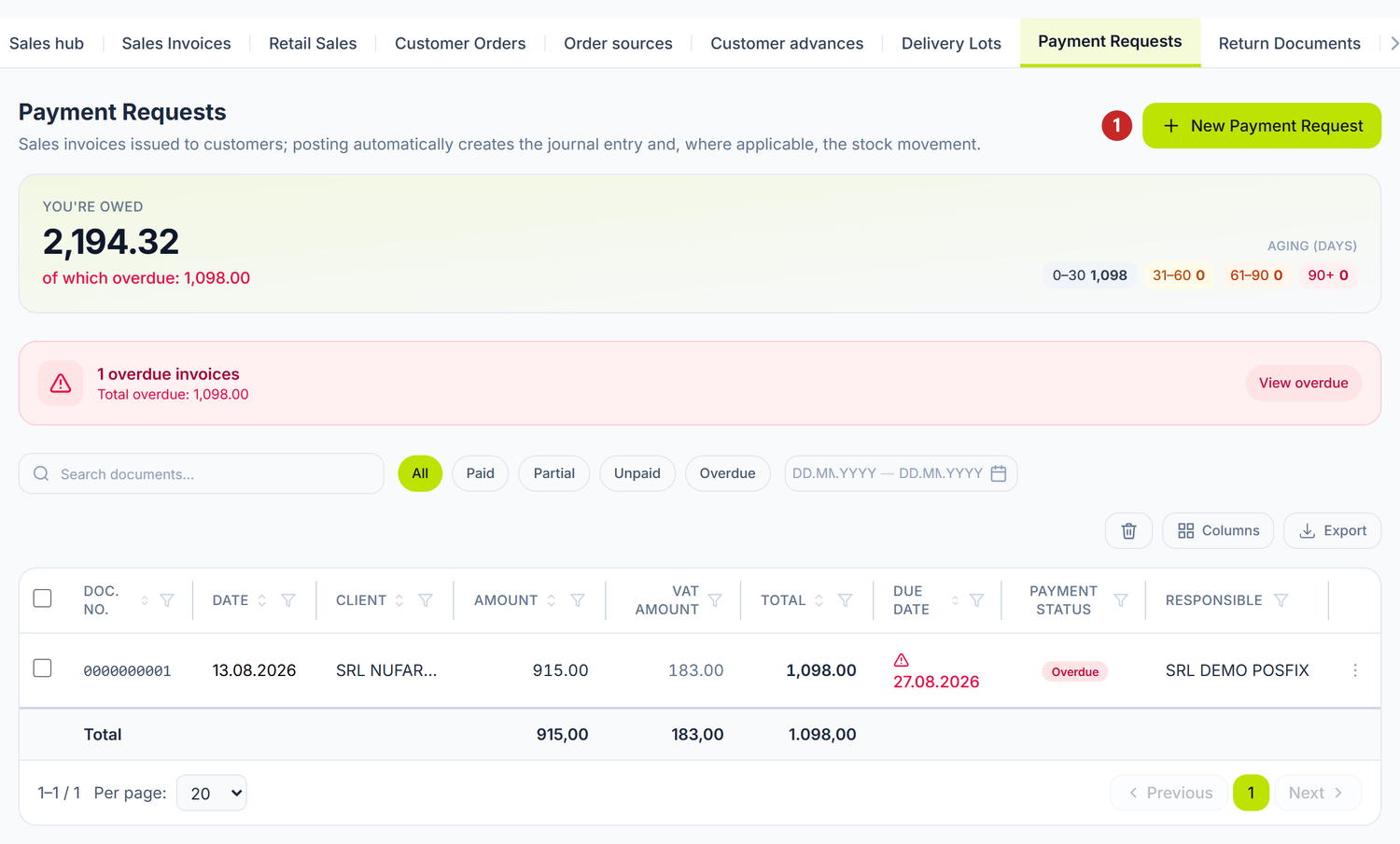
1 opens a new payment request
The red band at the top shows what you're owed, broken down by age, and if you have overdue requests it warns you with View overdue — one click takes you straight to them. A payment request is never posted: its only state is the Payment Status, which tracks collection.
When you need it
- You ask for payment up front: you issue the request, the customer pays, then you deliver.
- You gave payment terms and want to see what is overdue.
- The customer needs a document with your bank details in order to make the transfer.
What you do here
- Open Sales → the Payment Requests tab and press New Payment Request.
- Fill in the Date.
- Pick the Client.
- Fill in the Due Date — the date you expect the money by.
- Pick the Currency. For a foreign currency the rate appears too.
- Pick the Supplier bank account — your own, the one the customer sees on the proforma.
- Optionally fill in the Buyer bank account.
- Add the lines: product, unit, quantity, price, VAT rate.
- Press Save.
It generates no journal entry at all. Revenue and the receivable appear only when you issue the sales invoice. From the payment request you issue it in one click, with Generate sales invoice.
The form's fields
| Field | What it means | Required |
|---|---|---|
| Date | The date the proforma is issued | Yes |
| Client | The partner who has to pay | Yes |
| Due Date | The date after which the request turns Overdue | No |
| Currency | The currency you ask payment in | No |
| Supplier bank account | Your own account, printed on the proforma | No |
| Buyer bank account | The account the payment is expected from | No |
| Description | Free text, it appears on the printed document | No |
The payment state
The payment request has no Draft/Posted lifecycle. It has a payment state, computed from the amounts collected and from the due date:
| State | When it appears | Colour |
|---|---|---|
| Unpaid | No payment recorded | amber |
| Partial | Part of it has been collected | blue |
| Paid | The amount is collected in full | green |
| Overdue | The deadline has passed and the request isn't paid in full | red |
Without a Due Date, the request never turns Overdue.
The payment request list
Above the list you have the You're owed panel, computed on the whole filtered set, not just on the current page:
- the total amount to collect;
- of which overdue, when there are arrears;
- Aging (days), broken down into the
0–30,31–60,61–90and90+bands.
When overdue requests exist, a red band also appears with their count, the overdue total and the View overdue button. Below it you have the state filter buttons and the period selector. The table footer gives you the subtotal, the VAT and the total on the filtered set.
What you can do on a payment request
| Action | Where | What it does |
|---|---|---|
| Record Payment | the ⋯ menu | Opens an incoming bank operation, linked to this request and to the customer |
| Preview proforma | the ⋯ menu | Shows the document exactly as the customer receives it |
| Generate sales invoice | the ⋯ menu | Creates the sales invoice in Draft state, from this request's lines |
| Unlink invoice | the ⋯ menu | Breaks the link with the issued invoice, while that invoice is still a draft |
| Delete | next to Save | Deletes the payment request |
The Payments panel in the form shows you each payment: the Payment Method, the document, the date and the amount, plus Total paid and Remaining balance.
Record Payment disappears once the request is already Paid. Generate sales invoice disappears once the invoice has been issued. Unlink invoice only shows while the issued invoice is still a draft — after posting, the link can no longer be broken.
Above the lines you have Add from nomenclature, which brings in several items at once. On an already saved request, if some row is still plain text, Map products appears too. It links the rows to the catalog, so the invoice generated from them moves stock and cost.
If your organization is not a VAT payer but you left a rate on some line, a yellow warning appears naming those lines. The payment request saves anyway; the invoice generated from it will not be postable.
Preview proforma
Preview proforma, from the ⋯ menu, shows you the document exactly as the customer receives it. At the top you have five things:
- Ro / En / Ru — the language the document is printed in. It is not the panel's language: you pick it according to the customer who receives the proforma.
- Layout: Modern / Simple — the shape of the document. Modern is the platform's form, with quantity, VAT rate on each row and bank blocks. Simple is the form accountants know from accounting programs: the supplier on the left with account and bank, number and date on the right, the payer with their details, the table with number, name, quantity, unit, price and amount, stepped totals, the amount in words and the lines for Director and Chief accountant. On a foreign-currency request, both forms show the amounts in the request's currency. The language chosen above applies to both forms, including the amount in words. Your choice stays on your own computer; the layout the window opens with for the whole company is set in Settings → Organization → Preferences → Default proforma layout.
- Download PDF — saves the file in the displayed layout. If the organization has Word export turned on and the Modern layout is selected, the button becomes a list and you can choose between Download PDF and Download Word.
- Print — sends the document straight to the printer. It doesn't appear on a phone.
- Send by email — opens the sending window, with the partner's address already filled in. From there you check the recipient and send. The attached PDF uses the layout chosen in the window.
The names for Director and Chief accountant on the simple form come from Settings → Organization → Responsible Persons: the person with the administrator or director position, and the one with the accountant position, respectively. If they aren't filled in, the lines stay empty and are signed by hand.
The document is shown in the window, under that bar. On a phone, instead of the preview you get a button that opens it separately.
A worked example
SRL „Tehno Plus" issues a payment request to SRL „Media Com" for IT services:
| Service | Quantity | Price without VAT | VAT rate | Amount without VAT |
|---|---|---|---|---|
| Server maintenance, March | 1 | 8.500,00 lei | 20% | 8.500,00 lei |
| Annual software licences | 5 pcs | 1.200,00 lei | 20% | 6.000,00 lei |
- Subtotal: 8.500 + 6.000 = 14.500 lei
- VAT 20%: 14.500 × 20% = 2.900 lei
- Total to pay: 17.400 lei
- Due date: 15 April
On 20 March the customer pays 10.000 lei. The state turns Partial, the remaining balance 7.400 lei. On 10 April they pay the rest. The state turns Paid.
Special cases
Partial payments
You press Record Payment as many times as needed. Each collection shows in the Payments panel, and the state is recomputed after each one.
From payment request to invoice
You press Generate sales invoice and confirm. A sales invoice is created in Draft state, with the same lines. You check it and post it there — only then does the revenue appear and stock get released.
While the invoice is a draft, you can break the link with Unlink invoice: the request reopens, the payments come back onto it and you can generate again. After the invoice is posted, the link is final.
Payment received before delivery
The payment request produces no journal entry, and the money collected against it enters the panel only as an advance from the customer.
The panel does not generate the VAT entry on the advance. You record it by hand in the month of collection and reverse it on delivery.
Requests in foreign currency
You pick the currency at creation. The lines carry both the price in currency and the equivalent in lei.
Requests with no due date
They stay Unpaid or Partial however long it takes. Always fill the deadline in, otherwise the arrears report has nothing to show.
Common mistakes
| Mistake | Consequence | How to avoid it |
|---|---|---|
| You treat the payment request as an accounting document | The revenue never appears in the trial balance | You issue the invoice with Generate sales invoice |
| You don't fill the due date in | You can't track arrears | You fill in the Due Date on every request |
| You don't fill the bank account in | The customer has nowhere to pay | You pick the Supplier bank account before printing |
| You issue the proforma without VAT on taxable services | Trouble at a tax audit | You check the rate on every line |
| You wait for the panel to make the VAT entry on the advance collected | It doesn't; the VAT stays undeclared | You record it by hand in the month of collection |
Troubleshooting
| Problem | Cause | Fix |
|---|---|---|
| The request isn't Overdue although the deadline has passed | The Due Date is empty | Fill it in and save. |
| Record Payment doesn't show in the menu | The request is already Paid | Check that the payments don't exceed the total. |
| Generate sales invoice doesn't show | The invoice has already been issued from this request | Open it from the links panel. |
| Unlink invoice doesn't show | The issued invoice is already posted | Unpost the invoice, then unlink. |
| The customer doesn't show in the selector | The partner doesn't have the Client role | Open the partner card → Partner Roles → tick Client. |
| The "You're owed" total looks too big | The period filter includes old unpaid requests | Adjust the period or look at the aging breakdown. |
| The printed document has no company details | The organization settings are incomplete | Sidebar → Settings → the Organization Settings tab. |
Frequently asked questions
Does the payment request appear in the trial balance?
No. The trial balance is affected only by accounting documents: sales invoices, bank operations and the rest.
How do I track all the arrears?
The You're owed panel at the top of the list gives you the total and the overdue part, with an aging breakdown. The View overdue button filters the list on the Overdue state.
Can I turn a payment request into an invoice?
Yes. Generate sales invoice creates the sales invoice in Draft state, with the same lines. The action can be done once per request.
What happens if I don't fill in the due date?
The request never turns Overdue and never enters the arrears report.
How do I record the payment?
From the ⋯ menu → Record Payment. An incoming bank operation opens, with the customer and the account already linked.
Can I delete a payment request?
Yes, from the Delete button next to Save. For traceability, it is better to keep them.
How do I print the proforma?
The ⋯ menu → Preview proforma. See the Preview proforma section — from there you print it, download it or send it straight by email.
Is the payment request the same as an e-invoice?
No. The payment request is an internal payment-tracking document. e-Factura is the fiscal document transmitted through the SFS system.
The customer paid more than the amount. What do I do?
You record the payment with the actual amount. The difference stays as an advance from the customer and settles itself on the next sales invoice.
Related pages
- Sales documents — the accounting invoice generated from the payment request
- Partners — the customer register
- Bank operations — the collection that changes the payment state
- Reconciliation — the mutual balance with the customer
- e-Factura — the electronic fiscal document, separate from the proforma