Supplier invoices
A supplier invoice records a purchase of goods, materials, services or fixed assets. You post it and get the journal entry: the cost lands on its account, the debt to the supplier grows, the VAT becomes deductible.
Where to find it: Sidebar → Purchases → the Supplier Invoices tab
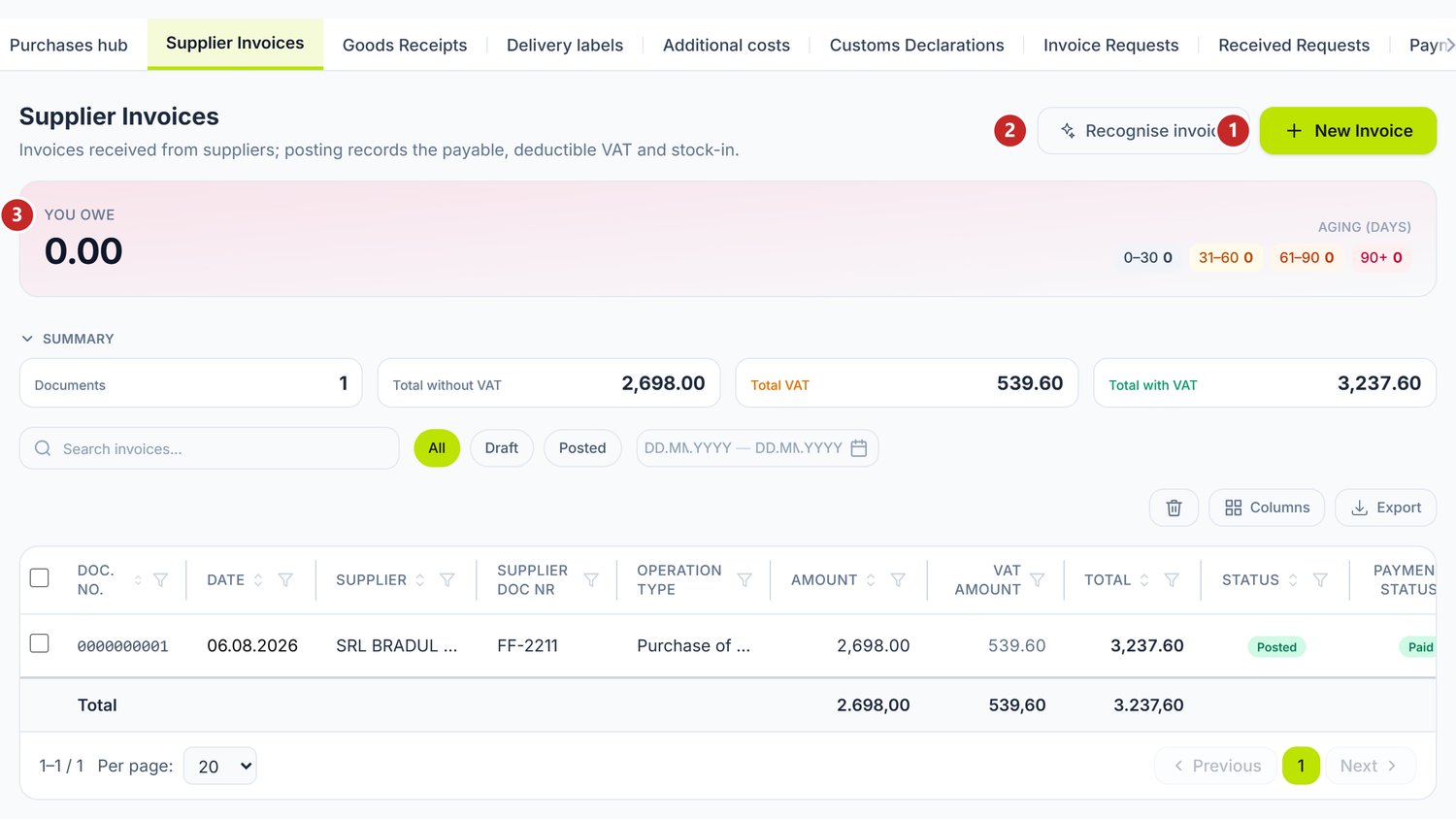
1 new invoice · 2 reads a scanned invoice and pre-fills it · 3 the You owe band, broken down by age
To record a supplier invoice
- Press New Invoice.
- Pick the Supplier and check the Date and the Series and number from the invoice you received.
- Pick the Operation Type — the proposed accounts hang on it.
- Check the Warehouse, if the goods go into stock.
- Add the lines, from the catalog or written free-hand.
- Save, then Post.
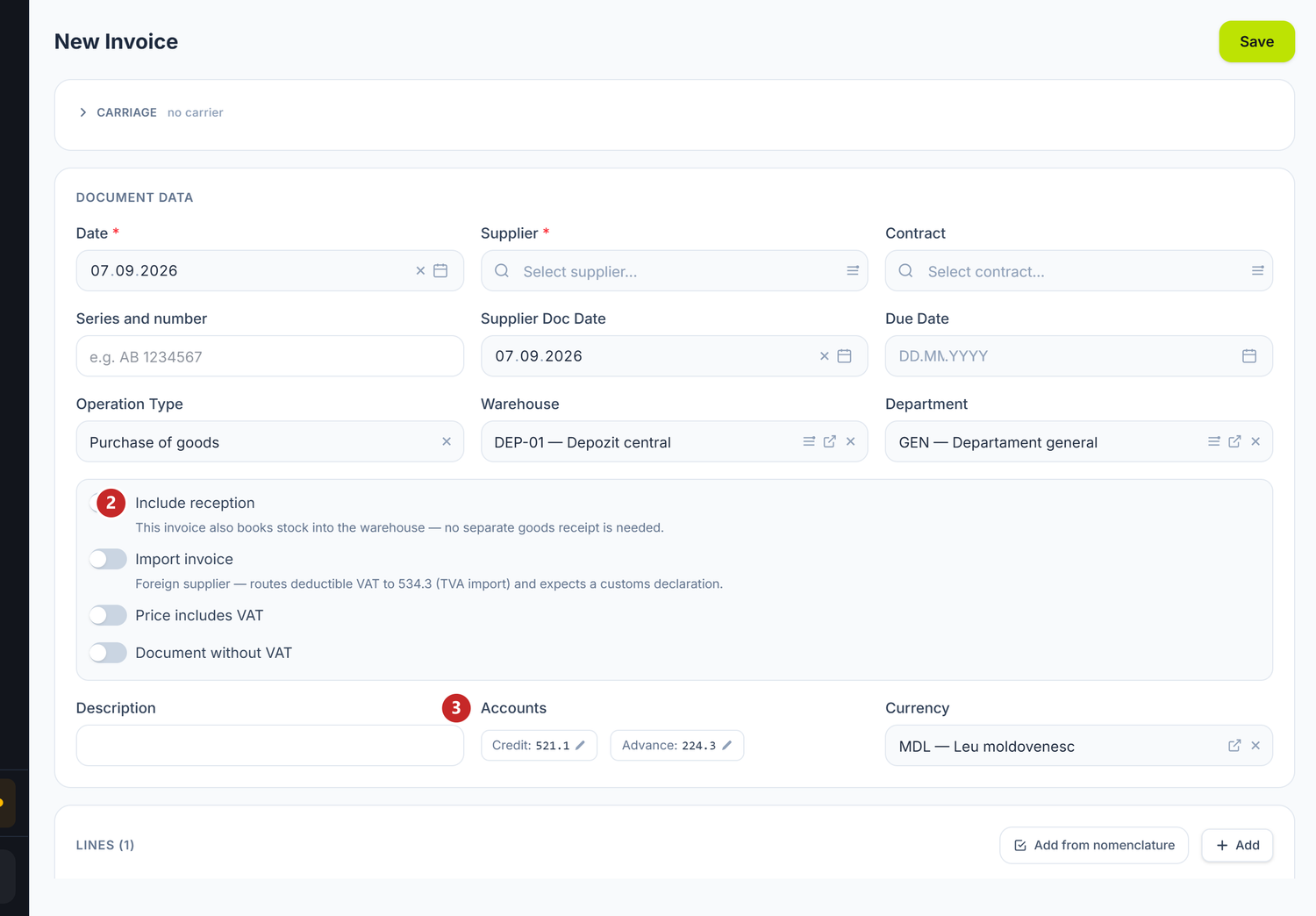
1 the supplier · 2 the switches that reshape the whole document · 3 the proposed accounts · 4 the lines
The switches in the middle of the header change more of the document's behaviour than anything else, and each one has a line underneath telling you what it does:
| Switch | What changes when you turn it on | If you leave it off |
|---|---|---|
| Include reception | The invoice puts the goods into the warehouse itself — you no longer need a separate goods receipt | Goods arrive through a goods receipt, which you create separately |
| Import invoice | VAT is not applied on the lines; the customs declaration is expected, and the tax is deducted from there | The invoice carries VAT on its lines, like any domestic purchase |
| Settled in MDL (conventional unit) | The goods are invoiced in foreign currency but paid in lei; differences go to amount differences | You pay in the invoice currency, and differences are exchange-rate ones |
| Price includes VAT | The price you type is read as a price with the tax inside | The price is net, and the tax is added on top |
| Document without VAT | The document comes out untaxed, whatever rates sit on the lines | Each line applies its own rate |
Include reception only appears on invoices with product lines, and Settled in MDL only when you have chosen a foreign currency. On the other invoices you don't see them at all.
Below them, the Accounts block shows the pair proposed by the operation type. The pencil on each label opens it up, if you want an account other than the default — but usually you have no reason to.
The red band at the top adds up what you owe, broken down by age — 0–30, 31–60, 61–90 and over 90 days. Under it, the summary counts the documents and separates the net amount from the VAT. The Payment Status column tells you what has been settled without opening the document.
Right-clicking a row gives you Copy, Post on drafts and Unpost on posted ones, plus Pin to Dashboard and Delete. You can post and unpost several rows at once, without opening a single document. Deleted invoices come back with Restore, from the bin view.
When you need it
- Goods and the fiscal invoice arrived from the supplier.
- You received a service: transport, consulting, repairs.
- An electronic invoice came through SFS and you want it in the books.
- You bought a fixed asset and it has to go on non-current assets.
What you do here
- Open Purchases → the Supplier Invoices tab and press New Invoice.
- Pick the Supplier. Then, if you want separate turnover per agreement, pick the Contract. The selector only shows the chosen supplier's contracts; the contract is never filled in for you.
- Pick the Operation Type. It decides the default accounts and the shape of the form.
- Fill in Series and number — the series and number printed on the fiscal invoice you received, not your internal number.
- Fill in the Supplier Doc Date (the date on the paper) and the Date (the date you record it). The journal entry is made on the document Date.
- Fill in the Due Date, if the supplier gave you payment terms.
- Pick the Warehouse, if the goods enter stock with this very invoice. Only after you pick the warehouse does the Include reception switch unlock — until then it is greyed out. On an invoice started from a goods receipt it stays locked altogether, with the message "Reception is handled by the linked goods receipt."
- Pick the Department, if you split the cost across departments.
- Add the lines: product, quantity, price, VAT rate. The GL Account column lets you put a different account on each line.
- Check the totals against the invoice you received.
- Press Save. The document stays a Draft and touches no balances.
- When everything checks out, press Post.
On an invoice with reception, if you turned label printing on in the settings, the Print labels button appears too. It opens the label panel on the goods that came in with this invoice.
The Include reception tick makes the invoice record the stock entry as well. You no longer need a goods receipt, so you can no longer double the value. Untick it only if the reception has already been done through a goods receipt.
Recognise invoice
The Recognise invoice button, next to New Invoice, reads the invoice you received from a photo or a PDF and fills the document in for you. It works with JPEG, PNG, WebP, GIF or PDF, up to 20 MB. You have a limited number of recognitions; when you reach it, the window says so plainly.
To use recognition:
- Press Recognise invoice and pick the file.
- Wait a few seconds — the window shows Reading the invoice…, then the result, with the Confidence percentage at the top.
- Look at the Check these list: that is where it tells you what it read with doubt. Uncertain rows carry a warning sign.
- Compare against the image on the left. You can zoom and rotate it if the invoice was photographed crooked.
- Check the Supplier, the Series and number and the Issue date — these are the fields most often misread.
- On each row you decide what happens to the product: link it to a catalog item, leave it on Create, or pick — no product —.
- Press Use this data. The form opens filled in. If the photo came out badly, Try another file.
What the model reads goes into a draft, not into the books. Compare the totals with the paper before you Post — a misread figure travels on with nothing to stop it.
The invoice lines
Each line carries the product, the quantity, the unit, the price, the VAT rate and the GL Account — the account the line lands on. The header account is only the proposal; the one on the line overrides it.
Above the lines you have Add from nomenclature, which opens the catalog and brings in several items at once, instead of hunting them down one by one.
A few columns only appear when they have something to show, so your screen isn't cluttered for nothing:
- Cost Article — on lines with an expense account. It comes pre-filled from the product's category, but you can change it.
- Fixed Asset — on lines with a non-current asset account. You pick the existing card, or press the plus button and create it on the spot, with Create fixed asset card from line. The name and the value come from the row, the rest from the asset category you choose.
- Packages — on products kept in measured lots, such as rolls or bales. The button opens Package breakdown, where you write the parcel groups as "count × size". The row's quantity is made from their sum.
- Validity / lot — on perishable products. It has three fields: Made, Expires and Supplier lot no. The expiry is suggested on its own from the product's shelf life, counting from the production date.
On an already saved invoice the Map products button shows up too. It links the lines written as free text — the ones that came from an e-invoice or from a recognition — to the catalog. Without it, the lines stay mere amounts, with no stock and no cost.
VAT on the lines
For exempt lines you tick Document without VAT on the header; for zero-rated ones you pick the C — 0% rate on the line. They are not the same thing, and the VAT ledger carries them into different boxes.
Common mistakes
- You tick "Include reception" and also make a separate goods receipt. The goods come in twice. Pick one route.
- You confuse "Series and number" with the internal number. In Series and number you write what is printed on the invoice you received.
- You confuse the two dates. The journal entry is made on the document Date, not on the Supplier Doc Date.
- You put services on a goods account. Check the nature of each line and change the account on the line.
- You post into a closed period. Check the document Date first.
- You leave 20% on the lines of an import invoice. The VAT gets deducted twice: once from the invoice, once from the customs declaration. Import lines go with
0%or with Document without VAT. - You put the freight on
713.8. Stock stays undervalued, the expense inflated. You allocate it from the Transport & customs allocation card, with the Allocate cost button.
Troubleshooting
| Problem | Cause | Fix |
|---|---|---|
| I cannot post, I get an error on a field | Required fields are missing, or lines have zero quantity or price | The offending field is marked red. Fill it in and try again. |
| "Warehouse" demands a value | You ticked Include reception | Pick the warehouse the goods enter, or untick the box. |
| The exchange rate doesn't show | The currency is the base one | The rate only appears for a currency other than the base one. |
| I posted the wrong amount | The document is locked after posting | The ⋯ menu → Unpost → correct it → Post. |
| The panel asks for a customs declaration | You ticked Import invoice | Save the invoice, then create the declaration from the orange banner. |
| "The invoice supplier is not in the nomenclature" | The invoice comes from e-Factura and the supplier doesn't exist on your side | Press Create to add them on the spot, or Skip to pick them by hand. |
| The invoice doesn't show in the list | The period filter is on another month | Adjust the period at the top of the list. |
Frequently asked questions
How do I avoid double-recording between the invoice and the goods receipt?
Pick one route. Either you tick Include reception on the invoice and make no receipt, or you make the receipt and then start the invoice from it with Record invoice. In the second case the invoice does not debit stock again.
What if the supplier applies a rate other than the BNM one?
You post at the BNM rate of the document date. The difference is settled on payment, as an exchange-rate difference.
Can I put a different account on each line?
Yes. The header account is only the default proposal. The GL Account column on the row overrides it.
Does the invoice affect stock?
Yes, if you ticked Include reception and the lines have products linked to the catalog. Without the tick, the invoice only makes the journal entry.
What is the difference between the document "Date" and the "Supplier Doc Date"?
The document Date is the date you record the invoice on your side and the date of the journal entry. The Supplier Doc Date is the date printed on the paper you received. They can differ.
What happens to VAT on a foreign-currency invoice?
VAT is computed in the document's currency and converted to lei at the document's rate. In the VAT return it appears in lei only.
Can I create an invoice with no lines?
No. You need at least one line with a quantity and a price in order to post.
How do I handle an invoice with an advance already paid?
You post it normally. The advance on 224.3 settles itself, in the same entry. You create no separate document.
How do I spread freight over the goods?
On a posted invoice the Transport & customs allocation card appears, with the Allocate cost button. From there you spread transport, customs or insurance invoices over the product lines, proportionally, and the amount enters the cost of the goods. On a draft the card is not visible — it shows only after posting.
Which VAT rate do I put on the lines of an import invoice?
0%, or you tick Document without VAT. Import VAT comes exclusively from the customs declaration. If you leave 20% on the lines, you deduct it twice.
Does the contract pre-fill anything on the invoice?
No. The contract is analytics only: you pick it by hand, and at posting it lands on the analytics of the payables accounts. It changes neither the currency, nor the accounts, nor the due date. See Contracts.
Related pages
- Goods receipts — when the goods arrive before the invoice
- Partners — how to add and set up suppliers
- Contracts — the analytics you pick by hand on the invoice
- Payment orders — the payment generated straight from the posted invoice
- e-Factura — the electronic invoices received through SFS
- The document lifecycle — the Draft, Posted, Deleted states