Payment orders
The payment order is the document you tell the bank with what amount to transfer and to whom. You use it when you have a supplier, a salary or a tax to pay. The money, though, doesn't move from it and accounting never sees it — that is what the bank operation does, generated from the order or brought in from the statement.
Where to find it: Sidebar → Money → the Payment Orders tab
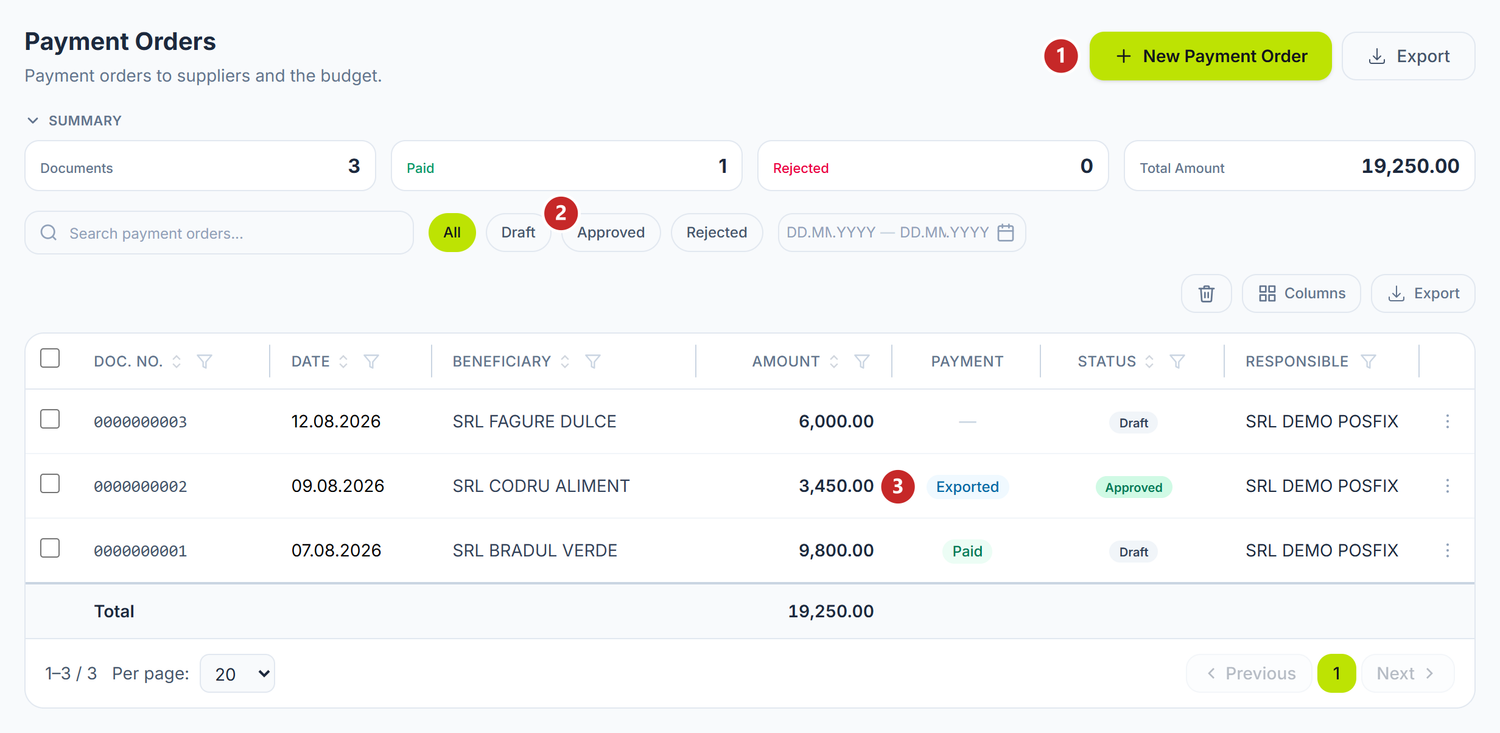
1 new order · 2 the pills that filter the list by status · 3 the Payment column
The search at the top of the list runs on the server and looks at the document number and the beneficiary's name. The period selector cuts the list by document date, so an order you know you saved but can't see is usually outside the chosen range.
The Beneficiary column shows the partner's name, and on tax payments, where there is no partner, the tax type takes its place.
The Payment column
The Payment column shows how far the payment has got, not what status the document is in. You see a single label, the most advanced one:
| Label | What it means |
|---|---|
| — | The order hasn't gone anywhere yet |
| Exported | The order went into a file for the bank |
| Sent to the bank | You sent it directly to maib; the panel doesn't know yet what happened to it |
| Awaiting signature | It is in maib Business, waiting for someone to sign it |
| another word, the bank's | The instruction's state exactly as maib reports it, once it is past the signature |
| Send unclear | The order left for maib, but the bank's answer never arrived |
| Paid | The bank operation linked to the order is posted — the money has left |
Paid is set on its own. There is no button for it: it appears when you post the order's bank operation and disappears if you unpost it.
To issue a payment order
- Press New Payment Order.
- Set the Date and choose the Operation Type. The whole rest of the form depends on it, so it deserves to be chosen first.
- Check the Bank Account in the header — the account you pay from. It comes prefilled with the default account, but you can pay from another one.
- Type the Amount. If you pay in foreign currency, the rate is taken by document date.
- At Beneficiary choose the Partner. Their residency and default account come by themselves from the sheet; change the account if you pay into another one.
- Cast an eye over the Purpose, in the right-hand column.
- Save. Only now does the server allocate the document number.
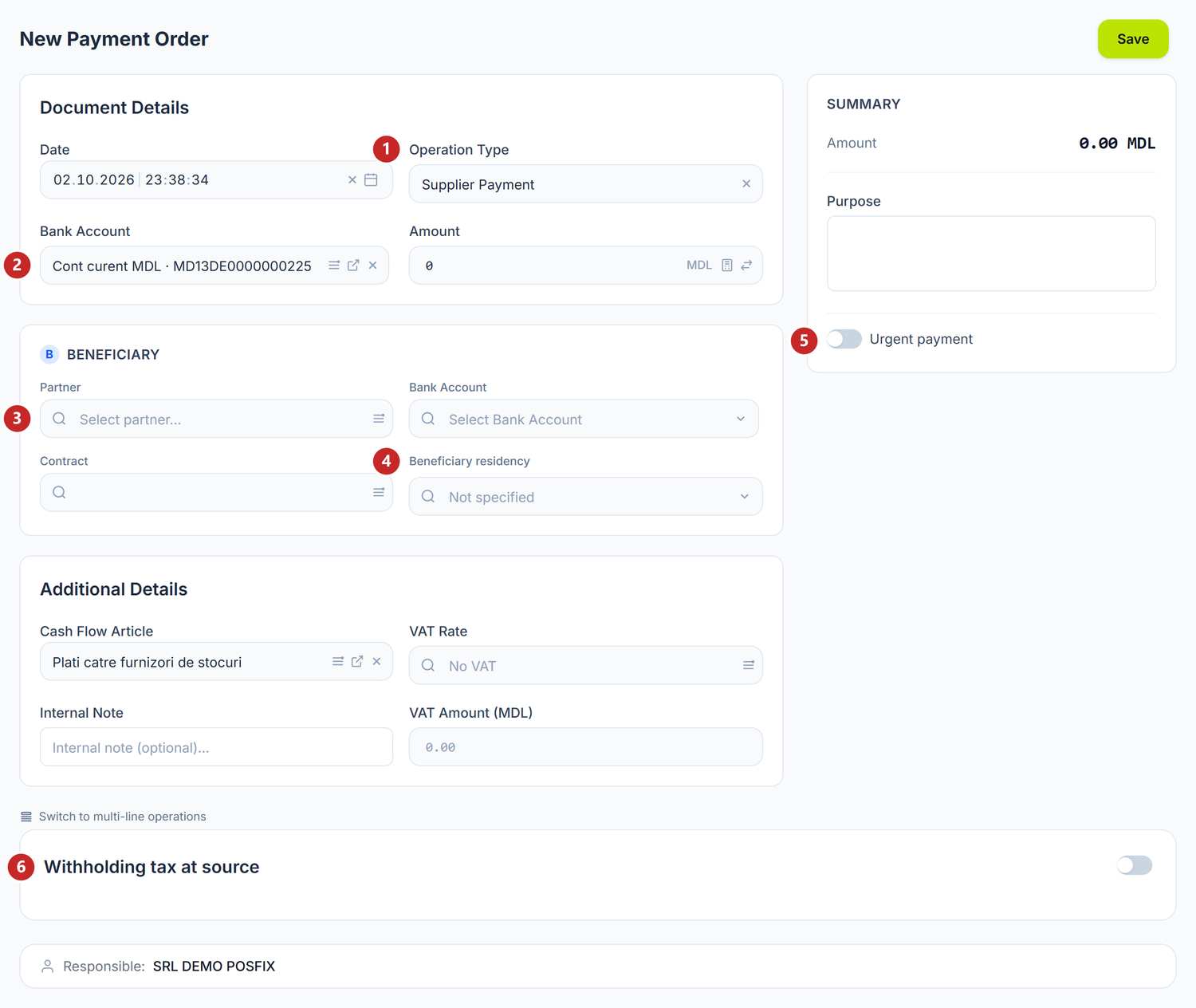
1 the operation type · 2 the account you pay from · 3 the partner · 4 the beneficiary residency · 5 urgent payment · 6 withholding at source
Operation Type is the switch that decides the rest of the screen: it hides or shows whole sections, picks the cash flow article and rewrites the Purpose. Changed after you have filled things in, it rearranges the form under your hand — which is why you choose it first.
The account you pay from matters later too, at export: its BIC decides which file formats the panel offers you.
In the BENEFICIARY section, the second Bank Account gives you the chosen partner's accounts. If the right one is missing, add it on the partner's sheet or press Import, which brings them from the SFS register. The button appears when the partner has a fiscal code.
Beneficiary residency is filled in from the partner's sheet. It only matters when you send the order directly to maib: as long as it says Not specified, the panel won't send the order.
Purpose writes itself from the data above, including the VAT mention. The regeneration stops at your first manual edit — and stays stopped once the order has been saved. So on a reopened order, if you change the amount, the partner or the VAT rate, the purpose — including the VAT amount in it — no longer updates itself: you correct it.
The exception is the Operation Type: changing it rewrites the purpose even if you wrote it yourself.
Contract, in the beneficiary section, shows you only the chosen partner's purchase contracts. You pick one and its number goes into the generated Purpose, as long as you haven't rewritten it.
Additional details
The card at the bottom of the form gathers what doesn't belong to the beneficiary.
Cash Flow Article comes from the operation type and classifies the payment in the cash flow statement. You change it if the type happened to pick a different article from the one you need.
Internal Note stays on the document and goes nowhere. It is the easiest one to confuse with the Purpose, which is the only text the bank reads.
When the payment type supports VAT, VAT Rate appears here too, plus VAT Amount — the second is computed from the first and isn't typed by hand. The rate doesn't change the amount transferred: it only breaks it down in Summary and adds the "VAT included" mention to the purpose.
Multiple operations
One order can cover several expenses at once. The grey Switch to multi-line operations link, under Additional Details, opens the Operations card and moves the payment onto lines.
Each line has Amount, Cash Flow Article, Cost Article, Product Category and Description, while Contract appears only on the types that have a partner beneficiary. You add a new line with Add Operation, and from each line you can duplicate or delete it.
At the bottom, the card holds the Total of the lines, and the Amount in the header locks onto it. Switch to single operation takes you back, with the first line moved up into the header — the others are lost.
Salary payment
On Salary Payment you don't pay a partner, but a person on your team. Employee and Employee IBAN appear in place of the BENEFICIARY section.
The IBAN comes from the employee's sheet and isn't changed on the order. If it is wrong, you correct it in the sheet.
Transfer between your own accounts
On Internal Transfer the money doesn't leave the company, so there is no partner. The Destination account card appears in place of the BENEFICIARY section, where you choose your own account the money goes into.
The Purpose stays. If you send the transfer directly to maib, the bank takes it in at most 35 characters. Longer, the order doesn't leave — you shorten it.
On Cash to Bank Deposit both the beneficiary and the purpose disappear: the money goes from the cash desk into your account.
Payment to the budget
On Tax Payment, Social Contribution and Medical Insurance the Tax/contribution type field appears. It brings with it the purpose template and, if you filled them in once on the tax type, the treasury IBAN and the beneficiary. You fill them in under Accounting → the Classifiers tab → Tax & Contribution Types; then the Treasury payment badge also appears in Summary.
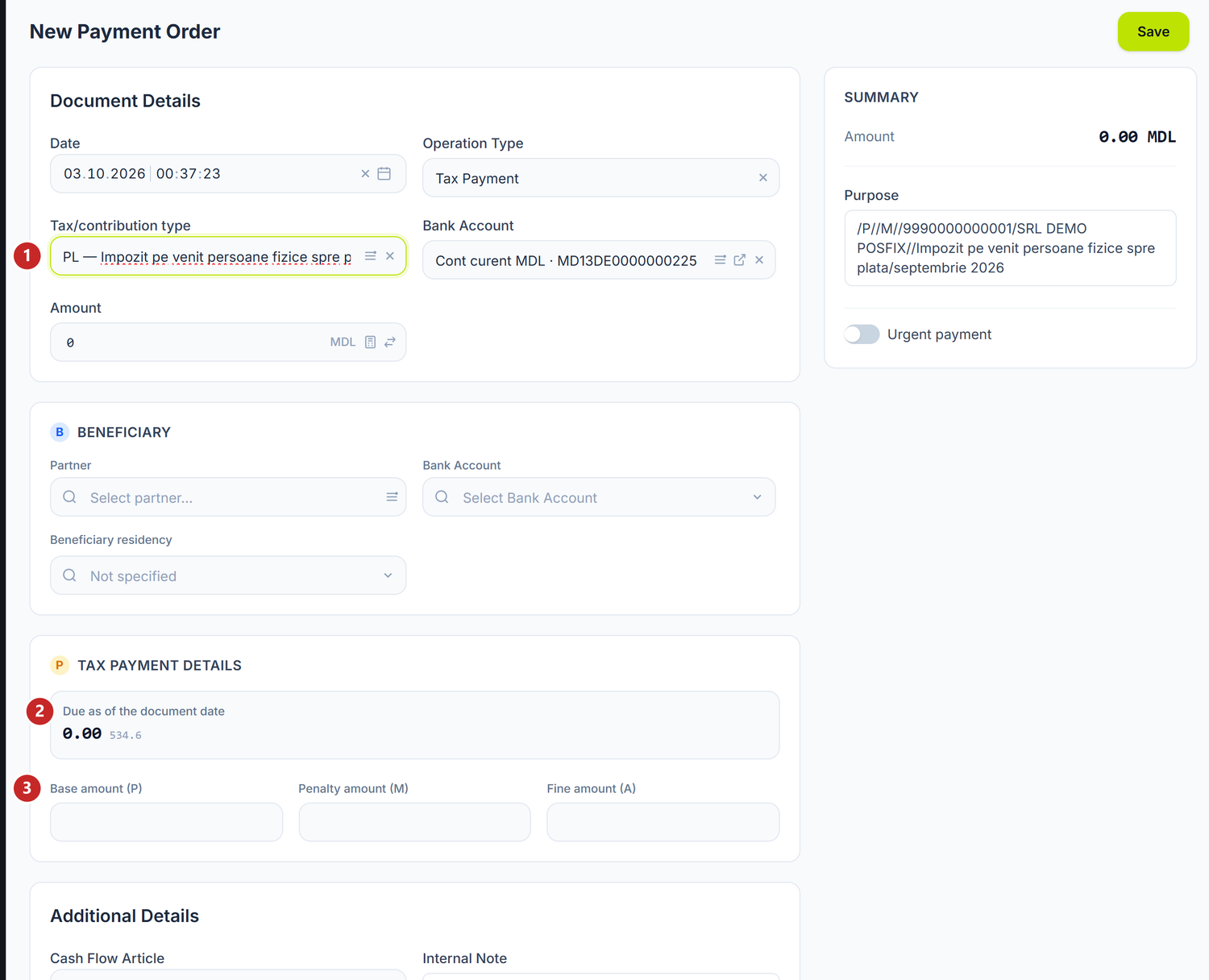
1 the tax type · 2 how much is due at the order's date · 3 the breakdown into base amount, penalty and fine
Once you choose the type, the Due as of the document date block shows you how much has built up to pay on that tax, at the order's date. When the figure is above zero, Apply to amount moves it into Base amount (P).
Unknown there doesn't mean "nothing to pay". It means the panel couldn't read the balance at that moment — you type the amount yourself.
The amount breaks down into Base amount (P), Penalty amount (M) and Fine amount (A), and the order's amount becomes the total of the three. You type the penalty and the fine yourself. The Contract field is hidden on these types.
Withholding tax at source
When you pay a private individual for rent or services, the order transfers the net, and the gross income goes into the declarations. No tax is withheld at source from the lease of agricultural land . The toggle doesn't appear on Salary Payment or on payments to the budget.
To withhold tax at source:
- Turn on the Withholding tax at source toggle at the bottom of the form.
- Choose the Tax type. The rate fills itself in from the catalogue, with its legal basis underneath.
- Type the Gross income — the amount agreed with the person, before tax.
- The panel computes Withheld tax and Net payable.
- Apply to amount moves the net into the order's Amount.
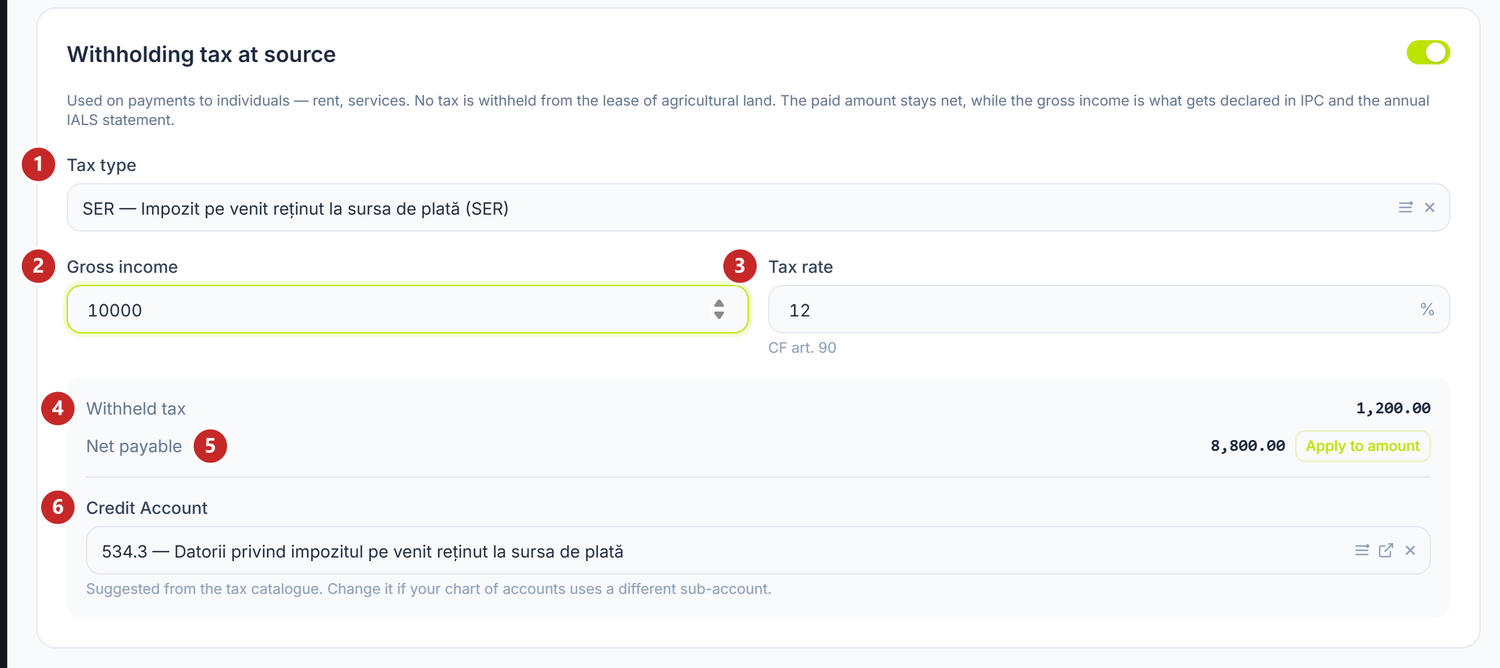
1 the tax type · 2 the gross income · 3 the rate · 4 the tax withheld · 5 the net payable and the Apply to amount button · 6 the account the liability is recorded on
Credit Account comes proposed from the tax catalogue. You only change it if your chart of accounts has different analytics.
The withholding passes from the order into the bank operation when you create it with Create Bank Operation or fill in the statement row from the order, and lands in the Withholding ledger when you post the operation. On an operation that came from an imported statement or one brought in from maib, open the operation and check the Withholding tax at source block and the account before posting. The order alone writes nothing to the ledger.
An order started from another document
Most of the time you don't start from scratch. On a posted supplier invoice you have the Create Payment button, and the form arrives prefilled, with the partner locked.
On a payroll order paid per employee through the bank you press Create payment orders and get one order per employee. The generation happens only once, so you don't end up with duplicate payments if you press again. With aggregated payment the bank gets the salary file, not orders — see Payroll orders.
To send the orders to the bank as a file
-
Tick the orders in the list and press Export in the top right corner, next to New Payment Order. If you tick nothing, everything visible is preselected.
The other Export, the one in the bar above the table, is something else: it downloads the displayed list as a spreadsheet, not the file for the bank.
-
Choose the bank account. The formats you get depend on its bank. The window shows only the orders on the chosen account, so payments from different accounts are exported separately, one account at a time.
-
Tick the format, at Export Format. The buttons only appear after you have chosen the account and are named after the bank and the extension —
MAIB TXT (.txt), for instance. The panel starts on the.txtvariant, so if your bank asks for something else, this is where you change it. -
Check the selection in the table inside the window and press Export — this time the one in the window. The Only not exported checkbox starts ticked, so orders already exported aren't duplicated; untick it if you really do want to resend something.
-
The file downloads, and the included orders get the Exported label in the Payment column.
MAIB gives txt, csv and dbf, FinComBank gives xml and txt, and for the other banks the panel uses the MAIB formats.
Rejected orders, paid ones and those already sent directly to maib don't appear in the window. Each row has its own checkbox, and the head of the table says Selected for export: N / M — how many you have ticked out of how many are visible. At the bottom, at Total export amount, you see how much is going to the bank, in the account's currency.
The window takes the orders on the list's current page, 20 by default. If you have more to send, increase the page size below the table before pressing Export.
To send an order directly to maib
If your account is at maib and you have linked the bank in Integrations, the order can leave without a file. Sending isn't the payment yet: the instruction lands in maib Business and stays there until someone with signing rights signs it.
It works for payments in lei, from the account you linked and turned on for sync under Integrations → maib. That is also where you turn on Allow sending payments to the bank. You also need administration rights on payment orders. Foreign-currency payments go in the file.
- Open the saved order.
- From the three-dot menu choose Send to the bank for signing and confirm.
- The Summary card shows Sent to the bank, with the time it was sent.
- Go into maib Business and sign the payment there.
- The panel asks the bank about the order's state by itself, together with fetching the statements, for 30 days. If you want the answer right away, choose Check the state at the bank. After the first check, the label becomes Awaiting signature at the bank.
Urgent payment, in the Summary card, asks the bank for urgent priority, which it charges more for. It works both in the exported file and when sending directly — except on a transfer between your own accounts, where priority isn't passed on.
An order sent to the bank can no longer be changed from the panel. The instruction already exists at maib and can be signed at any moment. If you have changed your mind:
- Cancel it in maib Business.
- In the panel choose Check the state at the bank, so the order learns about the cancellation.
- Only now can you press Cancel Document.
To correct the amount or the beneficiary, make a new order — fastest with Copy from the row's menu.
Send unclear
Sometimes the connection drops exactly while the order is leaving and the panel never learns whether the bank received it. The Payment column then shows Send unclear, and the send button disappears.
Don't resend the payment before checking in maib Business — a second send would be a second payment. If the money has left, the label turns into Paid by itself when you post the operation from the statement. If the instruction is neither in maib Business nor in the statement, make a new order and send that one.
Document statuses
| Status | How it gets there | What you can do |
|---|---|---|
| Draft | On save | Edit, approve, export, send to the bank, generate the bank operation, cancel, delete |
| Approved | The Approve button | Everything you can on a draft, except editing |
| Rejected | Cancel Document | Reactivate, which takes it into Draft, or Delete |
| Deleted | Delete | Restore, from the trash |
Approval is optional. It freezes the order, so nobody can change its amount or beneficiary any more. Export, sending to the bank and payment work just as well from a draft.
The status and the Payment column answer different questions. The status says whether the order is still valid; the column says how far the payment has got. An order can be in Draft and Paid at the same time.
When the order is Paid, Cancel Document and Delete no longer work. The money moved in the bank operation, so that is where you unpost. After that the Paid label disappears and you can cancel the order.
The toggles
| Toggle | What changes when you turn it on | If you leave it off |
|---|---|---|
| Urgent payment | The order leaves with urgent priority, in the file and when sent directly to maib | The payment leaves with normal priority |
| Withholding tax at source | The tax type, gross income and rate appear, and the panel computes the net to pay | The order transfers the whole amount, with nothing withheld |
| Only not exported (export window) | Orders marked Exported disappear from the selection | You also see payments already exported, with the risk of sending them a second time |
Three more commands change what you see. Mark as Not Exported, from the row's three-dot menu, removes the Exported label and brings the order back into the export selection. The trash in the bar above the table shows only the deleted orders, with Restore as the only action. The status pills reload the list filtered on the chosen status.
VAT Rate doesn't appear on every order: on Salary Payment, Tax Payment, Social Contribution and Medical Insurance the field disappears, together with VAT Amount.
What can trip you up
IBAN beneficiar lipsește(beneficiary IBAN missing) — the partner has no bank account chosen. Choose it in the BENEFICIARY section or add it on the partner's sheet, then run the export again.Cod fiscal beneficiar lipsește(beneficiary fiscal code missing) — fill in the fiscal code in the partner's sheet. The export checks all the selected orders at once, so the message can come from any of them.lipsește BIC-ul băncii beneficiarului(the beneficiary's bank BIC is missing) — put the BIC on the partner's bank account. It isn't derived from the IBAN.Error exporting payment orders— the file wasn't generated. Check the chosen format and try again.- An approved order can no longer be edited. If it needs correcting, cancel it, press Reactivate, which takes it into Draft, and edit.
- Bank Account turns red — the account is required, choose it before Save.
- The amount has to be above zero; otherwise saving is refused.
- You ticked several orders but see fewer in the export window — the rest are on another bank account, rejected, paid, already sent directly to maib, or already exported while Only not exported is ticked.
- Create Bank Operation is missing from the menu — the order is already paid, rejected, or the operation already exists. You open the last one from the link at the bottom of the form.
- Send to the bank for signing is missing — the maib link isn't set up, payments aren't turned on for it, the order has already left, or it is paid or rejected.
- The order doesn't appear in the list — widen the period or switch the filter to All.
- Saving returns a conflict — the document changed in the meantime. The form reloads, then you repeat the change.
Related pages
- Bank operations — the accounting document generated from the order, which makes it Paid
- Integrations — the maib link and the toggle that allows sending payments
- Withholding ledger — the register the withholding lands in once the bank operation is posted
- Payroll orders — bulk generation of salary orders