Bank accounts
To record what comes in and goes out through the bank, you first need the bank account in POSfix. It holds the IBAN, the bank and the currency, and the balance updates itself from the operations and statements you post — you never type it by hand.
Where to find it: Sidebar → Money → the Bank Accounts tab
As long as you have no account here, there is nothing to import statements into and nothing to issue payment orders from, so this is the place to start.
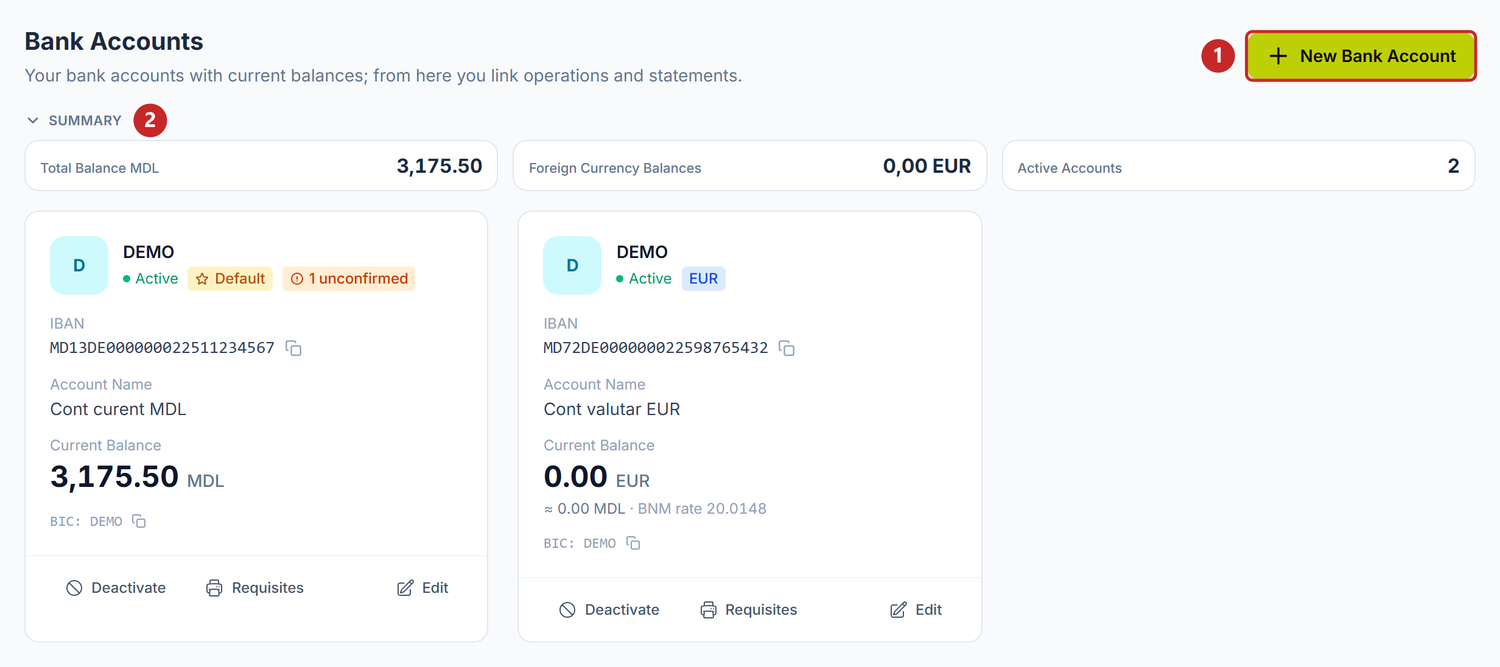
1 the New Bank Account button · 2 the Summary panel, with the total balances
The Summary panel at the top keeps your total balance in lei, the balances held in foreign currency and how many active accounts you have. If you don't need it, collapse it and it stays that way next time.
The account card
Each account appears as a card with the bank, the IBAN, the name you gave it and the current balance, so you can see at a glance what you have and where. Next to the IBAN and next to the BIC there is a copy icon each, so you don't have to retype them.
On a foreign-currency account, one more row appears under the balance: the approximate equivalent in lei and the BNM rate of the day, along the lines of ≈ 12,345.67 MDL · BNM rate 19.4321. It is a figure for orientation, not the account balance — the balance stays the one above, in its own currency.
Under the card you have three actions. Edit reopens the form, Requisites opens the account's details sheet, and Deactivate takes the account out of the lists of new documents. Deactivating is not deleting: documents already recorded on that account stay untouched.
If you closed an account by mistake, you haven't lost it. On the card of an inactive account the same button becomes Activate and brings it back into the lists, history and all.
Unconfirmed
On some cards you see an amber "N unconfirmed" label. It counts the operations left in Draft on that account, and clicking it takes you straight to their list. Most of them come from an import, but one written by hand, saved and left unposted counts too.
It doesn't mean something is wrong with the account. It only means those movements are still waiting for you to check them.
To add a bank account
- Money → the Bank Accounts tab → New Bank Account.
- Type the IBAN and wait for the IBAN is valid confirmation.
- Check the Bank Name. If it stayed empty, pick it from the list.
- Fill in the Account Name.
- Choose the Currency.
- Save.
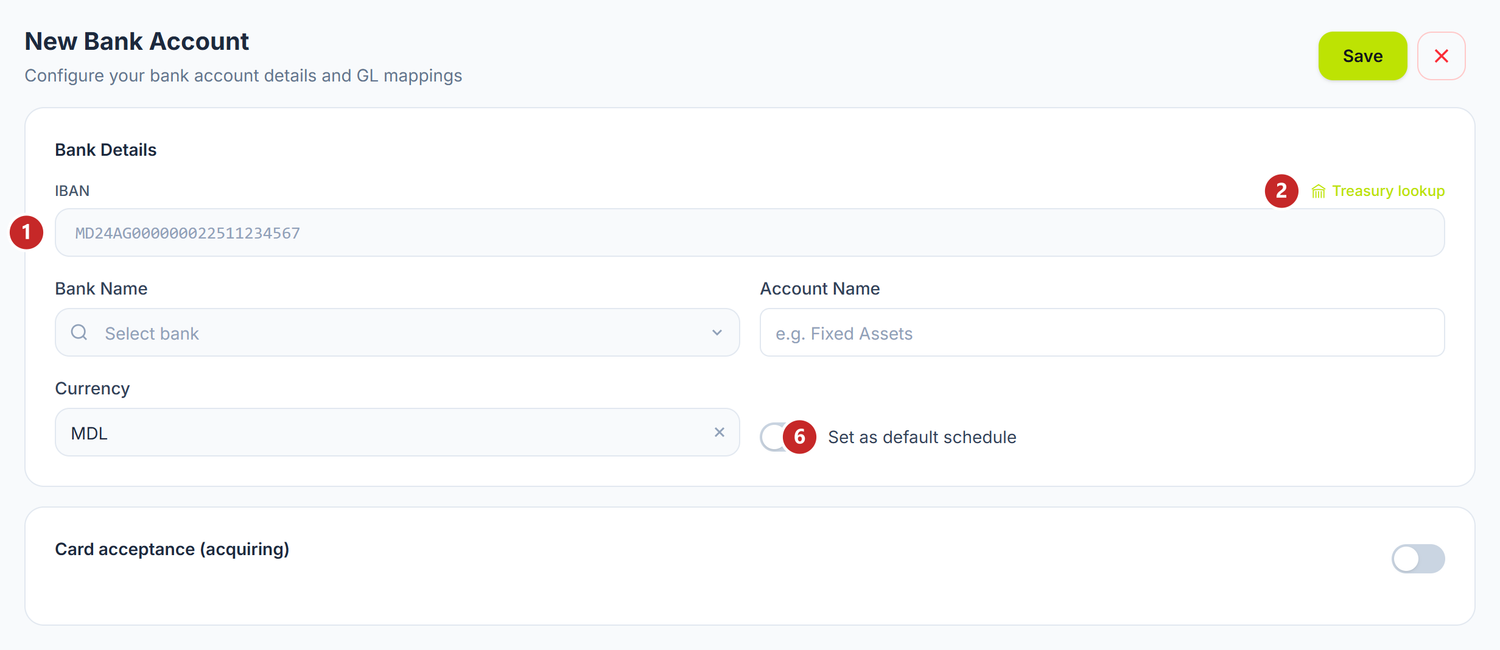
1 IBAN · 2 treasury IBAN lookup · 3 the bank · 4 the account name · 5 the currency · 6 default account
The IBAN is validated as you type, so you find out right away if you got a digit wrong, not at save time. On a Moldovan IBAN the bank fills itself in from the bank code, so most of the time there is nothing for you to pick there.
The account name is the label you will recognise it by in every selection list. Put something you identify at a glance, like "MDL current account MAIB" — a few months from now, "Account 1" tells you nothing.
If you later find a wrong digit in the IBAN or the wrong currency, correct them from Edit and save. Neither field locks after the first operation, so you have no reason to create a new account.
Treasury IBAN
The Treasury lookup button opens the classifier of treasury accounts: you pick the account you need and the IBAN fills itself in, without typing.
Use it every time you prepare payments to the budget. Don't take the IBAN from an old statement — it may no longer be valid, and the mistake only shows up after the money has left.
Card acceptance
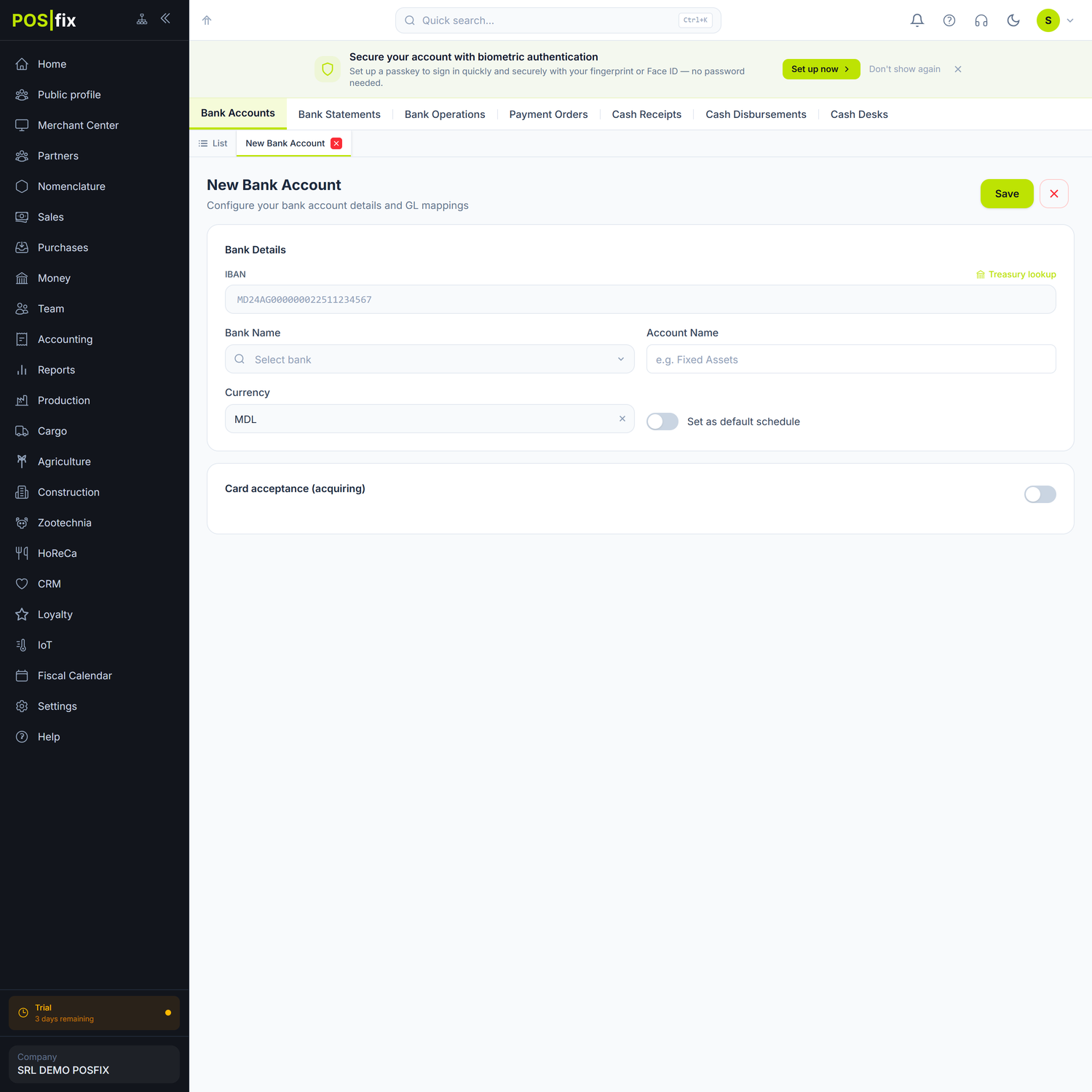
If the money from card payments comes into this account, turn on the Card acceptance (acquiring) toggle and fill in the four fields that appear under it.
1 the toggle · 2 the settlement account · 3 the commission percentage · 4 the acquiring bank · 5 the contract
The settlement account comes proposed, 245.5. Change it only if your bank settles into a different account. You enter the commission percentage for reference, from the acquiring contract: the panel keeps it on the sheet, but it learns the actual commission at settlement, as the difference between gross and net (see Bank operations).
What you fill in here carries over into retail sales: the commission is recognised at bank settlement, without you calculating it every time.
Bank requisites
Requisites, on the card, opens the sheet you hand to the customer or supplier who asks where to transfer. It has three blocks: Company details (name, fiscal code, VAT code or the Not a VAT payer note, legal address, phone, e-mail), Bank details (bank, BIC, IBAN, account name and currency) and Authorised signatories — Director and Chief accountant.
Nothing is filled in inside this window. The data comes from the company sheet and from the chosen bank account, so an empty row, marked with "—", is corrected there, not here.
You have two buttons: Print and Download PDF. Both open the browser's print dialog — for a PDF, choose "Save as PDF" in it.
Below, the Send by email panel saves you the download. Recipient comes prefilled with your own company address, so put in the address of whoever asked for the sheet. Document language — ro, ru or en — decides which language it reaches them in, so choose the language you correspond with them in.
The toggles
| Toggle | What changes when you turn it on | If you leave it off |
|---|---|---|
| Set as default | Nothing changes on the form, but on your next document the account is already filled in. Only one account can be the default, so the previous one loses the mark. | You pick the account by hand on every document. |
| Card acceptance (acquiring) | Four fields open under the toggle: the card settlement account, the commission percentage, the acquiring bank and the contract. | Card receipts are not tied to this account. |
What can trip you up
- The IBAN field stays red. The length or the check digits don't match, so check what you typed once more: a Moldovan IBAN has 24 characters and starts with
MD. - “Există deja un cont bancar cu numărul …" (a bank account with that number already exists) — the IBAN is taken by another account of the organisation. Look for it in the list before creating a new one — it may just be deactivated, and deactivating doesn't free the number.
- The bank didn't fill itself in. Either the IBAN isn't Moldovan, or the bank code inside it isn't recognised. Pick the bank from the list and move on.
- The account doesn't appear in documents. Either it is deactivated, or it has a different currency than the document — a document in lei doesn't see accounts held in foreign currency.
- The Save button doesn't respond. A required field was left empty. Scroll up, the problem fields are marked in red.
Related pages
- Bank operations — the receipts and payments that move the account balance
- Bank statements — how you bring the bank's movements into POSfix
- Payment orders — the payments you issue from this account