How to get help
The quickest way is to find out yourself, from the guide or from the assistant in the panel: it searches the guide for you and can take you to the right screen. When you need a person, write to a technician from the panel or call support.
The assistant and technician buttons are in the panel's top bar.

1 the assistant (the speech bubble) · 2 the technician (the headset). The question mark between them reopens the panel's getting-started guide.
To read the guide without leaving the panel
Open Help, the last line of the side menu. It's this guide, in the panel's language, with search. The pages the assistant shows you under an answer open there too.
To ask the assistant
- Click the speech bubble in the top bar (PosFix Assistant).
- Write the question the way you would ask a colleague, for example "how do I make a return to a supplier?". Enter sends it.
- Read the answer. Below it, the assistant shows the guide pages it took it from. When the answer is about a screen, it offers Take me there.
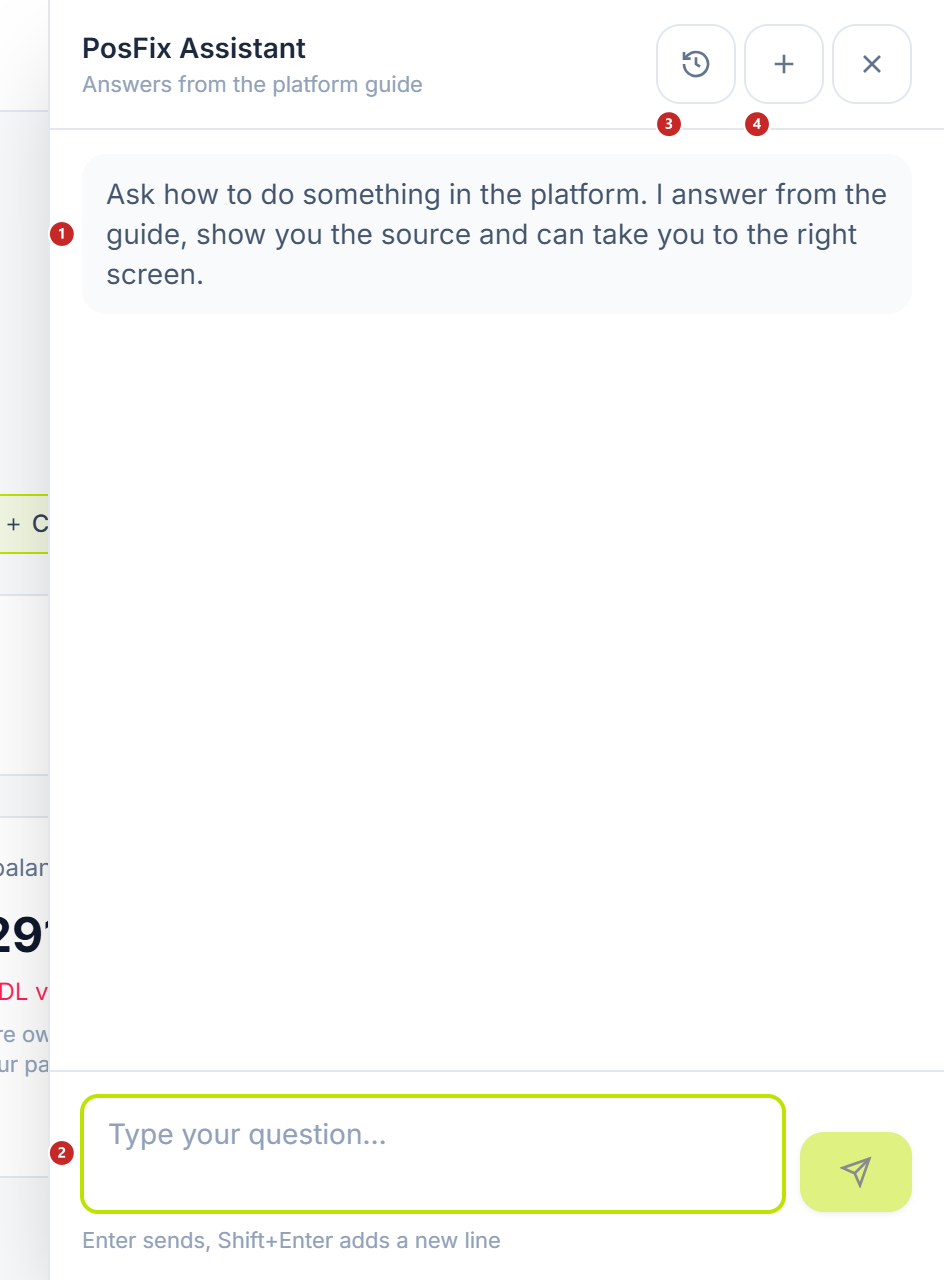
1 what it can do · 2 your question · 3 your earlier conversations · 4 a new conversation
The assistant only explains and takes you to the screen. It doesn't fill in forms and doesn't see your company's data: for "what is the balance of account X" it has no way of knowing, and you'll find the figure on its own screen. It has a daily question limit — when you get close to it, the number of questions left appears under the input field. A very long conversation stops at a set number of messages and asks you to continue in a new one.
If an answer didn't help, click the thumbs-down under it (This answer did not help), write what was missing if you like, and click Send. That's how we learn what the guide is missing.
To have support call you
When the assistant can't find the answer or you ask for a person, it shows the support contacts: the phone, the email address and the hours.
- Click Call me.
- Check the Phone number we should call — it comes from your profile; change it if you want to be called on another number.
- Click Send the request.
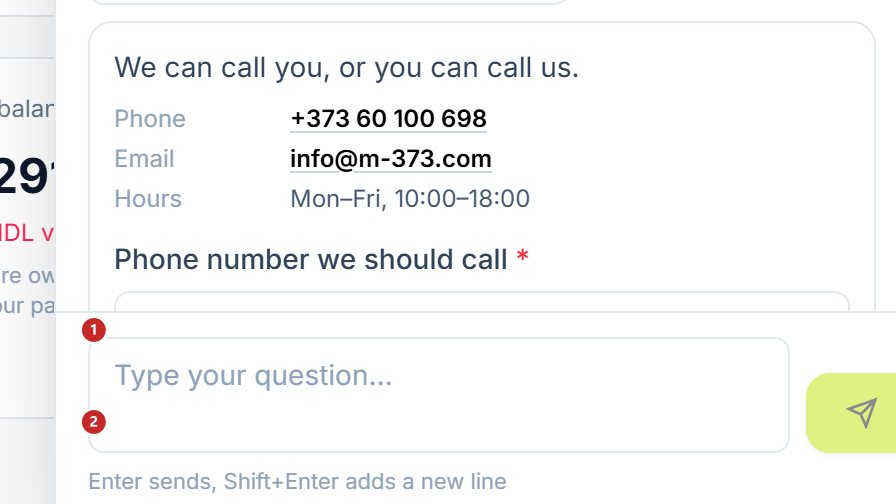
1 the phone we call you on · 2 sending the request
The message "Request received. We will call you during support hours." confirms that the request got through.
To talk to a technician
- Click the headset in the top bar (Contact a Technician).
- The request joins the queue, and the window shows your Queue position. If you change your mind, click Cancel Request.
- When a technician picks it up, you write to them in the same window.
- If the technician wants to work directly on your screen, they ask for permission. Accept gives them remote control, Decline keeps them in the chat only.
When the technician ends the session, the window asks How was your experience? You pick one to five stars, add a comment if you like and click Submit Feedback — the button turns on once you've picked the stars.
Phone and email
Support answers at +373 60 100 698 and at info@m-373.com, during the hours the assistant shows next to the contacts.
To get help right away, have at hand:
- the company and its IDNO;
- the register or the screen where it happened — the register's name in the panel or the screen's name in the top bar;
- the exact message on the screen, ideally a screenshot.
Related pages
- Getting started — what to choose and in what order to start.
- Support — Windows register and Support — Android register — common problems at the register, where the panel's assistant isn't at hand.
- Navigating the interface — the top bar and the panel menu.