Getting started with POSfix
POSfix is the fiscal cash register and the panel you run your business from, linked together: what you sell at the register reaches the panel on its own. You don't need all of it — take only what fits your business.
What to choose
The cash register issues the fiscal receipt, takes the payment and closes the day with the Z report. It runs on a Windows computer or on an Android terminal — it is the same register with the same rules, only the screen differs. The guides: Windows and Android.
The customer screen is a second monitor on the Windows register, where the shopper sees what goes into the cart and how much is due. Add it only if you want it. The guide: Customer screen.
The restaurant is for businesses with a dining room and a kitchen: the register works by tables, the kitchen gets the orders on a screen, and guests can order from a QR code. The guide: How the restaurant works.
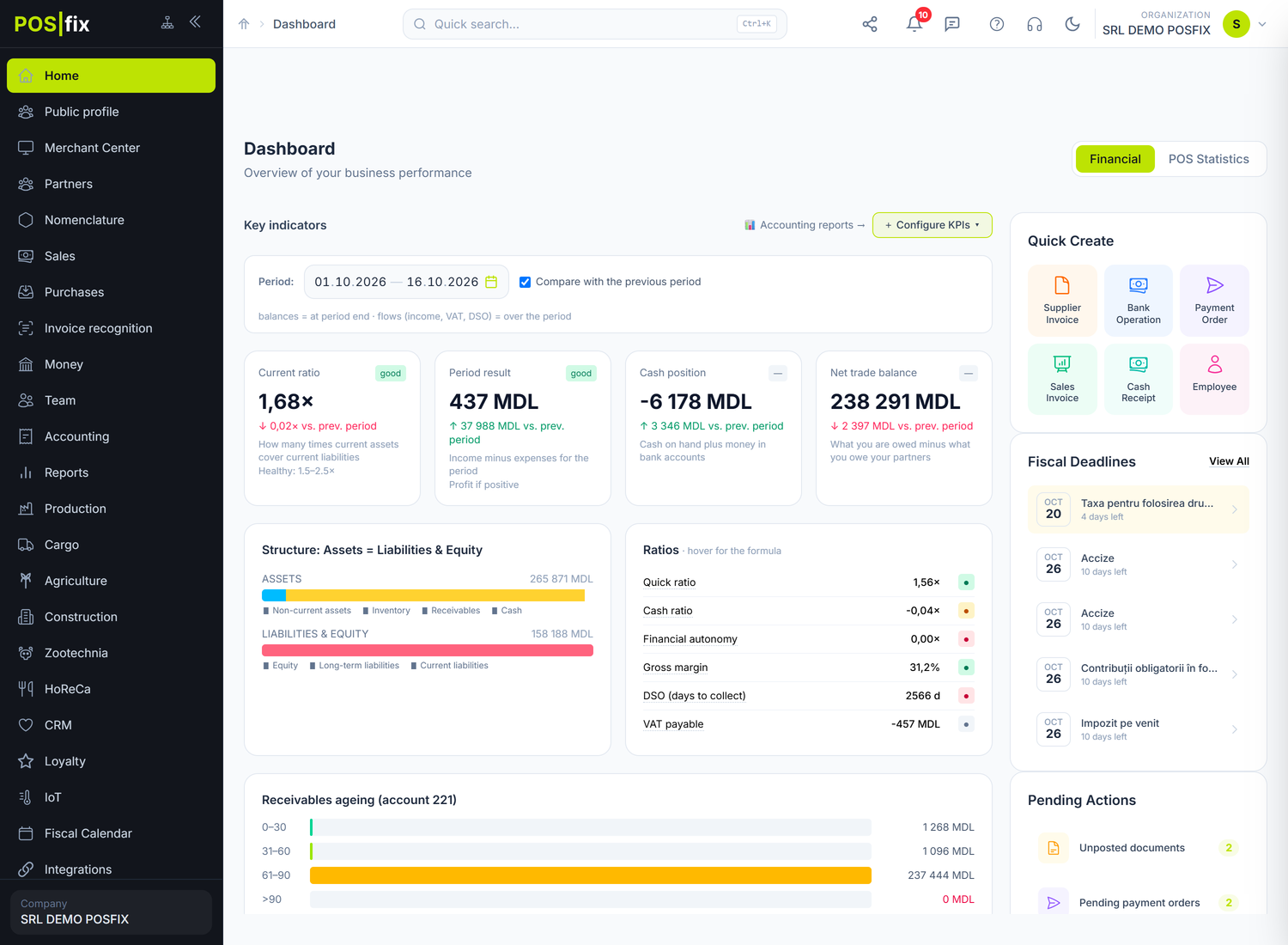
The control panel opens in the browser at cp.posfix.md. From it you add products and prices, add the cashiers and see sales — and, if you keep them here, the accounting, trade or payroll too. The guide: Control Panel.
On the phone, the same panel is in the POSfix Dashboard app.
In what order to start
To get to the first sale:
- Create your account and your company in the panel — Account and organization.
- Add the products you sell, with their price, in Merchant Center → the Products tab — Categories and subcategories at the register. If you also keep the accounting item list, you make the register card from the item's form — The link with the till card.
- Add the people who work at the register, each with their own PIN — Cashiers and waiters.
- Install the register and activate it with the code POSfix sent you by email — on Windows (Installation, then Activation) or on Android.
- Sell, and in the evening close the day with the Z report — on Windows or on Android.
The order matters for steps 2 and 3: the register takes its products and cashiers from the panel, so what isn't there won't show up at the register either. A restaurant adds a few steps — the dining room, the tables and the Coordinator — described in How the restaurant works.
What can trip you up
I installed the register, but I don't see the products. When it syncs, the register takes the products from Merchant Center → Products, on the company it was activated for. An item from the accounting list gets there only after you make its register card. If a register has a business type, it gets the products without a type and those that share a type with it — see Activity types.
I don't know what the computer or terminal needs. It's at the start of each register guide: Windows and Android.
Related pages
- How to get help — the guide in the panel, the assistant, the technician and the support phone.
- Navigating the interface — how to move around the panel.