Cash Management
This function allows you to add change money at the beginning of the day or withdraw money from the drawer for deposit, without issuing fiscal sales receipts.
Accessing the Cash Management Panel
From the main sales screen, press the Cash button, located in the top menu bar.

Once accessed, the Cash Management control panel opens. It is divided into 5 main sections:
- Status Bar
- Performance Indicators
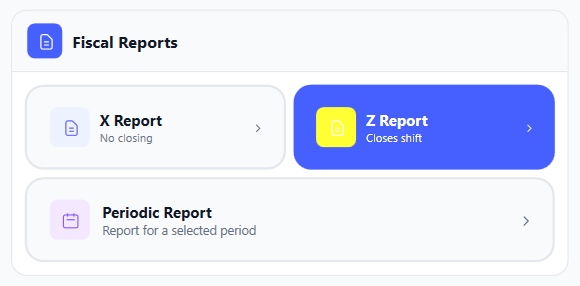
- Fiscal Reports
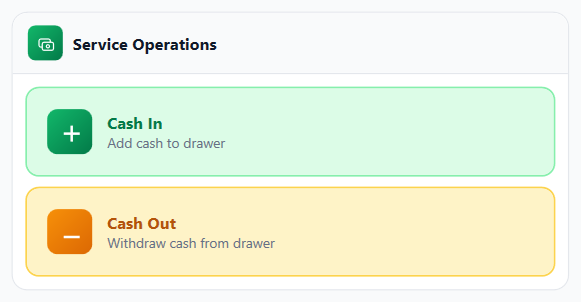
- Service Operations
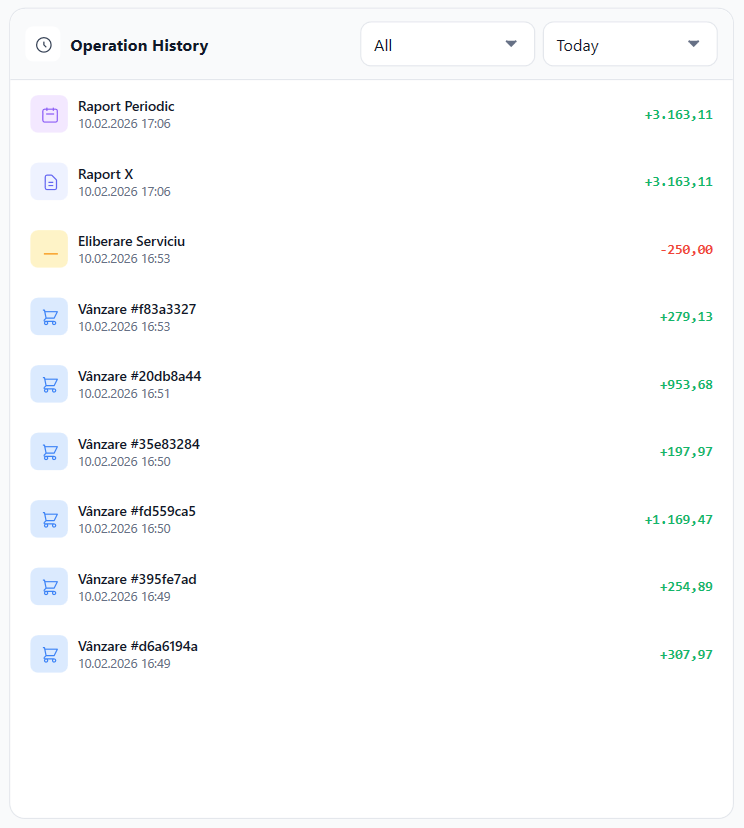
- Operations History
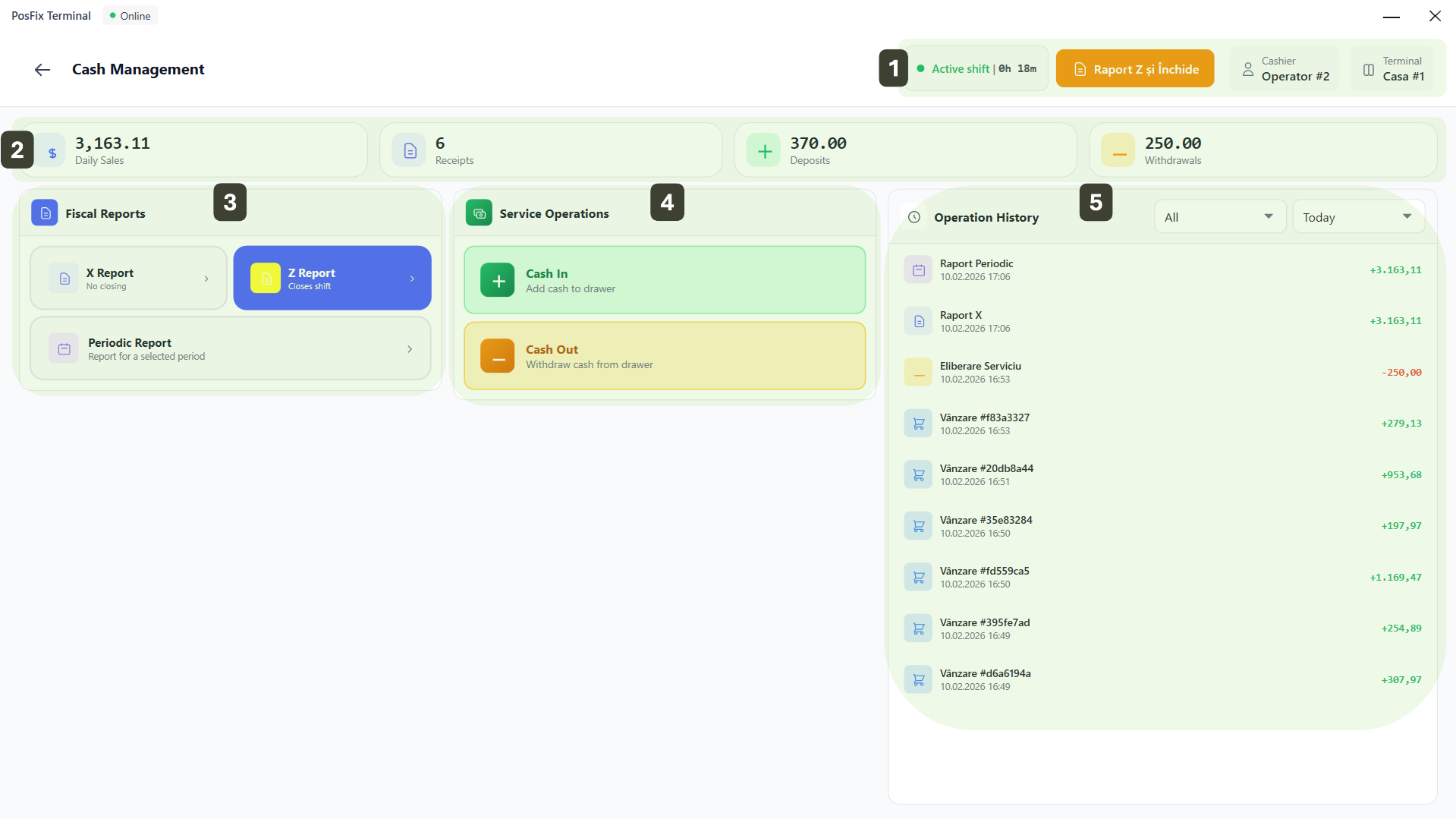
Status Bar
- Active Shift indicates the duration of the current shift
- Z Report and Close a shortcut to close the shift
- Cashier displays the name of the logged-in user
- Terminal displays the number or name of the physical cash register

Performance Indicators
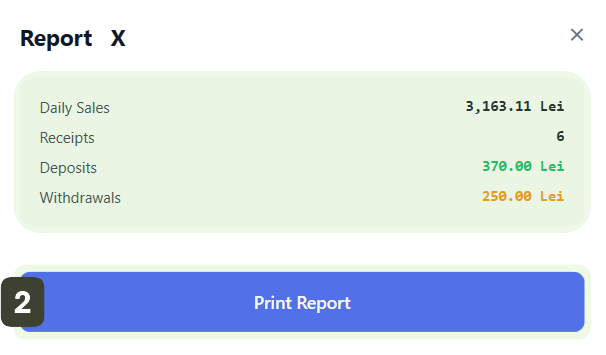
- Daily Sales: The total amount of fiscal revenue generated today
- Receipts: Number of completed fiscal transactions
- Deposits: Total cash added to the drawer as "Cash Balance" or supplements
- Withdrawals: Total cash removed from the drawer (handed to manager) during the day.

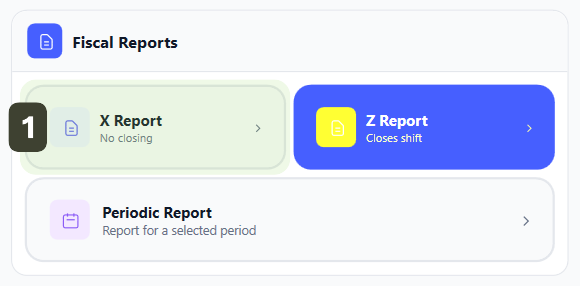
Fiscal Reports
Here you will find critical functions for communicating with the (MEV):
- X Report: Generates an informative verification report. When to use: Use this anytime during the day to check the expected cash balance in the drawer without closing the fiscal day.
- Z Report: The final command to close the day. Action: Clears the operational memory, prints the long end-of-day receipt and transmits data to MEV (Electronic Sales Monitoring).
- Periodic Report: Allows extracting fiscal history for a selected period (e.g.: last month), useful for audits or accounting purposes.
Service Operations
These are the main buttons for the physical management of cash in the drawer (non-fiscal operations).
- Cash In: Use this button to add change money at the beginning of the workday.
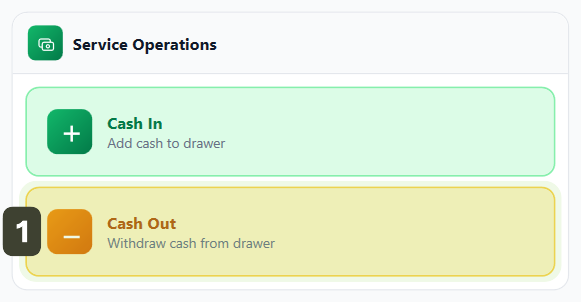
- Cash Out: Use this button to withdraw money from the drawer.
Operations History
A chronological list of all cash movements.
- Allows you to quickly view sales, reports, cash-ins, and cash-outs.
- You can filter the list by operations and periods.
Reporting Operations
Managing documents issued by the cash register and control equipment (ECC) for querying fiscal memory, transmitting data to the MEV system and generating periodic reports required for accounting records.
X Report
- In the Fiscal Reports section, press the X Report button
- A window will open displaying the main indicators, for visual verification before printing. Press the Print Report button
- The X Report is printing
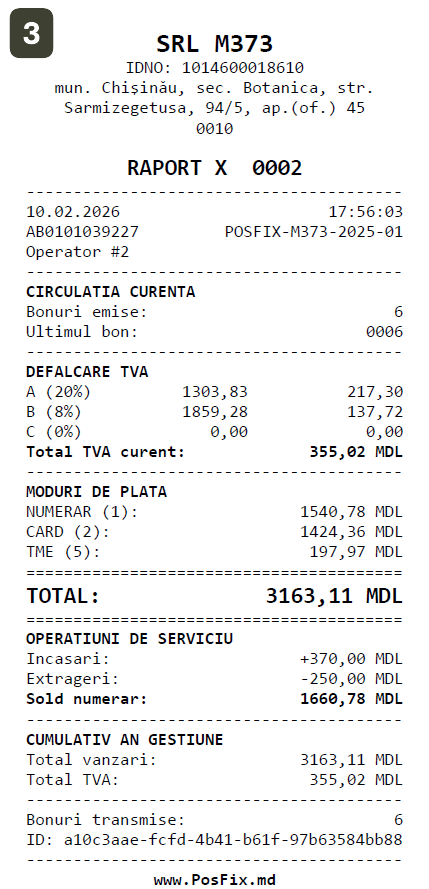
Print an X Report before shift handover or before the Z Report, to ensure that the cash in the drawer matches the exact amount recorded in the system. If there are differences, now is the time to identify and justify them.
Z Report
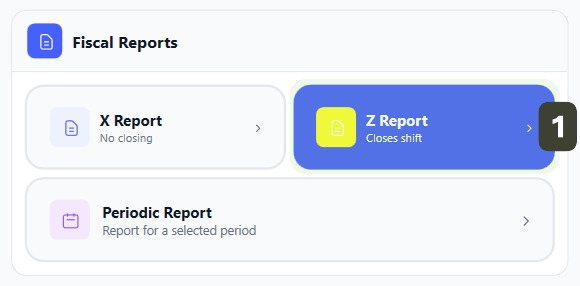
- In the Fiscal Reports section, press the Z Report button
- A window will open displaying the main indicators, for visual verification before printing. Press the Print Report button
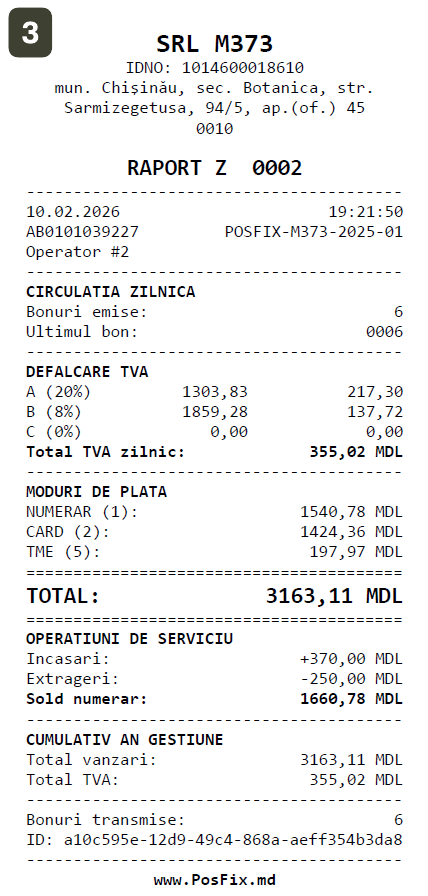
- The Z Report is printing
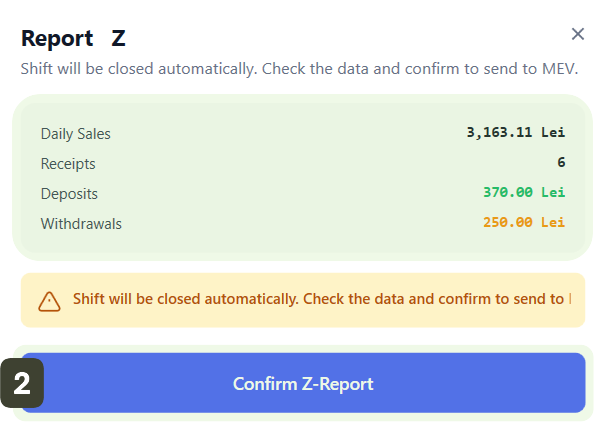
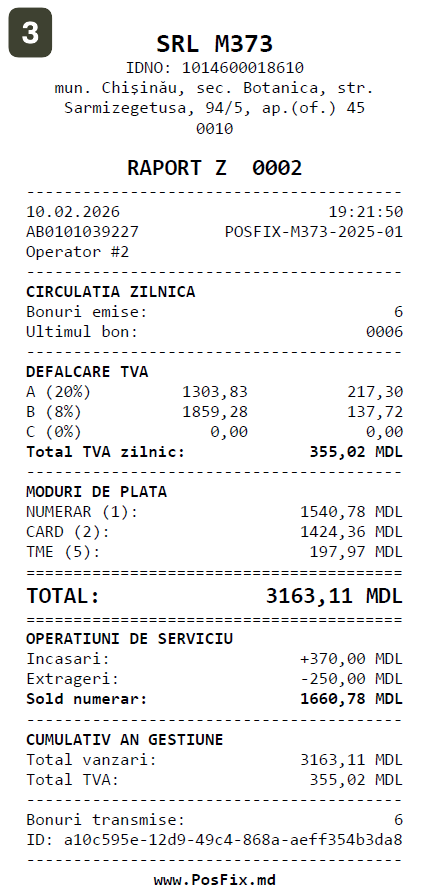
- Once a day only: Do not print the Z Report at lunch or at shift change (unless the store is closing). Use the X-Report exclusively for verifications.
- Irrevocable: Once you press the Confirm Z Report button, the sales counter resets to zero. You can no longer issue fiscal receipts for that day.
Periodic Report
- In the Fiscal Reports section, press the Periodic Report button
- A configuration window will open where you need to define the desired period. After setting the period, press the Generate Report button
- The system will first display a summary on screen to verify if data exists for that period. If the figures appear correct, press the Print Report button
- The Periodic Report is printing
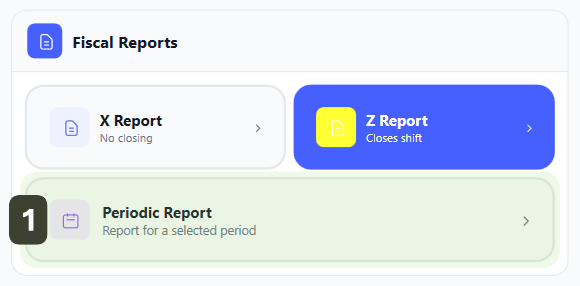
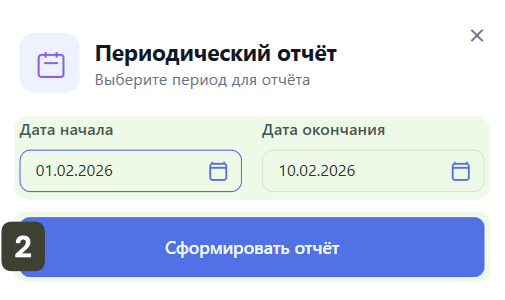
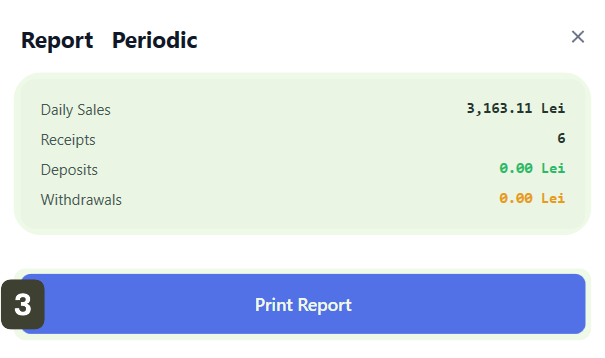
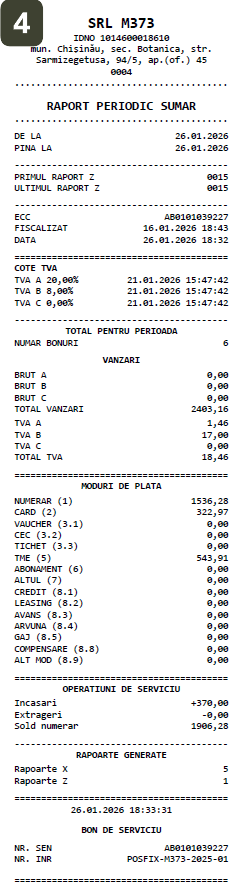
Usually, the accountant will request this report at the beginning of each month (for the previous month) to verify if the sum of daily Z Reports matches the fiscal memory of the equipment.
Cash-In (Deposit)
The Cash cash-in function is used for:
- Starting balance at the beginning of the day
- Adding cash during working hours (top-ups)
- Recording non-fiscal receipts
Steps for Cash-In
- In the Service Operations section, press the Cash In button
- Enter the exact amount you are placing in the drawer
- Optional: add an explanatory note in the Reason field
- Starting balance
- Change top-up
- Manager's deposit
- Other
- Press the Confirm button
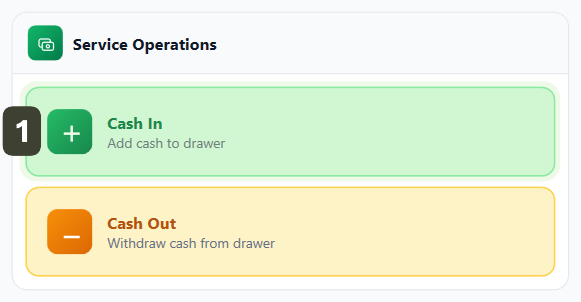
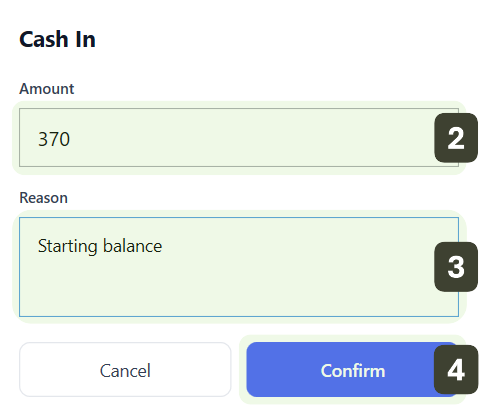
Ensure you have a starting balance when opening the day. Use the Cash In function to record the money prepared for change before starting any sales.
Suggested amounts for the starting balance:
| Banknote/Coin | Quantity | Total |
|---|---|---|
| 1 leu | 20 pcs | 20 lei |
| 5 lei | 10 pcs | 50 lei |
| 10 lei | 10 pcs | 100 lei |
| 20 lei | 5 pcs | 100 lei |
| 50 lei | 2 pcs | 100 lei |
| Total | 370 lei |
Cash Out (Withdrawal)
Cash out is used for:
- Excess cash pickup
- Supplier payments
- End of shift
Steps for Cash Out
- In the Service Operations section, press the Cash Out button
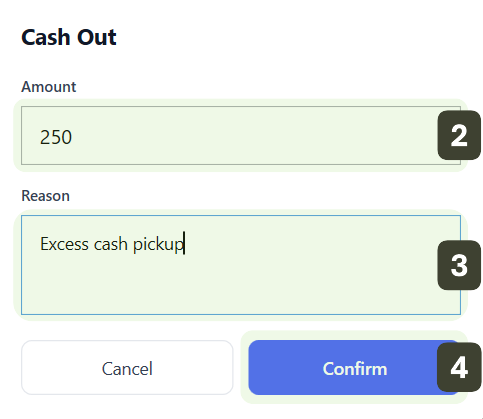
- Enter the exact amount you are physically removing from the drawer
- Optional: add an explanatory note in the Reason field
- Excess cash pickup
- Supplier payment
- End of shift
- Manager collection
- Other
- Press the Confirm button
Never use this function to provide change to customers during a regular sale! This function is strictly for internal cash management.
You cannot withdraw more than the available balance in the register. The system will display an error if you try.
Closing the Shift (Ending the Workday)
Closing the shift is the final and mandatory procedure performed at the end of the workday. Its purpose is to finalize the day's receipts, transmit data to the fiscal server (MEV) and reset the cash register for the next working day.
- From the Status Bar, press the Z Report and Close button
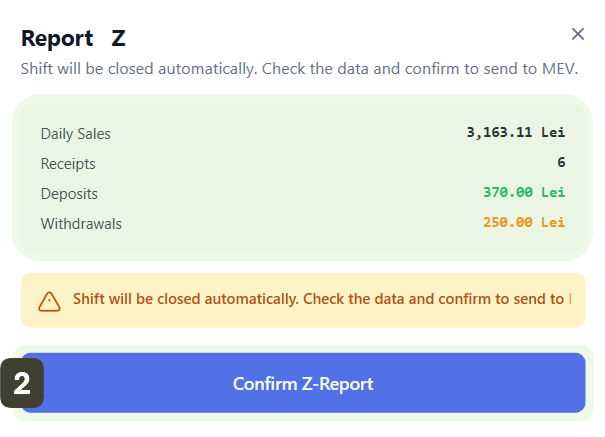
- An alert window will open with the day's summary. Press the Confirm Z Report button
- The shift will be closed and the Z Report will be printed

Before pressing the final button, go through these quick steps to avoid errors:
- ✅ Verify Cash: Make sure the money in the drawer matches the app's totals (using an X Report).
- ✅ Process Withdrawals: If company policy requires not leaving money in the register overnight, perform Cash Out to pickup cash.
- ✅ Check for Open Receipts: Make sure no orders are left unfinished or "on hold."
Cash Verification at Shift Close
At the end of the shift, perform reconciliation:
- Physically count the money in the drawer
- Compare with the balance displayed in the system
- In case of difference:
- Positive difference -> Surplus (to be investigated)
- Negative difference -> Shortage (to be reported)
All differences must be documented and reported to the manager before generating the Z Report.
Security and Audit
All cash operations are:
- Recorded with date and time stamps
- Synchronized with the central server
- Included in X, Z and periodic reports
- Available for audit