Records and Calculations
The system automatically maintains records of monetary amounts for all types of operations performed. This ensures complete transparency of the financial flow.
Monetary Tracking
Monitored categories:
- Daily sales - Represents the total sales made in a working day
- Cash receipts - Total physical amounts (cash) received from customers
- Card receipts - Total electronically processed payments (bank POS)
- Other receipts - Amounts from alternative payment methods (vouchers, meal tickets, subscriptions, etc.)
This data is centralized and can be accessed in:
- Cash management panel - Accessible to users with administrator rights
- Fiscal Reports - Detailed in X Report (verification) and Z Report (daily fiscal closure)
Goods and Services Records
The system maintains detailed and separate records of data for each item or service sold. This information is essential for inventory management and fiscal reporting.
| Information | Description |
|---|---|
| Product name | The exact name of the item or service as it appears on the receipt |
| Category | The category or department the product belongs to |
| Quantity sold | The total number of units sold in the transaction |
| Unit price | The selling price per unit (piece, kg, etc.) |
| Applicable VAT | The associated Value Added Tax rate (e.g.: A, B, C) |
| Total per item | The value resulting from automatic calculation: Quantity x Unit price |
Cost Calculation
The system automates the calculation process to ensure transaction accuracy. For each item added, the value is determined instantly.
Calculation formula: The system applies the following rule for each product line: Total = Price x Quantity
This calculation updates in real-time if the user modifies the unit price or quantity of the selected product.
Change Calculation
This feature activates automatically once the Cash payment method is selected. The system handles the mathematical task to eliminate human error and ensure financial precision.
How it works: When entering the amount offered by the customer, the system instantly determines the amount to be returned using the logic: Change = Amount Received - Total to Pay.
The operator views the exact change amount on screen before closing the receipt, thus reducing the risk of cash discrepancies at the end of the day.
Steps for calculating change:
- Enter the amount received from the customer (using the numeric keypad or Quick Buttons for fixed amounts)
- The change is automatically displayed in green in the Change field (prepare the change for the customer)
- Press the Complete button
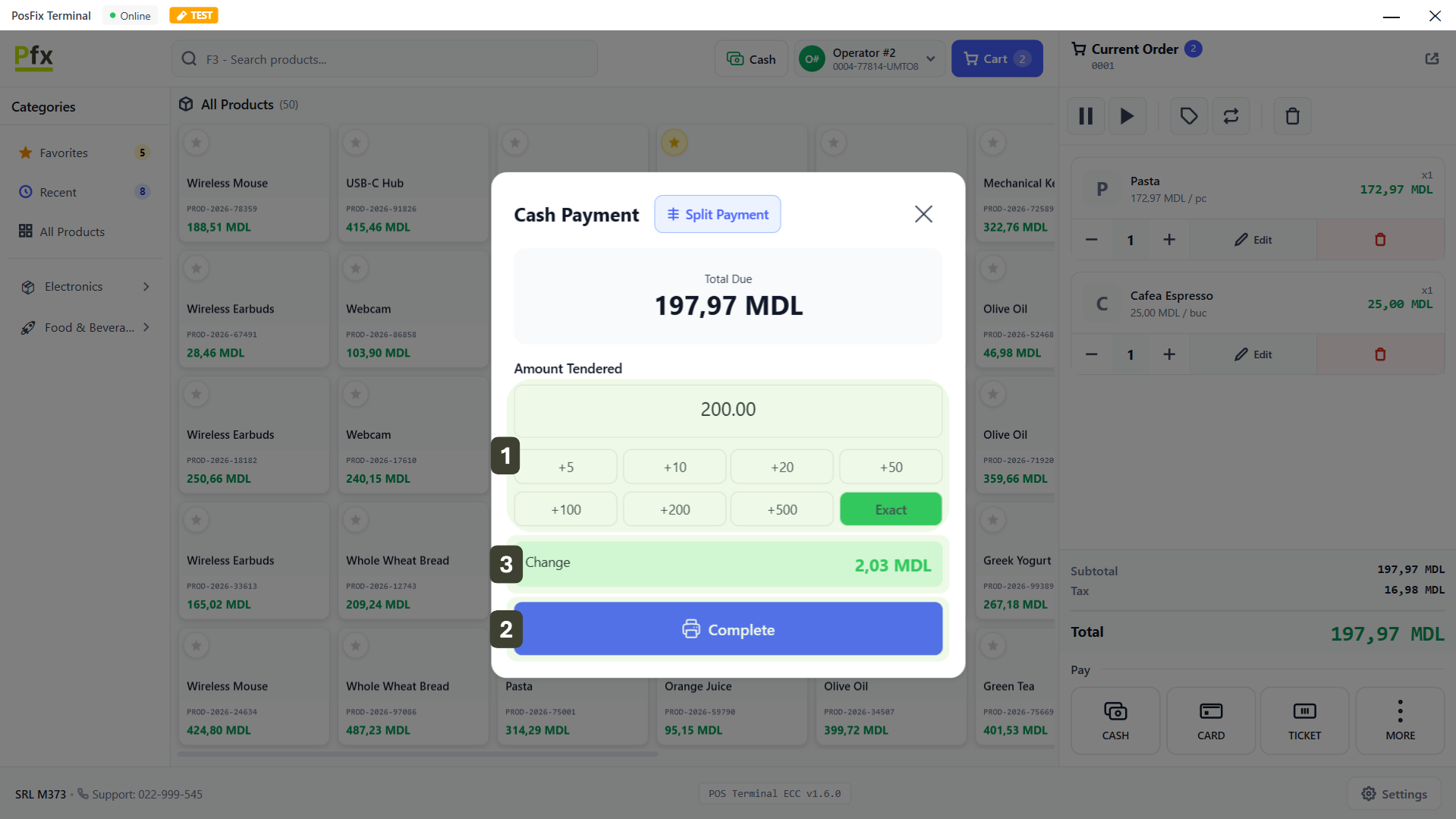
If the customer provides the exact amount (no change), press the Exact button (the amount will be filled in automatically).
- Total to pay: 197.97 lei
- Amount received: 200.00 lei
- Change to give: 2.03 lei
Quick buttons for amount received:
| Button | Function |
|---|---|
| +5 | Adds 5 lei to the entered amount |
| +10 | Adds 10 lei to the current amount |
| +20 | Adds 20 lei to the current amount |
| +50 | Adds 50 lei to the current amount |
| +100 | Adds 100 lei to the current amount |
| +200 | Adds 200 lei to the current amount |
| +500 | Adds 500 lei to the current amount |
| Exact | Automatically fills in the field with the value matching the Total Due amount |
Values accumulate through multiple presses, including when combining different amounts.
Example 1: Pressing the +200 button 3 times, the amount becomes 600 lei.
Example 2: Pressing successively +10, +100 and +200, the total becomes 310 lei.
Intermediate and General Totals
The panel on the right side of the screen, titled "Cart", functions as a virtual fiscal receipt, updating instantly with each scanned or selected product.
Calculating Intermediate Totals
The system displays three essential financial indicators at the bottom of the product list:
- Subtotal - Shows the cumulative value of items in the cart without adjustments. Use this indicator to verify along the process if prices were recorded correctly.
- VAT (Value Added Tax) - Indicates the portion of the amount that represents the tax to the state. The system automatically applies the correct rate (e.g.: 20%, 8%), so you don't need to calculate anything manually.
- TOTAL (To Pay) - This is the final, clearly highlighted amount the customer must pay.
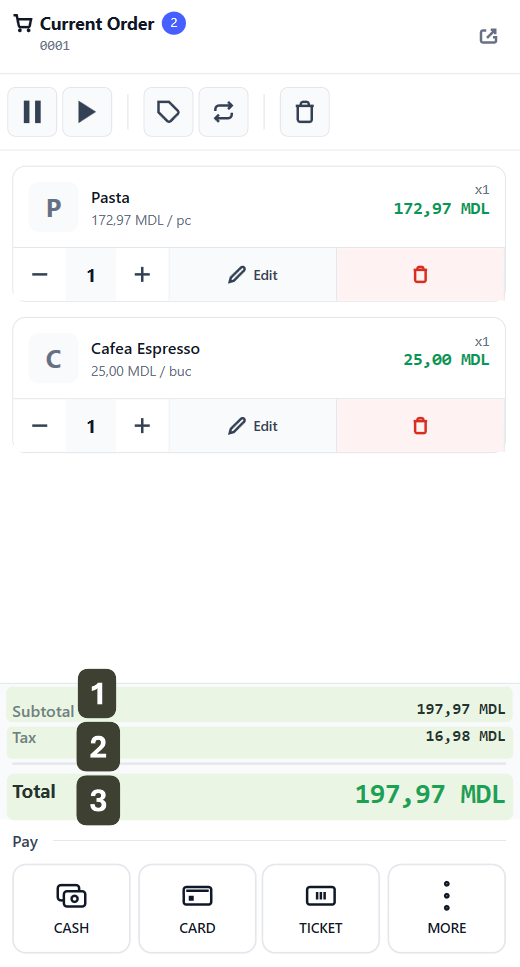
TOTAL (To Pay) - verbally communicate this amount to the customer ("You have to pay 197.97 lei") before proceeding to payment.
Grand Total Calculation
At the moment of completing the order, the system performs a final arithmetic verification to determine the exact amount to collect. This operation takes place automatically, ensuring the correct application of all financial adjustments.
Calculation Formula: The system determines the final value using the following logic:
Grand Total = Subtotal - Discounts + Markups
Formula Components:
- Subtotal: The initial sum of all products and services added to the receipt
- Discounts: Applied discounts that reduce the total value
- Markups: Additional costs that increase the total value
VAT breakdown by rates:
| Rate | Percent | Base | VAT |
|---|---|---|---|
| A (standard VAT) | 20% | 100.00 | 20.00 |
| B (reduced VAT) | 8% | 50.00 | 4.00 |
| C (VAT-exempt products) | 0% | 30.00 | 0.00 |