Launch & Authentication
Startup Screen
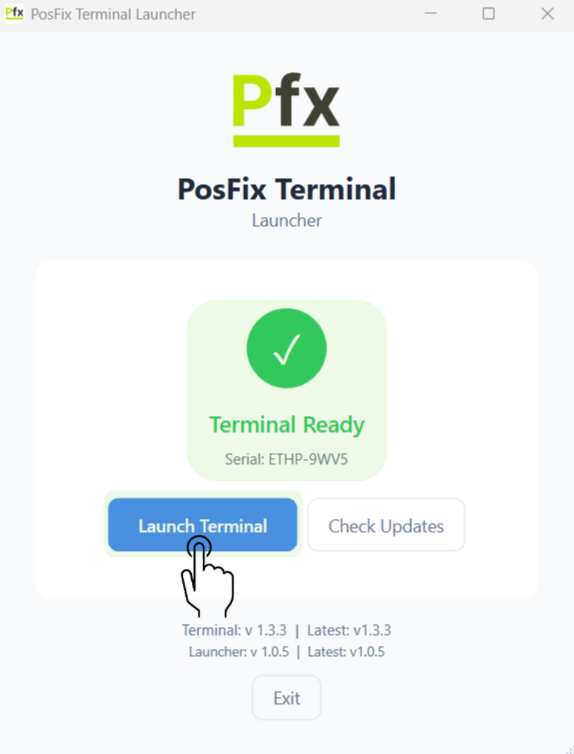
When opening the application, you will be greeted by the PosFix Terminal Launcher window, which verifies system integrity and checks for updates.
Terminal Initialization – Ensure that the status message displays Terminal Ready, then click the Launch Terminal button to proceed to the login interface.
Authentication Steps
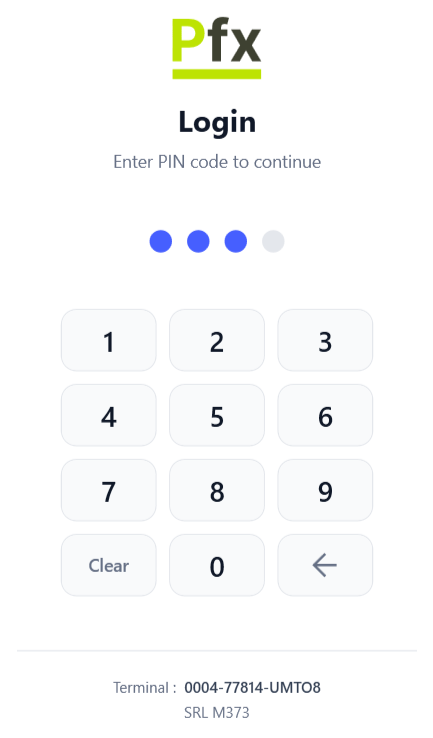
- Enter PIN code - Type the 4-digit PIN code
- Confirm - Press the "Authentication" button
User Roles
| Role | Permissions |
|---|---|
| Cashier | Sales, payments, fiscal reporting |
| Manager | Cashier permissions + product management, settings |
Switching Users
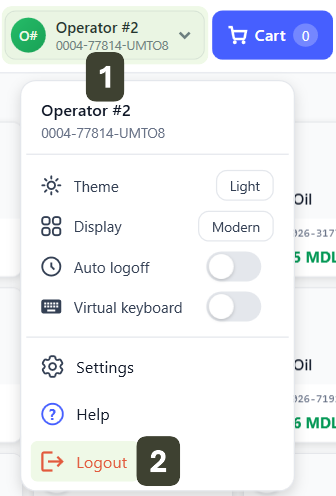
To switch the user during an active session:
- Click on the User Icon
- Select Log Out
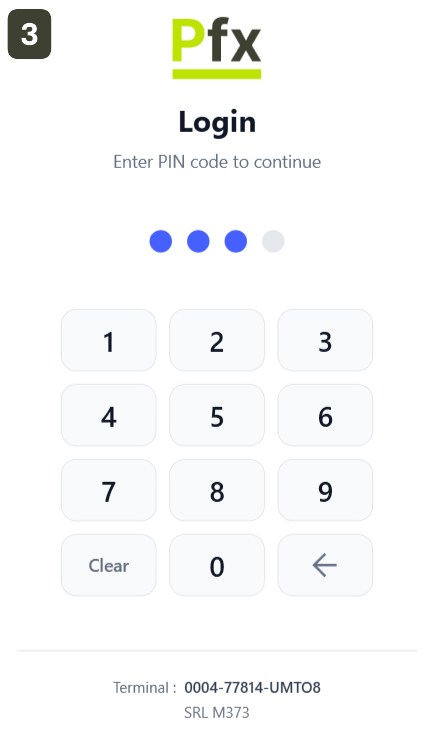
- Return to the authentication screen
Authentication Issues
| Issue | Solution |
|---|---|
| Forgotten PIN | Contact manager for a reset |
| Non-existent user | Check connection and synchronize |
| Authentication error | Verify that the PIN is correct |