Main Interface (POS)
After authentication, you will access the main sales interface.
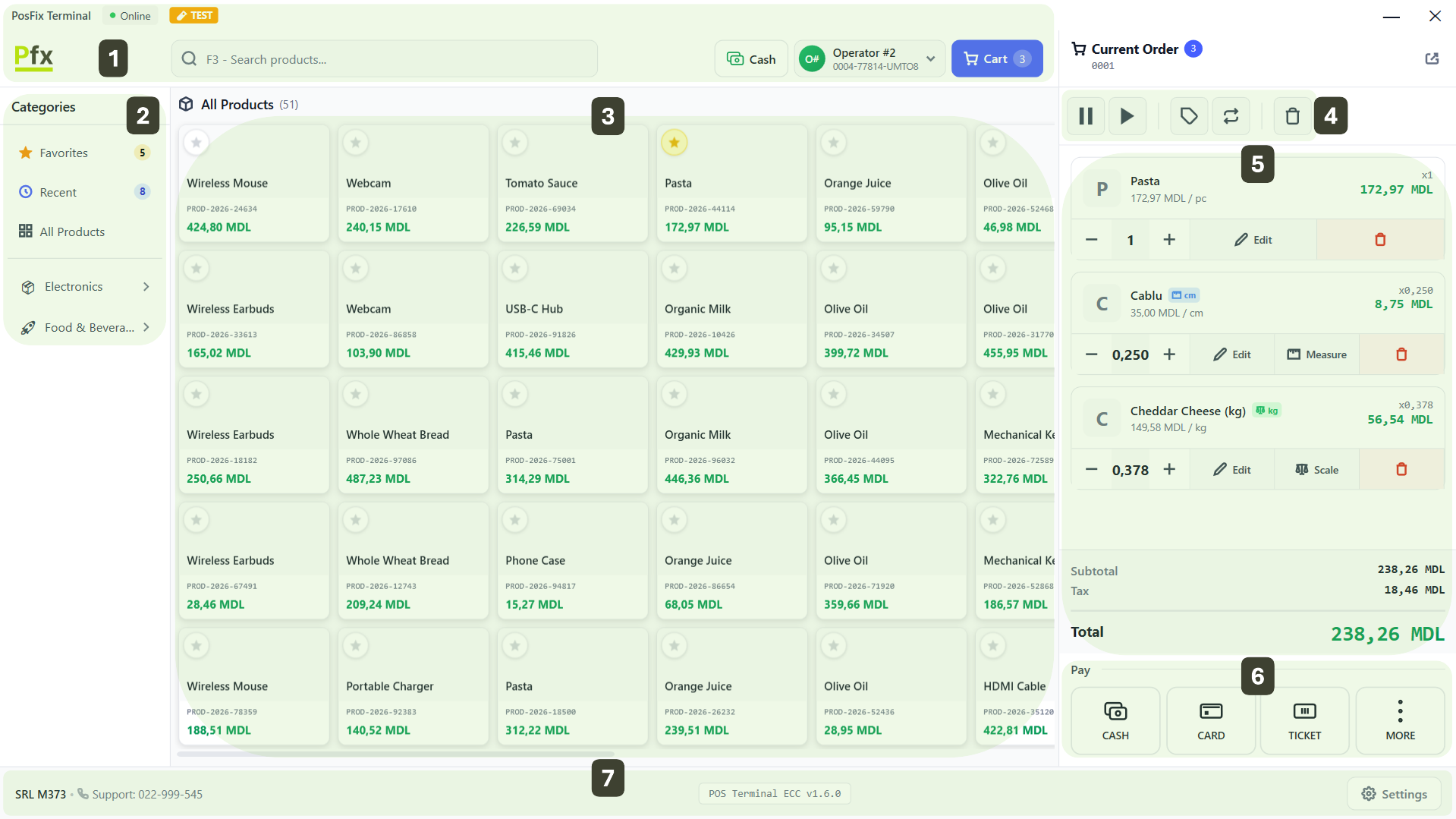
Interface Components
| Zone | Description |
|---|---|
| 1. Header | Main navigation and user profile settings |
| 2. Categories Panel | List of product groups displayed in the central area |
| 3. Product Grid | Individual items from the selected category (center) |
| 4. Order Controls | Actions applied to the entire selection of products |
| 5. Shopping Cart | Items added for the current sale (right sidebar) |
| 6. Payment Methods | Transaction finalization and checkout options |
| 7. Footer Bar | Technical status and access to system configuration |
Application Header

| Zone | Description |
|---|---|
| 1. Online/Offline Indicator | Green = connected, Red = disconnected |
| 2. Search Bar | Identify items by name or barcode |
| 3. Cash | Cash operations (Cash-In, Cash-Out, etc.) |
| 4. User Icon | Displays the user profile menu |
| 5. Shopping Cart | Summary of items selected for the current sale |
Navigating Between Categories
- Click on a category from the left panel
- Items will appear in the grid
- Subcategories (if any) appear under the main category
Adding Products to Cart
- Single click on a product – Adds 1 unit to the shopping cart
- Repeated clicks – Increases the quantity of the same item
- Barcode scanning – Automatically identifies and adds the product to the list
Shopping Cart
The cart displays:
- List of added products
- Quantity for each item
- Price per item
- Subtotal and Total
- Payment method
Tip
Use the + and - buttons within the cart to quickly adjust quantities.