The tables at the register
On the restaurant register, the Tables button opens the Pick a table screen. It shows you the floor: which tables are free, which are open and how much is on each bill. From here you open a table and take the order.
The floor isn't drawn here. The tables, rooms and their seats are made in the panel or in the Coordinator console — see Floor and settings.
Where to find it: on the register, the Tables button in the bottom bar
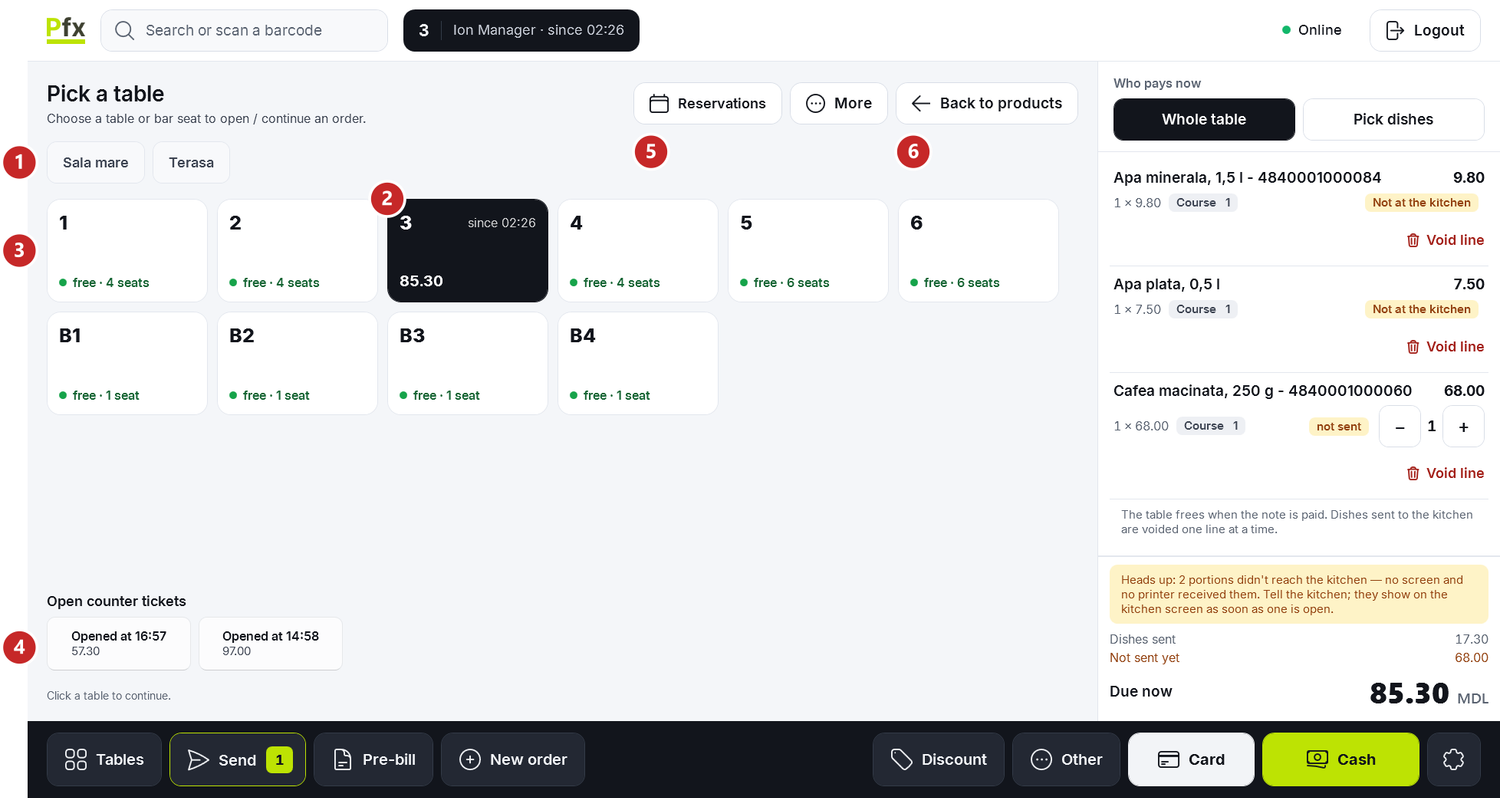
1 the venue's rooms · 2 an open table, with the time and the amount · 3 a free table · 4 the counter tickets, without a table · 5 Reservations · 6 Back to products
To open a table
- Press Tables.
- Pick the room at the top, if the venue has several.
- Tap the table.
The register opens the table's bill and takes you back to the menu. At the top, next to the search, you see the table, the waiter and the time the bill was opened. The waiter is whoever is signed in to the register.
If the table is already open, the register goes into its bill instead of making another one. What you do next on the bill: The table's bill.
The table tile
Each table shows its state on its tile:
- free · 4 seats — the table is free; the number is the seats.
- a dark tile, with since 19:40 and an amount — the table has been open since that time, and the amount is what's on the bill. Underneath it may say how many guests there are or how many bills the table has.
- Bill asked · 21:05 — the guest asked for the bill from their phone, through the table's QR code, at that time. When the request comes, the register also tells you with a message, Bill requested, with the table's name.
- reserved 19:00 · 4 people, on amber — the table has a reservation now.
- Cleaning — the table is waiting to be cleared. The register asks you before opening a bill on it.
- Out of service — no bills are opened on this table.
The counter order
If you tap a product without having opened a table, the register makes a bill without a table by itself: Walk-up order. It's the order of a customer at the counter or a take-away. At its first send to the kitchen it gets a number, for example "No. 12", by which the customer waits for the order.
The counter bills not paid yet sit at the bottom of the Tables screen, under Open counter tickets. Tap one to go back to it.
To move to another table
Press New order in the bottom bar. The register leaves the bill open and tells you "“4” stays open: you will find it under “Tables”.". Then open another table or start a counter order.
A table opened by mistake, with nothing on it, frees itself at New order: "“4” is free: the note had nothing on it.".
Reservations and More
Reservations opens the reservations agenda. When you tap a reserved table, the register asks whether you're seating the customer with the reservation or someone without one.
More has Stop list (what ran out), the list of dishes the kitchen ran out of, and the manager also sees Banquets here.
The orders from the phone
If the venue takes orders from the QR code on the table, the guest picks the dishes on their phone. Their order doesn't go to the kitchen by itself: you confirm it.
When an order arrives, the register tells you: "Table 4: 3 dishes, 210 lei — to confirm.". The Phone · 1 to confirm button appears on the Tables screen.
To answer an order from the phone:
- On the Tables screen, press Phone · … to confirm.
- In the Orders from the phone window you see the table, how long the order has been waiting, the dishes and the total. The prices are the register's menu prices, not the phone's.
- Pick a button:
- Confirm and send to the kitchen — the dishes go on the table's bill and leave for the kitchen. If the table has no bill, the register opens one in your name.
- Change something — the dishes go on the bill unsent, and the register opens the bill so you can change them before Send.
- Not now — the guest gets a message on their phone that someone is coming to the table.
A dish that ran out or that needs options doesn't go on the bill by itself. The register names it — "Couldn't go on the bill (sold out or they need options): …" — and you add it by hand.
From the QR code, the guest can also call the waiter. The register then shows the Waiter called message, with the table's name: "4: the guest is calling the waiter.".
What the guest can do from the phone is chosen in the panel: QR ordering.
What can trip you up
"The cart holds a sale. Finish it or empty the cart before opening a table." A regular sale has been started on the register. Take payment for it or empty the cart, then open the table.
"Finish or cancel the ticket payment in progress first." A bill is prepared for payment. Take the payment or press Drop it under the bill — see Pre-bill and paying.
"HoReCa unavailable — direct sale". The register can't reach the Coordinator, and the top says "The floor is not responding · selling at the register". Keep selling from the cart, as in a shop; the bills come back by themselves when the Coordinator answers. First check that the main register's computer is on.
"HoReCa off · only paying the open bills". The restaurant module is no longer in the venue's contract. The open bills are paid as usual, but no new tables are opened.
Related pages
- The table's bill — the dishes, sending to the kitchen and voiding.
- Pre-bill and paying — the pre-bill, who pays and the receipt.
- How the restaurant works in POSfix — the main register, the Coordinator and the other pieces.
- Floor and settings — the rooms, tables and bill rules, from the panel.