QR ordering
The QR code on the table opens the venue's menu on the guest's phone, over the internet, without an app or the Wi-Fi password. From there the guest calls the waiter, asks for the bill or sends an order.
The phone sends nothing straight to the kitchen and takes no payment. The waiter confirms the order first, and payment stays at the register, as usual.
Where to find it: Sidebar → HoReCa → Floor and settings tab → QR ordering
To turn on QR ordering
- HoReCa → Floor and settings → QR ordering.
- Turn on what the guest can do from the phone and pick the menu languages. Save.
- Put the venue on the map and pick the radius. Save, under the map.
- Print the codes (one per table) and put each code on its table.
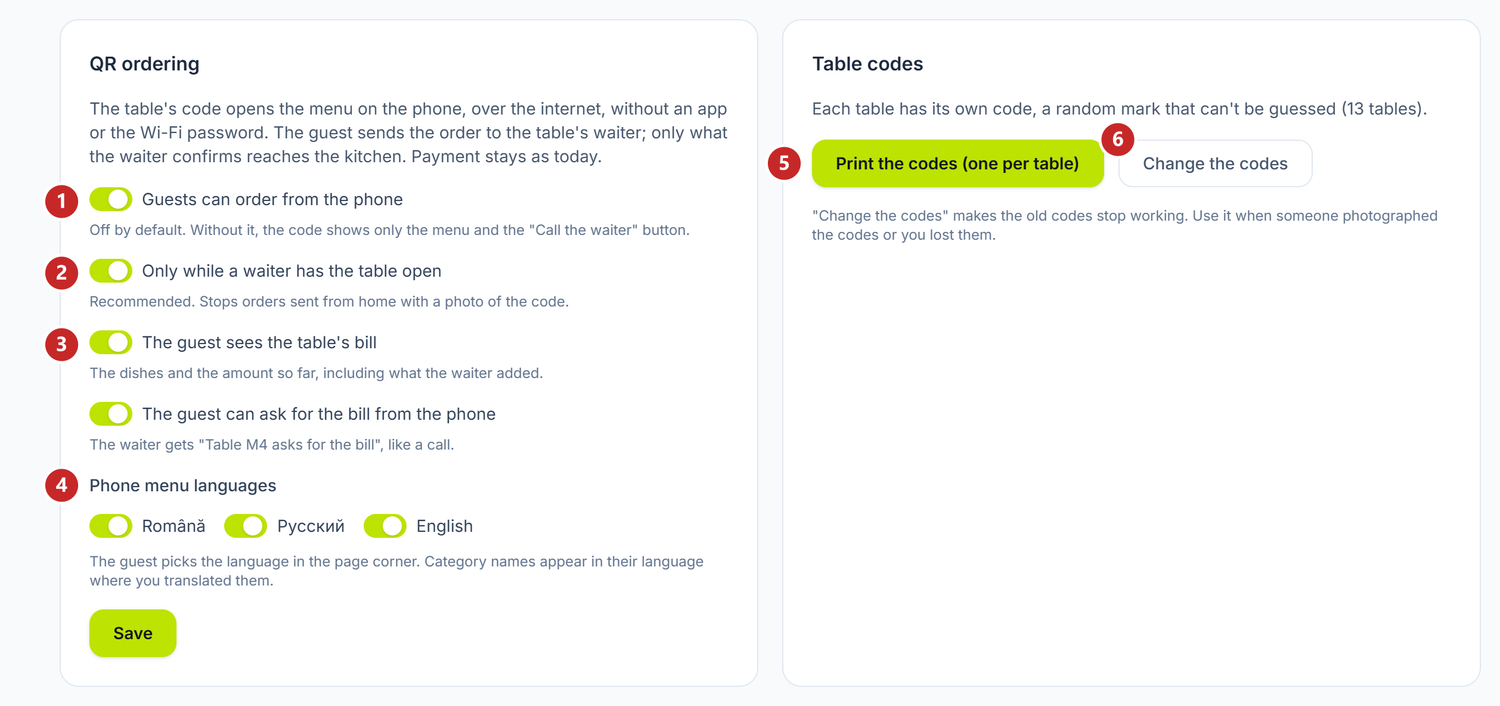
1 ordering from the phone · 2 only at an open table · 3 the bill on the phone · 4 the menu languages · 5 you print the codes · 6 you change the codes
The menu on the phone is the main register's menu, with its prices. It appears as soon as the venue is running; until then the phone tells the guest to call the waiter.
The switches
| Switch | What changes when you turn it on | If you leave it off |
|---|---|---|
| Guests can order from the phone (off by default) | The guest puts dishes in the basket and sends them to the table's waiter | The code shows only the menu and the "Call the waiter" button |
| Only while a waiter has the table open | An order goes out only from a table with an open bill, so a photo of the code orders nothing from home | An order can also come from a table without a bill |
| The guest sees the table's bill | The phone shows the table's dishes and the amount so far, including what the waiter added | The guest does not see the bill |
| The guest can ask for the bill from the phone | Ask for the bill appears on the phone, and "Bill requested" arrives at the register, like a call | The bill is asked from the waiter |
The last three can be changed only with the first one on. Call the waiter shows on the phone whatever the switches, as long as the venue is on the map and answering.
Under Phone menu languages you tick Romanian, Russian or English. The guest picks the language in the page corner, and the categories appear in their language where you translated them.
Where the venue is
Calls, bill requests and orders go out only from phones inside the radius around the venue. That way nobody calls the waiter from home with a photo of the code. The phone asks the guest for permission to read its location, and the platform only sees whether it is inside the radius; the location is not kept.
To put the venue on the map:
- Open the screen on a computer or phone at the venue and press Use my location. The pin moves to where you are.
- If you are not at the venue, search the address or click the map, then drag the pin onto the building.
- Pick the Radius and press Save.
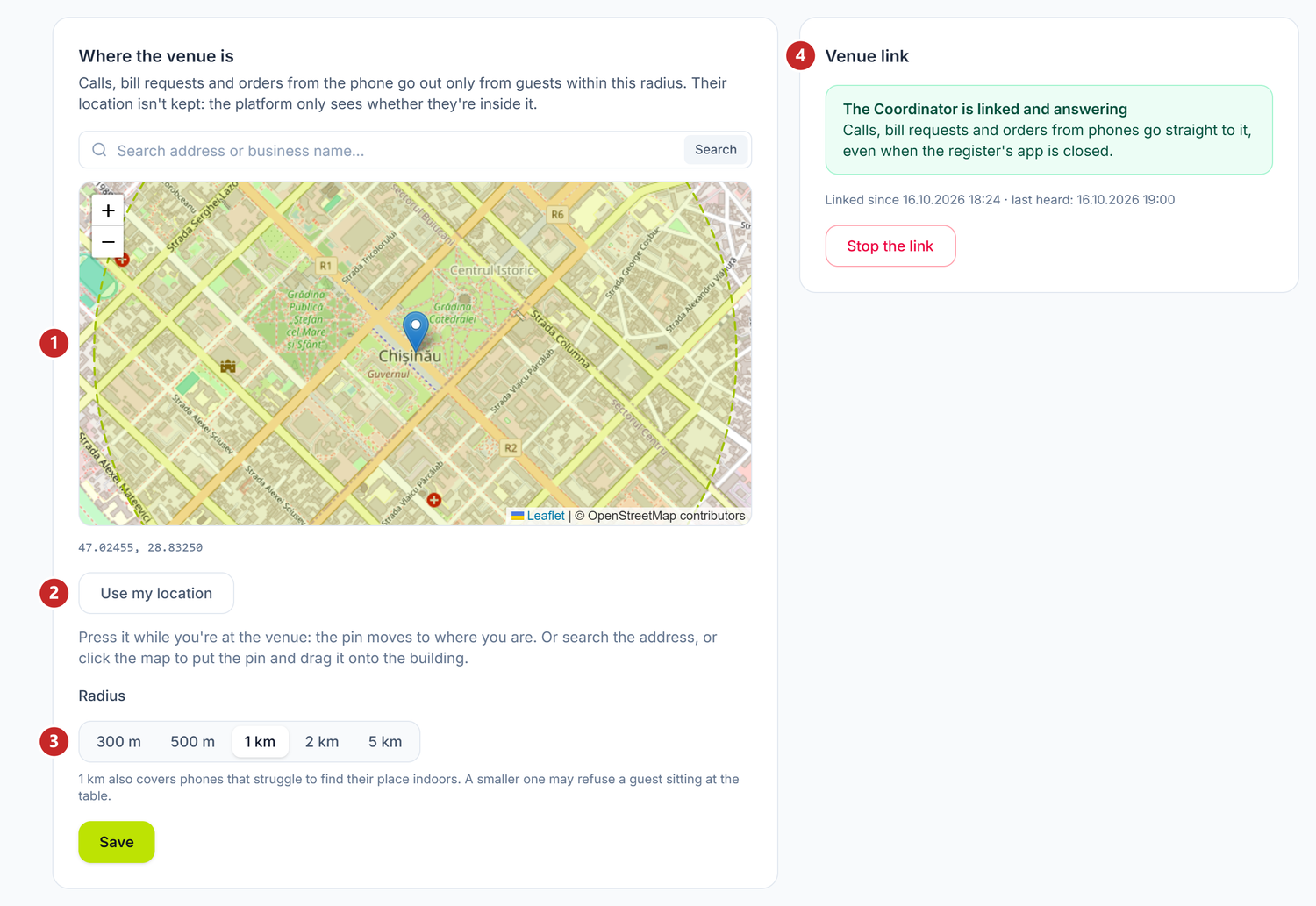
1 the map, with the pin and the radius circle · 2 the pin moves to where you are · 3 the radius · 4 the Coordinator's link, here linked and answering
A 1 km radius also covers phones that struggle to find their place indoors. A smaller one may refuse a guest sitting at the table.
Until you put the venue on the map, nothing goes out from the phones: no call, no bill request, no order. The screen says so in a yellow box above the map.
The table codes
Each table has its own code, a random mark that cannot be guessed. Print the codes (one per table) opens the browser's printing with a sheet of cards. Each card carries the venue's name, "Table 4" or "Seat B2 at the bar", the room, the code and "Scan for the menu and to order".
The room on the card matters when two rooms each have a "Table 1": it tells you which table the code goes on. A new table gets its code at the next printing.
Change the codes makes the old codes stop working. Use it when someone photographed the codes or you lost them. After the change, print the new codes and put them on the tables: the old ones no longer open the menu.
What the guest sees
The guest scans the code with the phone's camera and the venue's menu opens, with "Table 4" at the top. They can open a dish to see its description and, where filled in, the allergens.
- Call the waiter sends the table's call.
- With ordering on, the guest presses Add on the dishes, then See the order → Send to the waiter. They can also write a note for the kitchen.
- With the bill on, they see The table's bill and, if you allowed it, Ask for the bill.
- "What you sent from here" shows what happened to each request: "waiting for the waiter", "… confirmed · cooking", "the waiter is coming to the table".
At the first request, the phone asks "Show us you're at the venue" and asks for the location. A guest who does not want to share it presses I'll wave to the waiter.
What the register gets
- A call shows at the register as the "Waiter called" notice, with the table.
- A bill request shows as "Bill requested".
- An order arrives with the "Order from the phone" notice. In the Tables window the Orders from the phone button appears, with the number of orders waiting.
In Orders from the phone the waiter chooses for each order:
- Confirm and send to the kitchen — the dishes go on the table's bill and leave for the stations;
- Change something — the dishes go on the bill unsent, so they can be changed;
- Not now — the guest's phone shows "the waiter is coming to the table".
Venue link
Requests from phones reach the venue by one of two roads. Without the link, they go through the main register's app, so only while it is open. With the Coordinator linked to the platform, they go straight to it, even when the register's app is closed.
The Venue link box, next to the map, shows the state of the link (badge 4 in the screenshot above). From it you start linking, with Link the venue: you get a key that you type in the Coordinator console. The steps, the box's states and stopping the link are in The Coordinator's link with the platform.
What can confuse you
The guest sees "Ordering from the phone doesn't work right now. Call the waiter." — the venue isn't answering. Either the main register's app is closed and the Coordinator isn't linked, or the linked Coordinator isn't answering. The Venue link box tells you which.
The guest sees "This venue doesn't take requests from the phone yet" — the venue is not on the map. Put the pin on the building and save.
The guest sees "To order from here, the waiter has to open the table" — Only while a waiter has the table open is on, and the table has no bill. The waiter opens the table at the register.
The guest sees "You are … km from the venue" — the phone is outside the radius or struggles to find its place indoors. Check the pin on the map and, if needed, raise the radius to 1 km.
The guest sees "The table's code is no longer valid" — the codes changed after the card was printed. Put the new code on the table.
Related pages
- Floor and settings — the tables that get codes and the menu that goes to the kitchen
- How the restaurant works — where QR ordering sits among the other pieces
- The Coordinator's link with the platform — how you link the Coordinator with the key from the Venue link box