The Coordinator's link with the platform
The link brings to the Coordinator the calls, bill requests and orders that guests send from their phone, from the table's QR code. With it, the requests reach the floor directly, even when the main register's app is closed.
The floor doesn't need the link to work: tables, tickets, the kitchen and the screens work without it, even without internet. The link starts only from the venue, so nobody can get into the main register's computer from the internet.
Where to find it: in the console → Platform link; in the panel, Sidebar → HoReCa → Floor and settings tab → QR ordering → the Venue link box
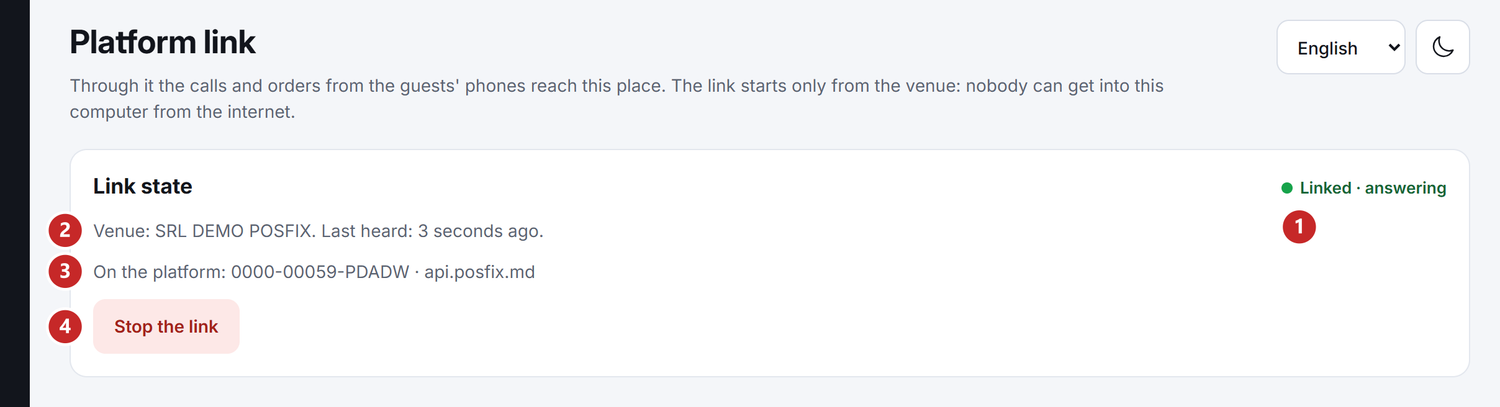
1 the link state · 2 the venue and the platform's last answer · 3 the Coordinator, as a device on the platform · 4 Stop the link
To link the Coordinator
The link is made with a single-use key: you ask for it in the panel and type it in the console. In the panel you need the Admin level on the HoReCa — Sala și setări row, which the owner gives.
-
In the panel: HoReCa → Floor and settings → QR ordering. In the Venue link box, press Link the venue.
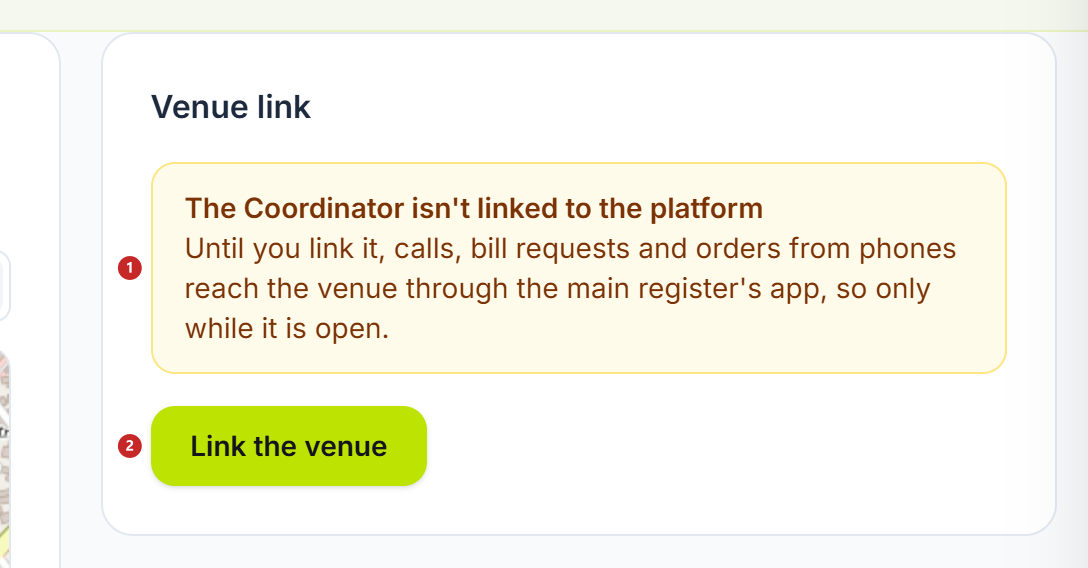
1 the Coordinator isn't linked · 2 Link the venue
-
The Link key appears, in the form
XXXX-XXXX. Copy it with Copy. It is valid for 24 hours and works only once.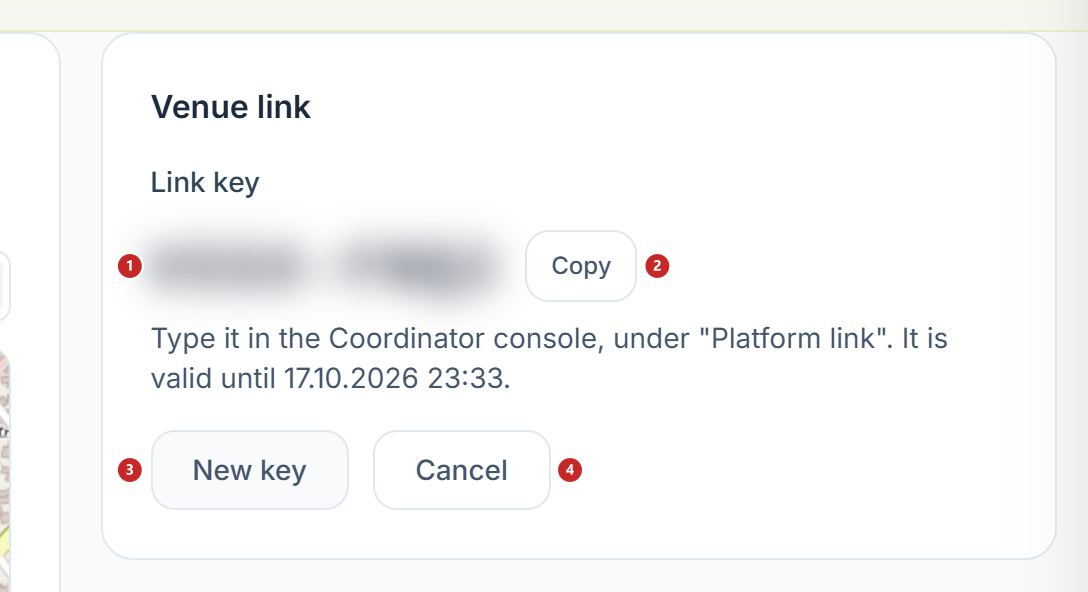
1 the key (blurred in the screenshot) · 2 Copy · 3 New key · 4 Cancel
-
On the main register's computer, open the console → Platform link. Type the key under Key from the panel and press Link.
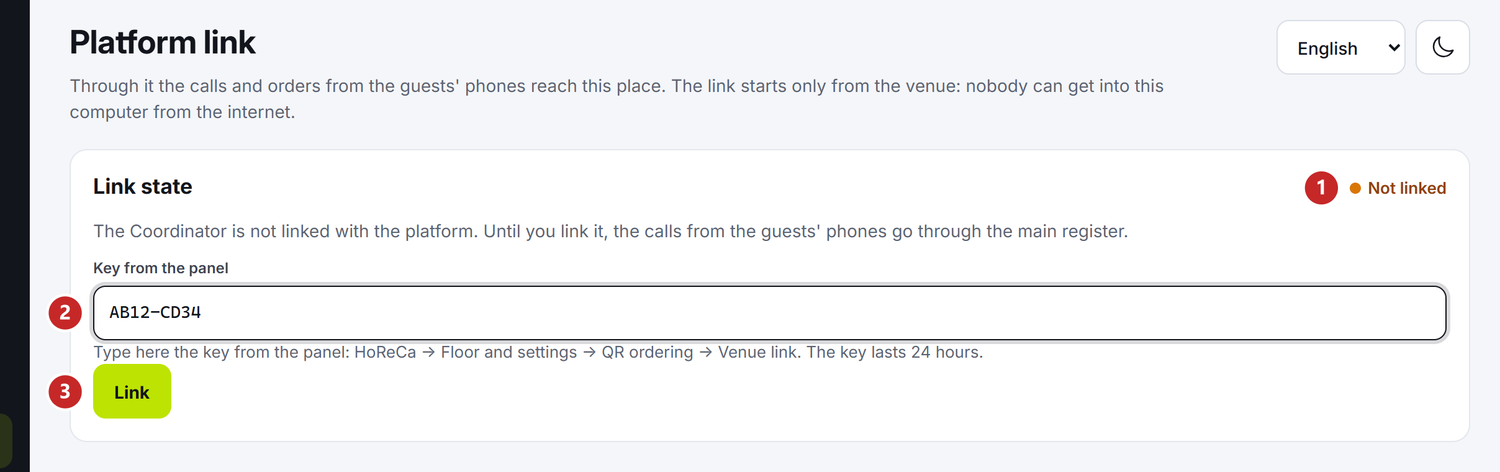
1 the state, here Not linked · 2 the key from the panel · 3 Link
-
The badge in the console becomes Linked · answering, and the box in the panel turns green. For the first seconds the badge may show Linked · view not going up, and the panel reads itself again every half minute: that is normal.
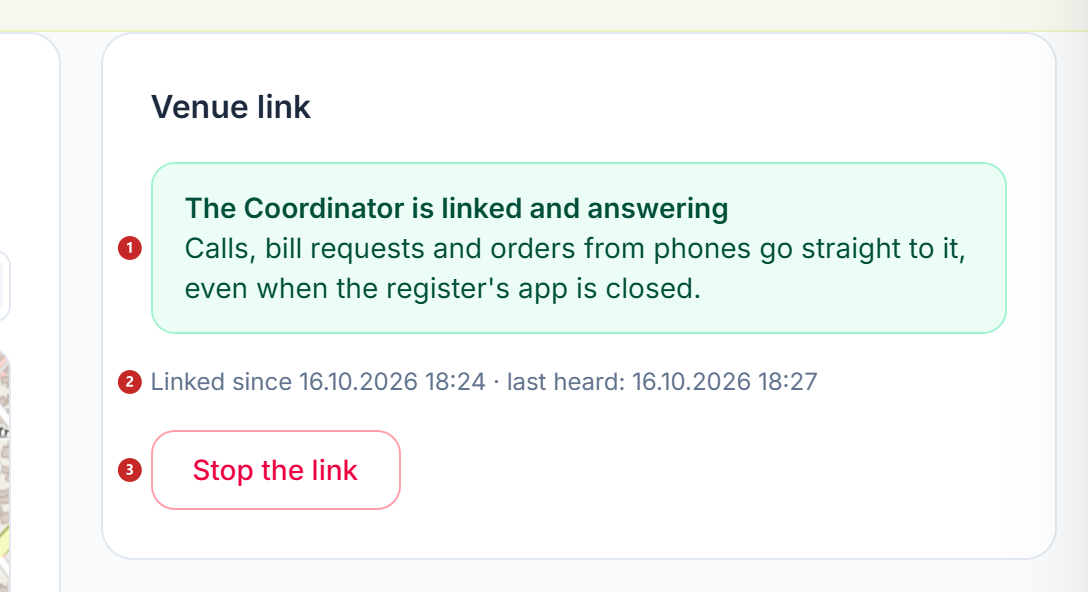
1 the Coordinator is linked and answering · 2 since when it is linked and the last news · 3 Stop the link
The key is shown only on the screen where you asked for it. If you reload the page, the box only says that a key is waiting for the console. Don't have it any more? Press New key, and the old one stops working. Cancel cancels the key without linking anything.
The link state
The badge on the right of the Link state card says what is happening now, and the console reads it again every few seconds. Below it you see the venue and when the platform last answered.
| Badge | What it means | What you do |
|---|---|---|
| Not linked | Calls from phones go through the main register's app, only while it is open | Link the Coordinator with a key from the panel |
| Linked · answering | Calls reach the Coordinator directly | Nothing |
| Linked · view not going up | The Coordinator can't send the platform what phones see: the menu, what ran out on the menu and the tables' bills. Guests see “the venue isn't answering” | Check the computer's internet. The reason is written on the line |
| Interrupted | The platform hasn't answered for a few minutes, and calls don't arrive | Check the computer's internet. The link comes back by itself |
| The platform changed | The link was made with another platform than the one the main register works with now | Stop the link and link again, with a key from the new platform's panel |
| Started by hand or Started under another account | The Coordinator isn't running as a Windows service, and the link works only from the service | Start the Coordinator service; usually restarting the computer is enough |
| Link can't be opened | The stored link was made on another computer | Stop it here and in the panel, then link again with a new key |
The panel box has its own states, with the same meaning: amber while the Coordinator isn't linked, green while it is linked and answering, amber “The Coordinator is linked but not answering” when the platform has no news from it. In the last state, guests' phones show “the venue isn't answering” until the link is back.
To stop the link
- In the console → Platform link → Stop the link. Or, in the panel, in the Venue link box → Stop the link.
- Confirm.
From now on, calls from phones go through the main register's app again, while it is running. To link the Coordinator again, you need a new key from the panel. This is also how you move it to another computer: stop the link, then link it from there.
What can confuse you
“The key has 8 letters and digits, as in the panel: XXXX-XXXX.” — the key is mistyped. Copy it from the panel with Copy.
“The key has expired (it lasts 24 hours).” or “The key was already used.” — ask for a new key in the panel, with New key.
“This key is for another device…” — a register's key was typed in the console, not the key from Venue link. The key was not used: ask for the Coordinator's key in the Venue link box.
“The Coordinator doesn't know the platform's address yet: start the main register on this computer, it tells it.” — the Coordinator learns from the main register which platform it works with. Start the main register, then link again.
“The main register on this computer is too old…” — update the main register, then link again.
“This computer's clock differs from the platform's by … min” — shown while the Coordinator is linked and the computer's clock is more than two minutes off. Set the date and time in Windows.
“The link was stopped from the panel (…)” — someone stopped the link from the Venue link box. To make it again, ask for a new key in the panel.
“The platform doesn't answer. Check this computer's internet and try again.” — the main register's computer has no internet right now.
“The link is stopped on this computer, but the platform couldn't be told.” — stop the link in the panel too, under Venue link.
Related pages
- QR ordering — what the guest sees on the phone and what you set in the panel for it
- The Coordinator console — how to sign in to the console
- How the restaurant works — what works in the venue and what goes through the platform