Registers, tablets and screens
The Registers, tablets, screens page holds everything that connects to the Coordinator on the venue's network: the registers on the floor, the waiters' tablets and the screens in the kitchen and at the counter.
The QR codes on the tables are not made here. They are printed from the panel and work over the guest's mobile internet.
Where to find it: the Coordinator console → Registers, tablets, screens
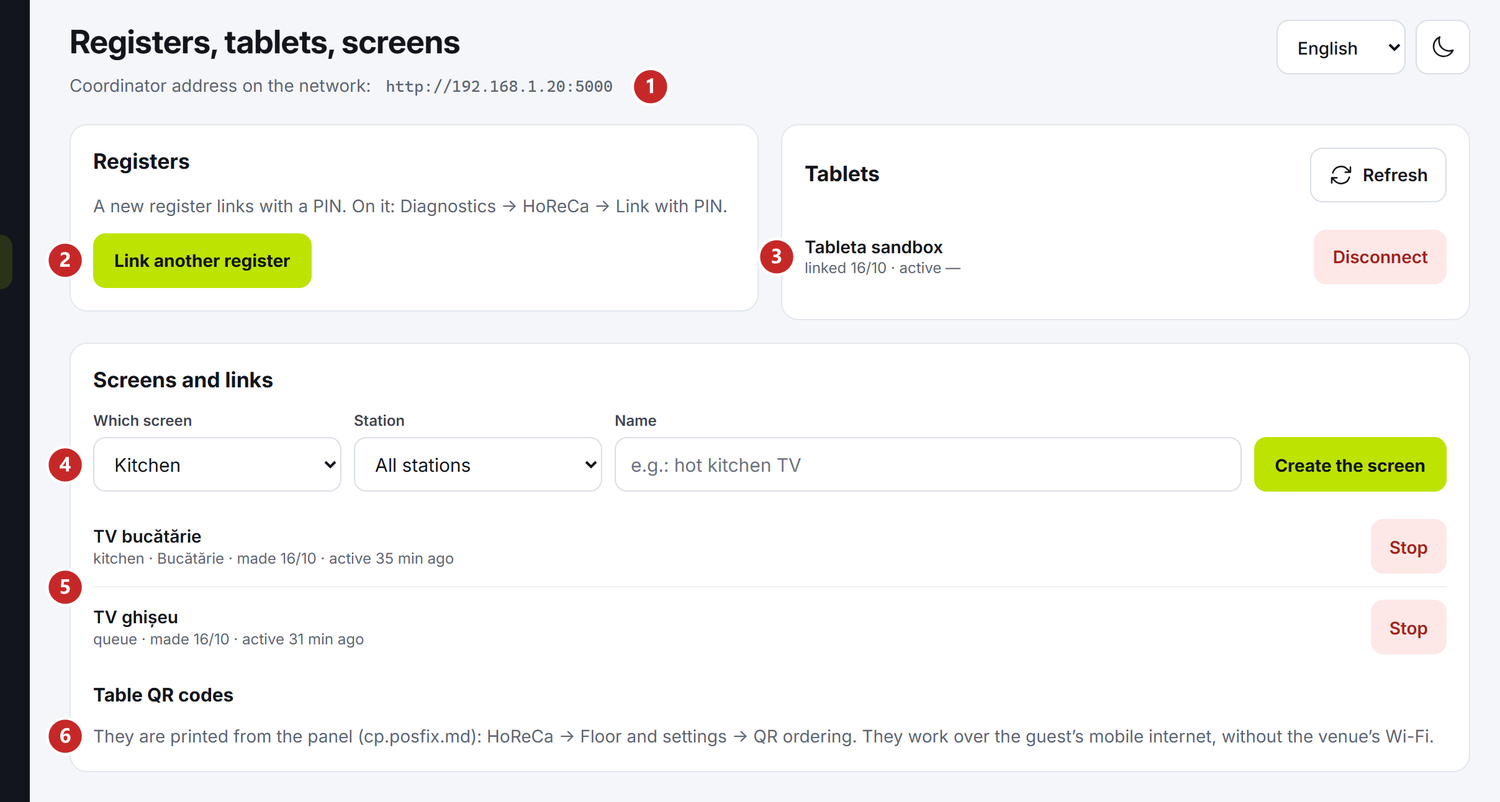
1 the Coordinator's address on the network · 2 Link another register · 3 the linked tablets · 4 a new screen · 5 the screens already made · 6 where the table codes are printed
At the top you see Coordinator address on the network, for example http://192.168.1.20:5000. It is the address of the main register's computer on the venue's network. You use it to open the console from another computer and to link a new register.
To link another register
The main register links by itself. An extra register on the floor, at the bar for instance, links with a PIN, after the POSfix team has given it its restaurant role.
- In the console, press Link another register. A 6-digit PIN appears, valid for 5 minutes.
- On the new register, open Technician diagnostics (Ctrl+Shift+T) → HoReCa.
- Under The Coordinator's address, type the address from the console or press Find on the network.
- Under Link a new register with a PIN, type the PIN and press Link with PIN.
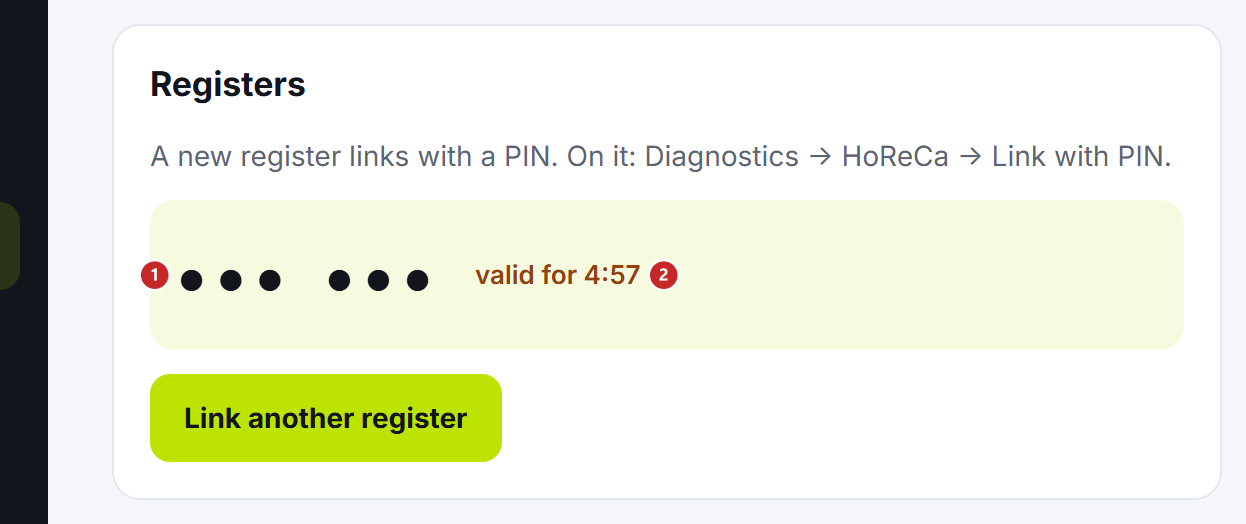
1 the PIN (hidden in the screenshot) · 2 how long it is still valid
When the 5 minutes are up, the PIN reads “expired — make a new one”. Press Link another register again.
The tablets
The Tablets list shows the waiters' tablets linked to the Coordinator: the name of each, when it was linked and when it last worked. Refresh reads the list again.
Disconnect removes a tablet, for example a lost one. It drops out at once, and to use it again it has to be linked again.
To put a screen in the kitchen
The kitchen screen is a page you open in the browser of a TV or a tablet in the kitchen. Each screen has its own link, with a key that opens only that screen, not the console.
- Under Screens and links, at Which screen, choose Kitchen.
- At Station, choose the station whose dishes appear on the screen. All stations is for the screen at the pass, where everything comes together.
- Under Name, type a name you'll recognise, for example “Hot kitchen TV”, and press Create the screen.
- The screen's link appears, with a QR code. Open it on the TV: scan the code with the tablet, or copy the link with Copy and send it there. Open opens it on the computer you are at.
- Press Done.
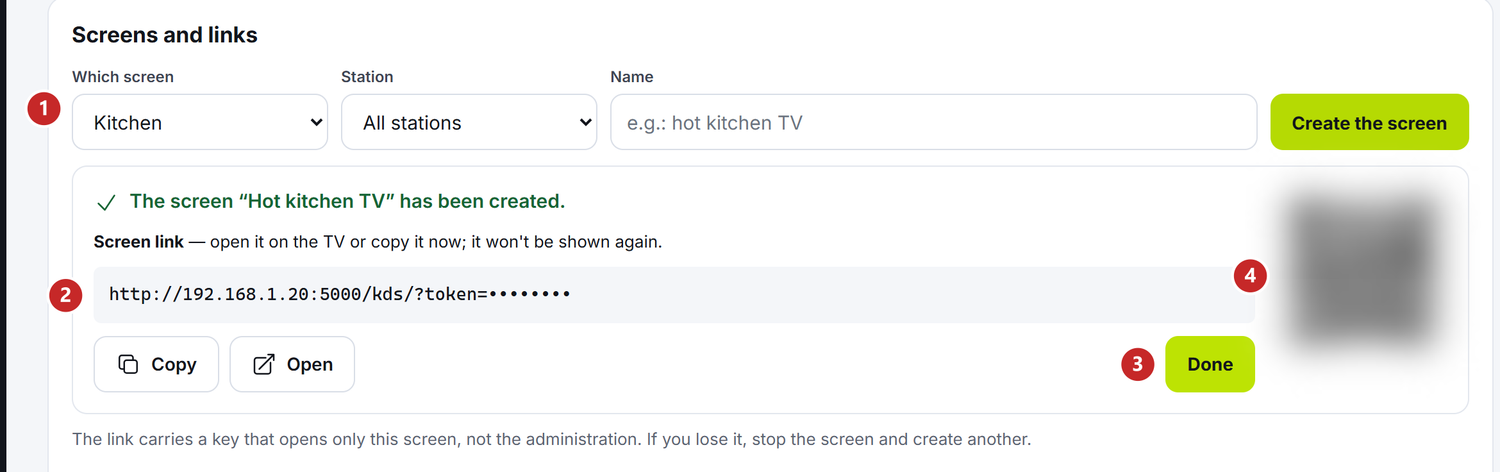
1 which screen, the station and the name · 2 the link (key hidden in the screenshot) · 3 Done · 4 the QR code (blurred in the screenshot)
The link is shown only once: the Coordinator doesn't keep it. If you lose it, stop the screen and make another. What the cook sees on the screen — in The kitchen screen.
To put up the orders screen
The steps are the same, with Which screen → Queue for guests. This screen has no station: it shows the numbers of all the counter orders. What the guest sees — in The orders screen.
To stop a screen
In the list under the form, press Stop next to the screen and confirm. Its link stops working from that moment, and the TV reads “This screen's link is no longer valid”. Do the same when a link ended up where it shouldn't.
Under each screen you see its kind, its station, when it was made and when it was last opened.
What can confuse you
“Give the screen a name, so you can recognise it in the list.” — Name is empty. Type a name, then Create the screen.
“Wrong or expired PIN.”, on the new register — the PIN is no longer good. Ask for another one in the console.
Related pages
- The Coordinator console — how to sign in to the console
- QR ordering — the codes on the tables, from the panel
- Settings in the console — the printers and what the orders screen shows when there is no order