The Coordinator console
The Coordinator is the program that runs the floor: the tables, the tickets, the dishes sent to the kitchen and the screens. The console is its page in the browser, where you see whether the venue is ready to work and set what belongs only to the venue: the screens, the printers, the password.
The console does not sell and does not issue receipts; payment stays at the register. The team isn't made here either: the waiters are the firm's cashiers, from the panel.
Where to find it: on the main register's computer, in the browser, at http://localhost:5000/admin. From another computer on the venue's network, at the address shown under Registers, tablets, screens, followed by /admin.
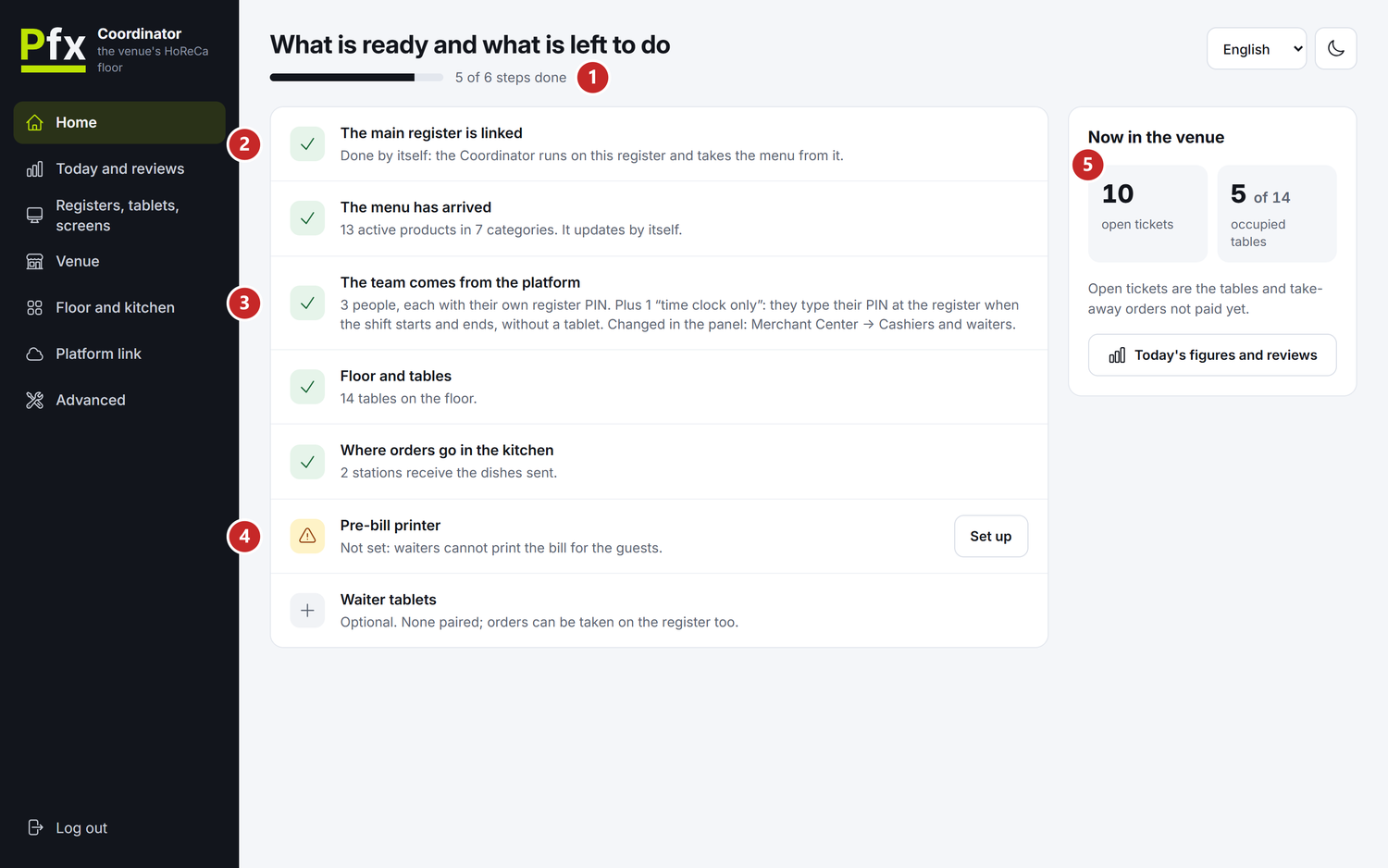
1 how many steps are done · 2 a step that is done · 3 the team, with the time-clock-only people · 4 a step left to do · 5 the tickets and tables right now
To set the first password
A new console has no password. The first password can only be set on the computer the Coordinator runs on, so nobody on the network can set it before you.
- On the main register's computer, open
http://localhost:5000/admin. - Under New password, type a password of at least 8 characters.
- Type it again under Type it once more and press Set the password.
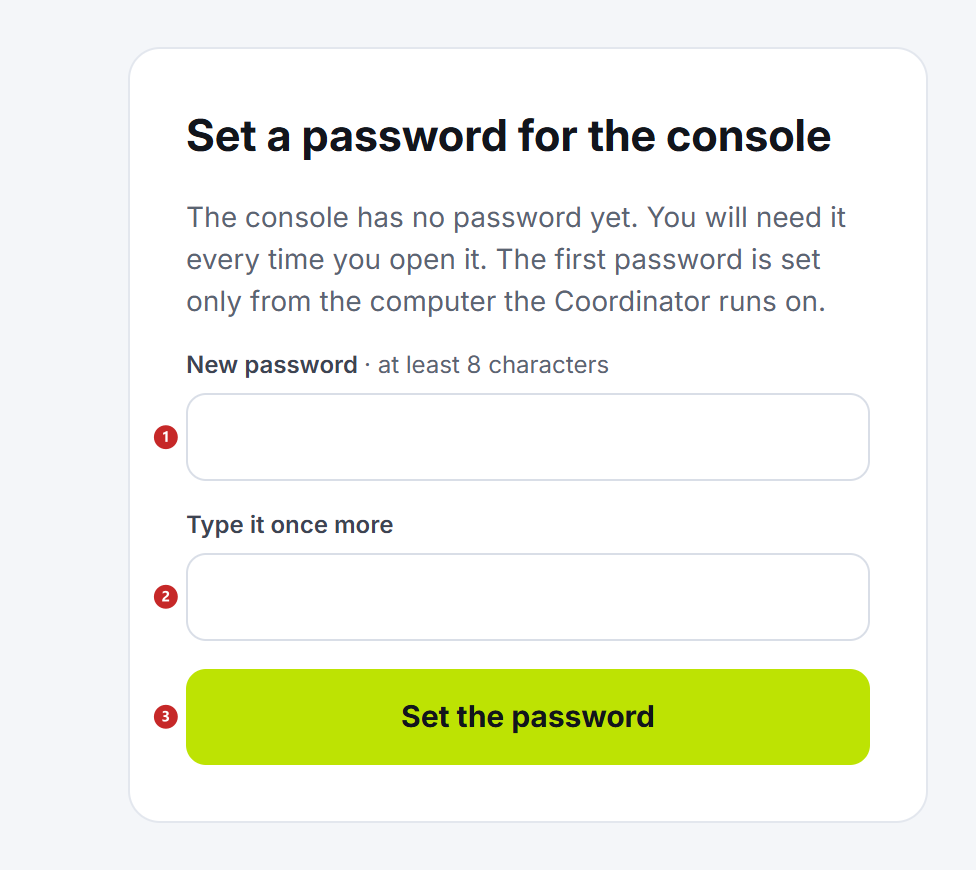
1 the new password · 2 the same password, once more · 3 Set the password
Opened from another computer, a console without a password only tells you where it is set: “The first password is set on the computer the Coordinator runs on.” You change the password later under Advanced → Console password.
To sign in to the console
- Open the console: on the main register's computer
http://localhost:5000/admin, and from another computer the address from Registers, tablets, screens (for examplehttp://192.168.1.20:5000/admin). - Type the password under Console password and press Sign in.

1 the console password · 2 Sign in
A sign-in lasts 8 hours. After the Coordinator restarts, for example together with the computer, the console asks for the password again. Log out, at the bottom of the left menu, closes the console on this computer.
At the top right you choose the console language (Romanian, Russian or English) and the light or dark theme. The browser remembers them.
The Home page
The Home page is the venue's checklist. Each step has a green tick when it is done and an amber sign when something is still to do. The steps without which the floor can't work carry the label “stops work on the floor”.
The button on the row, Set up or See, takes you where you fix the step.
- The main register is linked — this happens by itself: the register started on the same computer links to the Coordinator without a PIN. When the step is amber, the main register is off; start it.
- The menu has arrived — the menu comes from the main register and updates by itself. Products switched off in the catalogue are not counted.
- The team comes from the platform — the firm's people, brought by the main register. More about them below, under “The team and Time clock only”.
- Floor and tables and Where orders go in the kitchen — you set them in the panel, under Floor and settings, or in the console, under Floor and kitchen. A change made on one side reaches the other.
- Pre-bill printer — without it, waiters can't print the bill for the guests. Set up opens the Venue page.
- Waiter tablets — an optional step. Orders can be taken on the register too, so having no tablets stops nothing.
When all the steps are done, the top reads “Everything is ready for the floor”.
On the right, Now in the venue counts the open tickets and the occupied tables. Open tickets are the tables and take-away orders not paid yet.
Portions that are not at the kitchen
Sometimes the kitchen step turns amber with “… not at the kitchen: no screen is open and the printer didn't answer”. The dish left the waiter, but neither the screen nor the station's printer got it. Open the kitchen screen or check the printer: the portions show up on the screen as soon as it is open.
The team and Time clock only
The waiters are the firm's cashiers, and each signs in with their own register PIN. They are not added in the console: you keep them in the panel, under Merchant Center → Cashiers and waiters, and the main register brings them here.
The The team comes from the platform step counts the people with the Time clock only role separately, for example the cook. They don't serve tables and don't appear among the waiters. They type their PIN at the register when the shift starts and when it ends, and the hours reach the panel, under Hours worked. The role and the hours are explained in Cashiers and waiters.
Today and reviews
Where to find it: console → Today and reviews, or Today's figures and reviews on Home
The page shows how the floor is doing today, from midnight by the main register computer's clock, and below it the guest reviews of the last 30 days. These are not the fiscal totals: those stay in the register's reports, and over longer periods you see them in the panel, under Performance.
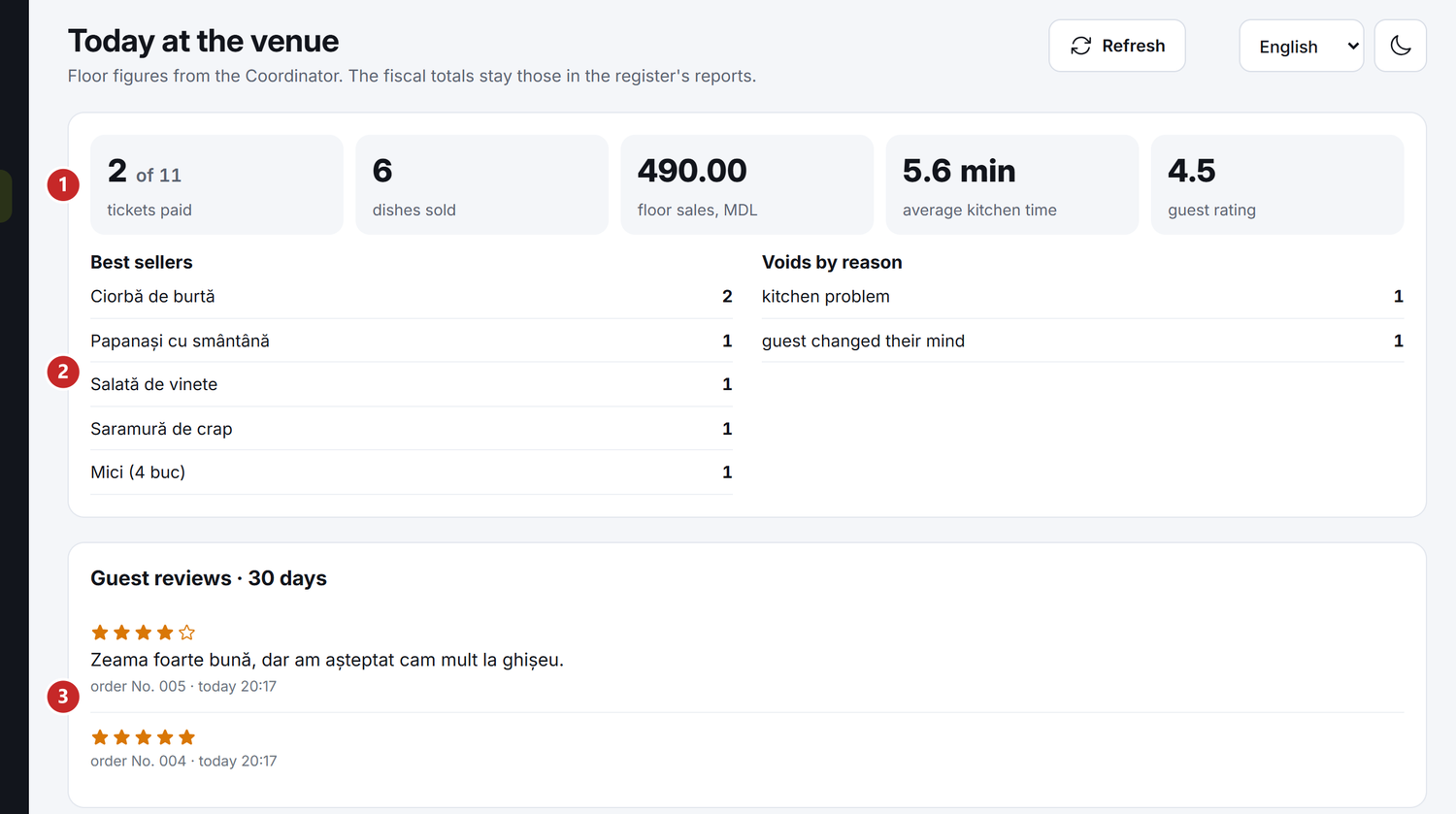
1 the day's figures · 2 best sellers and voids by reason · 3 guest reviews
- tickets paid — how many tickets were paid, out of how many were opened today;
- average kitchen time — how long it takes, on average, from sending a dish until the cook presses Ready;
- guest rating — the average of the stars guests gave today.
The reviews come from the “My order” page, which the guest opens from the code on the waiting slip: The orders screen. Refresh brings the figures up to now.
What can confuse you
“The Coordinator isn't responding. Check the service.” — the main register's computer is off or the Coordinator isn't running on it. The Coordinator starts by itself with Windows, so usually it is enough to turn the computer on. From another computer, also check that you are on the venue's network.
“Too many wrong tries. Try again in …” — after a few wrong passwords, the console lets you try again only after the time shown.
“The session has expired — sign in again.” — 8 hours have passed or the Coordinator restarted. Sign in again with the password.
“The console has no password yet”, on another computer — the first password is set only on the main register's computer.
You forgot the console password — the console has no button for it. Ask POSfix support for help.
Related pages
- How the restaurant works — where the Coordinator sits among the other pieces
- Platform link — so that calls from the QR codes reach the Coordinator
- Registers, tablets and screens — the Coordinator's address, the other registers and the screens
- Floor and settings — the floor, the tables and the kitchen, from the panel