Cashiers and waiters
Here you keep the people who work at the register. Each one has a PIN that identifies them at the register and a role that says what they can do there.
They are not panel users: the PIN opens the register, not the accounting. Colleagues who work in the panel are invited separately, from Settings.
Where to find it: Merchant Center → Cashiers and waiters
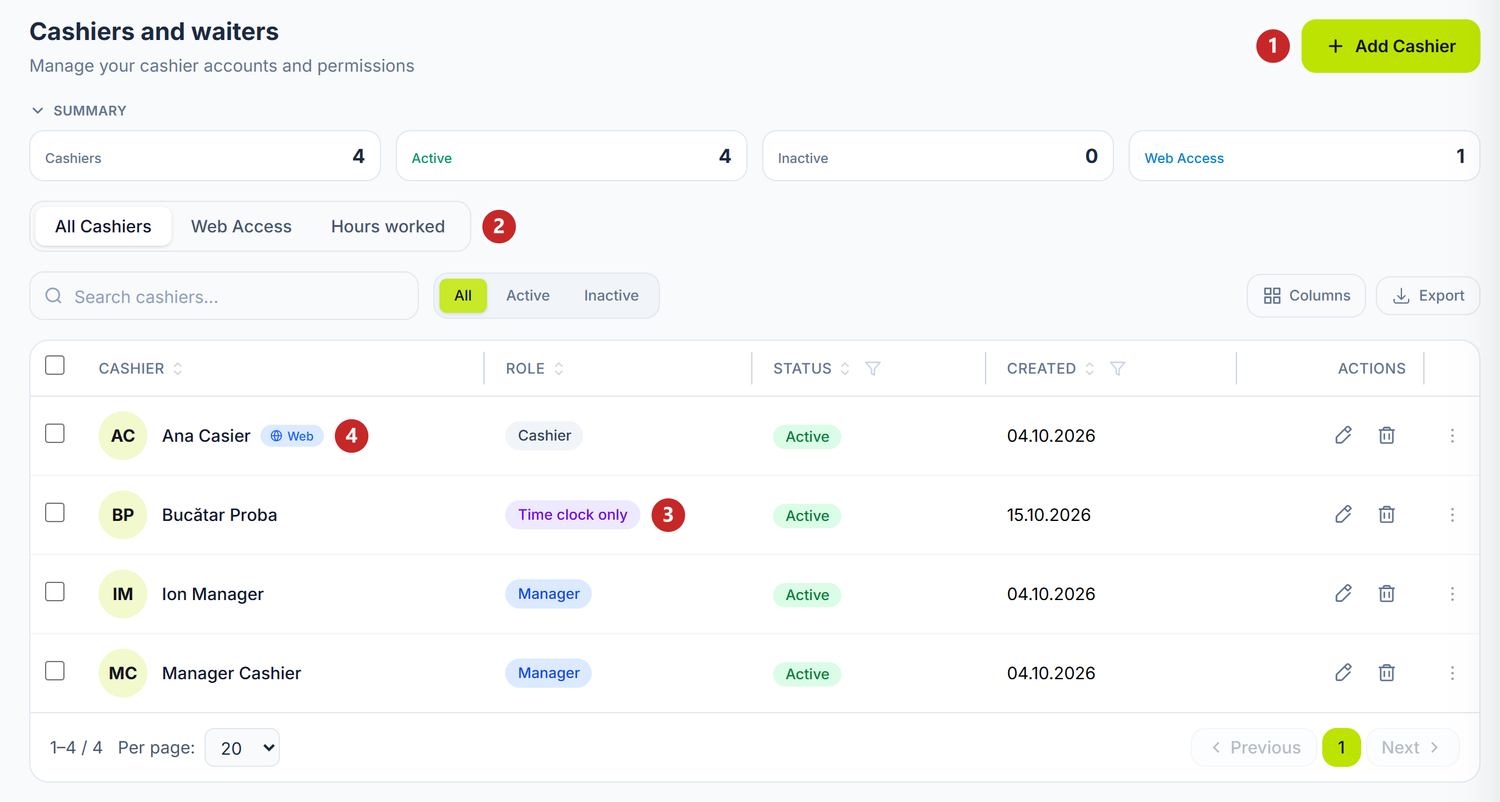
1 Add Cashier · 2 All Cashiers, Web Access and Hours worked · 3 the Time clock only role · 4 a person with web register access
The cards at the top count the people, how many are active, how many inactive and how many also use the web register. The Web Access view keeps only the latter, with their web username, lock and open session. You read about Hours worked below.
To add a person at the register:
- Merchant Center → Cashiers and waiters → Add Cashier.
- Fill in First Name and Last Name. Both are required.
- Type the PIN, 4 digits. Two active people can't have the same PIN.
- Choose the Role, following the table below.
- Save.
The register picks up the new list of people by itself, at the next sync. If the person tries to sign in right then, they wait another minute.
For one more person with the same role and the same web registers, use Copy from the row menu. The new card starts with the copied person's role and web registers, but with no name, PIN or web username.
After saving, the person's card has a few more fields.
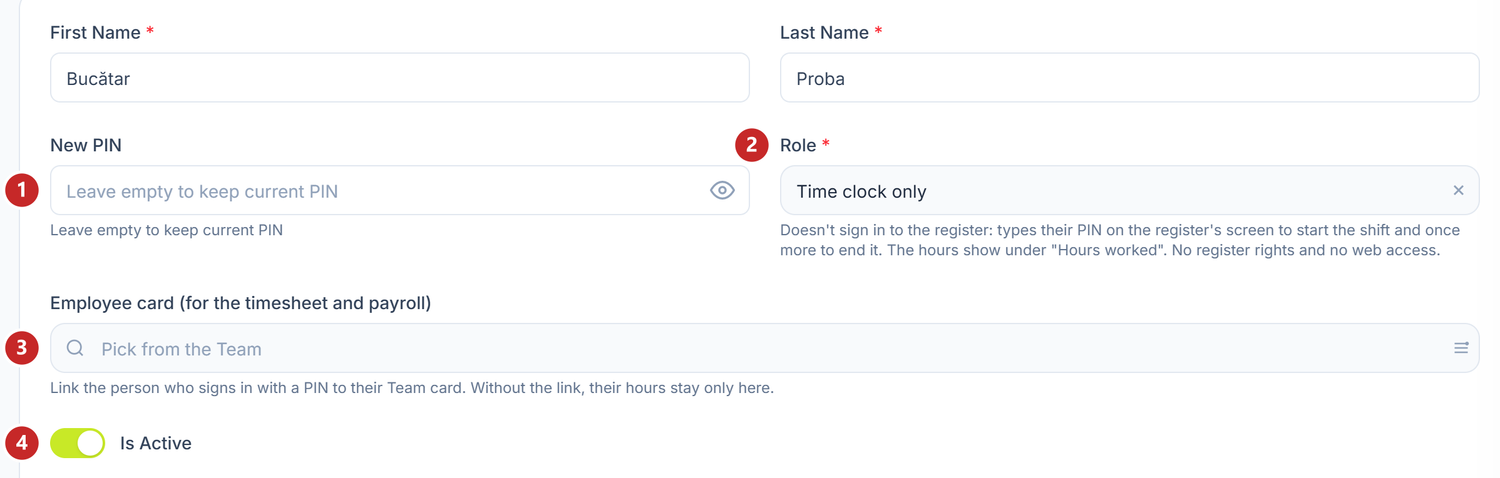
1 New PIN · 2 Role · 3 Employee card (for the timesheet and payroll) · 4 Is Active
New PIN left empty keeps the current PIN. For Time clock only, the text under Role says what the role does.
Employee card appears only if the company has accounting. You link the person to their card in Team, and the accountant brings their hours into the timesheet with Take hours from the register, in The timesheet. Without the link, their hours stay only here.
The roles
| Role | What they do at the register | What they don't do |
|---|---|---|
| Cashier | Sells and takes payment | Manual discounts and another price — only with the right from POS rights |
| Waiter | Takes the orders at the tables and takes payment. Starts with the cashier's rights | What you haven't ticked in POS rights |
| Courier | Delivers the orders. Signs in to keep track of their shift | Starts with no register rights at all |
| Manager | What the cashier does, plus the register settings. Starts with all rights ticked | What you've unticked in POS rights |
| Time clock only | Types their PIN on the register's screen to start the shift and once more to end it | Doesn't sign in to the register, doesn't sell, has no register rights and no web access |
What each role can do is changed in POS rights, for the whole role at once, not per person.
Time clock only
The role is for the person who doesn't sell, but whose hours you want to know: the cook, the kitchen helper, the warehouse worker. They get a PIN like a cashier, but the register doesn't open for them.
At the start of the day they type their PIN on the PIN screen of the Windows register, and their shift starts. In the evening they type the PIN again, and the shift ends. For a few seconds the screen shows the start time or the length of the shift.
In a restaurant it works the same, on any register of the venue, as long as the Coordinator answers: it holds the venue's team and their shifts.
If you switch to Time clock only a person who had web register access, the card warns you with an amber box: the web access is removed on save.
Hours worked
Where to find it: Merchant Center → Cashiers and waiters → Hours worked
Here you see how much each person worked in the chosen month. The hours come from the shifts people start and end at the register or on the waiter's tablet. The work shift belongs to the person; the register's fiscal day closes separately, with the Z report.
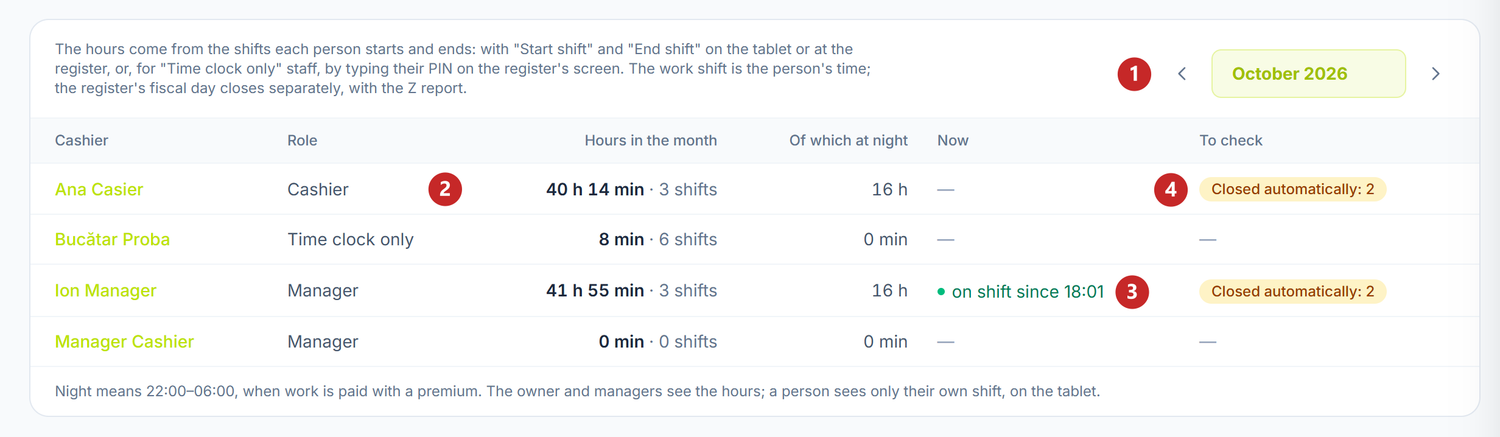
1 the month · 2 the hours and the number of shifts · 3 who is on shift now · 4 the shifts closed automatically, to check
The Of which at night column counts the hours between 22:00 and 06:00 , so you can pay them separately. A click on the person's name opens their card, with every shift.
The hours are seen by the owner and the manager. The person sees only their own shift, on the tablet.
The shift closed automatically
When someone forgets to end their shift, it closes by itself at the forgotten-shift time: the one in Preferences, 05:00 by default, or the venue's time from Floor and settings. That way no shift stays open for days.
The end time is then only an assumption, so the shift shows with the Closed automatically badge in the To check column. You correct it with the real time.
To correct a shift:
- In Hours worked press the person's name.
- On their card, in the Hours worked section, find the shift marked “Closed automatically at closing time — to check”.
- Press Correct on its row.
- Set the real time in Start and End and write the reason in Why (required).
- Save.
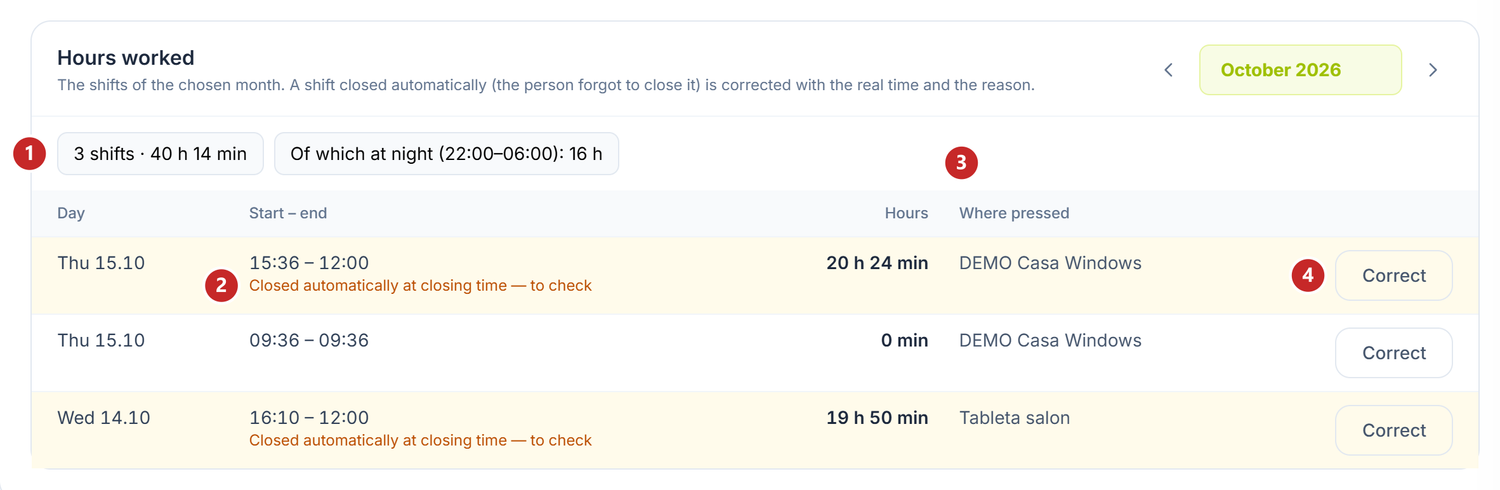
1 the month's shifts and hours · 2 the shift closed automatically · 3 where the person pressed the shift · 4 Correct
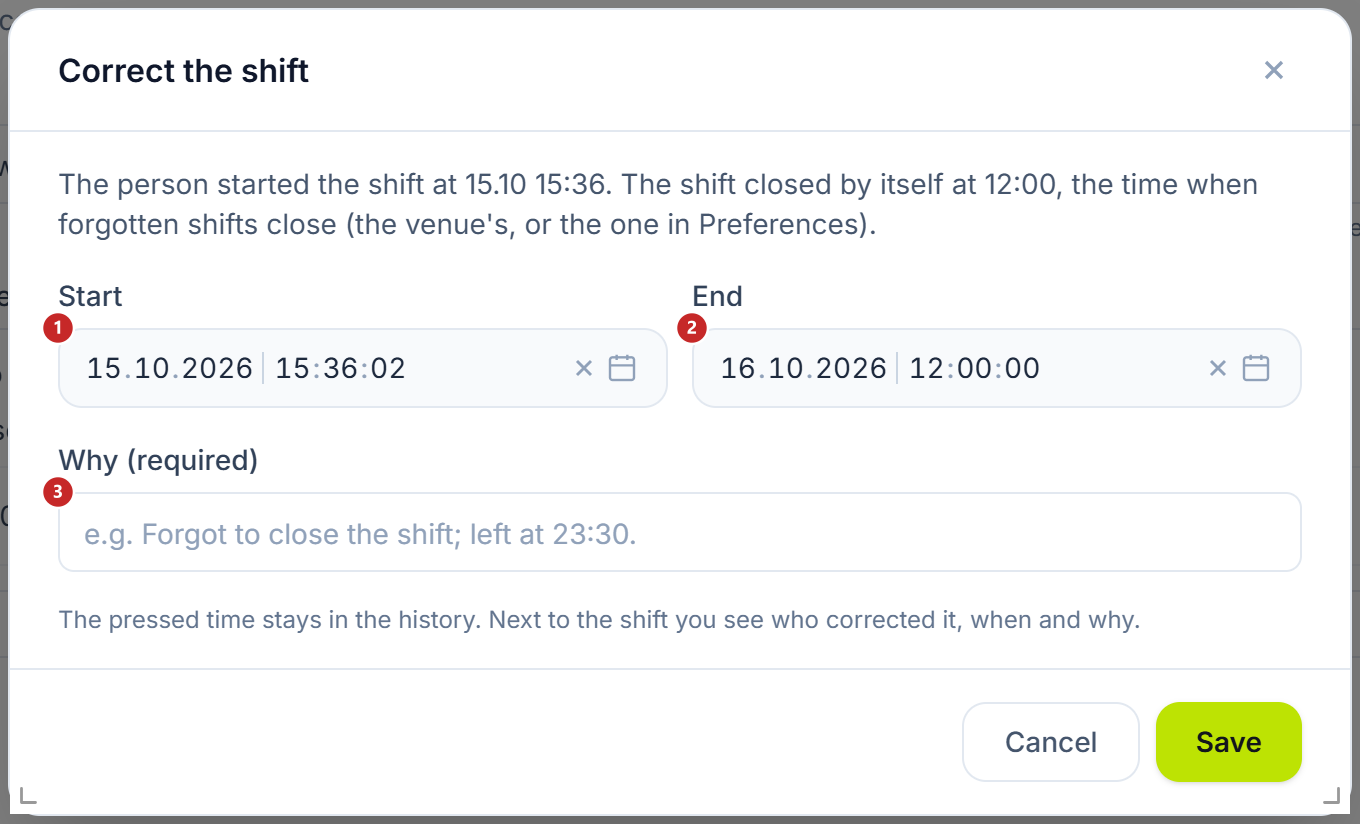
1 Start · 2 End · 3 Why (required)
The time pressed on the device stays in the history. Next to the corrected shift you see who corrected it, when and why. Correct works on any finished shift, not only on the ones closed automatically.
Web register access
The web register (Web Virtual Terminal) is the register that opens in a browser. The person doesn't sign in there with the PIN, but with their own username and password. The section appears on the saved card of any role except Time clock only.
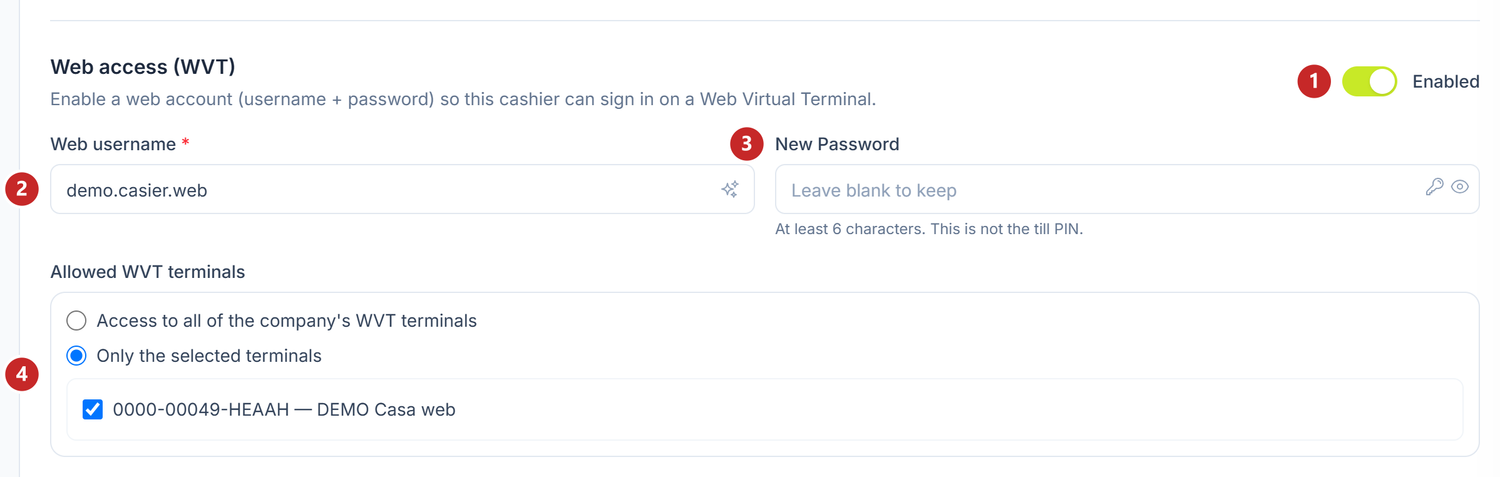
1 the Web access (WVT) toggle · 2 Web username · 3 the password · 4 Allowed WVT terminals
- Web username: you type it, or the icon in the field builds it from the first and last name.
- The password has at least 6 characters and is not the register PIN. The key icon generates one. On existing access, an empty field keeps the password, and a new password ends the open web session.
- Allowed WVT terminals: all of the company's web registers or only the ticked ones.
After five wrong passwords in a row, the web account locks for 30 minutes, and the card shows until when. To reopen it sooner, type a new password and press Save.
The toggles
| Toggle | What changes when you turn it on | If you leave it off |
|---|---|---|
| Is Active | The person signs in to the register with their PIN | The person can no longer sign in to the register. They stay in the list, with their shifts and history |
| Web access (WVT) | The person gets a username and password for the web register | On save, the web username and password are cleared, and their open session ends |
POS rights
Where to find it: Merchant Center → POS rights
Here you decide what each role can do at the register: manual discounts, another price on a line, cash operations, the Z report. The tick is per role, so the change applies to everyone with that role. Time clock only has no column, because it doesn't sign in to the register.
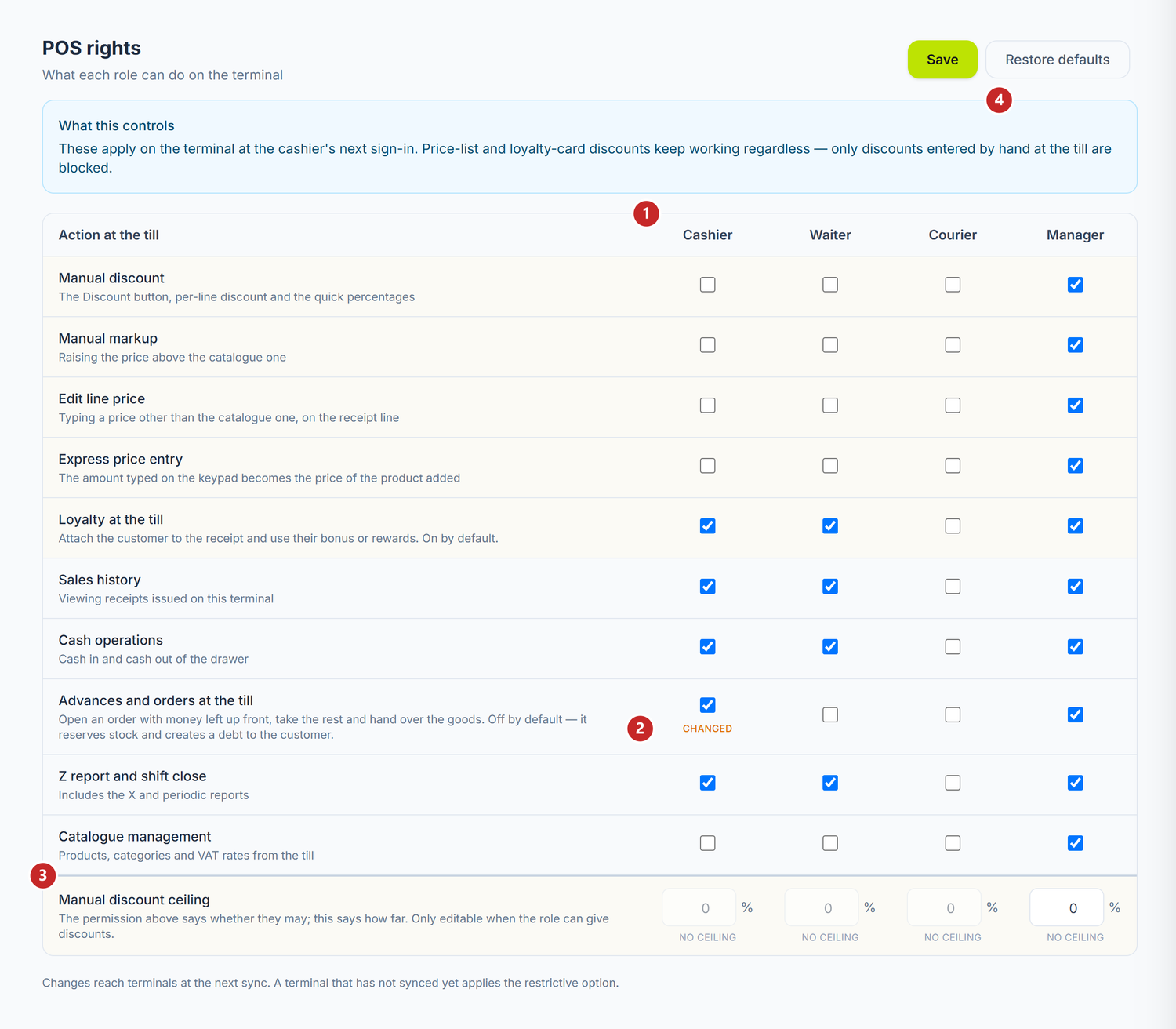
1 the role columns · 2 changed — the tick differs from the default · 3 Manual discount ceiling · 4 Restore defaults
The rows with a light background change the amount on the receipt. Discounts from the price list apply anyway: the discount, markup and price ticks stop only what the person gives by hand. The loyalty card is used only on roles with Loyalty at the till.
The Z report and shift close row is about the register's fiscal day, not about the work shift in Hours worked.
Manual discount ceiling is the limit, in percent, for a role that has the discount right. 0 means no ceiling.
A right with a padlock belongs to a module the company hasn't contracted, so it can't be ticked. Restore defaults brings back the shipped ticks and removes the ceilings; this change too takes effect only after Save.
The ticks reach the register at the next sync and apply at the cashier's next sign-in. A register that hasn't synced yet applies the stricter version. Only someone with administration rights on cashiers, in the team's permissions, can change them.
What can trip you up
“Another active cashier already has this PIN. Choose a different one.” Two active people can't have the same PIN, because at the register the PIN identifies the person. Pick four other digits.
“A time-clock-only person doesn't sign in to the register, so not to the web register either…” You tried to give them web access. Change their role first, then turn the access on.
The Time clock only person can't open the register with their PIN. That's how the role is meant to work: their PIN starts and ends the shift. If they must sell too, change their role to Cashier.
A shift has too many hours. The shift closed automatically, at the forgotten-shift time. Correct it with the real time, as above.
A person leaving the company. Turn off their Is Active, don't delete them. Deleted, they also disappear from Hours worked, with their shifts.
Related pages
- Discounts and promotions at the till — the discounts that apply by themselves, regardless of the rights above.
- Creating an account and an organization — the time when forgotten shifts close, in Preferences.
- The timesheet — where the register hours go, for payroll.