Discounts and promotions at the till
This is where you write the discount rules the tills apply on their own, with nobody pressing anything: 5% on large receipts, 10% on coffee in the afternoon, "1+1=3" on pasta. The till keeps them locally, so they work without internet too.
The rules do not change the prices in the nomenclature and do not touch the invoices in the panel. The price a specific customer gets comes from price lists; this screen only covers what the receipt gets at the till.
Where to find it: Sidebar → Merchant Center → Discounts tab
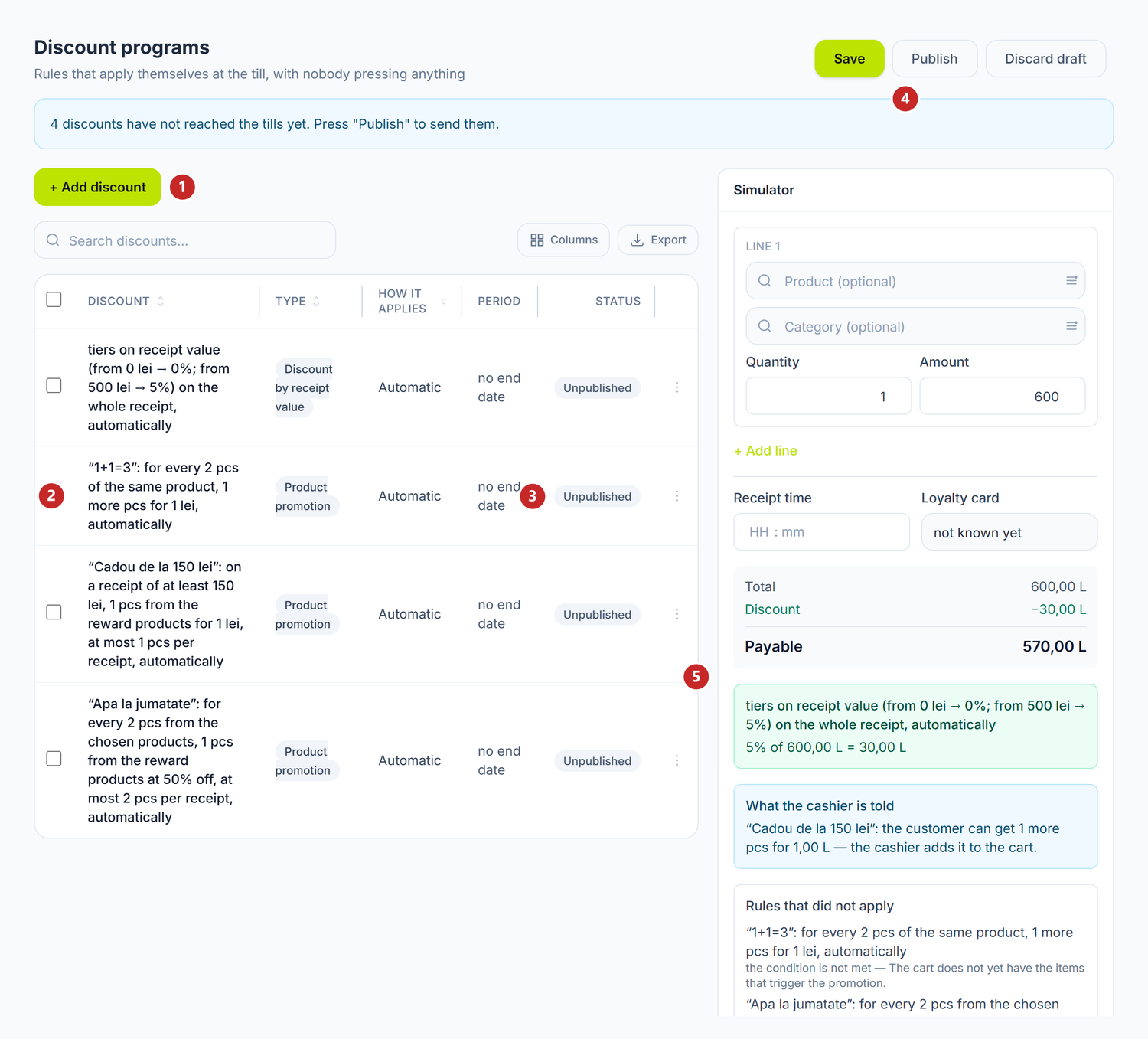
1 add a rule · 2 the rule, in words · 3 whether it reached the tills · 4 sends the rules to the tills · 5 the simulator
Each rule reads like a sentence: "tiers on receipt value (from 500 lei → 5%) on the whole receipt, automatically". The panel builds the sentence from what you filled in, so what it says is exactly what the rule does.
The draft and publishing
Everything you write here is a draft first. The tills see nothing until you press Publish. That way you can prepare the weekend promotion on Thursday without it starting at the counter half-done.
The Status column tells you where each rule is: Live at the till or Unpublished. While something is unpublished, a blue message above the list counts the rules that are behind.
To send the rules to the tills:
- Check in the simulator that the rule gives what you expect (how — below).
- Press Publish. The panel saves the draft and shows you what comes next: the rules after publishing, the ones they replace and the largest discount the set can give.
- Confirm. The tills pick up the new set at their next sync.
A published set no longer changes. A later edit makes a new draft, which replaces the live set only at the next publication. The old set stays in the history, so a receipt from a year ago can be recalculated with the rules of that time.
Save keeps the draft without sending it. The other two buttons at the top:
- Stop promotions appears only while you have a published set. It sends the tills an empty set: they no longer give any automatic discount. The rules stay saved and you can publish them again at any time.
- Discard draft throws away everything you changed since the last publication. The rules in force are not touched.
Publish and Stop promotions need the admin right on discounts. Someone with only the write right can prepare the draft but cannot send it to the tills.
To add a rule
- Press + Add discount.
- Pick a template from the list. The rule comes filled in with values that make sense, and the simulator immediately shows what it would do.
- The rule opens in its own tab. Adjust it, then press Save.
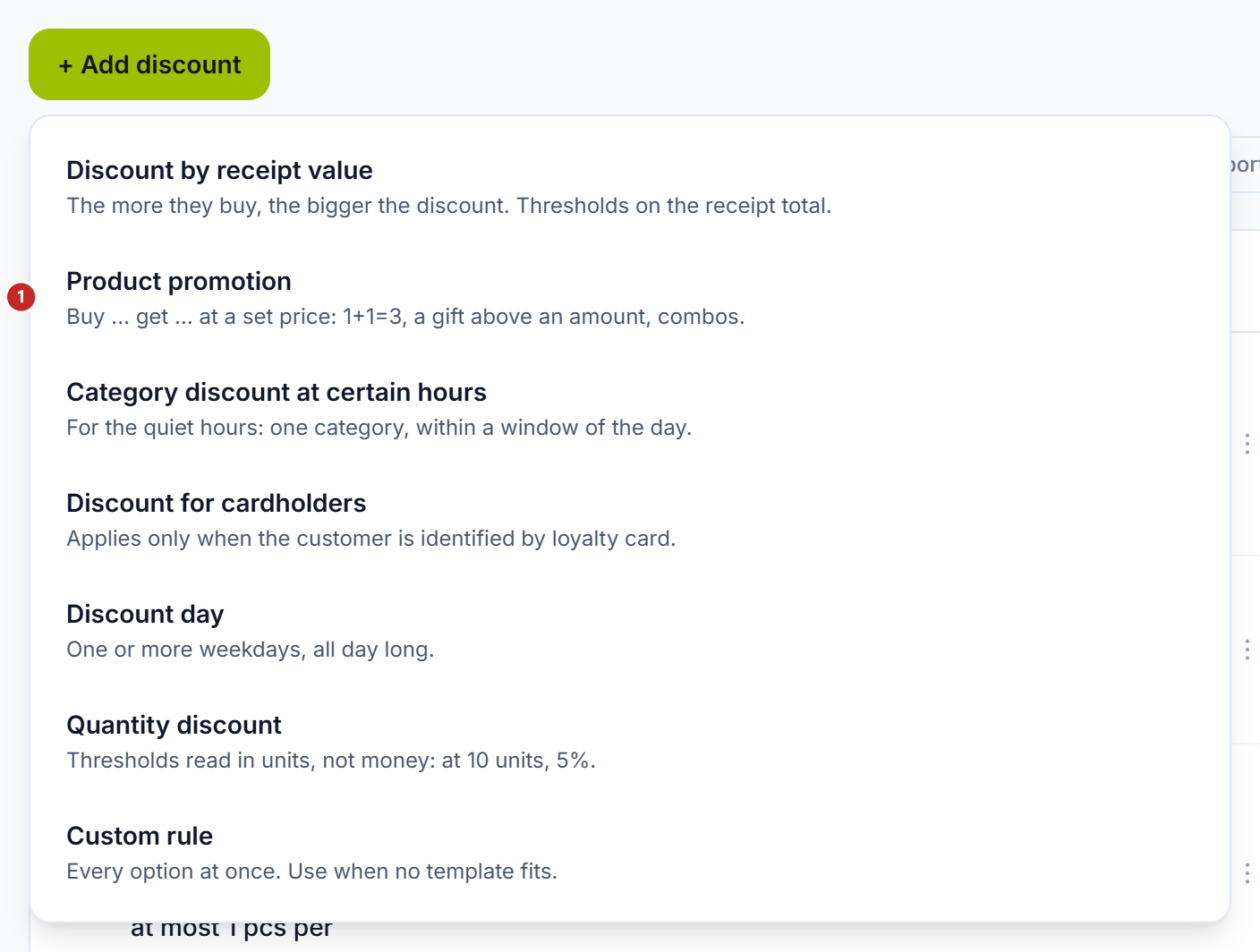
1 the product promotion
The templates are two kinds of rules, which behave differently:
- The receipt discount — a percentage of the receipt or of the chosen products. These are Discount by receipt value, Category discount at certain hours, Discount for cardholders, Discount day, Quantity discount and Custom rule.
- The product promotion — "you buy … you get … at a set price". The item received goes on the receipt on its own line, at the promotion price.
You reopen a rule by clicking its sentence. Deleting is in the ⋮ menu on the row and is saved immediately.
The receipt discount
The form asks four questions: When it applies, How much it takes off, How it applies and What limits it has. What you see under "When it applies" depends on the template: a discount by receipt value has no hours, so it does not ask for any.
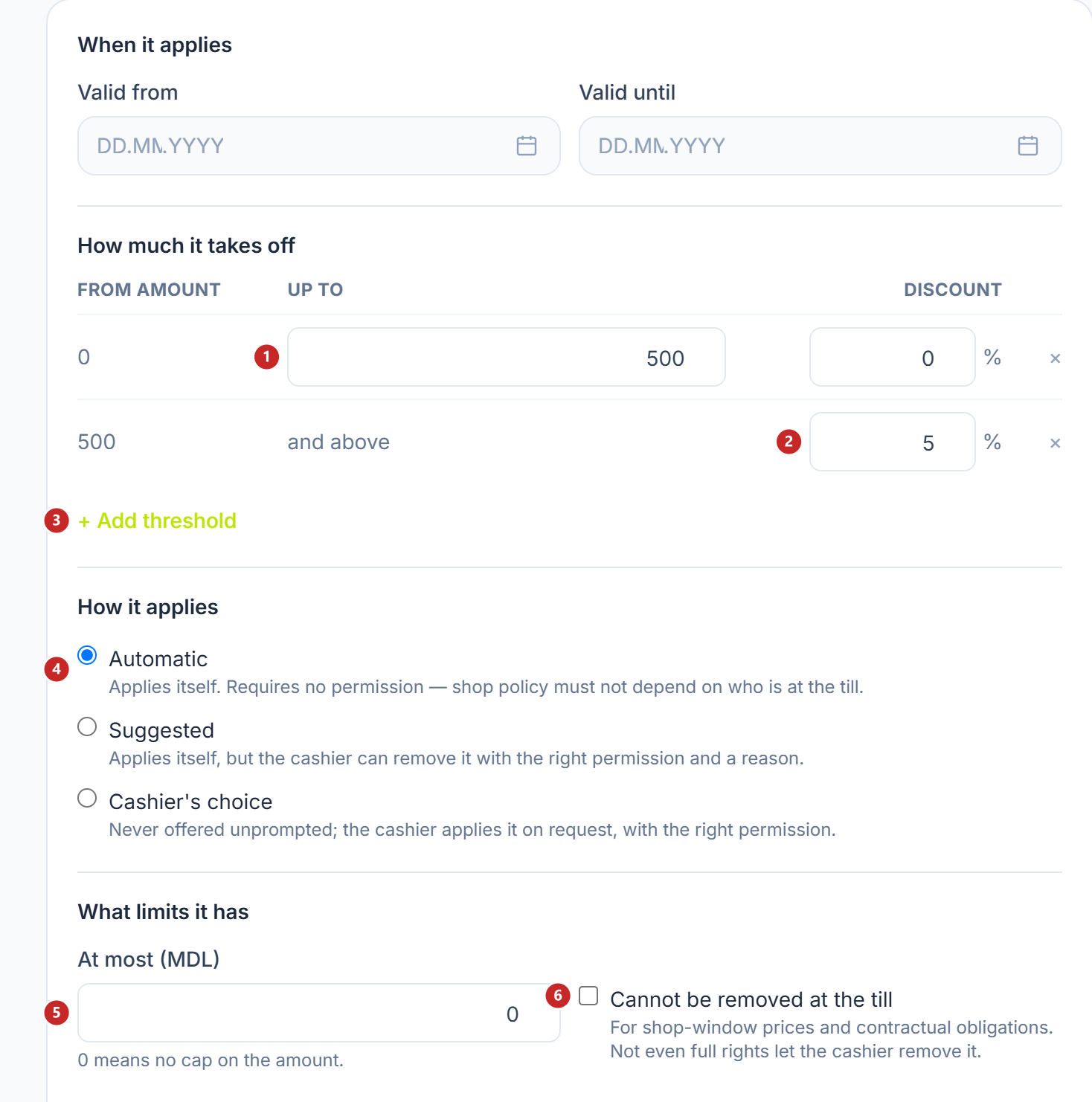
1 where the tier ends · 2 the tier's percentage · 3 add a tier · 4 how it applies · 5 the cap in lei · 6 the rule cannot be removed at the till
The tier grid
The grid says how much the rule takes off, in tiers. You only write where a tier ends; the next one starts there on its own, and the last stays open upwards ("and above"). This way the grid cannot have gaps or overlaps.
Example: from 0 to 500 lei — 0%, from 500 lei up — 5%. A 600 lei receipt gets 30 lei off.
How it applies
- Automatic — applies itself. It does not depend on who is at the till.
- Suggested — applies itself, but the cashier can remove it, if they have the right and give a reason.
- Cashier's choice — is not offered on its own. The cashier applies it on request, if they have the right.
The limits
At most (MDL) caps the discount at an amount. 0 means no limit.
Cannot be removed at the till is for prices shown in the shop window and for obligations from contracts. With it ticked, not even a cashier with full rights can remove the discount.
On a category or at certain hours
The Category discount at certain hours template shows the category, the product and the time window.
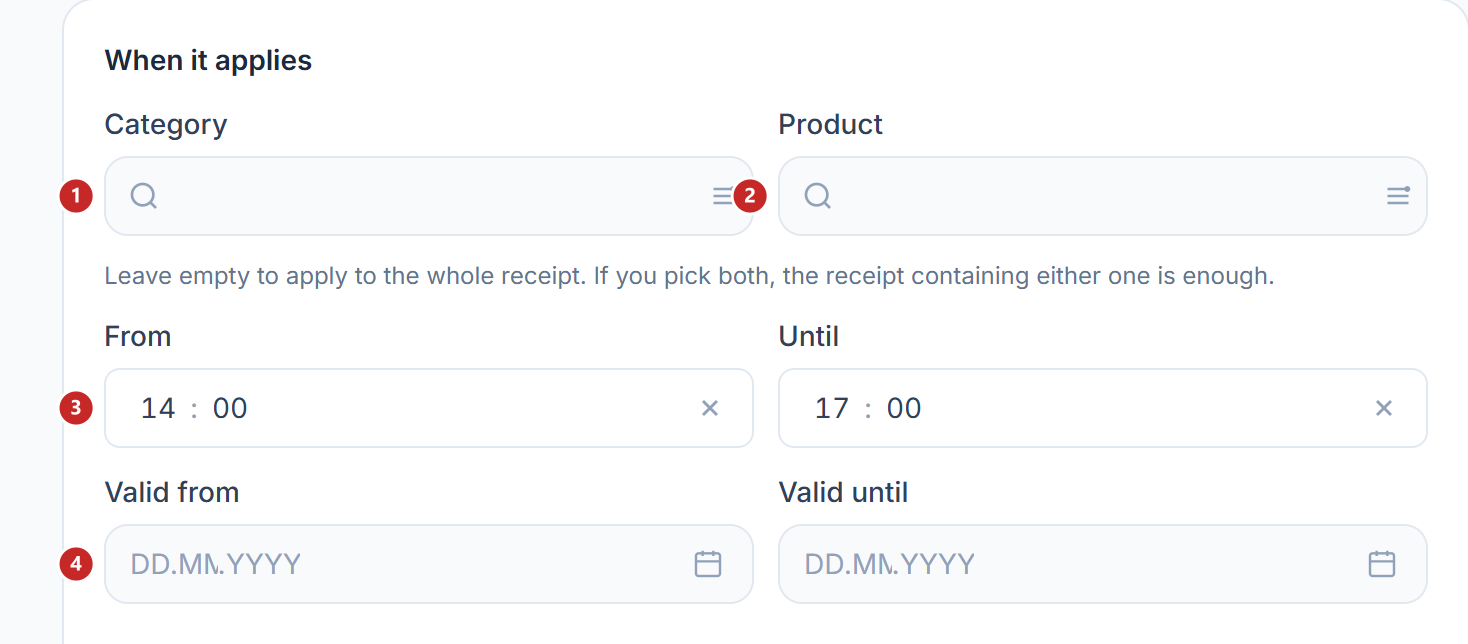
1 the category · 2 the product · 3 the start time · 4 from when the rule is valid
Leave the category and the product empty, and the discount applies to the whole receipt. If you choose both, it is enough for the receipt to contain one of them. A window like 22:00–06:00 is fine: the rule holds from the evening until the next morning, and the panel says so under the hours.
Valid from and Valid until exist on every template. Left empty, the rule has no end date.
On quantity
Quantity discount reads the thresholds in units, not in lei: at 10 units of the chosen product, 5%.
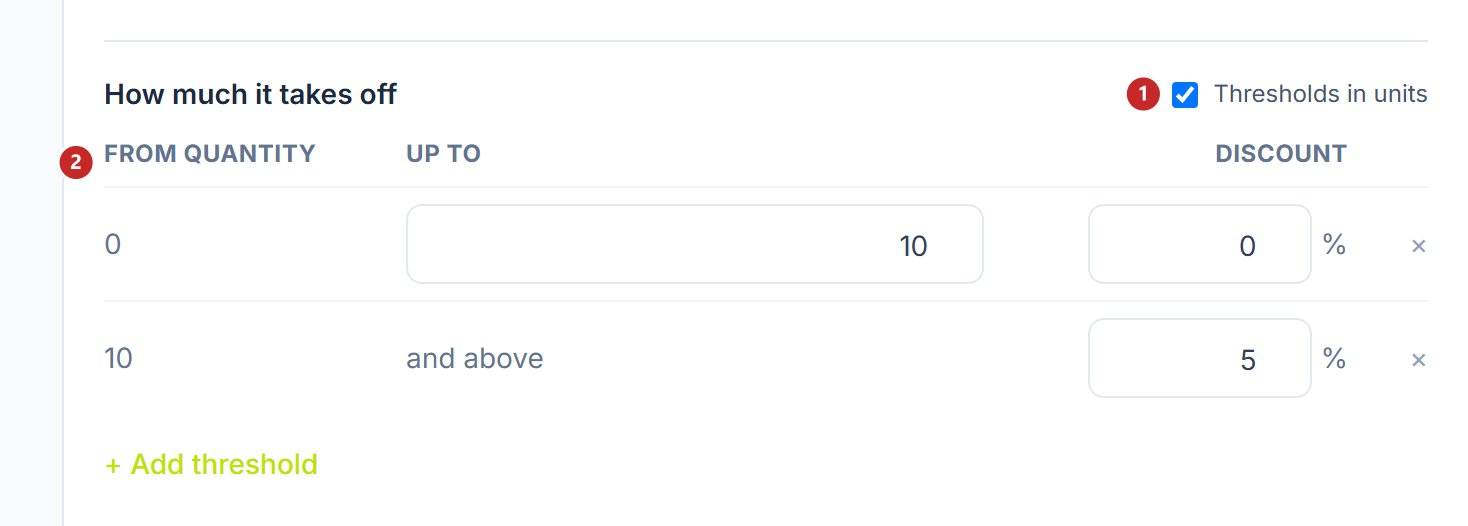
1 thresholds in units · 2 the grid columns, now in units
If you untick Thresholds in units, the grid goes back to lei and starts from new values. The old thresholds would no longer mean anything in a different unit.
Days, loyalty card, custom rule
The other templates start with one condition already set: Discount day with Tuesday ticked, Discount for cardholders with the card box. Custom rule shows them all at once, for the cases no template covers.
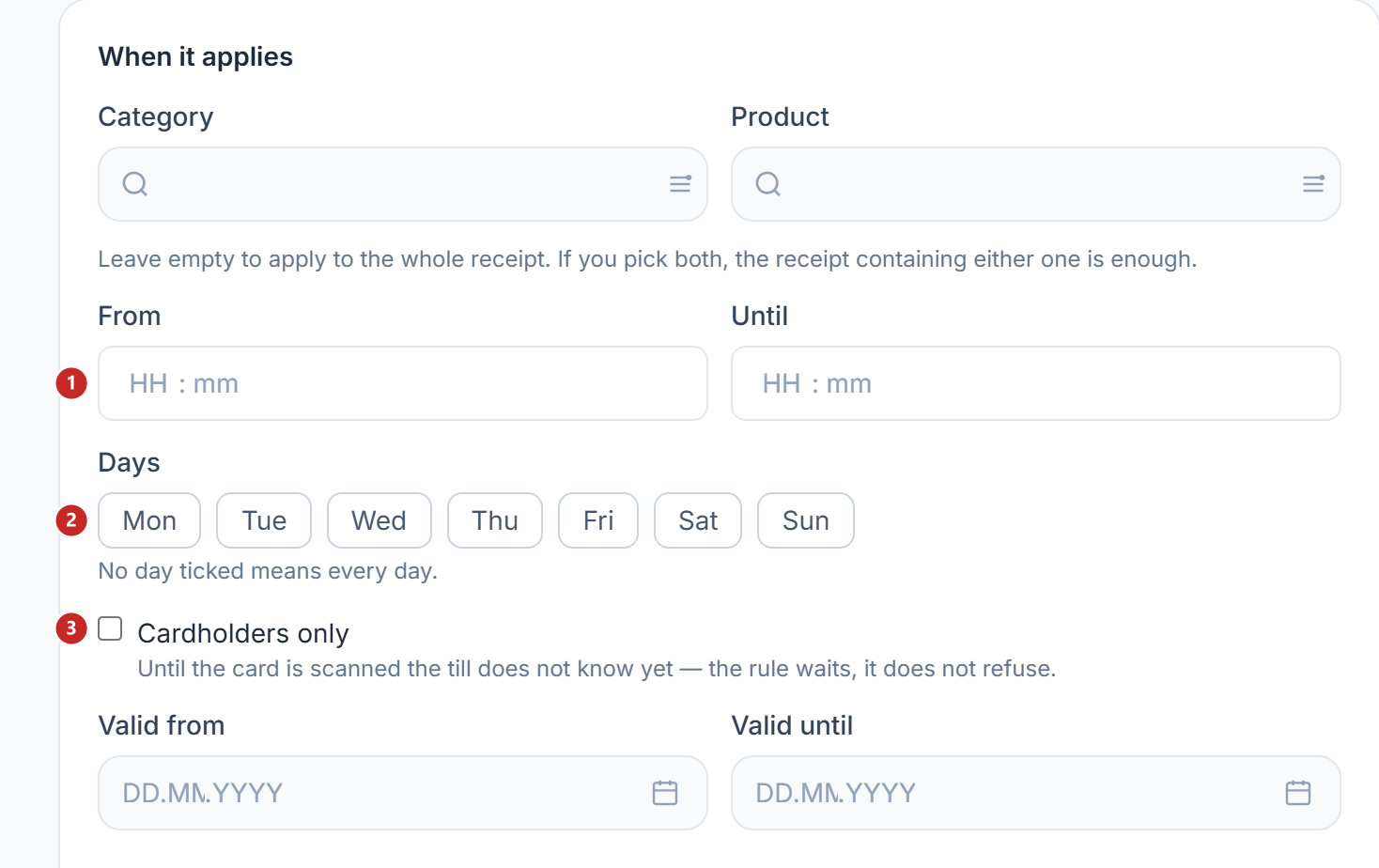
1 the time window · 2 the days · 3 cardholders only
No day ticked means every day. On a card rule, as long as the cashier has not scanned the card, the till does not yet know whether the customer has one: the rule waits, it does not refuse.
The custom rule also has, folded, Advanced options.
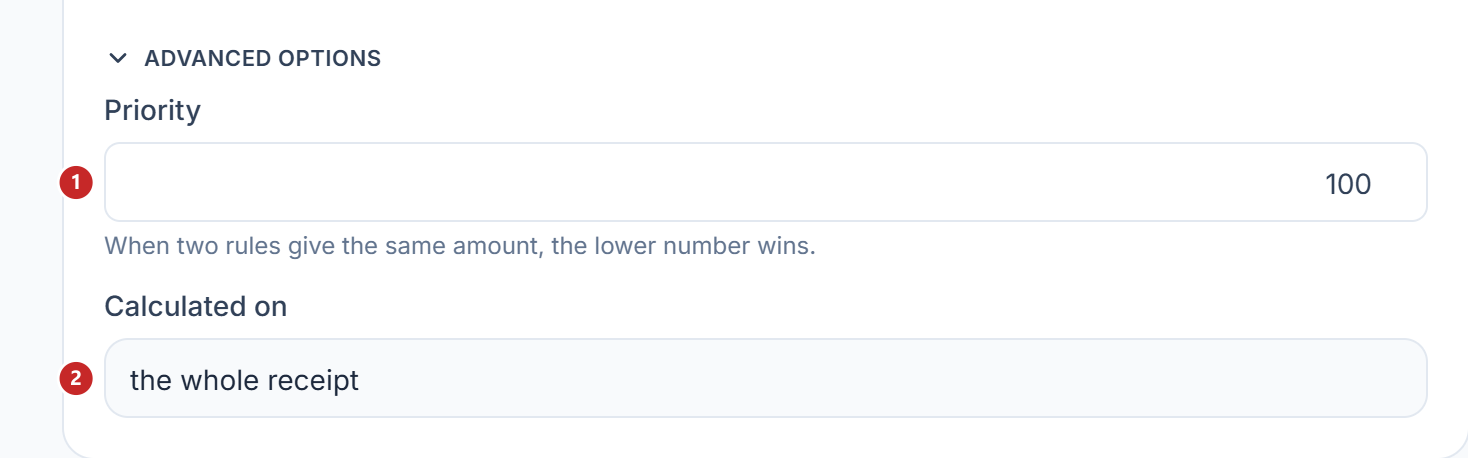
1 the priority · 2 what the percentage is calculated on
When two receipt discounts match
Only one receipt discount applies to a receipt: the one that gives the customer more. The others show in the simulator with the reason "lost to another rule".
Priority only matters when two rules give exactly the same amount: the one with the lower number wins. Calculated on chooses whether the percentage is taken from the whole receipt or only from the chosen lines.
The product promotion
The product promotion has the shape "you buy … you get … at a set price". That is how you make "1+1=3", a gift from a certain receipt amount or a combo: two packs of pasta, and the third for 1 leu.
It is not a discount. The item received goes on the receipt on a separate line, with the promotion price instead of its own: 1 × Pasta 1.00. Fiscally it is an ordinary sale.
To make a "1+1=3" promotion:
- + Add discount → Product promotion.
- Write the Promotion name. It is printed on the receipt next to the item received and shown on the cashier's screen, so keep it short: at most 24 characters.
- Under When it applies leave The customer buys certain products, write how many items and choose the products or categories.
- Under How the items are counted choose Of the same product or Any from the set.
- Under What the customer gets choose how many items and from which products.
- Set the price and how many times it applies per receipt.
- If the promotion runs only on certain days or has an end date, tick the Days and fill in Valid from / Valid until. Under How it applies you choose, as for the receipt discount, whether the promotion applies itself or the cashier adds it.
- Save.
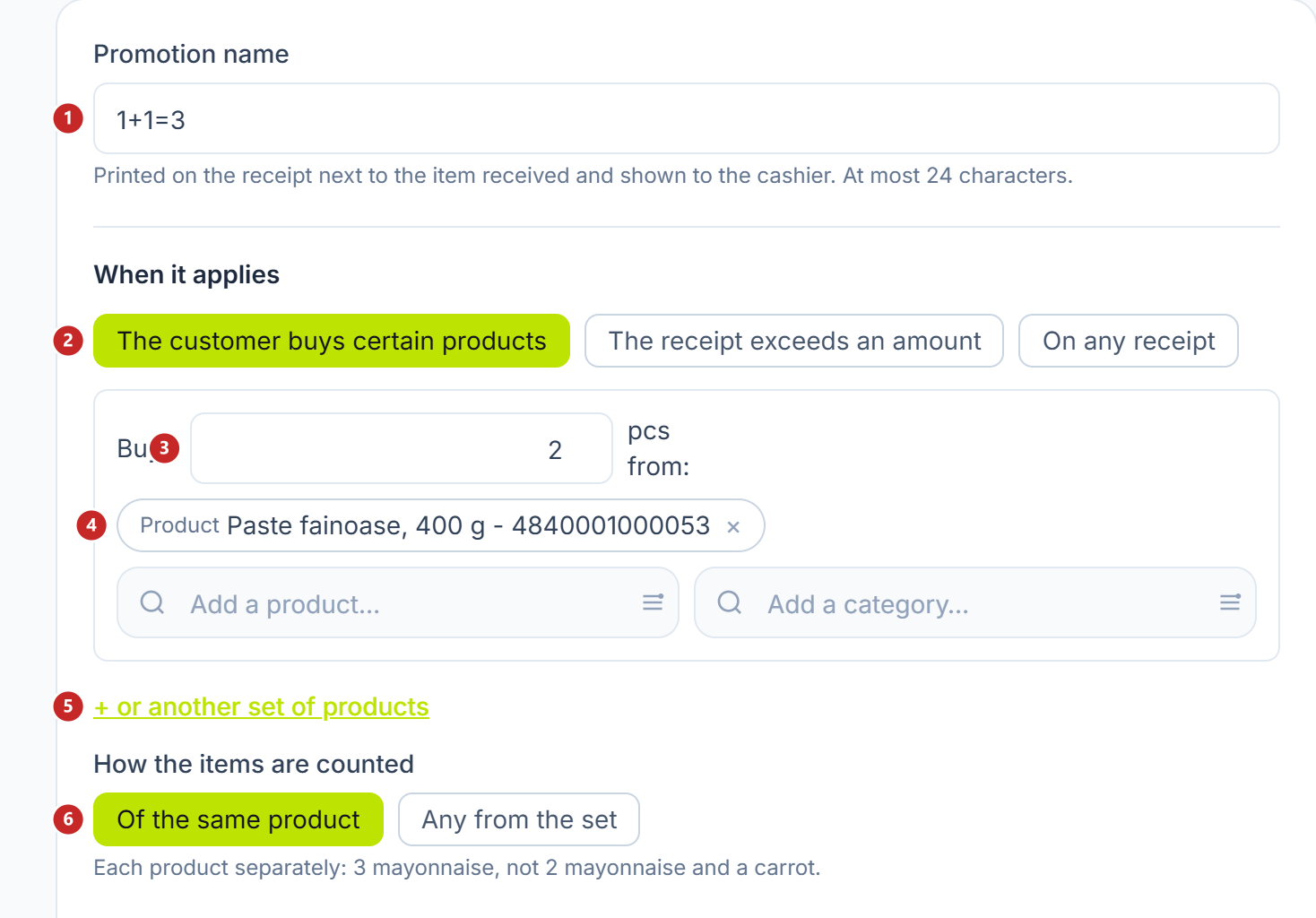
1 the name on the receipt · 2 what starts the promotion · 3 how many items · 4 the products in the set · 5 an alternative set · 6 how the items are counted
What starts the promotion
Three options, three buttons:
- The customer buys certain products — a set of products or categories, with the number of items. With + or another set of products you add an alternative: "2 sushi or 2 rolls".
- The receipt exceeds an amount — from 150 lei, for example. Here you write the amount, not the products.
- On any receipt — no condition: "take a ramen with you at half price".
How the items are counted only matters for the products bought:
- Of the same product — each product is counted separately. Three mayonnaises start the promotion; two mayonnaises and a carrot do not.
- Any from the set — the items in the set add up. Two salmon onigiri and one tuna onigiri make three.
What the customer gets and at what price
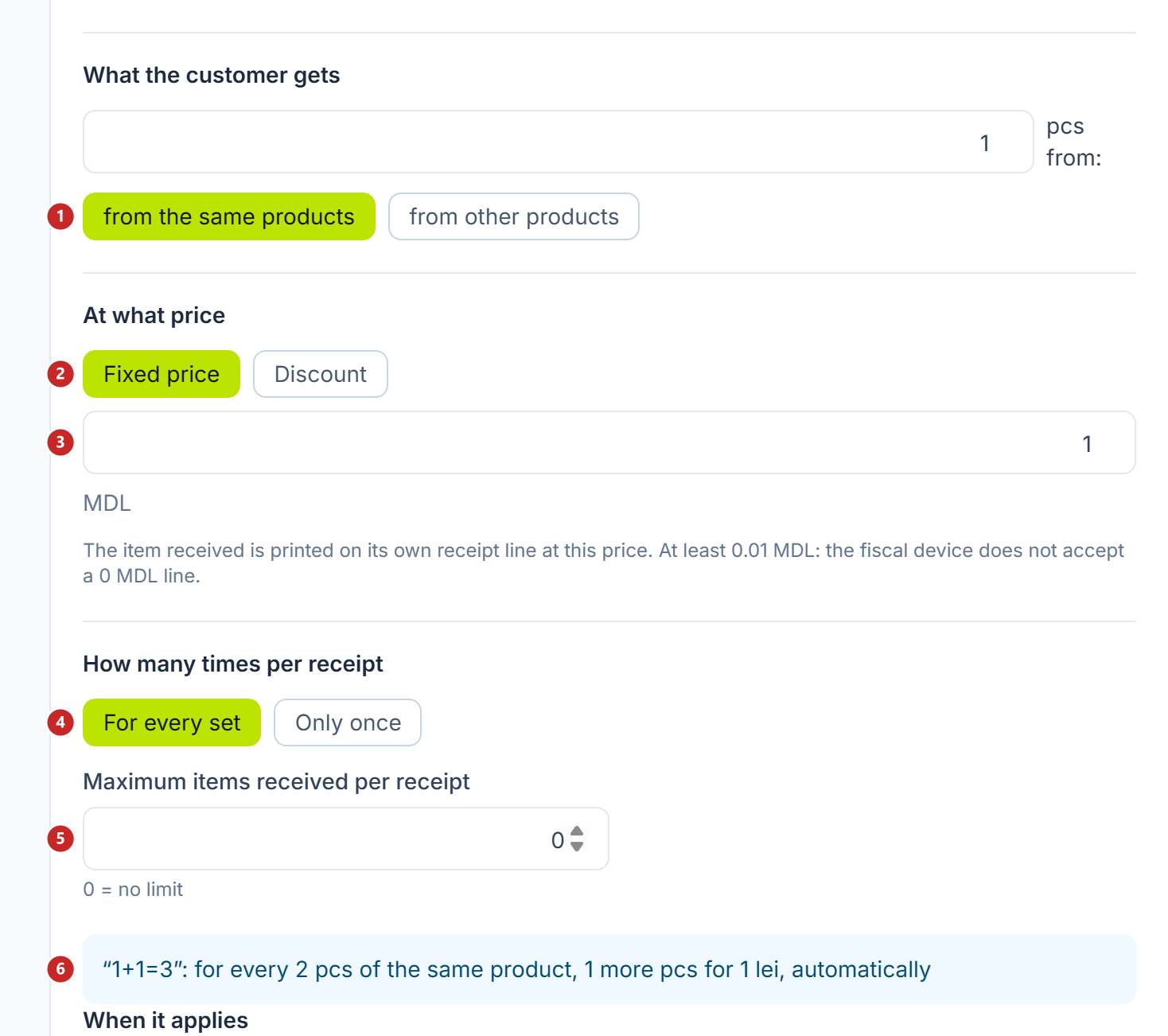
1 from which products · 2 fixed price or discount · 3 the price · 4 for every set or only once · 5 at most how many items per receipt · 6 the rule, in words
From the same products gives the item from the set bought — that is the option for "1+1=3". From other products asks you for a separate set, the reward set. When the cart has several matching items, the promotion price goes to the cheapest.
The price is written in two ways:
- Fixed price — the item costs exactly that: 1.00 leu.
- Discount — a percentage of the item's price: 50%.
The promotion price never goes below 0.01 lei, not even at a 100% discount: the fiscal device does not accept a 0 lei line. That is why the panel does not offer a "free" option: the gift always has a symbolic price, which you choose.
How many times per receipt chooses between For every set (with 4 packs, two items for 1 leu) and Only once. Maximum items received per receipt puts a cap on top; 0 means no limit.
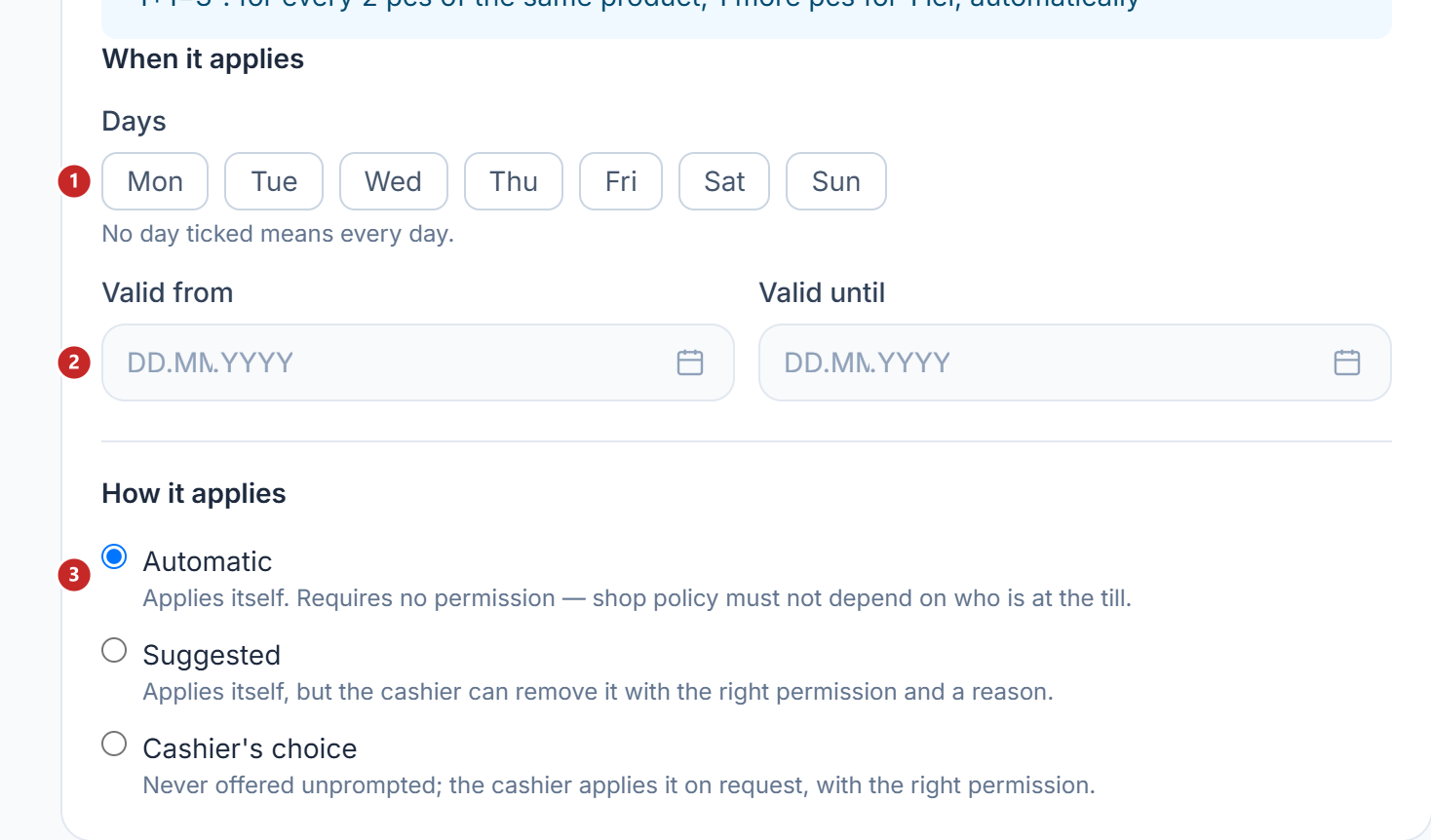
1 the days · 2 the validity period · 3 how it applies
The blue box under the promotion editor repeats it in words. Read it before you save: if the sentence does not say what you meant, the rule does not do what you meant.
The gift from an amount
The promotion "from 150 lei, a pack of salt for 1 leu" starts from the receipt amount, not from products.
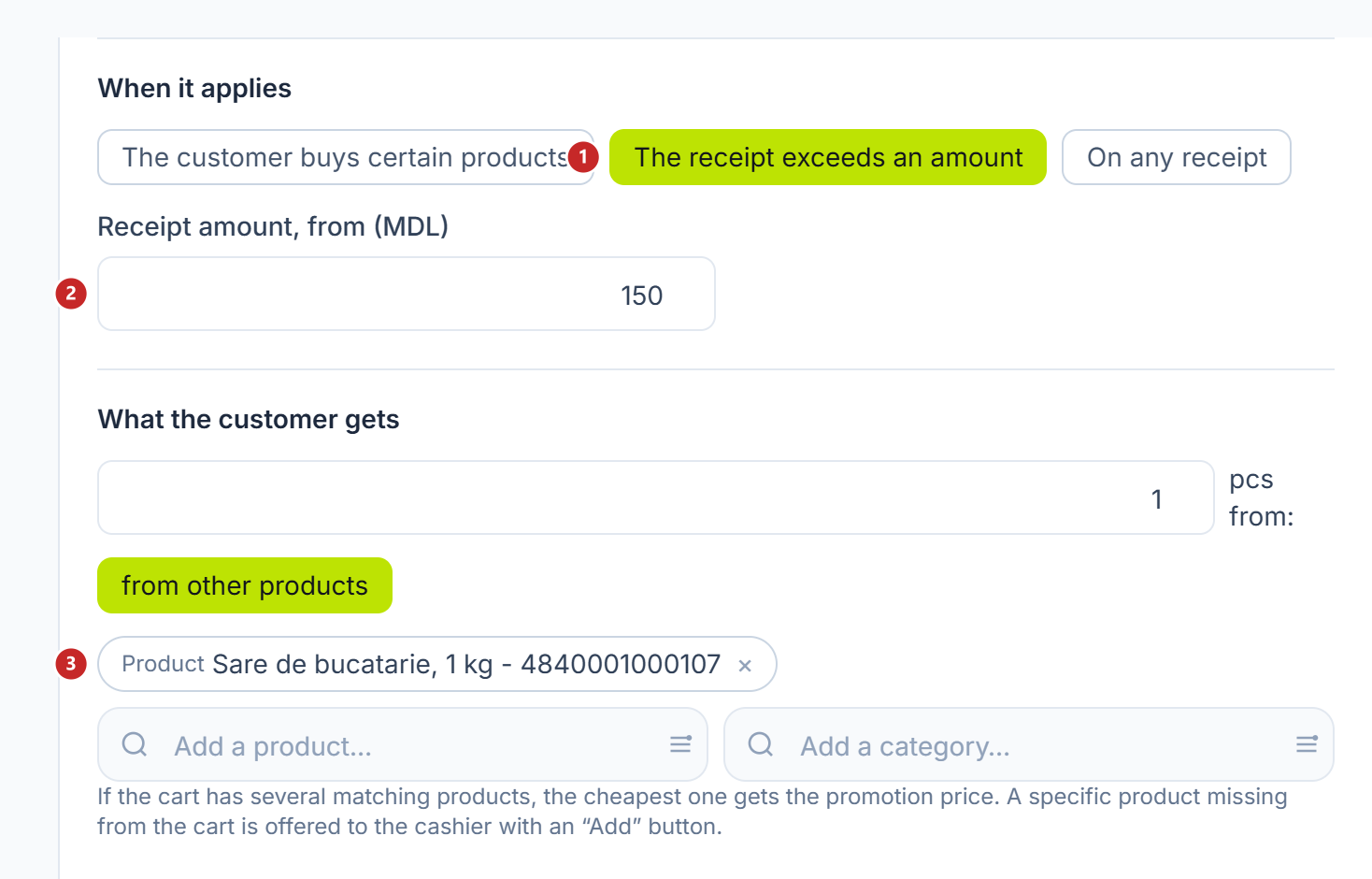
1 the receipt exceeds an amount · 2 the amount it starts from · 3 the product received
The till does not put the gift in the cart on its own. If the product is not on the receipt yet, the cashier gets a prompt to add it, and adds it when handing the goods to the customer. This way no item the customer did not take ends up on the receipt.
Any from the set, with a percentage discount
The promotion "with any 2 grocery products, a water at half price" works on categories.
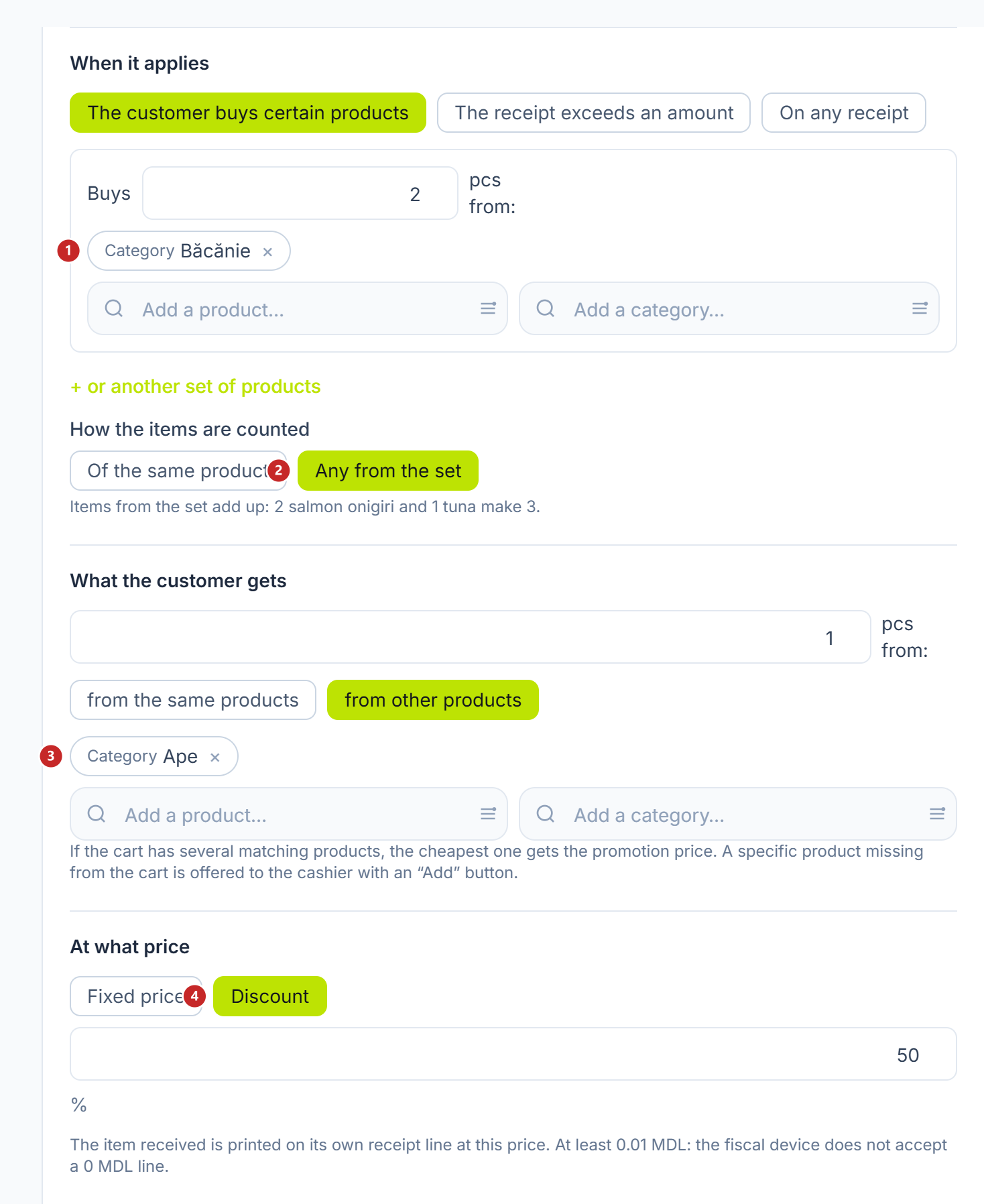
1 the category that starts the promotion · 2 any from the set · 3 the category the item comes from · 4 percentage discount
Promotion, receipt discount and price list together
- The product promotion and the receipt discount both apply. Promotions first, then the receipt discount, calculated on what is left. The items received at the promotion price do not also get the receipt discount.
- Several product promotions all apply, but an item enters only one promotion.
- The promotion and the customer's price list do not add up. On the product in the promotion the better price for the customer stays. If the list already gives them more, the simulator shows the promotion skipped with the reason "the customer already has a better price".
Tills that do not know the product promotion yet skip it and apply the other rules. Publishing a promotion therefore stops no till in the shop.
The simulator
The simulator sits on the right, next to the list and next to every open rule. It runs the same calculation as the till, on the rules on screen, even unsaved ones. What you see here is what happens at the counter.
To try a rule:
- On Line 1 choose the product. Its category comes along.
- Write Quantity and Amount — the line total, not the unit price.
- With + Add line you add other products.
- If the rule depends on the time or the card, fill in Receipt time and Loyalty card.
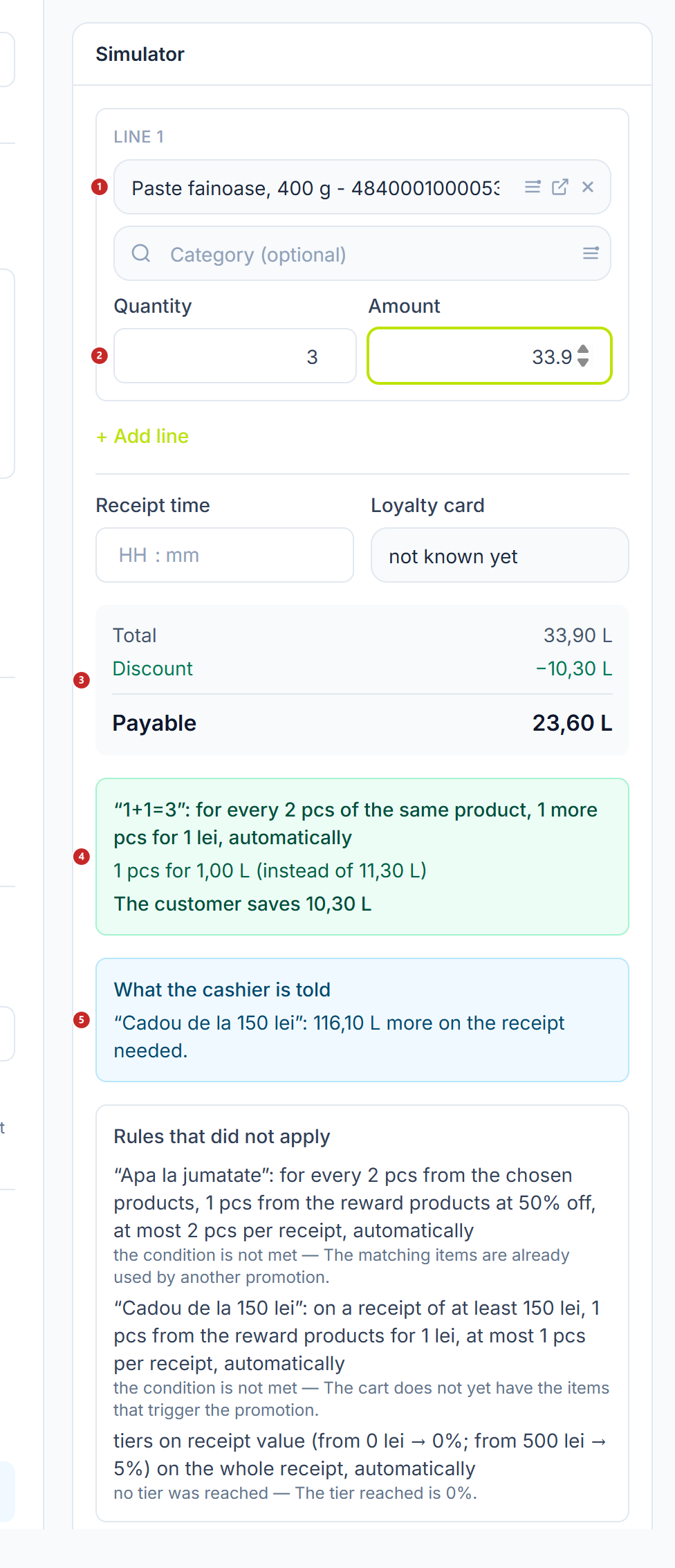
1 the product · 2 the quantity · 3 total, discount and payable · 4 the promotion applied · 5 what the cashier is told
Under the total you see each rule applied, with its calculation: "1 pcs for 1,00 L (instead of 11,30 L)". The What the cashier is told box shows the till prompts: how much is still missing to the gift, or which item the customer can get. At the end, Rules that did not apply, each with its reason.
What the discounts cost
The Discounts report shows what the total discounts of a period are made of.
Where to find it: Sidebar → Merchant Center → Reports tab, then the report type Discounts and Generate.
What you find in it:
- Total Discounts, the number of receipts and the Unattributed part: discounts typed by the cashier, from the card or from a price list, which no rule explains.
- By rule — how much each rule gave, on how many receipts and on average per receipt, with the version of the published set.
- Product promotions — what each promotion cost: the shelf price minus the promotion price, on the items given. The amount is not part of the total discounts, because on the receipt these are lines sold at the promotion price, not discounts.
- Promotions removed at the till — how many times and for what reason cashiers removed a suggested rule. A receipt the promotion was removed from looks like one that never had it, so this is the only place you see it.
What can confuse you
"Give the promotion a name: it is printed on the receipt." — the name is required on a product promotion. Write it in the first field.
"Choose what the customer has to buy." — the set that starts the promotion is empty. Add a product or a category.
"Choose the products the customer receives from." — you chose from other products, but the reward set is empty.
"incomplete grid" under a rule in the list — the grid has no tier open upwards, or has an empty tier. While it stays so, Save and Publish are inactive.
In the simulator, "the item to receive is not in the cart" — the promotion was won, but the product received is missing from the receipt. The cashier adds it when handing over the goods.
Related pages
- Price lists — the customer's price on invoices and documents, separate from the till promotions
- How do I create categories and subcategories and put products in them? — the till categories that category discounts are written on
- Sales → Overview — how much was collected, after discounts, by channel and by product