Price lists
A price list defines the sale prices of the items in the catalogue. When you add a product to a sales document, the price is filled in automatically from the applicable list — saving time and keeping prices consistent.
Where to find it: Sidebar → Nomenclature → the Price Lists tab
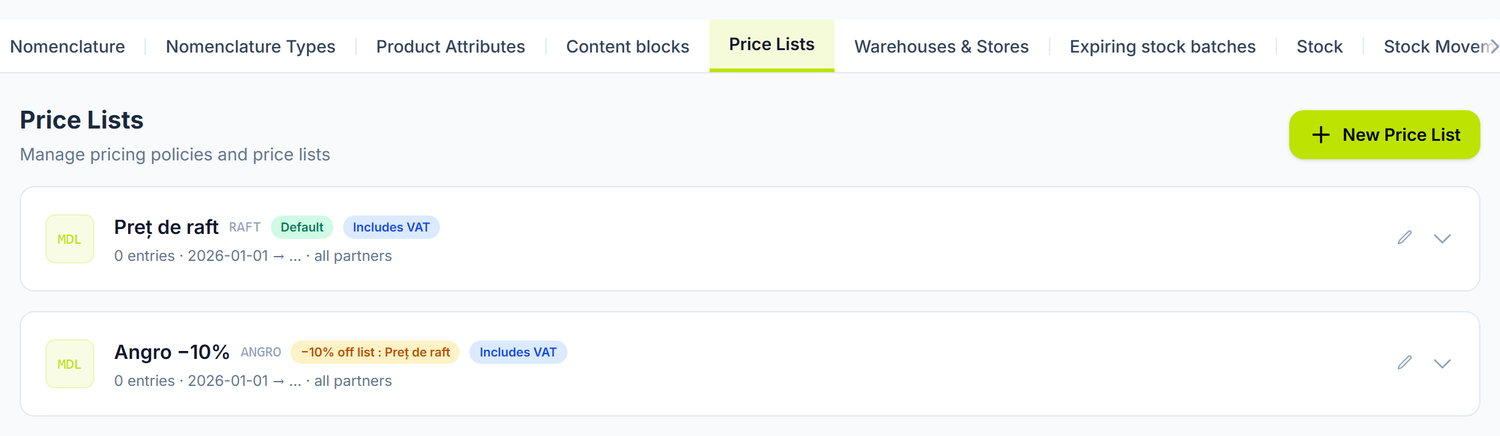
Each list is a card with its name, its code and its badges. In the example, the second list carries the badge −10% from list: Shelf price — meaning it has no prices of its own but derives them from the first. The arrow on the right expands it, the pencil opens it for editing.
The line below adds up how many entries the list has, its validity window and who it applies to — all partners, a partner group or 3 selected partners. Conditional lists get one more badge up there, saying by what rule someone moves onto them: grid · 3 tiers / 12 months, over 100000 / year or invoice over 5000.
To create a price list
- Press New Price List.
- Write the Code and the Name — you see the code on every card, the name appears in selectors.
- Pick the List type: Positions or Discount % (what each one means, below).
- Say who it applies to and on what condition.
- Set the validity window and the checkboxes, if it applies.
- Save. You add the items afterwards, from the list's card.
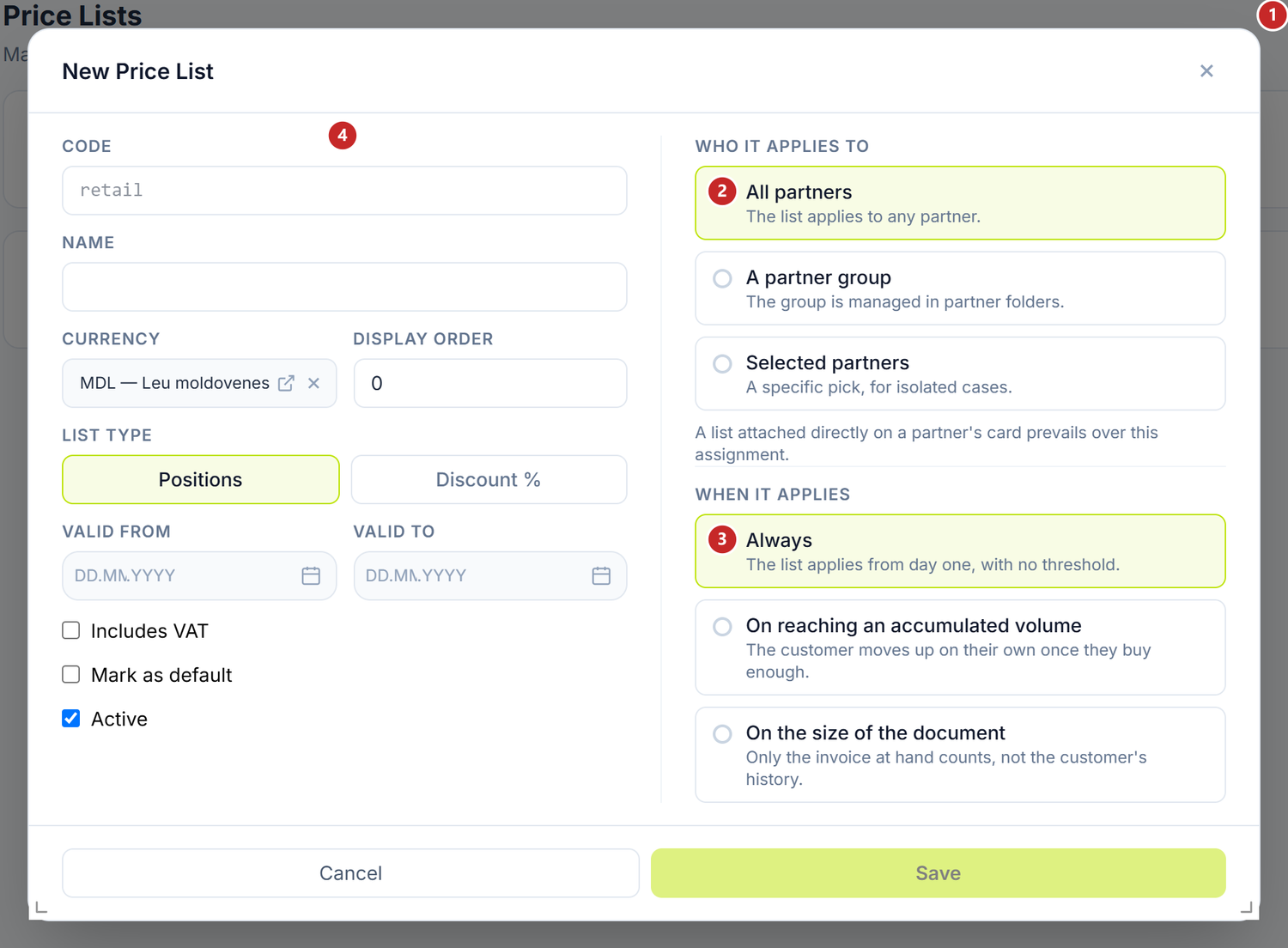
1 the list type · 2 who it applies to · 3 the condition under which it becomes active
The two list types
Positions means you write the price for each product yourself. This is the ordinary shelf list: what you put there is what applies.
Discount % holds no prices of its own — it subtracts a percentage from a base. It suits wholesale or a customer under contract: you don't maintain a second price list, only the percentage.
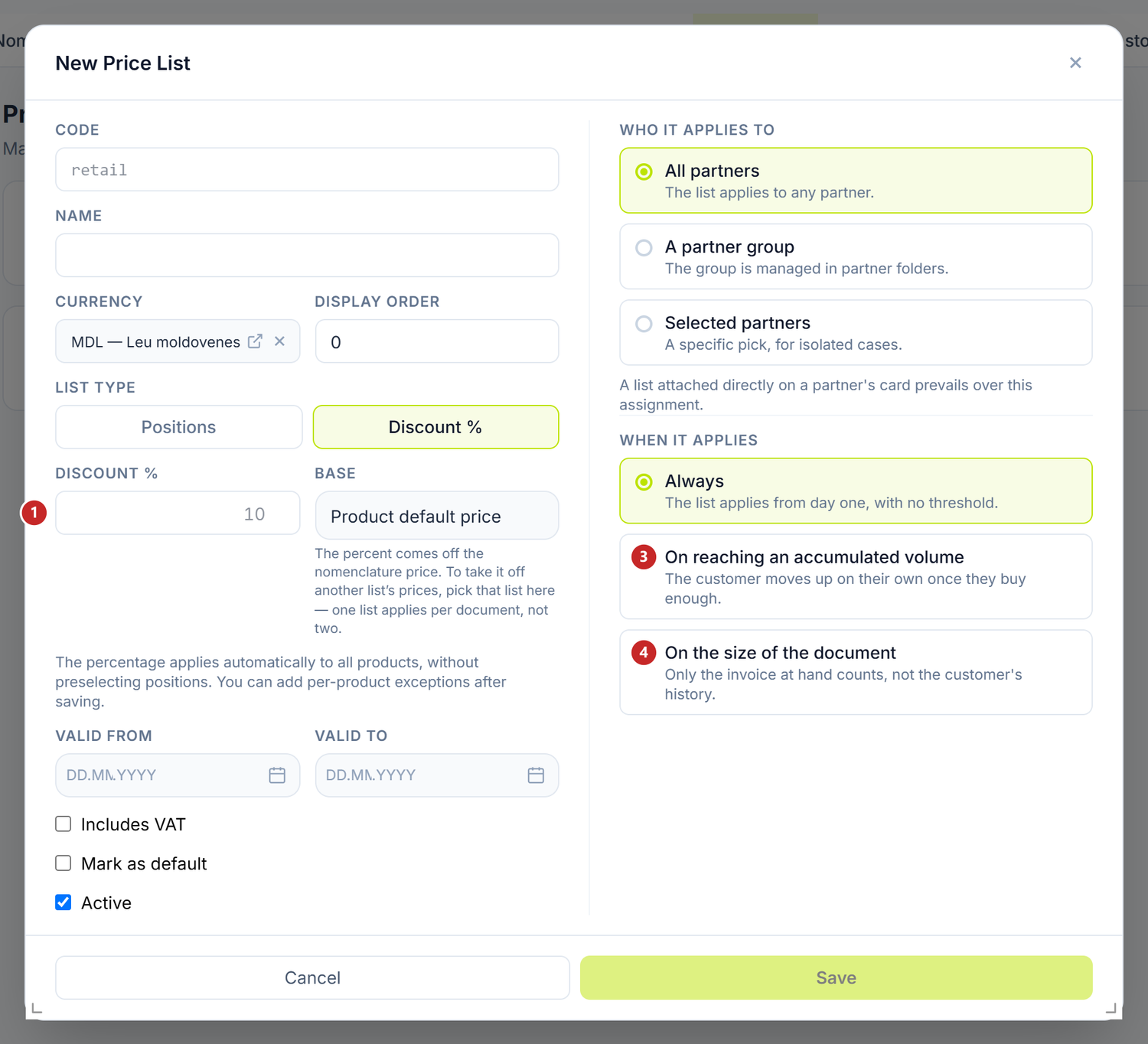
1 the percentage subtracted · 3 the condition on accumulated volume · 4 the condition on document size
On Discount % you get two extra fields. Discount % is the percentage, and Base says what it is subtracted from: the catalogue price, or another list of type Positions. The second option is the one you build a wholesale list derived from the shelf price with — you change the shelf, and wholesale moves with it.
Only one list applies to a document, not two. That is why, to subtract the percentage from another list's prices, you pick it as the Base; otherwise the percentage starts from the catalogue price, and the positions list does not come into play at all.
When a Discount list gets a condition, the "Discount %" field disappears from the form. The percentage then comes from the tier reached, and its place is taken by the Tier grid — below, under the application condition. Don't go looking for it.
The percentage applies automatically to every product. The exceptions, if you have any, you add one by one after saving, on the list's card.
Who the list applies to
Three options, in the right-hand column of the form:
| The choice | What it means |
|---|---|
| All partners | The list works for anyone. This is the ordinary case of a shelf list |
| A partner group | It applies to the partners in one folder. Folders are managed in Partners |
| Selected partners | A specific pick, for a few particular cases |
The last two choices each open one extra field. A partner group brings up Group — you pick the folder, and without it saving is refused. Selected partners brings up Partners: you add them one by one, and as long as the list stays empty the screen asks you for at least one.
A list attached directly on a partner's card beats any of the choices here. If a customer has their own list on their card, that one applies, whatever you set in the form.
The application condition
Here is the mechanism worth knowing before you build your prices:
| The condition | When the list becomes active |
|---|---|
| Always | From day one, with no threshold. The default choice |
| On reaching an accumulated volume | When the customer has bought enough, cumulatively over time. They move up by themselves, with no action from you |
| On the size of the document | It looks only at the invoice in front of it, not at history. A large order gets the better price, a small one does not |
The difference between the last two matters. Accumulated volume rewards loyalty: once past the threshold, the customer stays on their tier. Document size rewards the order: the same customer can take the good price today and the ordinary one tomorrow, depending on how much they buy each time.
The list marked as the organization's default gets neither an audience nor a condition. The buttons stay locked, and the screen tells you why: it is the price everyone else falls back to.
Measured in, and the Window
Below the condition, two choices appear that change the meaning of the figure you write.
Measured in decides whether the threshold is read in money (Value) or in pieces (Quantity). A threshold of 50,000 means something entirely different in each case.
Window says over what interval the volume adds up: Last 12 months, Calendar year or Quarter. It decides whether a customer stays on their tier or drops off it when the year turns. The window appears only on accumulated volume — the invoice in front of you has no history.
From when it counts
The counter starts empty, from the date you save the condition. Purchases from before do not count, so an old customer starts at zero; the screen shows you the exact date from which it counts.
Only posted documents count. Returns subtract, a draft moves no one up.
The threshold, on Positions lists
On a list of type Positions the condition has a single threshold, in the Applies from field. Below it, the customer stays on the organization's default list.
The tier grid, on Discount lists
On a list of type Discount % you don't write a threshold but a Tier grid — a table with From, Up to and Discount, on the same list. You don't make one list per tier.
To build the scale:
- Pick the condition — On reaching an accumulated volume or On the size of the document. The grid comes up with three tiers already, so you can see what it is made of.
- On each row write where the tier ends and what discount it gives.
- Add tier for a new row. The last one always stays open-ended and shows and above.
- Save.
The From column is not filled in by hand: each tier begins where the previous one ended, so the grid cannot be left with gaps or overlaps. If you do write something impossible, the message below the table tells you exactly what — "The tiers have a gap or overlap", "The last tier must be open-ended" — and saving does not go through until you fix it.
The list's fields
| Field | What it is for |
|---|---|
| Code | You see it on the list's card and in selectors. Short and recognisable |
| Currency | The list's prices are in this currency. They are not converted automatically on a document |
| Display order | When two lists match, the order helps to separate them |
| Valid From / Valid Until | The window in which the list gives prices. Outside it, it is as if it did not exist — useful for promotions |
The three checkboxes at the bottom: Includes VAT says whether the prices written already contain the tax, Mark as default makes the list the base proposal, and Active takes it out of play without deleting it.
A Discount list built over a base list with a different VAT setting is refused at save. Check the checkbox on both before you tie one to the other.
The price lines
A saved list expands from the arrow on the card, and that is where you add the items to it.
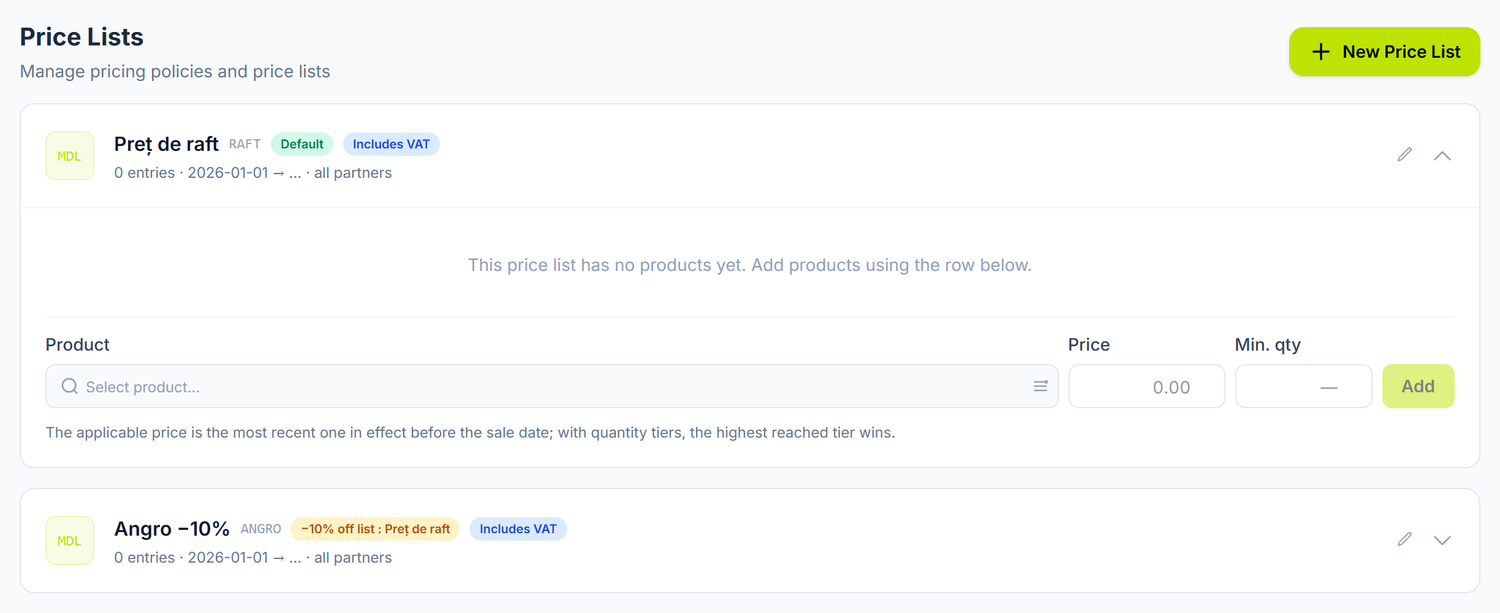
On each line you put the product, the price and, if you want, a Min. qty — the threshold from which that price comes into play. That is how you build a quantity scale: several lines for the same product, with different thresholds. The platform picks the highest threshold the document quantity reaches.
The line also has a validity window of its own, separate from the list's. Use it for a promotion that runs two weeks, without touching the rest of the list.
On a list of type Discount % the lines are exceptions: the percentage works across the whole catalogue, and a line written explicitly beats the percentage, for its product only.
How the price is chosen on a document
When you add a product to a sales document or to a customer invoice, the platform goes through these steps:
- It picks the list. If the document's partner has a default list on their card, that one is used. Otherwise the list marked default on the organization is taken.
- It checks whether the list can apply. It must be active, not deleted, the document date must fall within the validity window, and the list's currency must match the document's.
- It looks for an explicit line for that item, one that respects the minimum quantity and the line's own validity window. With several qualifying lines, the highest quantity threshold wins, and on a tie the most recent one to come into force.
- If it finds no line and the list is of the Discount type, it computes
base × (1 − percentage), rounded to 2 decimals. - If nothing comes out even then, the sale price from the item's card is used.
The automatically filled price stays editable: the value you type on the document line always takes priority.
The platform does not apply the discount from conditional lists
Above the document lines sits a banner that tells you where the prices come from. When the customer is entitled to a discount from a conditional list, the banner announces it — the customer qualifies for a discount from the Wholesale list, but it is not applied on 4 lines — and gives you the Apply discount button. If the lines already carry a discount that has since stopped being the right one, the button becomes Re-apply.
You press it. The document does not re-price itself, and the lines where you typed the price by hand stay untouched — the banner tells you at the end how many were updated and how many were left as typed.
When the condition is not met, the banner says why — the Wholesale list did not apply because the customer has not reached its threshold — and shows you how much is still missing. On a posted document the button no longer appears: its prices are a recorded fact.
A list in a currency different from the document's does not apply at all — there is no automatic conversion. If you sell in EUR, you need a list in EUR.
Practical examples
A building-materials shop
"ConstructPro" SRL in Bălți sets up two lists.
"Retail prices 2026" — type Positions, currency MDL, marked as default:
| Product | Price | Min. qty |
|---|---|---|
| Cement M400 (50 kg bag) | 120.00 | — |
| Sand (tonne) | 350.00 | — |
| Rebar ø12 (bar) | 85.00 | — |
"Wholesale prices 2026" — type Discount %, 15% discount, base = the "Retail prices 2026" list. It has no lines: the cement comes out automatically at 102.00 lei, the sand at 297.50 lei, the rebar at 72.25 lei. For sand, where the negotiation went further, a single explicit line of 280.00 lei is added — it beats the percentage.
The wholesale list is tied to each wholesale customer through the default-list field on the partner's card.
A different price above a quantity threshold
On a list of type Positions you can have several lines for the same product, with different thresholds:
| Product | Price | Min. qty |
|---|---|---|
| Cement M400 | 120.00 | — |
| Cement M400 | 108.00 | 50 |
| Cement M400 | 96.00 | 100 |
At 60 bags, 108.00 lei applies; at 120 bags, 96.00 lei — the highest threshold the quantity reaches wins.
A distributor with prices in EUR
"TechDistrib" SRL in Chișinău creates a separate list, "Distributor prices EUR", with the currency EUR. It applies only to documents issued in EUR; for sales in lei the MDL list remains.
Managing prices over time
You have two ways to change prices:
- A new list — you create a list with the new values and a future start date. On that date it becomes applicable, and the old one stays in the history.
- Lines with validity — on the same list, you add new lines for the items concerned, with Valid From in the future. You close the old line with Valid Until.
Prefer a new line with a validity window over editing the existing price. That is how you keep the full history and can check at any time what price was applicable on a given date.
Documents already saved keep the price from the moment they were created — a new list affects only documents created afterwards.
The link with other documents
- Sales documents — the line's price is resolved from the applicable list
- Customer invoices — invoicing uses the same resolution rule
- Partners — each partner can have a default list of their own
- Products — the price on the item's card is the fallback value
- Contracts — the commercial terms agreed with the customer
Frequently asked questions
Which list applies if I choose nothing?
The partner's default list, if they have one on their card; otherwise the list marked default on the organization. There is no list selector in the sales document header — the link is made through the partner.
Can I have several default lists?
No. The Mark as default mark identifies one single list for the organization. The other lists reach documents through the partner's card.
Does the price list include VAT?
It depends on how you built it, and the checkbox on the list does not decide that. Includes VAT is only a mark shown on the document.
The calculation is decided by the Price includes VAT checkbox on the sales document. If the list holds VAT-inclusive prices — mandatory when displaying to a consumer — tick it on the document as well. Otherwise VAT is added a second time, on top of a price that already contained it.
Example. You have a shelf price of 120 lei on the list, 20% VAT included. With the checkbox on the document: base 100 lei, VAT 20 lei, total 120 lei. Without it: base 120 lei, VAT 24 lei, total 144 lei — the invoice and the output VAT inflated by 20%.
New documents start with the checkbox in the state chosen for the organization, in its preferences. Check the state on the first document and correct it if it does not match your lists.
How do I make a temporary discount on a single product?
You add a line to the list for the product concerned, with the reduced price and the Valid From / Valid Until window. On expiry, the line stops applying and the price goes back to the previous one.
Do prices update automatically on existing documents?
No. Saved documents keep the prices from the moment they were created.
Can I import prices from Excel?
No — the Excel import exists for the catalogue, not for price lists. Price lines are added from the list's screen.
How do I manage prices in several currencies?
You create separate lists per currency ("Retail prices MDL", "Export prices EUR"). A list applies only to documents issued in the same currency — there is no automatic conversion.
What happens if I delete a line from a list?
The item will no longer get an automatic price from that list in new documents, and the resolution drops to the next step (the discount percentage, then the catalogue price). Documents already issued do not change.
Can I apply an extra discount on a document?
Yes. The automatically filled price is editable — you can reduce it directly on the sales document line.
How do I check what price was applicable on a given date?
You compare the date with the validity windows: the list's first (Valid From / Valid Until), then the line's. The applicable list is the one whose interval covers that date and whose currency matches the document's.
Can I tie the same list to several partners?
Yes. The list is not exclusive — you set it as the default list on the card of each partner that gets those terms.
Do price lists affect the accounting?
Not directly. The list determines the price on the document, and the journal entry is generated by the sales document, on the accounts of the item's category. The list itself creates no journal entries.
Related pages
- Products — the catalogue of items and their default price
- Sales documents — the documents that use the price lists
- Customer invoices — invoicing with prices from lists
- Partners — tying the default list to a customer
- Contracts — contractual price terms