Stock movements
The stock movement is the document with which you record the physical displacement of items: moving them between warehouses, writing them off, the surplus found at a count, or loading the opening balances. It is a postable document — on posting it generates the journal entry and updates the stock balances.
Where to find it: Sidebar → Nomenclature → the Stock Movements tab
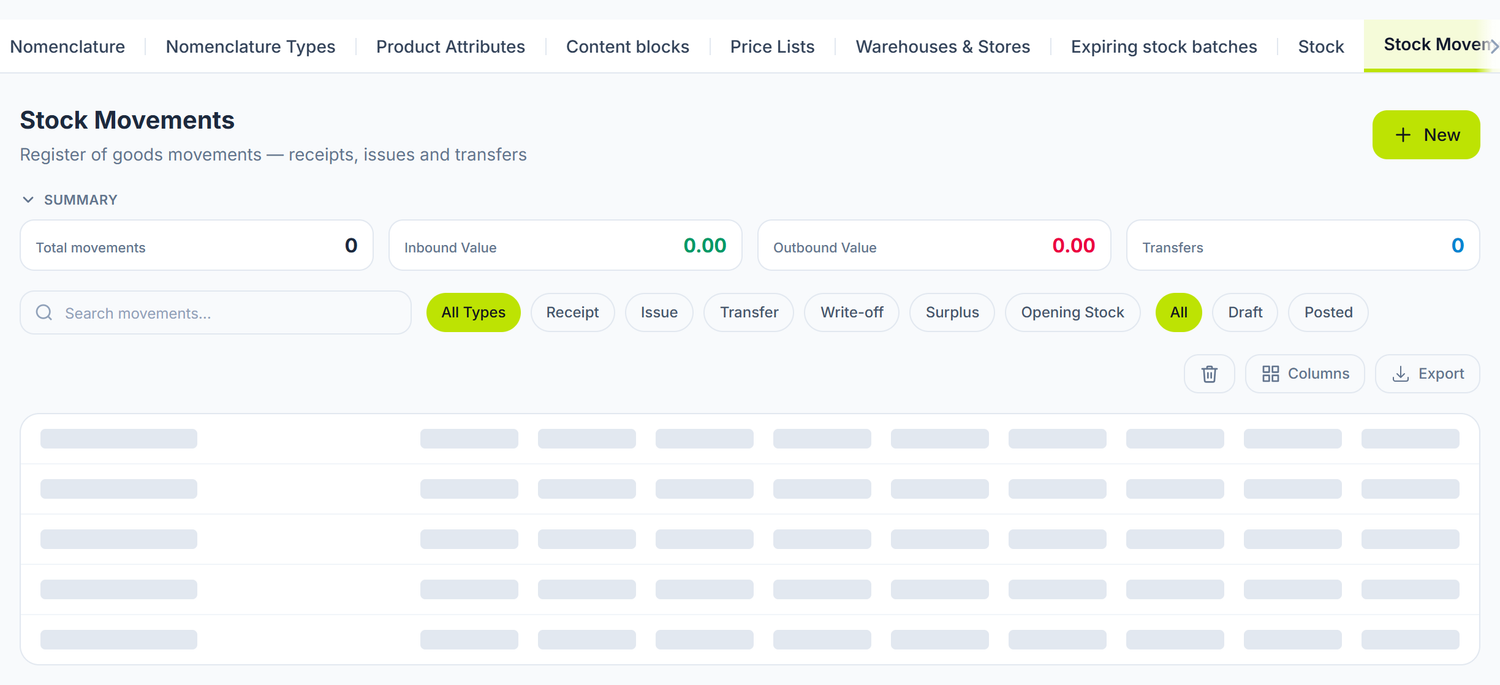
The four figures in Summary are computed on the filtered set. The pills below them filter by movement type and by status; Receipt and Issue stay there for the old documents, even though they can no longer be created.
The balances that come out of these documents are shown in the Stock tab:
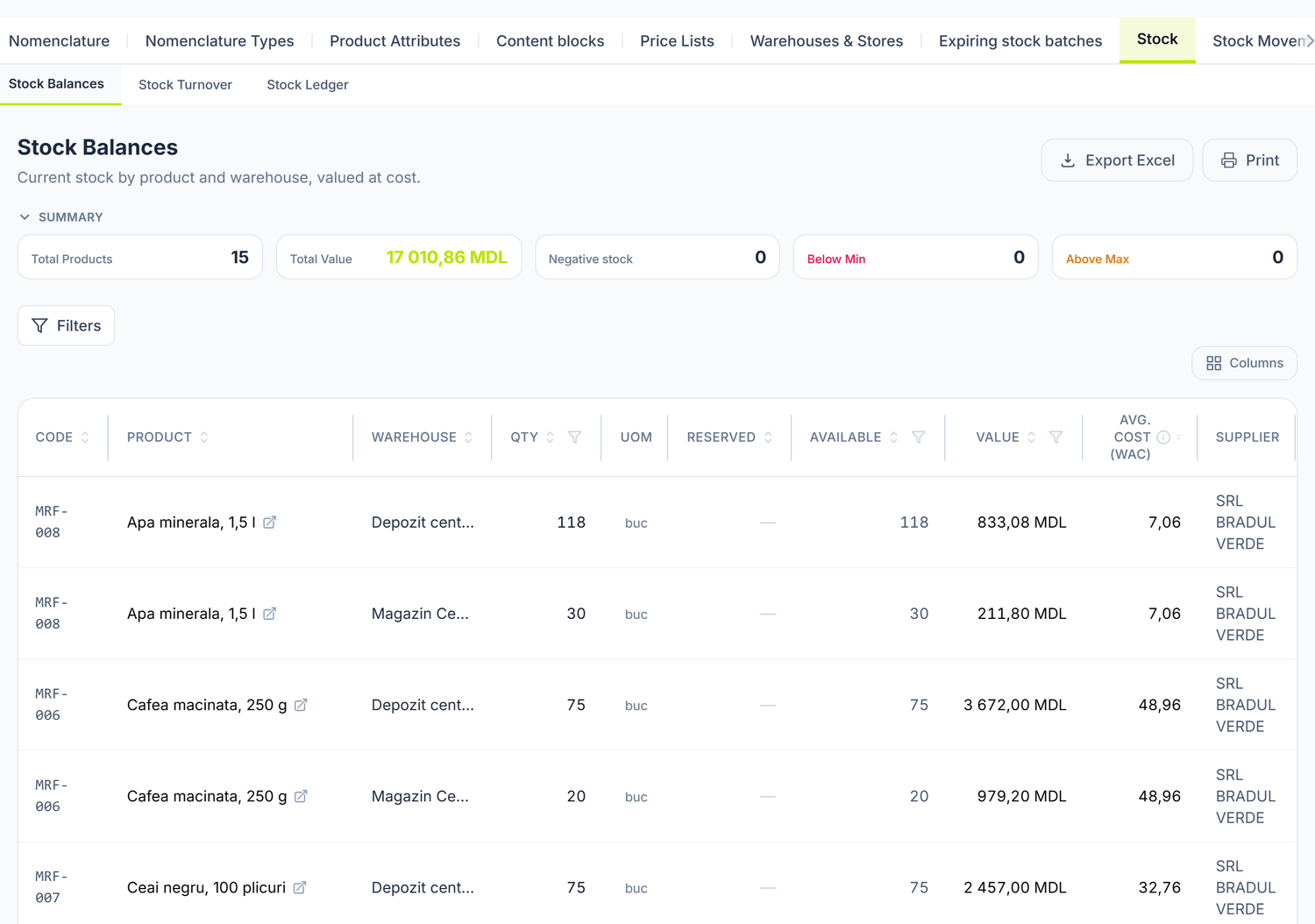
Each row is a product–warehouse pair, with the quantity, the available quantity, the value and the average cost. The figures at the top count the items with negative stock, below the minimum and above the maximum — three signals worth looking at before a count.
The opening balances have a tab of their own: Nomenclature → Opening Stock.
Movement types
When creating a new document you can choose between four types. The type buttons sit right at the top of the form; the default type is Transfer.
Transfer (between warehouses)
You move items from one warehouse to another, with no change of owner. The organization's total quantity stays the same — only the location changes. You fill in both warehouses: source and destination.
Example: "Casa Materialelor" SRL transfers 50 bags of cement from the central warehouse (DEP-CENTRAL) to the shop in Bălți (MAG-BALTI). The total stock stays at 50 bags.
Write-off
You take expired, damaged, lost or destroyed goods out of the records. You fill in only the source warehouse. A write-off opens a fiscal section of its own — the Write-off act — described below.
Surplus
You record a surplus found at a count. You fill in only the destination warehouse. In practice you don't create this document by hand very often: the inventory count generates it by itself on confirmation.
Opening stock
You load the opening balances into a warehouse, when migrating onto the platform. You fill in only the destination warehouse and, if the source document is in a foreign currency, the currency and the rate (filled in automatically from the BNM at the document date). The counterpart is the auxiliary opening-balance account 000, so loading does not touch the result.
Receipt and Issue can no longer be created. The Receipt and Issue types remain only for reading historical documents — they no longer appear among the creation buttons. A purchase is recorded through a goods receipt or a supplier invoice, and an issue through a sales document or a customer invoice. To take goods out without a sale, use Write-off.
The document's fields
| Field | Description | Required |
|---|---|---|
| Movement Type | Transfer, Write-off, Surplus or Opening stock | Yes |
| Document date | The date the movement takes place | Yes |
| Source Warehouse | The warehouse the goods leave (Write-off, Transfer) | Conditional |
| Destination Warehouse | The warehouse the goods enter (Surplus, Transfer, Opening stock) | Conditional |
| Currency and Rate | Only on Opening stock, when the original cost is in another currency | Conditional |
| Description | An internal note with the reason for the movement | No |
| Debit Account / Credit Account | Override the type's default accounts, for the whole document | No |
The document number is allocated automatically and shown in the header. The Responsible person is filled in by itself with the user who creates the document.
Detail lines
| Field | Description | Editable |
|---|---|---|
| Product | The item from the catalogue | Yes |
| UM | The item's unit of measure | No |
| Quantity | The number of units | Yes |
| Unit Cost | The cost per unit | Locked on Transfer and Write-off, where it comes from stock; typed on Surplus and on Opening stock |
| Amount | Quantity × unit cost | Computed |
| GL Account | The line's stock account (217.1 by default) | Yes |
The Add from nomenclature button opens a dialog where you tick the items and give them a quantity, to bring several in at once.
The extra columns appear only on Opening stock
On Opening stock documents the table gets three columns the other types don't have: Packages, Expires and Supplier lot no. That is where lots are born, so that is where they get their expiry date and their supplier number.
On Transfer, Write-off and Surplus the columns do not appear, not even on perishable items or on items tracked by measured lots. You do not choose which lot goes out — the item's valuation method does.
The Packages column opens the Package breakdown window, where you declare the groups: No. of packages × Size / pkg, with a computed Total and an optional Label. Add group gives you a new row, for packages of a different size. The line's quantity becomes the sum of the groups and can no longer be typed directly.
A draft is allowed to be incomplete, but at Post the platform refuses lines with a zero or negative unit cost and tells you which items. The reason: the warehouse's average cost is recomputed from the value received, so a line without a cost drags the average towards zero for everything stored there, and the sales that follow go out at an almost nil cost.
The write-off act
On Write-off documents an extra section appears, where you pick the reason. Everything else hangs on it: the account the goods go out on, whether the VAT deducted at purchase is restored or not, and whether the amount stays deductible. You fill none of that in by hand — the reason does.
The five reasons in Write-off reason are Expiry, Damage, Natural loss, Shortage with culprit and Calamity / exceptional situation. Pick the real one: it is the only decision on the screen that changes the fiscal outcome.
Next to the reason sits Cost Article — the analytical item the expense lands on. It comes prefilled from the organization's template and you change it only if you want the expense on a different article than usual.
The reason sits on the header, not on the line. A write-off act you make yourself has one single reason, chosen in the document header, and it applies to all the lines. The same goes for the Input VAT was deducted at purchase checkbox. There is no reason column on the line.
To treat two quantities differently, you make two write-off documents, one per reason.
Example. For a shortage found at a count, use the inventory count, which separates the within-norm part by itself. On an act made by hand: you have a shortage of 8 kg of sugar, of which 3 kg fall within the norm. First act: 3 kg, reason Natural loss, VAT checkbox unticked. Second act: 5 kg, the closest reason is Damage, VAT checkbox ticked — note in Description that it's a shortage above the norm.
VAT is restored only if you tick Input VAT was deducted at purchase and the reason calls for it.
The restored amount enters the VAT register by itself, as a deduction adjustment, so you don't enter it into the return by hand. It's an estimate: book cost × the item's rate. If the goods were bought without VAT deducted (from non-payers, before you registered) or at another rate, the figure comes out higher than what you deducted — compare it with the invoices and correct boxes 14 / 15 in the return's grid before filing. You see it in the journal entry, with the J button.
The natural-loss norm stays the accountant's decision. The platform doesn't know the norms for each product and doesn't split the shortage by itself. On an act you make yourself, you split it through the two acts above. On an inventory count you don't need two acts: you enter the within-norm part in the Of which within norm column, and the generated write-off puts it on a separate row, with its own treatment.
On Shortage with culprit the Culprit is a third party (non-employee) checkbox appears. Unticked, you pick the culprit from the employee list; ticked, the selector switches to partners. That is also where you fill in the Recovery value.
Also on a write-off you fill in the commission (role + name, marking the chairman), the Commission order (no./date) and the Disposal method / further use. After posting, the Actions menu gives you Print Act.
Journal entries generated
The accounts are proposed based on the movement type and the reason. You can change them on the document, from Debit Account and Credit Account, or on a specific line, from GL Account — but usually you have no reason to.
A transfer keeps the account and changes the subaccount. Both sides of a transfer sit on the same stock account — the warehouse is the second subaccount, not a separate account. That is how you see the value moving between locations, not between accounts. The per-warehouse detail is read in Nomenclature → Stock → Stock Balances or in the account card expanded by subaccount.
The life cycle
| Status | What you can do |
|---|---|
| Draft | You create and save the document. You edit every field freely. |
| Posted | The journal entry is generated, the stock updated. The document becomes non-editable. |
| Deleted | The document leaves the records but stays visible in the list under the deleted filter, and can be restored. |
The buttons available on the document: Save, Post, Unpost, Delete, Restore.
On posted documents a square J button appears as well — it opens the journal entry generated, without leaving the document. The rest of the actions (among them Print Act) sit in the Actions menu next to it.
Correcting a posted document takes two steps: Unpost (the entry is withdrawn, the stock returns to its previous state), then you correct the draft and post it again. If the document is entirely wrong, you delete it. A value correction you make with a new document, with negative values — not by editing the existing one.
Practical step-by-step examples
Writing off an expired lot
- Nomenclature → Stock Movements → new document
- Type: Write-off, Document date: 31.03.2026
- Source warehouse: DEP-01
- In Write-off act: reason Expiry, tick Input VAT was deducted at purchase, fill in the commission and its order
- Add the lines — the cost is picked up from stock
- Save → Post
- From the Actions menu: Print Act
A transfer between shops
- Nomenclature → Stock Movements → new document
- Type: Transfer, Document date: 15.03.2026
- Source warehouse: FAB-BALTI, Destination warehouse: MAG-CHISINAU
- Add from nomenclature → tick the items and the quantities
- Save → Post
The link with other documents
- Goods receipts — receiving from suppliers, the correct route for stock inflows
- Inventory counts — on confirmation they automatically generate Surplus and Write-off movements for the differences
- Sales documents — relieving the stock on a sale
- Products — the accounts come from the item's category, the valuation method from the item
- Warehouses — the source and destination locations
- The journal register — the journal entries generated on posting
Frequently asked questions
How do I record goods received from a supplier?
Not through a stock movement — the Receipt type is no longer created. Use the goods receipt or the supplier invoice, which ties the receipt to the debt owed to the supplier.
How do I take materials out for internal consumption?
Internal consumption is not a write-off. A write-off takes lost or destroyed goods out of the records, and its treatment does not fit the materials you use in your activity.
Materials entering the technological process are issued to consumption from the production documents. That is the correct route, and the only one with no side effects.
For administrative or commercial consumption (stationery, consumables) the platform has no dedicated document. If you do use Write-off, do three things:
- Override Debit Account with the real expense account.
- Leave "Input VAT was deducted at purchase" unticked.
- Check the deductibility when computing income tax. A write-off marks the expense as non-deductible for every reason except natural loss and calamity, and overriding the account does not change that mark.
The cleanest approach is not to run consumables you use immediately through stock at all: record them straight to expense, from the supplier's invoice.
Can I transfer between warehouses with different accounts?
A transfer keeps the same account on both sides and distinguishes the warehouses through the subaccount. If you genuinely need different accounts (handing goods over to your own shop, for instance), you override Debit Account and Credit Account in the document header.
Is the issue cost computed automatically?
Yes, but the locking depends on the document type, not on the item's balance. On Transfer and on Write-off the cost comes from stock and the field is locked; on Surplus and on Opening stock you type it. If you attempt a write-off on an item that has never entered stock, the cost stays zero and posting refuses it.
What happens if I unpost?
The journal entry is withdrawn and the stock returns to its previous state. The document becomes a draft again and you can edit it.
Can I write off an item with zero stock?
Yes. Warehouses accept a negative balance, and the panel offers you no setting with which to forbid that — retail sells before the receipt reaches the system, so the balance can dip below zero temporarily. Negative balances are coloured differently in Stock Balances, so you can hunt them down.
Clear them before the period closes. A negative balance means you have sold goods whose receipt has not been recorded yet — enter the missing receipt, don't hide the balance. Until then, the cost of sales stays distorted.
How do I record a loss from a natural calamity?
Write-off, with the reason Calamity / exceptional situation. The reason takes the expense to its own account and leaves the deducted VAT unrestored. Keep the documents that evidence the event — they are your justification at an audit.
Why can't I edit a posted document?
So that the integrity of the records is not broken. Unpost, correct the draft, post again.
How do I check that the transfer was recorded correctly?
Open Nomenclature → Stock → Stock Balances and compare the balances of the two warehouses, or Stock Ledger for the movement itself. For the accounting side, the account card on 217.1, expanded by the warehouse subaccount.
Can I make a stock movement with a back date?
Yes, as long as the accounting period is open. On a closed or locked period, posting is refused.
When do I use the Opening stock document?
When migrating balances from a previous system, not when the company is founded. The document enters the records with no supplier and no revenue, on the auxiliary opening-balance account 000 . If the source document is in a foreign currency, it also carries the currency and the BNM rate of the day.
000 is a technical migration account. Once you have loaded all the opening balances, its balance must stay zero — otherwise the opening trial balance does not close.
At a newly founded company the goods come from nowhere: they enter either as a contribution in kind from the shareholders, or as a purchase from a supplier, through a goods receipt or a supplier invoice.
What is the difference between a write-off and a surplus?
A write-off takes value out of the records, a surplus brings it in. The surplus is usually generated by itself, when an inventory count is confirmed.
Related pages
- Products — the catalogue of items with valuation methods
- Warehouses — the storage locations
- Physical inventory count — identifying stock differences
- Goods receipts — receiving goods from suppliers
- The journal register — the journal entries generated on posting