Account card
If the trial balance gives you the wide shot, the account card shows you the whole film: every transaction that touched an account, in chronological order, with the balance updated after each move. When a balance in the trial balance looks suspect, the account card tells you why.
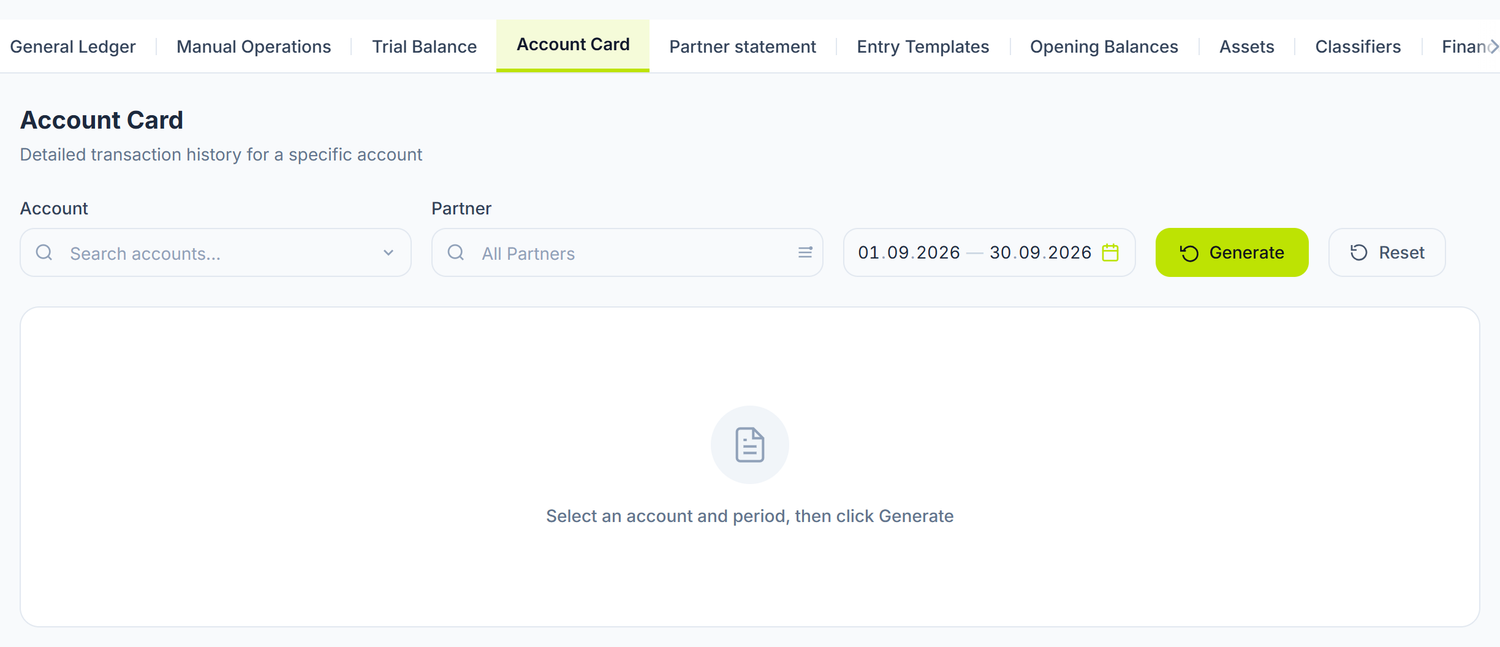
Where to find it: Sidebar → Accounting → the Account Card tab
You also get here by pressing an account code in the Trial balance.
When you need it
- Reconciling with a partner — you check the balance with a supplier or a customer: open the card for
521.1or221.1and compare it against the reconciliation statement - Checking the bank balance — you compare the card of account
242.1with the statement the bank sent you - Investigating a suspect balance — the trial balance showed an abnormal balance and you want to see which transaction produced it
- VAT control — you check the movements on the VAT accounts before the monthly return
The card prints and exports. After Generate, Export XLSX and Print appear next to the button — see Printing and export below.
What the card shows — column by column
Every row is an entry in the General Ledger, produced by a posted document:
| Column | What it represents |
|---|---|
| Date | The date of the accounting entry |
| Doc Ref | The number of the document that produced the movement. When the document has a screen of its own, the number is a link to it |
| Description | The text from the journal entry or from the document line |
| Account | The corresponding account from the entry. It is a button: press it and you move to that account's card |
| Debit | The amount recorded on the debit side |
| Credit | The amount recorded on the credit side |
| Balance | The running balance after this transaction; it is recalculated on every row, and negative values show in red |
The card has three summary rows: Opening Balance (blue, the first row), Turnover (the total movements in the period) and Closing Balance (green, the last row).
How to open the card — step by step
Method 1: from the menu
- Sidebar → Accounting → the Account Card tab
- Pick the account from the search field. Type the code or part of the name; accounts are grouped by class, and the ones you used recently come first
- Pick the period — it starts on This Month, with the same presets as the trial balance
- Press Generate
Method 2: from the trial balance
Press an account code in the Trial balance and the card opens straight on that account. If the report was expanded by subconto and you press the subconto name, the card opens filtered on it, over the same period. The filter shows as a label under the title ("Filtered by subconto"), with an X that removes it and reloads the full card.
There are no extra filters on partner, currency or corresponding account in this screen. For selections on other criteria, use the Trial balance with "Break out by subconto" and enter the card from there.
Grouping by subconto
When the account has an analytical dimension (partner, contract and others), the card groups its rows by the first dimension on its own. Each group has a header with the name of the dimension and of the value (for example "Partner: Gamma SRL") and a Subtotal of its own at the end. That way you see, on the same screen, both the detailed movements and the total per partner.
From the card to the source document
The document number is an active link for the types that have a screen of their own: bank operation, supplier invoice, sales document, cash receipt, cash payment, payroll calculation, expense report, goods receipt, stock movement, debt adjustment, return document. Press it and the document opens. For the other entries, the journal entry number shows without a link.
This is what makes the account card the central verification tool:
Trial balance (suspect balance)
    ↓ press the account code
Account card (identify the transaction)
    ↓ press the document number
Source document (correct it)
Group accounts and analytical accounts
- Analytical account (with a dot,
521.1) — shows its own transactions, with an exact balance - Group account (no dot,
521) — shows the aggregated movements of every sub-account in the group
You can open it, but it contains transactions from all the sub-accounts, which makes the analysis heavy going. For a detailed investigation, open the card on the analytical account.
Printing and export
After Generate, Export XLSX and Print appear next to the button.
Print opens a new window with the print form and, on top of it, the browser's print dialog. You pick the printer or Save as PDF and confirm. No file is downloaded.
The print form shows the account (code and name), the period, the subconto filter if you came from the trial balance, then the table in the order it has on screen: the opening balance, each movement with its date, document, description and corresponding account, the subtotals per subconto, the turnover and the closing balance. From the top bar of the window you switch the orientation and turn on the signature lines for Manager and Chief Accountant, with the names from Settings → Responsible persons.
Export XLSX downloads the same table as an Excel file, with numeric amounts, so you can sum them straight in the sheet.
You produce every card you are asked for with Print — one page per account, with the company header and the period, ready to file.
How it connects to other screens
Where the data comes from:
- Supplier invoices — produce movements on
521,217,211,225.2 - Sales documents — produce movements on
221,611,534.4 - Bank operations — produce movements on
242,243,521,221,531 - Payroll calculations — produce movements on
531,533,534,712/713 - Journal entries — any other movement recorded by hand
What depends on the account card:
The card is an analysis tool — it does not generate other documents, but it is essential for validating the data in the Trial balance, the Financial statements and the tax returns.
Common mistakes
-
Confusing the opening balance with the historical total — the opening balance accumulates everything recorded before the chosen period. If you pick only March, the January and February transactions are inside the opening balance, not on separate rows.
-
Forgetting the unposted documents — invoices left in Draft do not appear in the card. If the balance is not what you expect, check them.
-
Analysing a group account instead of an analytical one —
521gives you every supplier mixed together. Open521.1and read the subtotals per partner. -
Not comparing with the external document — you look at the card, but you do not put it next to the bank statement, the reconciliation statement or the paper invoice. Always reconcile against the external source.
-
Not pressing Generate after changing the account or the period — the card does not reload on its own.
Troubleshooting
The opening balance is not what I expect
The opening balance is computed from all posted documents dated before the period. Check:
- Do you have older documents left in Draft? Post them.
- Do you have corrections dated retroactively? Open the card over a wider range to see the full picture.
Transactions are missing from the card
- Check the period — the transaction may be in another month
- Check whether the card is filtered by subconto (the label under the title) and remove the filter
- Check the document status — only Posted documents appear in the card
A negative balance on an asset account
Rows with a negative balance show in red. On stock accounts this usually means an issue recorded without the receipt that covers it — look for the missing goods receipt in the period.
The amounts in the card do not match the bank statement
- Check that you imported all the operations from the statement
- Check whether you have operations left in Draft
- Check whether you have operations with the wrong date
Frequently asked questions
Can I open the card for a group account?
Yes, it will show the aggregated movements of all the sub-accounts in the group. For a detailed analysis, open it on the analytical account.
Why does the balance in the card not match the balance in the trial balance?
Over the same period the balances have to be identical. If they are not, regenerate both reports. The difference appears when you posted or deleted a document between the two generations.
Can I see the card broken down by partner?
Yes. When the account has the Partner dimension, the card groups the rows by partner on its own and shows a subtotal for each. For a single partner, enter the card from the trial balance, from that partner's subconto row — the card opens filtered on it.
What does a negative balance in the Balance column mean?
More issues than receipts up to that row. The card shows it in red. Look for the missing receipt documents in the chosen period or in the one before it.
How do I reconcile with a partner?
Open the card of account 521.1 (suppliers) or 221.1 (customers) over the period of the reconciliation statement and compare the partner's subtotal against the balance in the statement. If they differ, look for the missing transaction in both sets of data.
How does a correction look in the card?
The correcting document appears as a separate row, with amounts of the opposite sign. The net effect of the pair is zero. Corrections are made with a new document carrying negative values, not by editing a document that is already posted.
How do I check the VAT collected for the current month?
Open the card of account 534.4 (VAT liabilities) for the current month. For deductible VAT, open 225.2 (VAT receivables). Careful: the VAT return is not filled in from these turnovers but from the VAT ledger — the account cards serve you for checking, not for filling in the return.
What happens if the account has movements in several currencies?
The card shows the amounts in lei. For the breakdown per currency, use the Trial balance with the Show currency button, which adds the rows per currency under each account.
How do I compare the card over two different periods?
Generate the card for each period separately. The closing balance of the first period has to be identical to the opening balance of the second.
Does the card take into account the opening balances entered when the organization was set up?
Yes. The Opening balances appear as the opening balance in the card. If you did not enter them, the card starts from zero.
Related pages
- Trial balance — the wide shot of the accounts, with direct entry into the card
- General Ledger — all accounting entries in chronological order
- Opening balances — setting up the opening balances
- Supplier invoices — the documents that produce movements on the payables accounts
- Bank operations — the documents that produce movements on the bank accounts
- Report builder — custom reports over the accounting entries and over the commercial data