Opening balances
The opening-balance document brings the state of your books into POSfix as of the migration date. It is not a settings table: it has the usual Draft → Posted cycle and emits a journal entry, like any other document.
Where to find it: Sidebar → Accounting → the Opening Balances tab
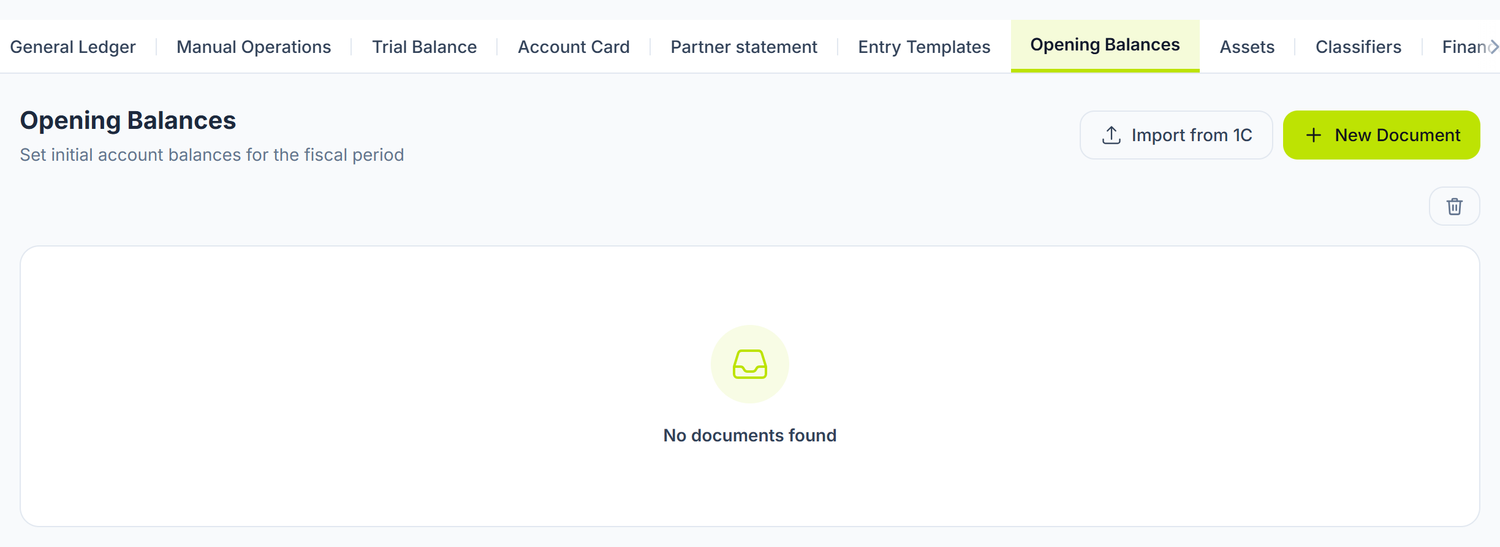
The New Document button opens the form:
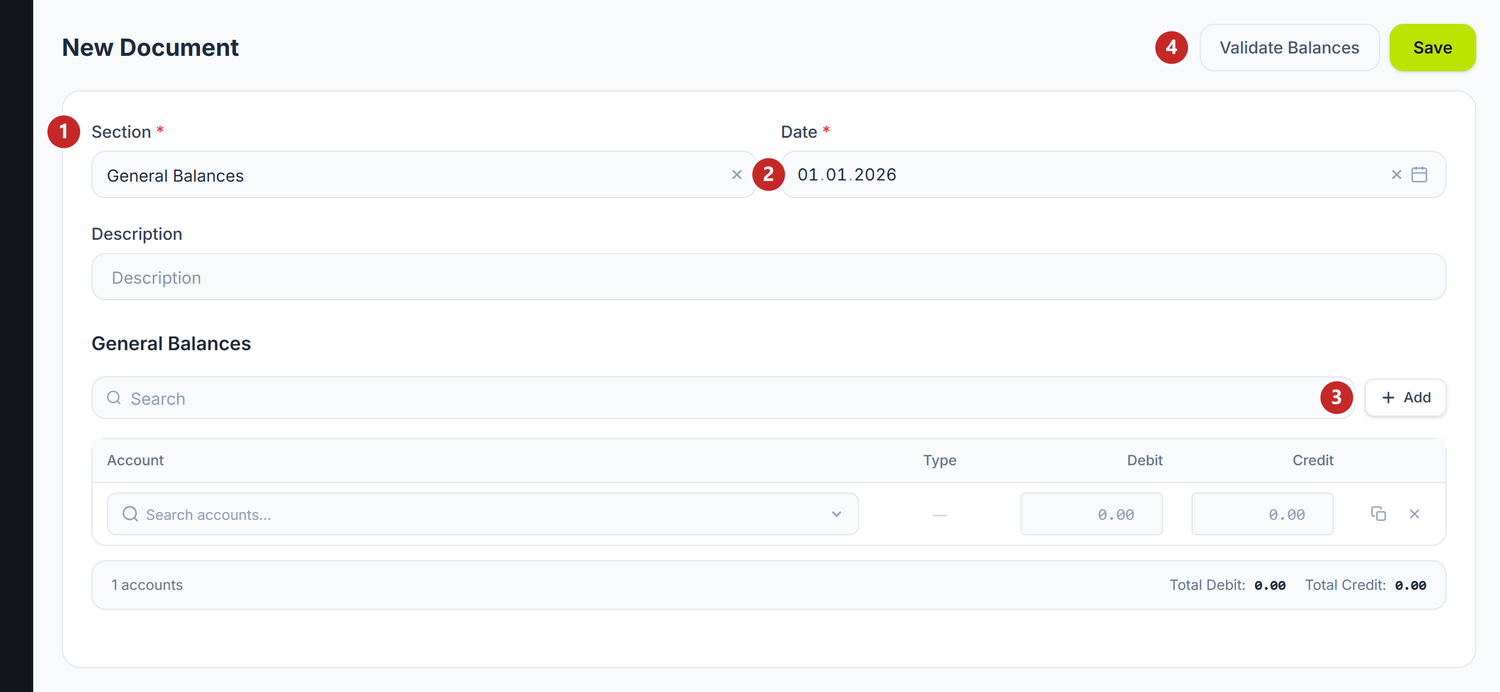
1 the document section · 2 the balance date · 3 add a line · 4 check the balance
The section selector has three values — General Balances, Fixed Assets and Intangible Assets. The last two do not ask for an amount only, but for the asset's data, and they create the asset cards together with the balance.
What this document is and when you use it
Opening balances are entered once — when you migrate your accounting from the previous system (1C, Excel, another program) to POSfix. In practice, you take a "photograph" of your books on a fixed date and transfer it into POSfix.
It is not a plain table: each set of balances is a document with the usual Draft → Posted cycle, which on posting emits an entry in the general journal.
When to migrate
| Moment | Advantages | Drawbacks |
|---|---|---|
| 1 January (most common) | You have clean balances from the year end; the first year in POSfix is complete | You have to wait for the previous financial year to close |
| 1st of the current month | You can start right away | Annual reports will contain partial data only |
| Mid-month | Flexible — the document keeps the exact day | Incomplete year and harder verification |
Recommendation: migrate on 1 January. You get a full year in POSfix, annual reports are consistent, and checking is simple — you compare with the 31 December balance sheet from the previous system.
What you need before you start
Prepare these documents from the previous system, all as of the same date (the migration date):
- The trial balance — the balance of every analytical account
- The fixed-asset list — name, inventory number, original cost, accumulated depreciation, remaining life
- The intangible-asset list — licences, patents, with values and amortization
- The breakdown by partner — how much you owe each supplier, how much each customer owes you
- The foreign-currency balances — for each currency account, the amount in currency and its lei equivalent at the BNM rate on the migration date. You need both (see below)
Check your trial balance before you enter it. The balance from the previous system must balance: Total Debit = Total Credit. If it doesn't, fix the errors in the old system. POSfix does not stop you from posting an unbalanced document, but the difference lands on the suspense account and still has to be cleared.
The three sections
An opening-balance document belongs to one of the sections, chosen at creation:
| Section | What it holds |
|---|---|
| General Balances | The balances of the accounts, with their dimensions |
| Fixed Assets | Each fixed asset, with original cost and accumulated depreciation |
| Intangible Assets | Licences, patents, software — with value and amortization |
The section locks after creation. Once the document is saved, the section can no longer be changed.
Above the lines you get tabs named after the other sections — General Balances, Fixed Assets, Intangible Assets — and you can switch to them to see, on the same screen, the lines of the sibling documents from the same period, read-only. The tabs appear only if other sections have lines; on a lone document you see the section title instead.
Step by step
Step 1: Check the chart of accounts
Before entering balances, make sure every account you need exists:
- Open the Chart of accounts
- Compare it with your trial balance — every account with a balance must have a counterpart in POSfix
- If an analytical account is missing (say
242.3for a particular bank), create it
Lines on non-existent accounts are ignored on posting. A line whose account is not found in the organization's chart stays in the document, marked as unmatched, but produces no entry line and does not enter the difference. It is a signal that you have to create the missing account, not an error that blocks you.
Step 2: Create the document and enter the general balances
Press New Document, choose the General Balances section, fill in the Date and the description, then add the lines:
| Field | Description | Example |
|---|---|---|
| Account | The account (search by code or name) | 242.1 |
| Type | The account type, shown automatically. Active → you fill in Debit, Passive → you fill in Credit | Active |
| Debit | The amount on the debit side | 145.320,00 |
| Credit | The amount on the credit side | 0,00 |
| Dimension | The analytical slots declared on the account — the form shows you exactly which types it asks for | Contraparti: Omega SRL |
Fixed assets and their depreciation do not belong here — they have their own section (step 4).
Do not infer the side of the balance from the account class. The line's Type column is the only source: Active means the amount goes on Debit, Passive that it goes on Credit. Don't go by the class — the delivered chart has passive accounts in classes 1 and 2 and active accounts in classes 3–5.
Currency accounts need two figures
A currency account (241.2, 243.1, 243.2, 221.2, 521.2, 511.2, 411.2) carries two balances: the balance in currency and its lei equivalent. The monthly revaluation uses both — it recalculates the currency balance at the closing rate and compares the result with the lei balance.
Without the amount in currency, the account has a value in lei and zero currency. At the first revaluation, POSfix recalculates zero currency at the month's rate and tries to bring the lei balance to zero as well — a fake loss, the size of the whole balance.
Example. You enter only 97.000 lei on 243.1 (the equivalent of 5.000 EUR). At the first revaluation the known currency balance is 0, so the calculated difference is −97.000 lei: the bank account drops to zero and 722.4 takes a non-existent expense of 97.000 lei. The financial result and the income tax come out wrong.
The General Balances screen has no currency field. Enter currency balances through one of the two paths that also carry the amount in currency:
- Import from 1C — the export carries both the amount in currency and the lei equivalent.
- Manual operation — on each line you fill in the currency and the rate, next to the amount.
Check after the first month-end close. Open Accounting → Account Card on the currency account and compare the balance, in currency and in lei, with the bank statement. If they don't match, stop and fix the opening balance before you post anything else.
Step 3: Enter the breakdown by partner
For accounts with the Contraparti (counterparties) dimension slot (221.1 receivables, 521.1 suppliers), you enter one line per partner, with the partner picked in the Dimension column.
The sum of the lines = the account balance. Do not add a "total" line on the account on top of the per-partner ones — the account balance comes out of the sum of the lines.
Step 4: Enter the fixed assets
Create a new document in the Fixed Assets section. The table has nine columns, one for each piece of the asset's data:
| Column | What you write | Example |
|---|---|---|
| Asset Name | The name of the fixed asset | Bongard industrial oven |
| Asset Group | The group from the fixed-asset catalog | Machinery |
| Inventory Number | The inventory number from the old records | MF-0042 |
| Original Cost | The acquisition value | 185.000,00 |
| Accumulated Depreciation | Depreciation calculated up to the migration date | 74.000,00 |
| Residual Value | How much is left to depreciate | 111.000,00 |
| Life (mo) | The months of use remaining | 36 |
| Depreciation Method | Straight-line or Reducing balance | Straight-line |
| Date Commissioned | The original in-service date | 01.01.2024 |
The accounts sit on a second row, under the line. Under each asset you get a row labelled Accounts, with four fields: Asset Account, Depreciation Account, Expense Account and Salvage Value. Watch the last one: Salvage Value is what remains at the end of the life, usually 0 — a different thing from the Residual Value column in the table, which is what is left to depreciate.
You can either link the line to an asset that already exists in the register, or leave it as a new asset — on save, new assets are created automatically, and the form tells you how many are about to be created.
The expense account follows what the asset is used for, not its group: where the asset works, that's where its monthly depreciation goes. You fill it in here once, and the monthly depreciation documents use it from then on.
The life is entered once, here. The screen has a single column, Life (mo), and that's where you write the remaining accounting life. The tax life goes on the asset card, not in the opening balances.
Step 5: Enter the intangible assets
Same logic, in a document in the Intangible Assets section: name, original cost, accumulated amortization, remaining life, plus the accounts row underneath.
Step 6: Check the balance
The check sits in the document header, above the lines, in a Debit / Credit grid:
- one row for every section that has lines — General Balances, Fixed Assets, Intangible Assets;
- a Total row across all of them;
- under the grid, the verdict: ✓ Document balanced (all sections) or Document difference, with the amount.
Under the lines of the current section you get a separate Section subtotal. That one does not have to be zero — fixed assets sit in their own section and do not balance on their own.
The Validate Balances button recalculates the difference on demand.
POSfix lets you post an unbalanced document: the residue lands on the suspense account 000 ("Cont auxiliar (solduri initiale)" — the opening-balance suspense account), so that partial balances can enter the system in stages. This is a door left open deliberately for the accountant, not an approval. As long as 000 carries a balance, the migration is not finished — you clear it later with a manual adjustment operation.
Step 7: Post it and confirm against the trial balance
Press Post. Only now is the entry emitted and the balances enter the reports. Then open Accounting → Trial Balance at the migration date and compare, account by account, with the trial balance from the previous system. How it is generated: Trial balance.
Import from 1C
If you come from 1C, don't enter anything by hand. The Import from 1C button, in the header of the opening-balance list, opens a window with three steps: File Selection, Account Mapping, Preview.
To import the balances:
- File Selection — drag the export from 1C Accounting into the window (
.contfixor.json, 50 MB maximum). If the file is encrypted, the Encrypted tag and a File password field appear. Continue. - Account Mapping — you see the organization and the balance date read from the file, how many accounts matched automatically, the Debit and Credit totals, plus the warning Debit and credit totals are not equal if the export doesn't balance. Each row of the table has a Source Account, the name, the amounts and a Target Account — that last one you can change yourself. Under the table it tells you how many fixed assets and how many intangible assets it found. Continue.
- Preview — three cards with what is about to come in (general balances, fixed assets, intangible assets), then Reference data options: you tick Create new partners, Create new products, Create new employees, each with the number of new entries next to it. If accounts remained unmatched, here it says Unmatched accounts: N — these accounts will be skipped during import. You pick the Year and the Month, then press Import Balances.
An unmatched account does not stop the import — it is skipped. If you see a number next to Unmatched accounts, go back to step 2 and pick the target account by hand, or first create the missing account in the chart of accounts. Otherwise that balance simply does not come in, and the difference shows up only when you check the balance.
What happens on posting
When you post the document, POSfix:
- generates a journal entry with the source type "opening balances", where every line has the suspense account
000as its counterpart; - projects the balances into the analytical records, so that the trial balance and the account card show them immediately;
- creates the new assets declared in the fixed-asset and intangible-asset sections.
A document with no valid line cannot be posted.
How to fix errors after you have started working
Situation: You posted the balances, recorded a few invoices, and discover that the balance of 521.1 was wrong.
Solution:
- Open the opening-balance document
- From the header's ⋯ menu choose Unpost — the document returns to Draft and the entry is deleted
- Fix the wrong line
- Post it again
If the period is closed, unposting is refused. Reopen the period, if company policy allows it, or enter the correction through a manual operation in the current period.
Common correction scenarios:
| Situation | What you do |
|---|---|
| I forgot an account with a balance | Unpost, add the line, post again |
| I entered the amount on the wrong side | Same — you fix the line while it's a draft |
| I forgot a partner on the dimension | Add the line with the missing partner |
| The difference is small and I can't find the source | Check whether some line is marked as unmatched — its account is probably missing from the chart |
Account 000 is left with a balance | Clear it with a manual adjustment operation |
Common migration mistakes
| The mistake | The consequence | How to avoid it |
|---|---|---|
Entering balances on group codes (521 instead of 521.1) | The balance cannot be broken down by analytics | Use analytical accounts |
| Swapping debit and credit | The document difference does not close | Look at the line's Type column, not at the account class: Active = debit balance, Passive = credit balance |
| Putting fixed assets in the general-balance section | Assets are not created, depreciation does not start | Every asset is entered in the Fixed Assets section |
| Forgetting accounts with small balances | The difference stays on account 000 | Go through every account of the old trial balance, systematically |
| Not entering the breakdown by partner | You cannot see payables/receivables per partner | One line per partner, with the dimension filled in |
| Entering depreciation as a debit balance | The net value of the assets comes out doubled | Accumulated depreciation goes in its own field, in the asset section |
| Posting with a difference and forgetting about it | Account 000 keeps a balance and distorts the balance sheet | Clear 000 before you consider the migration done |
| Not checking the trial balance after posting | Errors stay undetected | Compare the POSfix trial balance with the old one straight away |
Frequently asked questions
What date do I enter the opening balances at?
At the exact date you start working in POSfix. Most often 1 January, but the document keeps the day too, so you can migrate on any date of the month.
What if I have a difference between debit and credit?
Go through every balance you entered, systematically, against the old trial balance. The most common causes:
- An account left out, especially with a small balance
- An amount entered on the wrong side
- A line marked as unmatched, whose account is missing from your chart
- Assets entered in the wrong section
Do I have to enter balances for accounts with a zero balance?
No. Enter only the accounts that have a non-zero balance at the migration date.
Can I enter balances mid-year?
Yes. If you migrate on 1 July, the annual reports (01.01 – 31.12) will contain only the second half of the year. Either you accept the partial year and start full reporting from the following year, or you also enter the cumulative turnovers — a complex and risky option.
How do I check that the opening balances are correct?
After posting, open Accounting → Trial Balance for the migration date and compare, account by account, with the trial balance from the previous system.
Can I change the opening balances after I have started working?
Yes: you unpost the document, fix it and post it again — as long as the period allows it.
What do I do about accounts in foreign currency?
Enter the amount in currency too, not just the lei equivalent. The General Balances screen has no currency field, so use Import from 1C or a manual operation with the currency and the rate filled in on the line.
A currency balance entered in lei only makes the first monthly revaluation try to bring that balance to zero. See the "Currency accounts need two figures" section above.
Do I have to enter every fixed asset separately?
Yes. Each asset needs its original cost, accumulated depreciation, remaining life and depreciation method, so that POSfix can carry the monthly calculation on correctly.
I have 200 partners with balances — do I have to enter them all?
Yes, if you want per-partner balances in the reports. If you come from 1C, use Import from 1C — partner references match automatically and you skip the manual entry.
What happens if I don't enter opening balances at all?
POSfix works, but the reports reflect only the operations from the first posted document onwards. Acceptable only for a newly founded company.
I found an error 3 months after the migration. What do I do?
If the migration period is still open, you unpost the document and fix it. If it is closed: either you reopen it, or you enter the correction through a manual operation in the current period.
How this connects to other documents
The opening balances connect the previous system to POSfix:
- Chart of accounts — the accounts you enter balances on
- Accounting periods — how closing a period affects fixing the balances
- General journal — where the opening-balance entry shows up
- Posting templates — the default accounts used from then on by the operational documents