Trial balance
The trial balance is the report you open most often. At a glance it shows every account with its balance at the start, the movements in between and the balance at the end. If Total Debit = Total Credit, you are on the right track.
Where to find it: Sidebar → Accounting → the Trial Balance tab
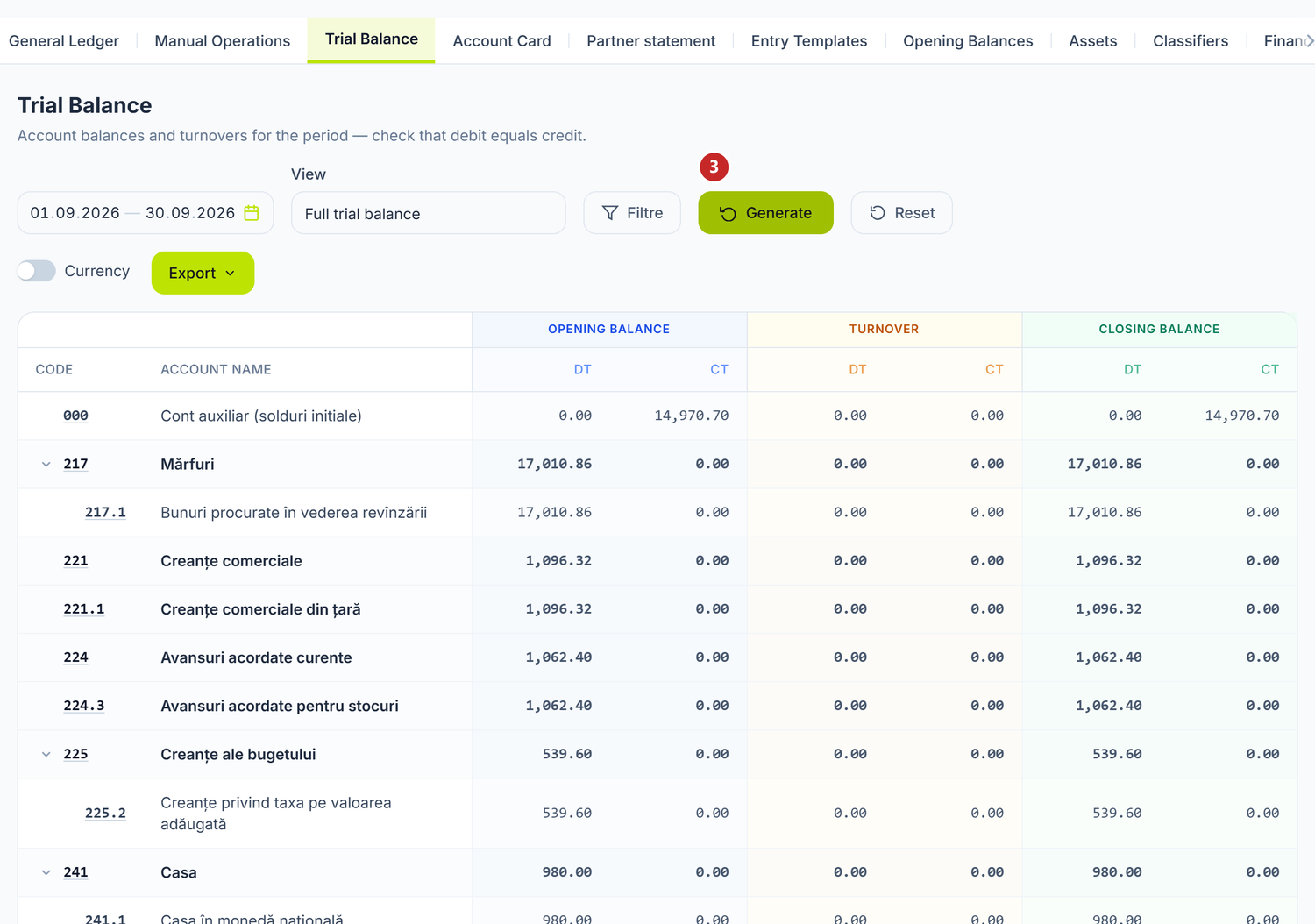
1 opens the filters · 2 switches the display to currency · 3 generates the report · 4 downloads it
The report does not calculate itself: you set the period, press Generate, and only then do the rows appear. The three column blocks are opening balance, turnover and closing balance, each with debit and credit. Filters lets you narrow down to an account class or a single account; Show currency adds the currency columns on the accounts that keep one.
When you need it
- Daily / weekly — a quick check that the day's entries are correct
- At month close — make sure the balance balances before you file anything
- At quarter or year close — the final validation before you generate the financial statements
- Whenever something looks off — a balance seems odd? Open the trial balance, find the account, go into its card
How to generate the trial balance — step by step
1. Open the report
Sidebar → Accounting → the Trial Balance tab.
2. Choose the period
The period picker starts on This Month. The presets available are: Today, This Week, Last 30 Days, This Month, Last Month, Current Quarter, Last Quarter, Current Year, Last Year. For any other range, pick the dates straight from the calendar.
3. Apply filters (optional)
The Filters button opens the settings panel. The number of active settings shows as a badge on the button.
The panel unfolds above the table, but the rows underneath stay the ones from the last generation. They only change when you press Generate — it sits right at the bottom of the panel. This is the easiest trap to fall into: you move a filter, look at the table and draw your conclusion from old figures.
Indicators are the only buttons that change the figures, not just what you see. Contabil (accounting) is the default; Fiscal, Diferențe permanente (permanent differences) and Diferențe temporare (temporary differences) show the same accounts with the values from the tax records. Control is not a fourth plane but their check: it subtracts the sum of the other three from the accounting one. Normally the result is zero, and wherever it is not, you have somewhere to start digging. Valută (currency) adds the amounts in the original currency, on the accounts that keep one — a different thing from the Show currency button in the top bar. The buttons can be held down together: the report adds one set of columns for each.
The two checkboxes on the right are worth knowing: Hide accounts with no balance and no turnover comes switched on, which is why the chart of accounts looks shorter in the trial balance than it really is; Include off-balance accounts brings the off-balance accounts into the report, labelled as such on the row.
| Setting | What it does |
|---|---|
| Account Class | Limits the report to a single class (1–9) or to all classes |
| View | Tree, Groups only or Accounts only |
| Sort by | Account code, Account name, Closing balance Dr, Closing balance Cr or Turnover Dr — ascending or descending |
| Indicators | Multi-select pills: Contabil (on by default), Fiscal, Diferențe permanente, Diferențe temporare, Control, Valută. See below what they do |
| Subconto detail | Synthetic accounts only, or Expanded (with subconto) |
| Account range (from / to) | From one code to another, for example from 211 to 533 |
| Include off-balance accounts | Adds the off-balance accounts; their rows carry the "Off-balance" label |
| Hide accounts with no balance and no turnover | On by default — takes the completely inactive accounts out of the report |
| Break out by subconto | For a chosen account, expands the rows by subconto (partner, contract and so on) |
| Advanced filter (conditions) | Conditions on Account (code), Account type, Subconto 1/2/3, Currency or Department. See below which picker each one opens |
Changes in the panel do not change the table on the spot. You press Generate after you set them.
4. Generate
Press Generate. The Show currency button adds, under each account, the rows per currency with the amounts in the original currency.
The indicators
You tick as many of the Indicators pills as you like, and the last one active cannot be removed — the report always keeps at least one indicator.
For now they do not change what you see. The selection goes to the server and the response brings the amounts for each indicator, but the table still shows the same six columns, and so does the XLSX export. The only visible effect is the yellow warning under the table: you get it when you ask for Fiscal, Diferențe permanente or Diferențe temporare and no account has tax deductibility configured.
Which picker the advanced filter opens
A condition row has three parts: the field, the operator and the value. The field decides which picker appears in place of the value:
- Subconto 1/2/3 — two steps: first the subconto type, then the value from its catalogue. Until you pick the type it reads "Choose the subconto type first"
- Department, Currency, Account (code) — a select list with the real entities
- Account type — a fixed list: Asset, Liability, Asset-Liability, Revenue, Expense
The operator can cancel the picker. With In list (CSV), Between (a|b) and Contains (Like) a free-text box stays instead, because there you type several values at once. With Filled and Not filled it disappears entirely — the condition needs no value.
The OR checkbox at the end of the row takes it out of the mandatory conditions: unticked rows all have to pass, while among the ticked ones it is enough that one does.
How to read the trial balance — column by column
The table has 6 numeric columns, grouped into three Dt / Ct pairs:
| Column | What it represents | How it is calculated |
|---|---|---|
| Opening Balance — Dt | The debit balance at the start of the period | Carried over from the closing balance of the previous period |
| Opening Balance — Ct | The credit balance at the start of the period | Carried over from the closing balance of the previous period |
| Turnover — Dt | Total debit movements in the period | The sum of all entries on the debit side |
| Turnover — Ct | Total credit movements in the period | The sum of all entries on the credit side |
| Closing Balance — Dt | The debit balance at the end of the period | The opening balance moved by the period's turnovers |
| Closing Balance — Ct | The credit balance at the end of the period | The opening balance moved by the period's turnovers |
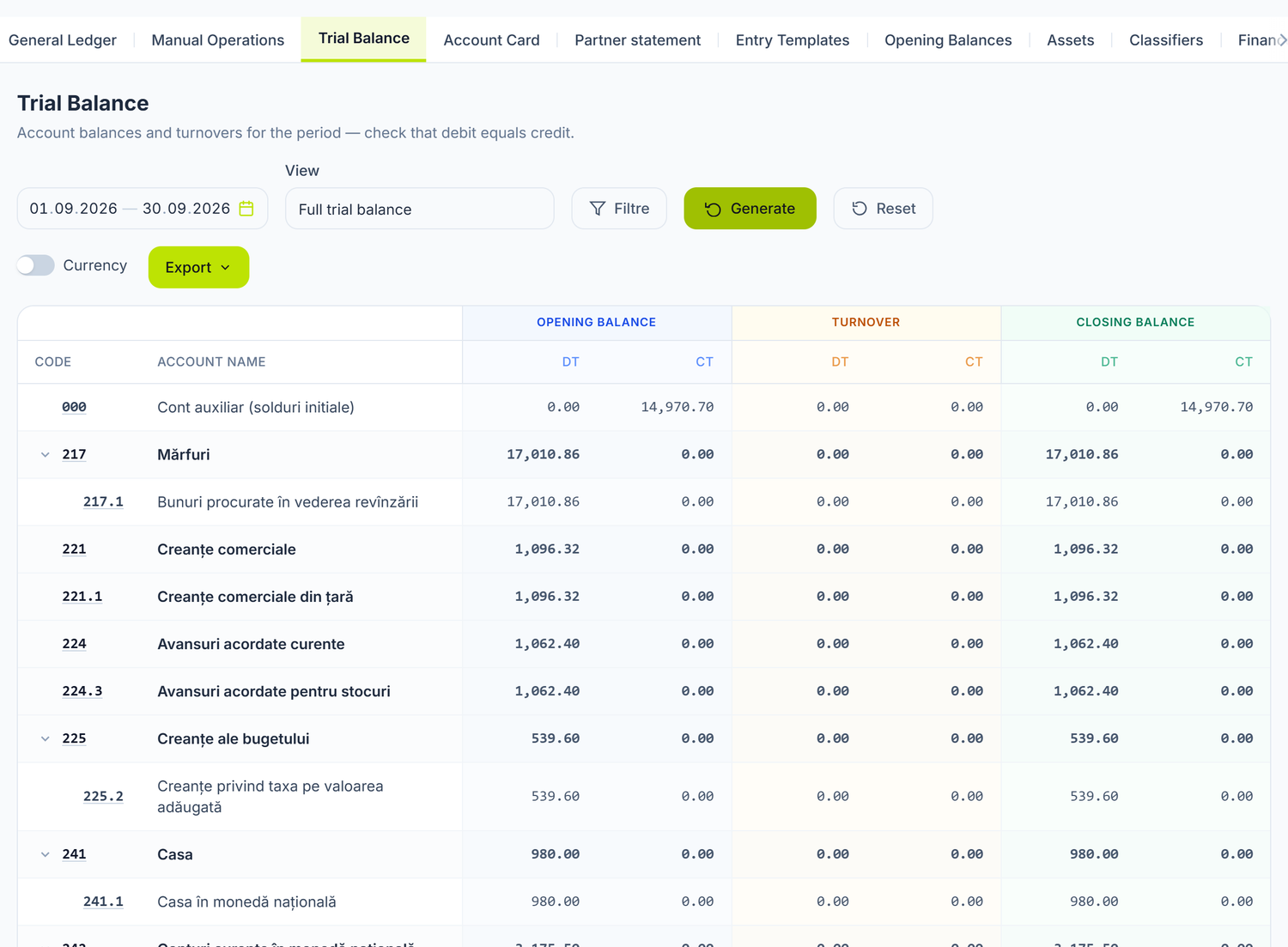
Every row is an account. Group accounts (221) appear in bold and add up their sub-accounts (221.1). In Tree mode, the arrow next to the code expands or collapses the sub-accounts.
The Balanced label
Under the table the report shows Balanced (green) or Unbalanced (red). Green appears only when all three pairs of totals are equal: opening balances, turnovers and closing balances. Red tells you the difference is real, not that the report is broken — see "Troubleshooting" below.
To see the balances per partner
On accounts kept by subconto, the trial balance row shows the account's net balance: one customer's receivable covers another's advance, and the advance is nowhere to be seen.
Here is how to bring it out:
- Press Filters.
- At Break out by subconto press Add rule and choose the account.
- Tick the dimension you want expanded — the boxes carry the dimension's real name, for example Partner or Contract.
- Tick Expanded balance (Dt/Ct separate), so you see the debit and the credit side apart.
- Press Generate.
The account list inside the rule is trimmed to the accounts that actually have a subconto configured — on the others the rule would have nothing to expand.
From the trial balance to the transactions
Each account code is a button. You press it and the Account card opens for that account. When the report is expanded by subconto, you press the subconto name and the card opens filtered on it, over the same period.
The typical investigation flow:
- You spot a suspect balance in the trial balance
- You press the account code → the account card opens
- You identify the problem document
- You open the document → you correct it
Group accounts and analytical accounts
- Group accounts (no dot,
217) — they hold no entries of their own, they only add up the sub-accounts. They appear in bold. - Analytical accounts (with a dot,
217.1) — this is where entries actually land. They have real turnovers from posted documents.
Printing and export
When the report has rows, Export XLSX and Print appear next to Generate. Both take exactly the rows you see on screen — the same filters, the same subconto expansion, the same sort. An account you collapsed with the arrow does not come out with its sub-accounts; expand it first.
Print — straight through, no file
Press Print. A new window opens with the print form and, on top of it, the browser's print dialog. You pick the printer or Save as PDF and confirm. No file is downloaded outside this dialog.
The print form contains:
- the company header — name, IDNO, VAT code and address from Settings → Organization
- the title, the period and the settings applied in the Filters panel (indicators, view, class, subconto detail)
- the table exactly as it is expanded on screen, with groups in bold and subconto in italics; with Show currency on, the currency rows come along too
- the total and the Balanced or Unbalanced label
Zero prints as blank, as in 1C. The table header repeats on every page.
In the top bar of the window you switch the orientation (Portrait or Landscape) and turn on Signatures — the lines for Manager and Chief Accountant, with the names from Settings → Responsible persons. Signatures are off by default. The window title becomes the file name in Save as PDF, for example "Trial balance 01.01.2026 – 31.01.2026".
The message "The browser blocked the print window" appears. Allow pop-ups for cp.posfix.md from the address bar and press Print again.
Export XLSX
The file keeps the hierarchy through the indentation of the name, and the amounts stay numbers, so you can sum them straight in the sheet.
How it connects to other screens
Posted documents (invoices, bank operations, journal entries)
        ↓ generate accounting entries
  General Ledger
        ↓ aggregation by account
  Trial balance
        ↓ press the account code
  Account card (detail on a single account)
        ↓ the basis for
  Financial statements (Balance Sheet, Profit and Loss)
Where the data comes from:
- All posted documents — invoices, bank operations, journal entries, payroll calculations
- General Ledger — the trial balance aggregates the ledger entries by account
What depends on the trial balance:
- Account card — transaction-by-transaction detail for one account
- Financial statements — the balance sheet and the profit and loss are built from the same balances and turnovers
- Tax returns — the figures in the returns have to match the accounts
Common mistakes
-
Not checking the trial balance before closing the period — you file financial statements without making sure the balance balances. Risk: reporting errors discovered only at an audit.
-
Looking for abnormal balances only on the synthetic account — on accounts kept per partner, advances hide inside the net balance. Break the account out by Partner, with Expanded balance (Dt/Ct separate).
-
Wrong period — you generate the trial balance for January, but you have documents posted in February that should have been dated in January. Check the document dates.
-
Comparing with the previous month without context — balances change from one month to the next. What matters is that Debit = Credit, not that the balances stay identical.
-
Ignoring accounts with a zero balance and non-zero turnover — an account that had movements but closed at zero can hide two errors that cancel each other out. Turn off "Hide accounts with no balance and no turnover" to see them.
Troubleshooting
The trial balance does not balance (the Unbalanced label)
- Identify at which level the difference appears — opening balances, turnovers or closing balances
- If the difference is in the opening balances, the problem comes from the previous period. Generate the trial balance for the previous month and check.
- If the difference is in the turnovers, look for the problem document. Sort by Turnover Dr and start from the large amounts.
- Open the General Ledger over the same period — every entry has to have Debit = Credit.
An account shows the wrong balance
- Press the account code → the account card opens
- Check every transaction — is it on the right account?
- If you find a wrong transaction, open the source document from the card
- Correct the document, or record a new document with negative values if the wrong one is already posted and can no longer be changed
The trial balance is empty (no account shown)
- Check the period — you may have picked a month with no activity
- Turn off Hide accounts with no balance and no turnover
- Check that the documents are Posted — drafts do not reach the trial balance
Yellow warning: tax indicators not filled in
You ticked Fiscal, Diferențe permanente or Diferențe temporare, but no account has tax deductibility configured. You set it in Accounting → Classifiers → Chart of accounts, on each account, in the Tax deductibility field. Remember that the indicator amounts do not appear in the table even after you configure them — see "The indicators".
The opening balances do not match the previous month's closing balances
Normally this cannot happen. If it does, you have corrections dated in the previous month that were recorded after you first generated the trial balance. Regenerate both months.
Frequently asked questions
How do I check whether the trial balance is correct?
Look at the label under the table: Balanced appears only when Debit = Credit for the opening balances, the turnovers and the closing balances. Then check the abnormal balances — asset accounts on the credit side or liability accounts on the debit side.
Why can't I see an abnormal balance on the account row?
Because the row shows the net balance. To see what it is made of, break the account out by partner — see "To see the balances per partner".
Can I generate the trial balance for a single department?
Yes. In the Filters panel, at Advanced filter (conditions), press Add condition, choose the Department field and select it from the list.
Can I see the trial balance at subconto level (partner, contract)?
Yes. In the Filters panel, at Break out by subconto, you add a rule: choose the account, then tick its dimensions (the real names appear on the boxes — Partner or Contract, for instance). The Expanded balance (Dt/Ct separate) checkbox shows the debit and the credit side separately, instead of the net balance.
How do I compare the trial balance with the previous month?
Generate it for each month separately and compare the closing balances. The previous month's closing balances have to be identical to the current month's opening balances. If they are not, you have retroactive changes to investigate.
Can I print the trial balance without downloading a file?
Yes. You press Print and the browser's print dialog opens straight away, with the print form ready: company header, period, table, total. For a PDF you choose Save as PDF in the same dialog.
Can I export the trial balance to Excel?
Yes, with the Export XLSX button. The file keeps the filters, the subconto expansion and the sort from the screen, and the amounts stay numeric. It exports only the rows expanded on screen, so collapse or expand the tree beforehand.
Does the trial balance take Draft documents into account?
No. Only Posted documents generate accounting entries and therefore affect the trial balance. Drafts are invisible to the reports.
Why does a group account show a different amount than the sum of its sub-accounts?
It should not. The group account is always the exact sum of its sub-accounts. If you see a discrepancy, press Generate again. If it persists, contact support.
How do I check the trial balance before filing the IPC return?
Generate it over the period of the return. Check 531 (Payroll liabilities), 533 (Social and health insurance liabilities) and 534 (Liabilities to the budget). The balances have to match the amounts in the return. If they do not, you have payroll calculations that are unposted or posted in another month.
Related pages
- Account card — the detailed movements on a single account, with links to the documents
- Financial statements — the balance sheet and the profit, built from the same data
- General Ledger — all accounting entries in chronological order
- Double entry — why Debit has to equal Credit