Statistical and tax reports
Besides the financial statements, companies in the Republic of Moldova periodically file standardised forms: returns to the State Tax Service, statistical forms to the National Bureau of Statistics and, for IT Park residents, specific reports. The platform generates them from the accounting and payroll data you already have on record.
Where to find it: Sidebar → Reports → the Reports tab
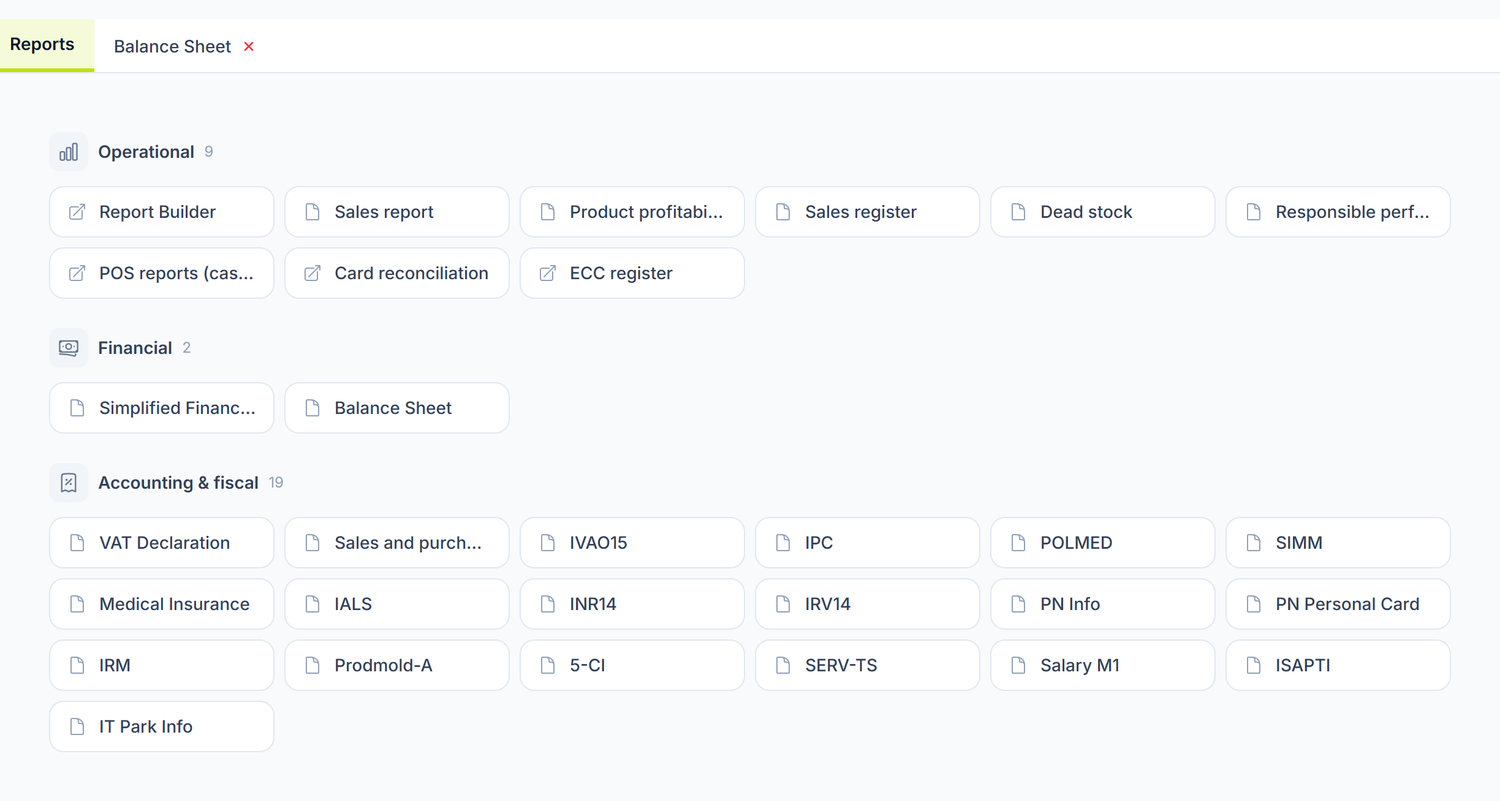
The Reports tab is the catalogue: every form has its own card. The cards are grouped into three families — Operational, the day-to-day ones from sales and stock; Financial, the statements and the balance sheet; Accounting & fiscal, the returns you file. The figure next to each group tells you how many there are.
One click on a card opens the report in a tab of its own, next to the catalogue — you can keep several open at once and switch between them. The exception is the cards marked with a diagonal arrow: those take you out of the Reports screen, into another screen of the platform.
The form tabs are not there from the start. The top bar shows only the Reports tab until you press the first card; from then on each form you open keeps its tab until you close it with ×. The references below, of the type "Reports → the VAT Declaration tab", describe the tab after you have opened it from the catalogue.
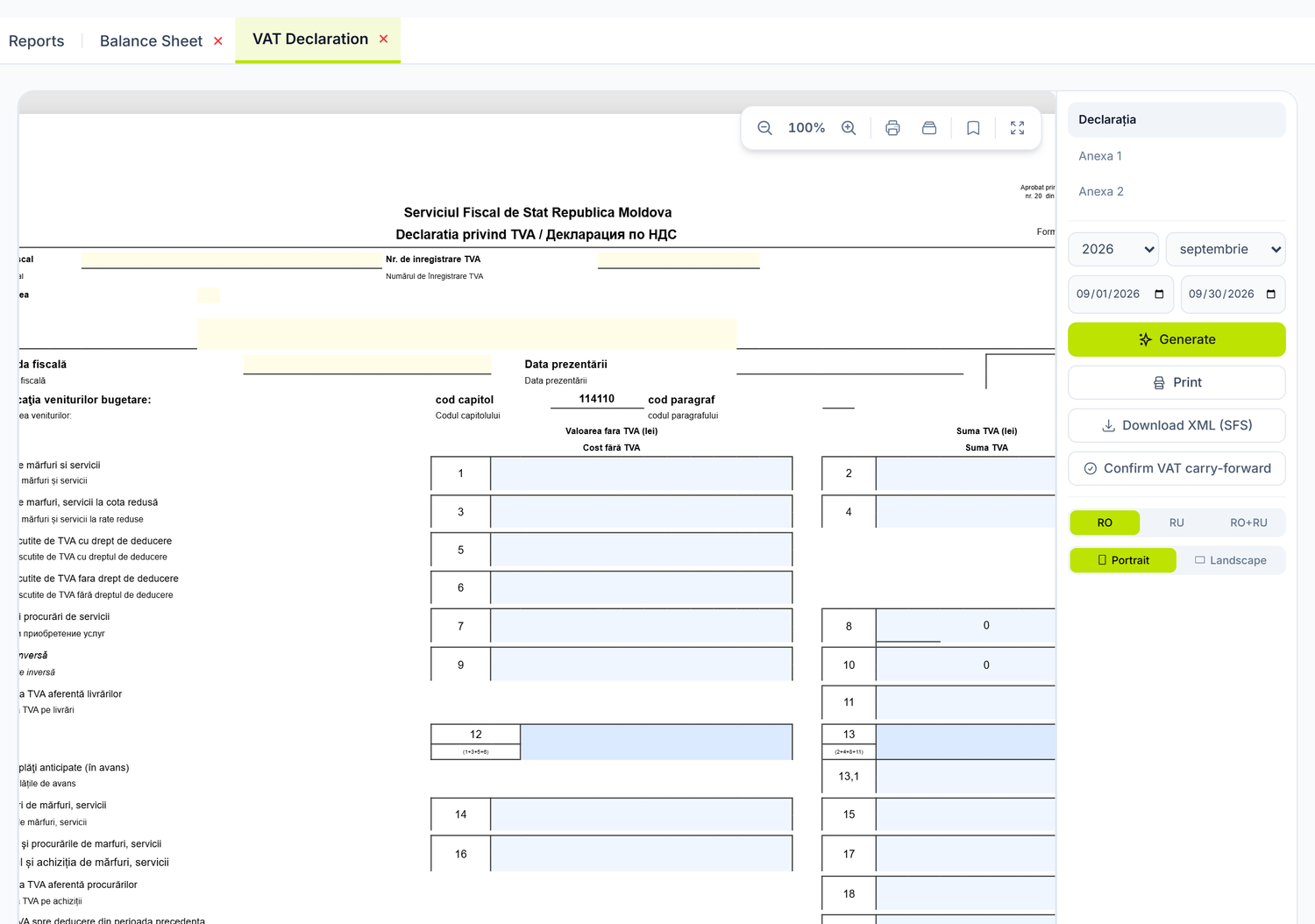
The VAT return is the most used one in the fiscal group:
What you find in the catalogue
Operational
| Card | What it does |
|---|---|
| Report Builder | Opens the pivot builder — sales and stock movements |
| Sales report | Sales over a period, with groupings |
| Product profitability | The margin on every item |
| Sales register | The list of sales documents |
| Dead stock | The items that have not moved in stock |
| Responsible performance | Sales grouped by the person responsible |
| POS reports (cash register) | Opens the cash register reports |
| Card reconciliation | Opens the card voids and refunds report |
| ECC register | Opens the register of the cash and control equipment |
Financial
Simplified Financial Statements and Balance Sheet — described in Financial statements.
Accounting and fiscal
| Card | What it is |
|---|---|
| VAT Declaration | The VAT return, with Annex 1 and Annex 2 |
| Sales and purchases register | The register of supplies and acquisitions, by tax invoice |
| IVAO15 | The return on the income tax from operating activity (the IVAO regime) |
| IPC | The report on withheld income tax and contributions |
| UNIF25 | The unified annual return of sole traders and peasant (farmer) households with at most 5 employees, not registered for VAT — it replaces the separate returns . Nine pages, one per table of the form |
| VEN12 | The annual income tax return of legal entities that don't apply IVAO and of entrepreneurs who don't fall under UNIF25 (for instance, VAT payers or with more than 5 employees) . The return and annexes 1D–10D, on six pages; the calculated rows are redone at every box you change |
| IRV14 | The report on income paid and the income tax withheld from it, by income source code |
| IALS | The information note on salaries and other payments to employees, with the annual income per individual |
| INR14 | The information note on tax withheld from payments to non-residents |
| PN Info | The information by income source code, with the tax withheld |
| PN Personal Card | The employee's personal card: income, monthly exemptions, tax withheld |
| Medical Insurance | The health insurance return |
| POLMED, SIMM, IRM | Standard forms, to be filled in on screen |
| Prodmold-A | The annual statistical survey of industrial products, two pages |
| 5-CI | The quarterly statistical survey: stocks (page 1) and operating revenue, costs and expenses (page 2) |
| SERV-TS | Short-term indicators in trade and services, monthly |
| Salary M1 | Labour statistics, quarterly |
| ISAPTI | The information note on the salary payments of an IT Park resident to its employees |
| IT Park Info | A per-employee printout for the IT Park |
How to generate a form — step by step
1. Check the source data
- The documents in the period are Posted, not in Draft
- The payroll calculation is finalised, for the salary returns
- The tax invoices are recorded, for the VAT return
- The Trial balance shows Balanced
2. Open the form
Sidebar → Reports → the Reports tab, then the form's card. From that moment the form has its own tab in the top bar, until you close it with ×.
3. Choose the period
In the right-hand panel you pick the year. Monthly returns, such as the VAT return, also have a month list. The exact start and end dates stay editable underneath.
4. Generate
Press Generate. The form fills in from your data. You stay on the page you were looking at.
5. Check and adjust
- Go through every page from the list at the top of the panel
- Fill in the editable cells by hand. They are not just headers: on some forms even substantive figures stay empty, right down to the tax payable. The list per form is below, under "What stays empty on the auto-filled forms"
- Switch the language: RO, RU or RO+RU. The third position prints both languages on the same form — the way official forms are usually filed
- Choose the orientation: the buttons read Portrait and Landscape
- Zoom in or out between 50% and 200% with − and +, in the floating bar in the top right corner of the sheet
6. Print or download the file for the SFS
The print tools sit in the same floating bar, all as icons with an English tooltip: a printer ("Print") prints the current page, a second printer ("Print All") prints them all at once — it appears only on forms with several pages — and a bookmark ("Save") keeps the version. You save the PDF from the browser's print window.
Download XML (SFS), in the right-hand panel, produces the electronic file for filing with the SFS.
Not every form has an XML file. The button appears only on the forms that have a validated electronic counterpart: VAT Declaration, IPC, IVAO15, IALS, INR14, IRV14, ISAPTI, SERV-TS and 5-CI. On the others you stay with the printed version.
The XML file is validated before it is downloaded. The server builds the return strictly from the values on the form and checks it against the official schema. If a mandatory box is empty or in the wrong format, the download stops and you get the list of errors. Fill them in on the form and try again.
The VAT return
Where to find it: Sidebar → Reports → the VAT Declaration tab
It has three pages: Declaration, Annex 1 and Annex 2. The tax period is the calendar month, which is why the panel asks you for the year and the month.
Where the figures come from
The return is not filled in from the turnovers of the accounting accounts but from the VAT ledger — the tax record written alongside the journal entry, for every document.
The reason is practical, and it has three parts. Account 534.4 (VAT liabilities) has a single analytical dimension, so you cannot get the breakdown by rate out of it. The journal entry does not carry the tax invoice number, which Annex 1 and Annex 2 require. And the special treatments — reverse charge, import of services, advances — have nowhere to fit inside an entry. Reverse charge, for instance, produces an entry with a net zero balance but two mandatory boxes in the return.
The account cards serve for checking, not for filling in. You can compare the return against the cards of the VAT accounts to catch documents forgotten in Draft. But if the figures differ, do not automatically assume the return is wrong — the two are raised from different sources, and the tax ledger carries information the entry does not have.
Only Posted documents enter the return. Invoices that came in through e-Factura reach the ledger once you post them, like any other supplier invoice.
The carry-forward from one month to the next
The Confirm VAT carry-forward button saves the amount from box 23 of the generated return — "VAT to be deducted in the following period". The next month's return picks it up in box 19 — "VAT to be deducted from the previous period".
The confirmation window uses different numbering. It speaks of "row 18" and "row 14" — the row numbers in the electronic file, not the boxes printed on the form. Row 18 is box 23, and row 14 is box 19. The amounts are the same.
The amount does not leave the browser: the server recalculates it for the period sent and returns it to you, so you see exactly what was recorded. You confirm it at filing, not every time you regenerate the return.
The sales and purchases register
Where to find it: Sidebar → Reports → the Sales and purchases register tab
The Sales and Purchases buttons switch between the two registers. The word "supplies" only appears on the printout, in the title "Registrul de evidență a livrărilor".
Above the list you have the period, the partner filter and two checkboxes that directly change what gets counted:
| Switch | What changes when you turn it on | If you leave it off |
|---|---|---|
| Show rows excluded from the declaration | The rows marked "excluded" appear too — the ones that go into no box of the return | You see only what is declared |
| Show rows on unposted journal entries | The rows coming from entries left in Draft appear too, marked "unposted" | You see only posted documents, as in the return |
The second checkbox is the only way to see unposted documents in the register. While it is off, the register shows exactly what reaches the return.
The three summary views
The panel above the list switches between three checking modes:
- TVA12 declaration boxes — every box of the form, with the base, the VAT and how many rows make it up. One click on a box filters the list underneath down to its rows, and under the table appears "The list below shows only the rows of the selected box", with the Clear filters link that removes it. This is the view you start from when a box in the return does not look right
- By document type — the same amounts, grouped by kind of document
- By rate — grouped by VAT rate
Print and export
The Print button, at the top of the screen, produces the register in printed form: with the company header, the official title and the signature places for the manager and the chief accountant. You do not see them on screen — they appear only in print, and the list prints in full, not just the current page.
The Export button above the table downloads the rows in XLSX format, with the columns you have on display.
When the list is capped, you get a yellow warning above it. The totals and the box figures stay complete; to see every row, narrow the period or the filters.
The payroll returns
Where to find it: Sidebar → Reports → the IPC tab
IPC is the report on income tax withheld at source and on contributions. The related forms have tabs of their own: IRV14 (by income source code), IALS (the annual income per individual), INR14 (payments to non-residents), PN Info and PN Personal Card.
The figures are raised from the payroll calculation and from the record of withholdings at source.
The rates are not configured from your account. They live in the platform catalogue, maintained centrally by the administrator, precisely so that an accidental change cannot break the returns. You see them applied on the payroll calculation sheet — that is where you check which rate went into the return, not from this guide.
The payroll calculation has to be finalised first. If you have not calculated and posted the salary for that month, the return comes out empty or incomplete. Check Payroll calculation first.
Forms filled in on screen
POLMED, SIMM and IRM open as standard forms, with no automatic fill from the accounts. You fill them in directly on screen, then print them. You find them in the same catalogue, in the Accounting & fiscal group.
What stays empty on the auto-filled forms
A generated form does not mean a complete form. Besides the headers — the tax inspectorate, the date of submission, the locality code — substantive figures stay empty too, the ones the platform has no source for:
| Form | What is left to you |
|---|---|
| IVAO15 | The IVAO rate and, through it, the whole calculation chain down to the tax payable |
| Medical Insurance | The employer's share, the employee's calculation base and the insurance rates |
| IPC | The CNAS table and the multi-year dividend block |
| PN Personal Card | The hiring and termination data, plus the exemptions broken down by month |
| Salary M1 | The whole working-time matrix, the headcount and the payroll fund |
| Prodmold-A | The breakdown by destination (domestic market and foreign market) and the product matrix |
| 5-CI, page 2 | The boxes that ask for analytical breakdowns of revenue and costs |
Go through every empty box before you file. A box left empty on a filed form is your responsibility, not the platform's.
Statistical forms
Where to find it: Sidebar → Reports → the Prodmold-A tab
The statistical forms are Prodmold-A (annual), 5-CI (quarterly), SERV-TS (monthly) and Salary M1 (quarterly).
Where they get their figures from:
- 5-CI, page 1 — the balances of the class 2 inventory accounts, at the start and at the end of the quarter
- 5-CI, page 2 — the operating revenue, costs and expenses. The boxes that ask for analytical breakdowns stay empty and are filled in by hand
- SERV-TS — the credit turnover of account
611for the reported month, without VAT and excise: total turnover, from the main activity and from the secondary ones - Prodmold-A, page 1 — only the total turnover for the reporting year, that is the credit turnover of account
611. The "of which: by destination" breakdown — domestic market and foreign market — stays empty and editable: it asks for the split of sales between the domestic market and export, which synthetic accounting does not carry - Prodmold-A, page 2 — the industrial product matrix opens empty. You fill it in
- Salary M1 — the organization header and the CAEM code; the working-time indicators and the payroll fund are filled in by hand
"By destination" does not mean "by residency". The two boxes in Prodmold-A ask where the goods ended up, not who the buyer is. A sale of 40,000 lei to a non-resident company, delivered in Chișinău, goes to the domestic market. An export of 40,000 lei to the Romanian branch of a Moldovan company goes to the foreign market. Write the figures in thousands of lei, without VAT and excise, and leave the "Previous year" columns, crossed out with an x on the form, unfilled.
The figure is written in lei, not in thousands of lei. The form asks for thousands of lei and says so at the head of the table, but the platform fills the two boxes with the gross amount. At a turnover of 850,000 lei, the box should read 850 and it reads 850000. Divide by 1000 yourself, on the form, before printing and before downloading the XML file. Prodmold-A and 5-CI convert correctly.
The "Previous month" column is filled in every time, although the form says verbatim: "Data for the previous month is filled in only in the case of erroneous reporting or accounting corrections made after the reporting date." On an ordinary filing, clear the column. Left filled in, the BNS reads it as a correction of the previous month.
Statistical forms are filed in thousands of lei. Check the unit of measurement at the head of the table before you write the figure.
IT Park reports
Where to find it: Sidebar → Reports → the ISAPTI tab
ISAPTI is the information note on the park resident's salary payments to its employees, form ISAPTI 17, with the annual income per employee. IT Park Info is the per-employee printout, built from the same data.
The platform has no "IT Park resident" flag on the organization. Both forms present the real income of every employee the payroll records return; what goes into the report stays your decision.
Filing deadlines
Deadlines differ by form and by category of taxpayer, and they change. Do not memorise them from this guide.
Where to find it: Sidebar → Fiscal Calendar
The screen brings the deadlines straight from sfs.md, by month, and shows you what you have to file in the current period.
How it connects to other screens
Where the data comes from:
- The VAT ledger → the VAT return and the sales and purchases register
- Trial balance → the statistical forms that lean on balances and turnovers
- Payroll calculation → IPC and its annexes, Medical Insurance, ISAPTI
- Supplier invoices and Sales documents → the VAT ledger, through posting
What comes next:
The generated forms are filed on the state portals. The platform gives you the printed document or the XML file; the filing is yours to do.
Common mistakes
-
Unposted invoices when generating the VAT return — an invoice left in Draft does not reach the VAT ledger, and therefore not the return either. Post everything before you generate.
-
The payroll calculation not finalised when generating IPC — the return comes out empty. Finish the payroll calculation first.
-
Wrong period — on the VAT return you pick the year and the month; it is easy to leave the previous month selected. Check the period shown in the form header before you download the file.
-
Confirming the carry-forward several times — the confirmation is done once, at filing. If you regenerate the return and confirm again, you overwrite the record with the recalculated figure.
-
Not checking the figures — you rely entirely on the automatic fill. Always compare against the trial balance and the account cards before filing.
Troubleshooting
The VAT return shows unexpected figures
- Check that every invoice in the period is Posted — the VAT ledger is written together with the entry
- Check the rates on the document lines; the tax treatment and the rate are two different things, and the return handles them separately
- Check whether you have documents dated in another month
The XML download stops with errors
These are the schema errors returned by the server. Each one names the box that fails validation. Fill it in on the form, then press Download XML (SFS) again.
The payroll returns come out empty or incomplete
- Check that the payroll calculation for that period is finalised and posted
- Check that you have active employees in that period
- Check that the payroll documents are Posted, not in Draft
The form does not generate
Look at the error message. Most often the form template is not available, or the period sent is empty. Start again with the year from the list at the top of the panel.
The form opens empty and stays empty after Generate
POLMED, SIMM and IRM have no automatic fill. They are filled in on screen.
Frequently asked questions
How do I know which forms I have to file?
The obligations depend on the size of the company, on the field of activity and on the tax regime. The Fiscal Calendar screen shows you the deadlines brought from sfs.md for the current month. For your own classification, consult your accountant or the SFS.
Can I change the figures on the form by hand?
Yes, in the editable cells. What you change stays in the form and in the downloaded XML file, but it does not go back into the accounts. The rest of the figures are recalculated on every Generate.
Do the forms follow the official format?
The templates are delivered by the platform and updated along with it — you have nothing to download or install. The XML file is validated against the official schema before it is handed to you.
Can I generate forms for earlier periods?
Yes. Choose any period for which you have accounting data. Useful when you have to refile a corrected form.
What is the difference between IPC, IRV14 and IALS?
IPC is the report itself, with the month's withheld tax and contributions. IRV14 breaks the amounts down by income source code. IALS is the information note that gives the annual income per individual.
Does the VAT return include the invoices from e-Factura?
Yes, once you post them. Posting writes the journal entry and the VAT ledger row at the same time, with the tax invoice number, the taxable base and the VAT.
What do I do if I filed a form with errors?
You correct the data in the platform — post the missing documents or record correcting documents with negative values — regenerate the form and refile it as a corrected return.
Can I generate the form in Russian?
Yes. The language switch in the right-hand panel has three positions: RO, RU and RO+RU. The last one prints both languages on the same form. The figures stay the same.
Which rates are used in the payroll returns?
The ones from the platform catalogue, maintained centrally by the administrator. They are applied automatically in the payroll calculation and, through it, in the returns. To see which rate actually went in, open Payroll calculation for that month.
Where do I file the generated forms?
On the portals of the State Tax Service and of the National Bureau of Statistics. The platform gives you the printed form or the XML file; the filing stays with you.
Related pages
- Financial statements — the balance sheet and the profit
- Trial balance — checking the data before any filing
- Account card — control of the movements on the VAT and payroll accounts
- Payroll calculation — the data that feeds the payroll returns
- IRM report — the IRM form in the payroll area
- E-Factura — the electronic invoices that enter the VAT ledger
- Fiscal calendar — the filing deadlines