Tax and production calendar
Why you need both calendars
POSfix has two distinct calendars with completely different roles. They don't overlap and they don't influence each other:
| Calendar | Where it lives | What it gives you |
|---|---|---|
| Tax calendar | Sidebar → Fiscal Calendar | The filing deadlines published by the State Tax Service (SFS), month by month, together with your own record: what you filed, what amount you noted, what is still overdue |
| Production Calendar | Sidebar → Accounting → the Production Calendar tab | The working days, the weekend days and the holidays of the year — this is where the monthly hour norm used in payroll comes from |
Opening and closing accounting months is not done from the tax calendar. That lives separately, in Sidebar → Accounting → the Accounting Periods tab — see Accounting periods. The tax calendar neither locks nor unlocks anything; it only reminds you of the deadlines.
The tax calendar
Where to find it: Sidebar → Fiscal Calendar
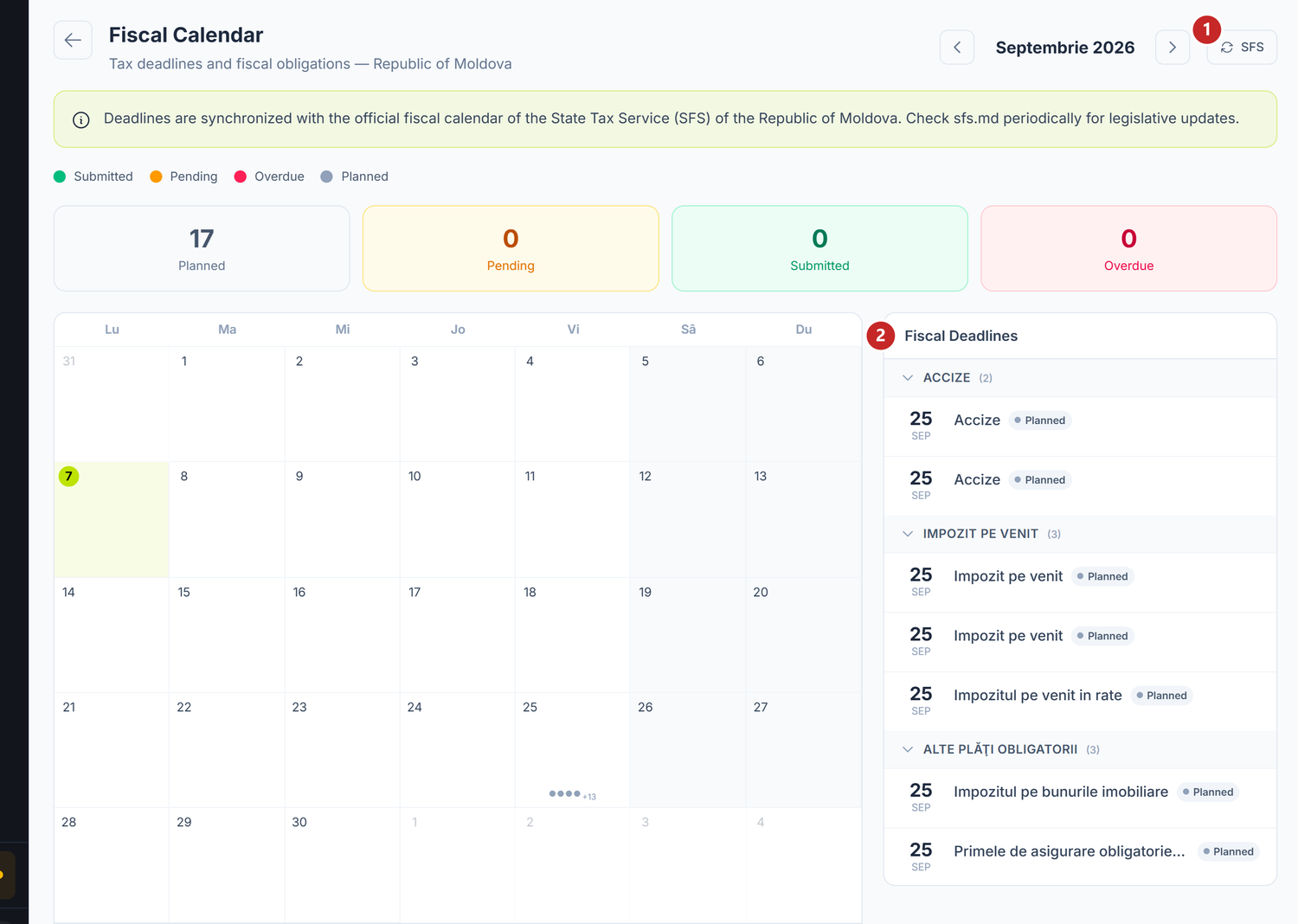
1 pulls the official calendar from SFS again · 2 the month's deadlines, grouped by the type of obligation
The four figures at the top count the deadlines by status: Planned, Pending, Submitted and Overdue. The same four colours come back as small dots under the days in the grid, and their legend sits right above the counters, under the band that sends you to sfs.md for legislative changes.
The screen shows one month at a time. The arrows to the right of the title move you to the previous or the next month, and the SFS button fetches the deadlines of the displayed month again.
A day in the grid can be selected: press it and the Deadlines on panel under the calendar shows you only that day's deadlines, with the amount noted on each. In the list on the right, Fiscal Deadlines, rows are grouped by the type of obligation — press a category header to fold it, which helps a lot in busy months.
The four statuses
| Status | What it means |
|---|---|
| Planned | The default status of a deadline you haven't touched yet |
| Pending | You marked it as being worked on |
| Submitted | You marked it as filed — the status stays, even after the deadline has passed |
| Overdue | The filing deadline has passed and you didn't mark it as filed |
Overdue is computed every time the screen opens: today's date is past the filing deadline and you haven't marked Submitted. You don't set it by hand — in the edit window you can only choose between Planned, Pending and Submitted.
The screen does not track the payment deadline. Submitted means you ticked the declaration as filed, not that you also paid it. Late-payment interest keeps running on an unpaid amount, however green the row looks. You track payments from the payment orders and from the bank statement.
How you keep your record on a deadline
- Press a deadline in the list on the right
- In the window that opens you see the data coming from SFS: Tax Category, Obligation, Legal Basis and Due Date — all of them read-only
- Fill in what is yours: Status, Amount (in MDL) and Notes
- Press Save
The record belongs to your organization. SFS deadlines are shared by every company in POSfix; what you write (status, amount, notes) stays with you alone.
Where the deadlines come from and whom they apply to
The list is pulled automatically from the official tax calendar published by SFS for legal entities and refreshed daily. The SFS button forces an immediate refresh of the displayed month.
Not every deadline in the list concerns you. Applicability depends on your tax regime: monthly or quarterly VAT payer, resident of an IT park, agricultural producer. The screen does not filter by regime — it shows you the whole list. Check your own obligations in the standard declarations you file and on sfs.md, where new ones and legislative changes appear first.
The production calendar
Where to find it: Sidebar → Accounting → the Production Calendar tab
The screen shows the whole year, month by month, with arrows for the previous and the next year. Above the 12 grids sit four counters — Working Days, Holidays, Weekend Days and Working Hours — and below them, at the bottom of the page, the colour legend and the Save button.
The general calendar and yours
You start from the platform's general calendar. The band at the top of the screen tells you which one you are on:
- "You are using the general (default) calendar" — you haven't changed anything
- "You are using your customized calendar" — you saved at least one change; next to the text appears Reset to default, which removes the customization of the displayed year
The first saved change automatically creates a version of your own organization. The general calendar stays untouched for everyone else.
What you can change
You press a weekday to mark it a holiday (it turns red) or to bring it back to a working day. Then you press Save.
The screen only remembers the days marked as holidays. Saturdays and Sundays stay weekend days and cannot be turned into working days from here.
Pre-filled holidays
The general calendar arrives with the non-working holidays of the Republic of Moldova already marked, including the three movable dates tied to Orthodox Easter. They compute themselves for any year you open, so you have no annual update to do.
Local holidays — the town's patron day, for example — are not in the general calendar. Those you add yourself.
Transferring rest days
A holiday falling on a Saturday or a Sunday does not move to Monday and does not consume a working day.
Transferring rest days is something else, decided at company level: the Friday after a holiday becomes free, and a Saturday becomes a working day. In POSfix you can only mark the first half, because a Saturday cannot be made a working day from here.
Don't apply only the half that works. If you mark the Friday free without being able to add the Saturday, the month's norm drops 8 hours below the legal one, and the hourly rate in the salary calculation comes out wrong. Leave both days untouched: the transfer changes which days are worked, not how many, so the month's total stays correct. If the transfer moves the day into another month, check the norm of both months.
How the monthly norm is computed
The norm derives from the production calendar:
Working days = calendar days − weekend days − holidays falling on weekdays
Working hours = working days × 8 − one hour for each holiday eve
A holiday eve stays a working day, but with one hour less. Strictly the day before the holiday is reduced; if that day falls on a weekend or is itself a holiday, nothing is reduced.
The "Working Hours" counter at the top of the screen is a quick estimate (working days × 8). The saved norm, the one used in the salary calculation, additionally subtracts the holiday-eve hours.
Two limits to keep in mind
POSfix subtracts exactly one hour on the eve. If your collective labour agreement provides for a larger reduction, the computed norm comes out too high, and you correct the difference outside the calendar.
A transferred eve loses the reduction. POSfix subtracts the hour strictly on the day before the holiday, so an eve moved to another day keeps its 8 hours.
The part-time norm
The part-time norm is not configured on the calendar. The calendar defines the full norm, and each employee's fraction of it sits on their card.
What can be changed later
| Element | Can it be changed? | Conditions |
|---|---|---|
| The deadlines coming from SFS | No | Title, obligation, legal basis and due date are brought in from SFS |
| The status, amount and notes on a deadline | Yes | Any time, from the deadline's window |
| The holidays in the production calendar | Yes | You mark or unmark any weekday, then save |
| Weekend days (Saturday, Sunday) | No | They cannot be turned into working days from this screen |
| The number of hours per day | No | 8 hours, with one hour less on a holiday eve |
| The customization of a year | Yes | Reset to default removes your version and brings you back to the general calendar |
Troubleshooting
| Problem | Cause | Fix |
|---|---|---|
| The month has no deadline at all | The month's deadlines haven't been fetched from SFS yet | Press the SFS button at the top of the screen |
| A deadline shows Overdue although I filed it | You didn't mark it Submitted in POSfix | Open the deadline and change the status to Submitted |
| The row is green Submitted, but I received late-payment interest | The status only tracks the filing of the declaration, not the payment | Correct behaviour — you check payments on the payment orders and on the statement |
| I see deadlines that don't apply to me | The SFS list is shared by all legal entities | Correct behaviour — the screen does not filter by your tax regime |
| I marked a Saturday as a holiday and nothing changed | Weekend days don't consume working days | Correct behaviour — a weekend holiday does not reduce the norm |
| The monthly norm is smaller than days × 8 | The month contains holiday eves | Correct behaviour — one hour is subtracted per eve |
| My calendar changes aren't visible to the others | The customization belongs to your organization | Correct behaviour — the general calendar stays unchanged |
Frequently asked questions
Does the tax calendar lock the documents of a past month?
No. It is strictly a list of deadlines and your record on them. Finished data is protected by closing the accounting period — see Accounting periods.
Do I have to create the fiscal year manually every year?
No. There is no "create fiscal year" action. The tax calendar brings in the deadlines of the month you open, and the production calendar is computed for any year you pick with the arrows.
Are the tax-calendar deadlines the same for all companies?
Yes, the list is shared — it is the public SFS calendar for legal entities. Only your record differs: the status, the amount and the notes on each deadline.
That does not mean all of them concern you. A quarterly VAT payer also sees the monthly VAT deadlines; an IT-park resident sees deadlines replaced by the single tax. The list is a reminder, not a statement of your obligations.
Does the tax calendar also show me when I have to pay?
No. The screen tracks the filing deadline of the declaration. The Submitted status says nothing about payment, and late-payment interest runs on unpaid amounts.
What happens if the Government adds a new holiday?
You mark it manually in your organization's production calendar. The month's norm is recomputed immediately and influences the salary calculation.
Does the production calendar affect only payroll?
In practice, yes. Accounting documents (invoices, bank operations, receipts) can be created on any day, Saturdays included. The production calendar matters for the hour norm, timesheets and the salary calculation.
Can I put an amount on a tax deadline without marking it filed?
Yes. The amount and the notes are independent of the status — you can note the estimated amount while the deadline is still Planned or Pending.
Why don't I see the Fiscal Calendar tab at all?
The tax calendar belongs to the accounting module. Without it under contract, the entry stays locked in the menu.
Related pages
- Accounting periods — opening, closing and locking months
- Month-end close — the steps to walk at the end of each month
- Tax obligations — which declarations you owe and when
- Salary calculation — uses the norm from the production calendar
- Employees — the individual (part-time) norm is configured on the employee card