Classifiers
Why you set up the classifiers
Classifiers are reference catalogs that add analytical dimensions to your transactions. Without them, accounting answers "how much?" and "on which account?", but not "what for?" or "of what nature?". With them, you can group money movements by economic nature, expenses by purpose and tax payments by type.
Where to find it: Sidebar → Accounting → Classifiers
Under Classifiers sit, in order, all the accounting catalogs:
Chart of Accounts · Currencies · Exchange Rates · Cash Flow Articles · Cost Articles · Tax & Contribution Types · Countries · Cost Types · Construction Methods · Construction Objects · Specialized Forms · Tires · Batteries · Fund Destinations · Fund Movements · Profit Destinations · Profit / Loss · Estimated Liabilities · Deferred Revenue · Prepaid Expenses · Payroll Calculations & Withholdings
The chart of accounts has its own page — Chart of accounts; so do the currencies and the rates — Currencies and rates. This page covers the three classifiers you use daily plus the simple catalogs.
On five of them, the title at the top of the screen doesn't repeat the label on the sub-tab bar: Estimated Liabilities opens as Obligații estimate, Deferred Revenue as Venituri viitoare, Prepaid Expenses as Cheltuieli viitoare, Construction Methods as Modalitate construcție, and Fund Destinations as Destinații fonduri. They are the same screens, only named differently in the two places.
Cash flow articles
Where to find it: Sidebar → Accounting → Classifiers → the Cash Flow Articles tab
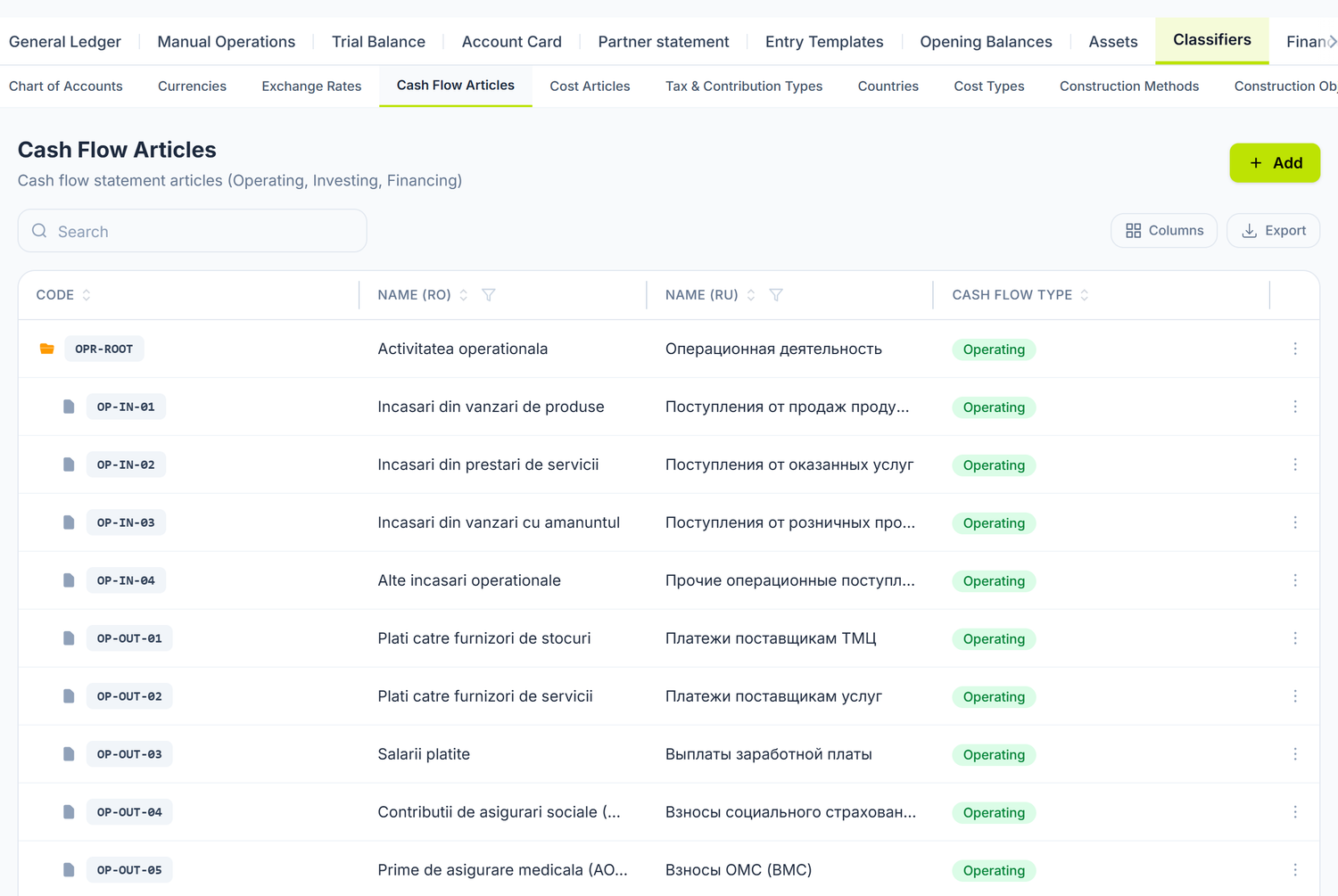
The sub-tab bar at the top shows you all the catalogs; they open the same way, with the same list and the same Add button. The list is a tree: folders have a folder icon, articles sit under them, and the Cash Flow Type column on the right says which section of the cash-flow report they belong to.
It classifies each cash inflow and outflow by economic nature. You fill it in on bank operations, payment orders, cash receipts and disbursements and on the lines of a bank statement.
The pre-populated structure
The tree starts with five root folders, and under them 28 articles are pre-populated — 14 operating, 5 investing, 5 financing, 2 exchange-rate and 2 internal movements:
| Folder | Code | Example articles |
|---|---|---|
| Activitatea operațională | OPR-ROOT | OP-IN-01 Încasări din vânzări de produse, OP-IN-03 Încasări din vânzări cu amănuntul, OP-OUT-03 Salarii plătite, OP-OUT-07 TVA plătită la buget |
| Activitatea de investiții | INV-ROOT | INV-IN-01 Încasări din vânzarea de mijloace fixe, INV-OUT-01 Plăți pentru achiziție mijloace fixe |
| Activitatea financiară | FIN-ROOT | FIN-IN-02 Credite și împrumuturi primite, FIN-OUT-02 Plăți de dividende |
| Diferențe de curs valutar | FX-ROOT | FX-DIFF-IN, FX-DIFF-OUT |
| Mișcări interne (grupul 24) | INT-ROOT | INT-G24-IN, INT-G24-OUT — transfers between your own accounts |
The last two folders don't exist in the textbooks, but they take the noise out of your reporting: exchange differences and transfers between the cash desk and the bank are neither receipts nor payments to third parties.
How you add an article
- Press Add
- Fill in Code and Name (RO) (both required), optionally Name (RU)
- Pick the Cash Flow Type — the selector shows the untranslated values:
Operating,Investing,Financing,ExchangeDifference,Internal - If the article is meant to group other articles, tick Is a folder
- Pick the Parent article if you place it under an existing folder
- Save
The same five values come back, in English again, as a coloured label in the Cash Flow Type column.
How you edit, move or delete an article
The rows have no action buttons. You right-click the article and choose from the menu: Edit, Add child (appears only on folders), Move to or Delete. Editing also opens with a double-click on the row.
The edit form is shorter than the add form: Code becomes read-only, and the Is a folder tick and the Parent article selector don't appear at all. So an article is not moved by re-editing it — for that you have Move to in the same menu.
Folders are only grouping nodes in the tree. Documents accept leaf articles only — a selected folder is rejected on save.
The statutory report is not computed from these articles. The "Cash Flow Statement" in the financial statements is built from the account turnovers, in line with the Ministry of Finance regulations — it ignores both the folder and the flow type. The cash-flow articles serve your own analysis and the quick retrieval of money movements by nature, not the filling of the official form.
Cost articles
Where to find it: Sidebar → Accounting → Classifiers → the Cost Articles tab
It classifies expenses by purpose — they answer "what did I spend it on?", a level of detail the account alone does not give.
The pre-populated structure
Four root folders, one for each cost type, with 26 articles under them — 7 direct, 5 indirect, 9 administrative and 5 distribution:
| Folder | Code | Example articles |
|---|---|---|
| Costuri directe | DIR-ROOT | DIR-01 Materii prime și materiale de bază, DIR-05 Salarii directe, DIR-07 Amortizarea echipamentelor de producție |
| Costuri indirecte (regie) | IND-ROOT | IND-03 Reparații și întreținere, IND-05 Salarii indirecte |
| Costuri administrative | ADM-ROOT | ADM-03 Chirie birouri, ADM-05 Servicii profesionale, ADM-09 Servicii bancare |
| Costuri de distribuție (vânzări) | SEL-ROOT | SEL-02 Publicitate și marketing, SEL-03 Transport și livrare marfă |
How you add an article
- Press Add
- Fill in Code and Name (RO), optionally Name (RU)
- Tick Is a folder if the article groups others
- Pick the Parent article
- Save
The row actions sit in the right-click menu as well — Edit, Add child, Move to, Delete — and a double-click opens the editing. Here too, on editing, Code is locked, and the folder tick and the parent selector disappear.
The cost type is inherited from the folder. You don't pick the cost type on the article — it comes from the parent folder. That keeps the classification coherent: if you move an article from "Costuri administrative" to "Costuri directe", the type changes along with it.
Tax and contribution types
Where to find it: Sidebar → Accounting → Classifiers → the Tax & Contribution Types tab
It defines the types of payments to the budget. They are used on payment orders to the treasury and in the record of withholdings at source.
The catalog comes pre-populated with the complete regulated set — 38 positions. It covers income tax on salary, social and medical contributions, income tax withheld at source in all its variants (dividends, interest, royalties, resident/non-resident), VAT, excise duties and local taxes.
The regulated part and yours
The edit window is visibly split in two:
Regulated (read-only) — you can change nothing here:
| Field | Example |
|---|---|
| Code | SAL, CAS, AOAM, TVA, ACCIZE |
| Default GL Account | 534.2 for SAL, 533.1 for CAS, 533.2 for AOAM, 534.4 for TVA, 534.5 for excise duties |
| ECO Code | the budget economic classification (111110, 121100, 114110…) |
| Budget Payment Type | the official name of the payment |
Company customizable — what you configure:
| Field | What it's for |
|---|---|
| Name (RO) / (RU) | How you want it to appear in the selectors |
| Beneficiary partner | The counterparty the payment goes to (the State Treasury) |
| Treasury IBAN | The treasury account; the Auto-fill button looks it up automatically |
| Payment Purpose Template | The "payment purpose" text on the order, with fields filled in automatically |
| Active | Takes the position out of the selectors without deleting it |
The window opens with a double-click on the row or from Edit, in the right-click menu.
The fields you can use in the template are listed under the box as well: {amount} the base amount,
{penaltyAmount} the penalty, {fiscalCode} the tax code, {companyName} the company name and
{period} the period.
The rows you have customized carry the Customized label in the list. Only on those does Reset to default appear, in the bottom-left corner of the window — it deletes your customization and brings you back to the regulated values. Save stays grey until you change something.
Add the IBAN to the partner
Under the IBAN field the Add IBAN to partner button appears — but only after you have filled in both the IBAN and the Beneficiary partner. It creates the treasury's bank account on the partner's card, with the BIC derived from the IBAN, so that the payment order takes its details from there. If the IBAN is already on the partner, it isn't duplicated — it just tells you so.
The Auto-fill button looks up the IBAN by the CUATM code of your organization's locality. If the CUATM code isn't set in Organization settings, the lookup has nothing to go by and tells you so.
The classifier defines the types, not the rates. What sits here are the payment types and their accounts. Contribution rates and personal exemptions are configured separately, in the payroll area, and are checked at the start of each fiscal year.
The simple catalogs
The rest of the entries under Classifiers (Countries, Cost Types, Construction Methods, Construction Objects, Specialized Forms, Tires, Batteries, Fund Destinations, Fund Movements, Profit Destinations, Profit / Loss, Estimated Liabilities, Deferred Revenue, Prepaid Expenses, Payroll Calculations & Withholdings) use the same screen, with the same fields:
| Field | Required |
|---|---|
| Code | Yes — read-only after creation |
| Name (RO) | Yes |
| Name (RU) | No |
| Display order | No — the position in the list |
| Active | On by default |
The Scope column in the list tells you where the row comes from: Global for the positions brought by the platform, Org for the ones you added. It is the only visual clue for what you may touch.
Global rows don't open at all. If you double-click one, instead of a window you get the notification "Clasificator global — citire only pentru merchant". It is not a fault and it is not a restriction on deletion only: you cannot change their name either, and Delete doesn't even appear in their right-click menu. You work only on the Org rows.
To clean up several of your own rows at once, you tick them in the list and choose deletion from the bulk actions. The screen asks you to confirm first.
What can be changed later
| Element | Can it be changed? | Conditions |
|---|---|---|
| Adding new articles | Yes | Any time |
| Editing a name | Only for your own rows | In the simple catalogs, Global rows don't open |
| Deleting | Only for your own rows | Global rows have no Delete in the menu |
| Deactivating | Only for your own rows | It disappears from the selectors, the historical data stays |
| Moving in the tree (cash flow, costs) | Yes | Move to, from the right-click menu; on cost articles, the type is taken from the new folder |
| The default account of a tax type | No | It is part of the regulated section |
| IBAN, partner, purpose template | Yes | These are your company's customizations |
Troubleshooting
| Problem | Cause | Fix |
|---|---|---|
| The cash-flow article doesn't appear in the selector | It is a folder, not a leaf article, or it is deactivated | Pick an article under the folder, or reactivate it |
| I can't open a position from a simple catalog | It has Global in the Scope column | Add a row of your own with the value you need; global ones are neither edited nor deleted |
| The payment order doesn't fill in the treasury IBAN | The tax type has no IBAN set, or the organization's CUATM code is missing | Open the tax type and press Auto-fill; if it tells you CUATM is missing, fill it in in the organization settings |
| I moved a cost article and its type changed | The cost type is inherited from the folder | Correct behaviour — move it under the folder with the type you want |
| The reports don't break expenses down by category | The cost article isn't filled in on the documents | Fill it in on the bank operations and the expense documents |
Frequently asked questions
Do I have to fill in the cash-flow article on every document?
It isn't mandatory — the document saves and posts without it. You fill it in when you want to retrieve money movements grouped by economic nature.
Are the classifiers shared across all organizations?
The cash-flow articles and the cost articles belong to each organization — they are generated at provisioning from the same standard set, but from there they evolve separately. The tax types have a shared regulated base on top of which each company puts its own customizations.
What is the difference between the cash-flow article and the account?
The account shows where the amount is recorded (241 — the cash desk, for example). The cash-flow
article shows of what nature the movement is ("Salarii plătite"). One account can be associated
with several articles.
Can I have several levels in the tree?
Yes, folders can nest. In practice two or three levels are enough; more complicates the selection without adding information.
How do I choose between operating, investing and financing activity?
If the movement belongs to current activity (sales, salaries, taxes) → operating. If it belongs to long-term assets (equipment, buildings) → investing. If it belongs to financing (loans, dividends) → financing. Transfers between your own accounts go to "Mișcări interne".
Which classifier do I use for a rent payment?
As a cash-flow article — one of the operating outflow articles (OP-OUT-02 Plăți către furnizori de
servicii or OP-OUT-10 Alte plăți operaționale). As a cost article — ADM-03 Chirie birouri.
Can I import classifiers from a file?
No. They are configured from the interface. The pre-populated set covers the standard cases in the Republic of Moldova.
Related pages
- Bank operations — where you fill in the cash-flow article
- Payment orders — they use the tax and contribution types
- Chart of accounts — the basic accounting classifier
- Currencies and rates — also under Classifiers
- Posting rules — how documents reach the accounts