Access policies
What access policies are
In a company with several users, not everyone should be able to touch the same records. Access policies are the layer that says, for each role and each document type, how wide a user is allowed to read, write and delete: only their own records, those of their department, or all of them.
Where to find it: Sidebar → Settings → the Access Policies tab
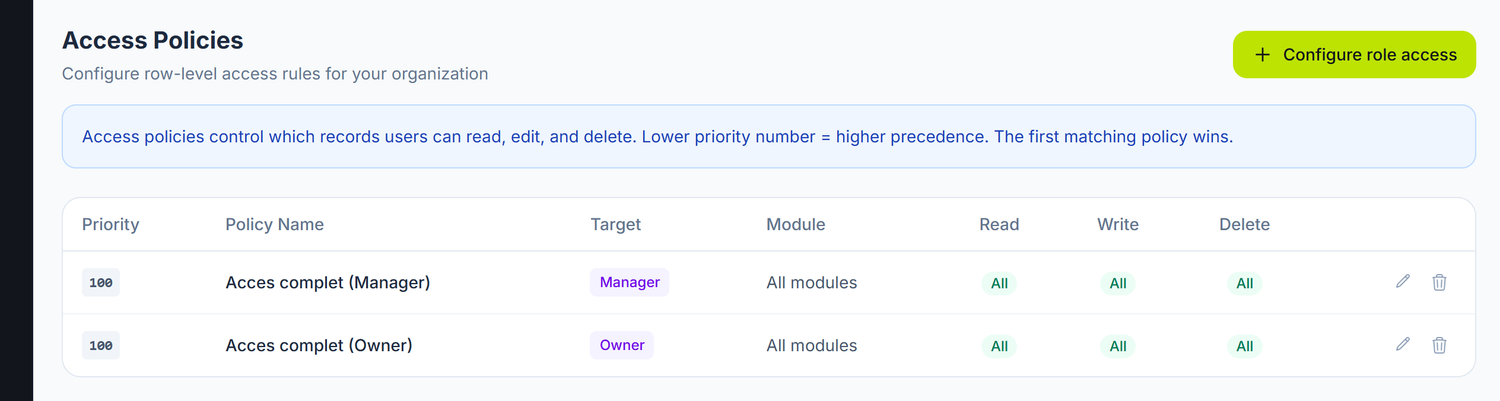
Each row is a policy: the priority, the name, the role it targets, the module and the three scopes — Read, Write, Delete. The two policies in the image are the ones every new company starts with: the Owner and the Manager see everything.
The screen requires the Admin permission on Default accounts & templates. Without it, instead of the list you get a message sending you to ask an Owner for the rights. The Configure role access button at the top of the screen disappears too, so there is nothing to press.
The three layers of control
Don't confuse policies with the other two mechanisms:
| Layer | What it decides | Where it is configured |
|---|---|---|
| The contracted modules | Whether the functionality exists for your company | Contract / subscription |
| The permissions | Whether a user can open a screen and what level they have on it (Read / Write / Delete / Admin) | The user's role and the rights granted individually |
| The access policies | How wide the scope of action is inside the screen: own / department / all | This screen |
Policies do not replace permissions. If a user has no right to open a screen, no policy opens it for them.
The anatomy of a policy
Each row in the list is a policy, with the columns:
| Column | What it holds |
|---|---|
| Priority | A number between 1 and 999 |
| Policy Name | The name you gave it; inactive policies carry the Inactive label |
| Target | Who is targeted |
| Module | The document, the whole module or all modules |
| Read / Write / Delete | The allowed scope: Own, Department or All |
The Target column shows the untranslated value: All Users, Owner, Manager or Accountant.
In the edit form, the same choice is called Applies To and carries the "Role:" prefix — All
users, Role: Owner, Role: Manager, Role: Accountant. When you look for a role in the list,
look for the bare name.
The three scopes
| Scope | What it covers |
|---|---|
| Own | Only the records created by that user |
| Department | The records of the department they belong to |
| All | All the records of the organization |
How you create a policy
Policies are not created one by one: the screen has a single button, Configure role access, which opens a matrix. All the policies come out of it at once.
The Configure role access button opens the matrix:
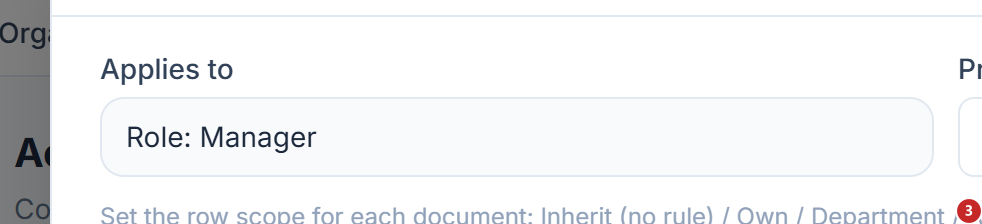
1 the role it applies to · 2 search the document · 3 brings everything back to Inherit
Each row is a document, each column one of the three scopes. Inherit means "no rule for this document" — then the role's floor applies. The selector on a domain's row, the one with Whole module, puts the same scope on every document of the group at once.
- You choose Applies to (the target) and the Priority
- The documents appear grouped by domain; the search field filters them
- On a domain's row you have the Whole module… selector, which applies the same scope to every document in the group
- On each document's row you choose the scope for Read, Write and Delete separately; the Inherit value means "no rule for this document"
- Reset all to inherit clears the matrix, Save all applies it
When you change the target from the Applies to selector, the matrix doesn't start empty: the cells are repopulated from the policies that target already has, and the Priority is taken from them. So you see what you configured before, not a blank sheet.
Once created, policies are edited one by one, from the pencil on the row in the list, and deleted from the bin next to it.
What the edit form has
When you open a policy from the pencil, you have seven controls, all of them changing the result: Policy Name, Applies To (the target), Module, Priority, the three scopes — Read, Write, Delete — and the Active checkbox.
The Module selector is the one that fixes the level of specificity from the next section. It offers you All modules at the top of the list, then, for each domain, a ✦ Whole module entry followed by its documents. So you choose directly one of the three levels: a document, a whole module or everything.
How the effective scope is resolved
When the system has to establish a user's scope on a document, it goes in order:
- It picks the most specific level that has at least one applicable policy: document → module → all modules. If the document has a policy, the levels above are no longer consulted.
- Inside the level, the widest scope wins. Two applicable policies, one with Own and one with All → the result is All.
- The result never drops below the role's floor.
The role's floor
| Role | Guaranteed minimum scope |
|---|---|
| Owner | All |
| Manager | Department |
| The other roles | Own |
You can't restrict an Owner through policies — they stay on All. And you can't bring a Manager below Department. Policies are useful to widen someone's scope above their role's floor, or to widen it on certain documents only.
With no policy at all
If you configured nothing, every user stays exactly on their role's floor: the Owner on All, the Manager on Department, the rest on Own.
What can be changed later
| Element | Can it be changed? | Conditions |
|---|---|---|
| The policy name | Yes | No functional impact |
| The target (Applies To) | Yes | From the edit window |
| The module / document | Yes | Changes the level the policy applies at |
| The scopes (Read / Write / Delete) | Yes | Applied immediately |
| The priority | Yes | Orders the policies in the list |
| Disabling a policy | Yes | You uncheck Active — the policy stays saved, but no longer counts |
| Deleting a policy | Yes | The targeted users return to their role's floor |
Troubleshooting
| Problem | Cause | Fix |
|---|---|---|
| Instead of the list I get an access-denied message | You don't have the Admin permission on Default accounts & templates | Ask an Owner to grant it to you |
| I created a restrictive policy and it has no effect | The scope cannot drop below the role's floor | Check the user's role — an Owner stays on All |
| Two policies contradict each other | Inside the same level the widest scope wins | Delete or disable the wide one, or move them to different levels |
| The module policy no longer applies | There is a policy on a document from that module, and it takes precedence | Edit the document's policy or delete it |
| I can't find the Cashier or Employee role in the list | The target accepts only All users, Owner, Manager and Accountant | Use All users and rely on the role's floor for the rest |
Frequently asked questions
Do policies affect the Owner?
No. The Owner is guaranteed the All scope on any document. That is how you make sure at least one user can always work with every record.
What exactly does "Own" mean?
The records created by that user. The author is kept on each document at creation.
Can I create policies on accounts, partners or projects?
No. A policy is tied to a target (all users or a role) and to a level (a document, a module or all). There are no criteria on account, partner or project.
Can I assign a policy to a single user?
From the screen, the target is chosen among All users and the three roles. You have no individual user selector.
How many policies can I create?
There is no limit. In practice, though, the matrix by role covers most cases and is far easier to maintain than dozens of separate policies.
What happens if I delete a policy?
The targeted users return to their role's floor — All for the Owner, Department for the Manager, Own for the rest.
What is the Priority field for?
It orders the policies in the list and in the matrix, so they are easy to read. The effective scope is established by the level of specificity and by the widest-scope rule, not by priority.
The blue banner at the top of the screen says otherwise — "lower priority = higher precedence, the first matching policy wins". It isn't so: the platform doesn't read the priority at all when it decides. The text on the screen is wrong, not the guide.
Do policies affect the audit log?
No. The audit log has its own access gate, independent of policies.
Related pages
- Audit log — the trail of actions performed in the system
- The organization account — users, roles and invitations