External integrations
The Integrations screen gathers the links between POSfix and outside services: e-Factura from SFS, the maib bank and the Nova Post courier. You turn each link on once, with the details the service gave you; after that it works in the background.
A link doesn't replace the documents. The statements brought in from maib are the same statements you would have imported from a file, and electronic invoices are still issued from Sales.
Where to find it: Sidebar → Integrations
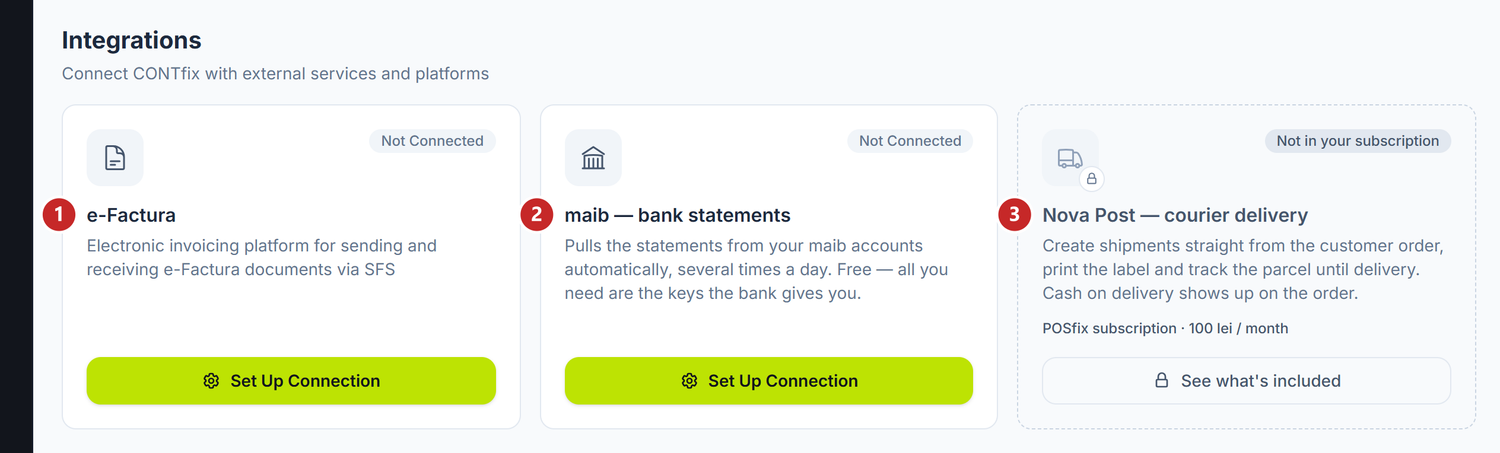
1 e-Factura · 2 maib — bank statements · 3 Nova Post — courier delivery
Each card shows the state of the link in its corner: Connected or Not Connected. The button at the bottom takes you to the setup.
A card with a padlock and the Not in your subscription label is a paid integration you don't have. It doesn't disappear from the screen: See what's included shows you what it does and what it costs. If you had it and it expired, it says Access expired, and the button becomes Renew the subscription.
e-Factura
e-Factura is the State Tax Service system through which you issue and receive electronic tax invoices. The link comes with the e-Factura module and you set it up once, from its card.
To link POSfix to e-Factura:
- On the e-Factura card press Set Up Connection (or Configure, if you already have saved credentials).
- Open the How to get the e-Factura API credentials guide and create an "API" type user in the SFS portal. You do this once.
- In SFS Credentials choose the Environment and type the API user's Username and Password.
- Press Save Settings.
- Press Test Connection — you get Connection Successful or Connection Failed.
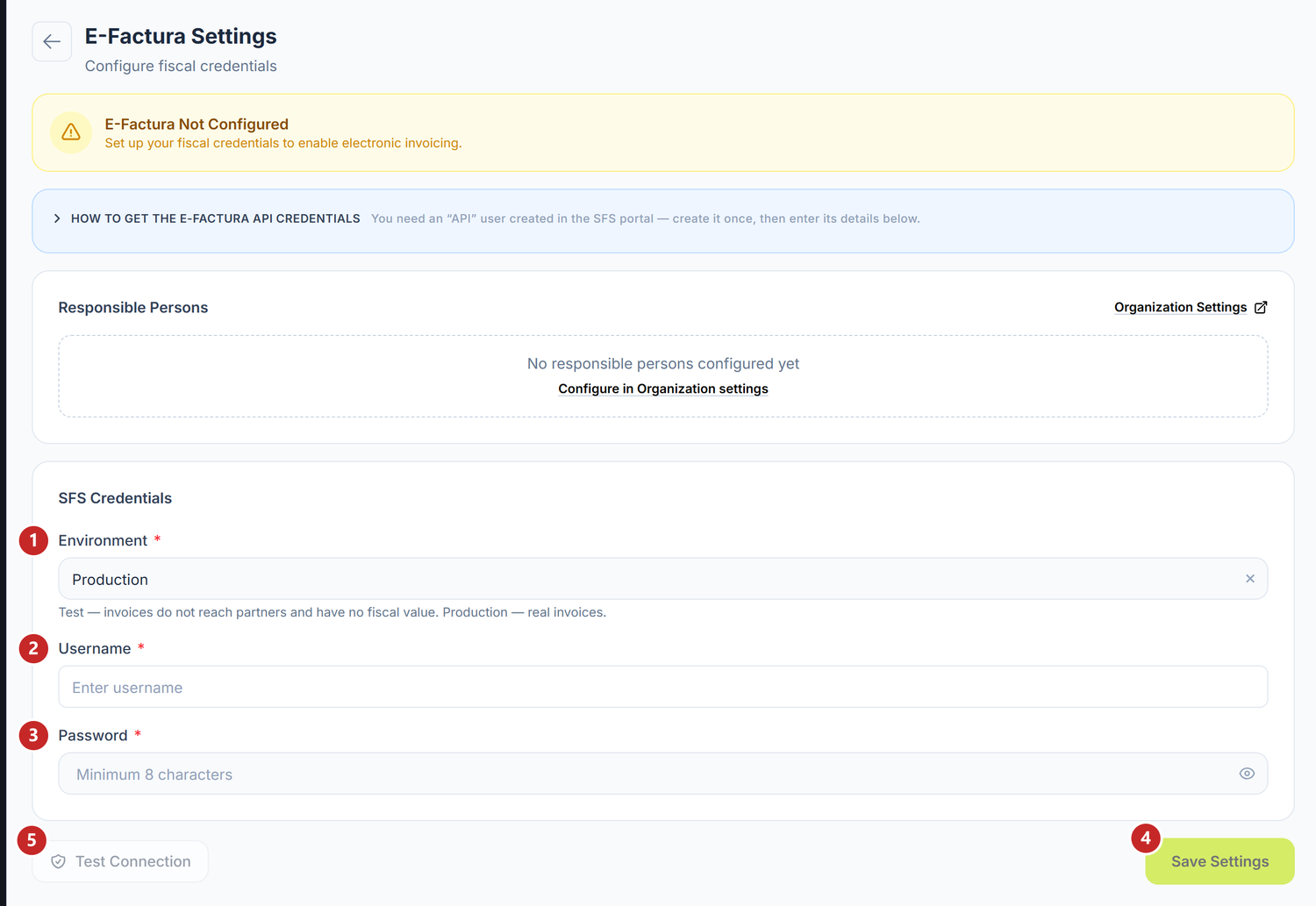
1 the environment · 2 the API user · 3 its password · 4 saving · 5 the connection test
The order matters: Test Connection is grey until you have saved credentials. It doesn't test what you typed, but what stayed in POSfix, so saving comes first.
The band at the top says E-Factura Configured (green) or E-Factura Not Configured (yellow). As long as the integration isn't configured, the guide with the steps through the SFS portal opens by itself; after you have saved the credentials, you find it folded. The panel remembers whether you opened or closed it yourself.
The password is no longer shown after saving. The field stays empty and, if you leave it that way, the existing password doesn't change. The Delete Credentials button only appears when the integration is configured and asks for confirmation; documents already sent stay in POSfix.
The Environment selector starts on Production, not Test. If you save without touching it, you are straight on real invoices. On Test, invoices don't reach real partners and have no tax value — choose it explicitly while you check the flow.
The responsible persons
The screen shows you, read-only, the Administrator and the Chief accountant from the organization settings. You fill the list in under Settings → the Organization Settings tab, the Responsible Persons section; the Organization Settings link at the head of the section takes you straight there. Other positions don't appear here.
Day-to-day work with invoices isn't done here, but in Sales → the E-Factura tab and in Purchases → the E-Factura tab. The details are in e-Factura.
maib — bank statements
The maib link brings in the statements of your bank accounts by itself, several times a day. It is free: all you need are the keys the bank gives you for API access.
What reaches POSfix is the same statement you would have imported from a file — you find it in Money → the Bank Statements tab and post it the same way. The link doesn't post anything on its own.
To turn the link on:
- On the maib — bank statements card press Set Up Connection.
- Under Bank keys type the Client ID and the Client secret.
- Press Save and verify with the bank. POSfix asks the bank whether the keys are good.
- Your maib accounts appear under Bank accounts. For each one, choose the Platform account and turn on Sync.
- Press Save and verify with the bank again.
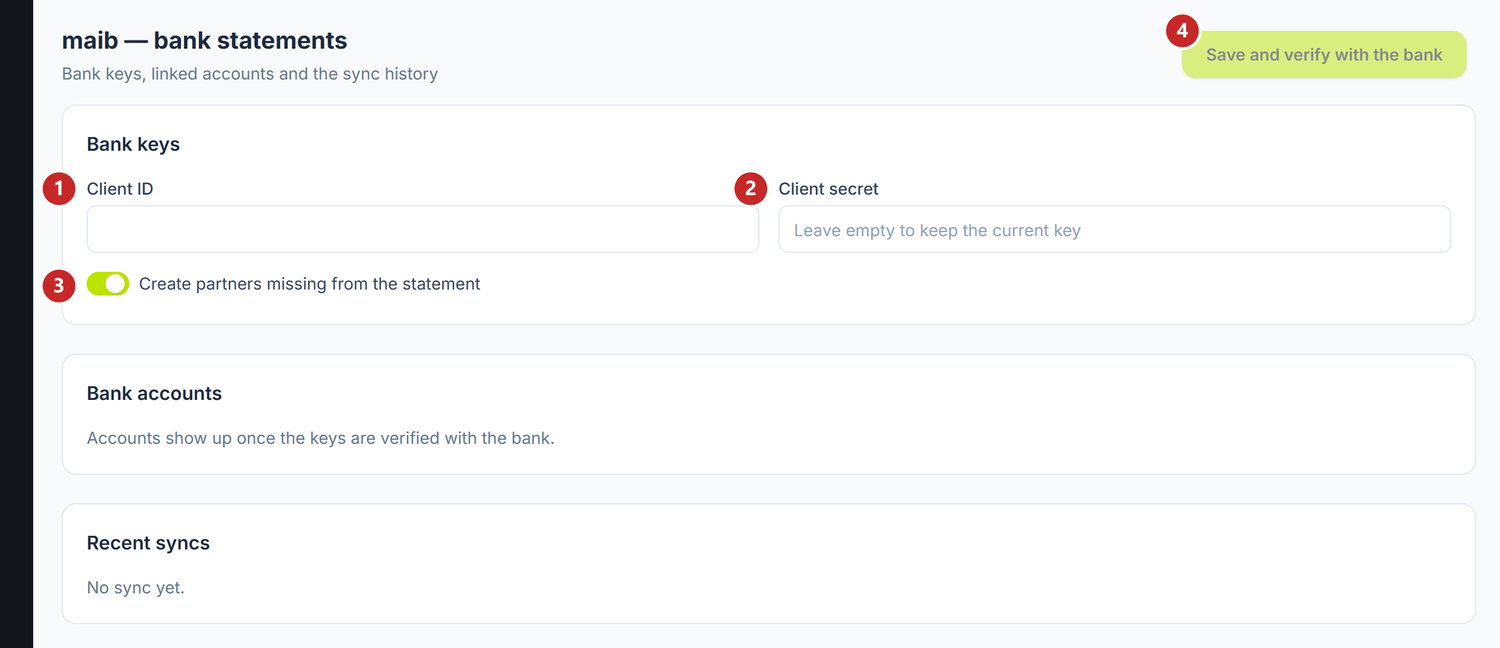
1 Client ID · 2 Client secret · 3 creating missing partners · 4 saving and verifying with the bank
A bank account whose IBAN matches a bank account in POSfix gets linked by itself. The others stay Not linked until you choose the account. An unlinked account can't be synced: the statement needs a place to land.
Fetch from says where the first fetch starts. If you leave it empty, POSfix sets it on save to the day after the account's last statement, so it doesn't duplicate what you already imported from a file. If the account has no statement at all, it starts from the beginning of the current month.
After the first save, the secret key is no longer shown. You only see its last characters, and an empty field means "keep the saved key".
When the statements arrive
The statements arrive by themselves: every half hour during the working day and less often at night. Today stays open at the bank until the evening, so POSfix fetches it once more the next day, with everything that was added.
Sync now, at the top of the page, fetches the statements on the spot. Under the keys you see Last success and Next, and at the bottom, under Recent syncs, how many new transactions and how many days each run brought.
Sending payments
Once the keys are verified, the Sending payments card appears. With the Allow sending payments to the bank toggle on, payment orders can leave for maib directly from POSfix, without a file.
Turning it on asks for confirmation, turning it off doesn't. A sent instruction doesn't execute by itself: it stays in maib Business until a person with signing rights signs it. How you send an order is in Payment orders.
The maib toggles
| Toggle | What changes when you turn it on | If you leave it off |
|---|---|---|
| Create partners missing from the statement (on by default) | An unknown payer or beneficiary becomes a new partner, with the name and fiscal code sent by the bank | The row arrives without a partner and you choose it in the statement |
| Sync (on each account) | The account joins the automatic fetching of statements | The account is visible in the list, but nothing is fetched for it |
| Allow sending payments to the bank | Send to the bank for signing appears on payment orders | The link only brings in statements and sends nothing to the bank |
A new partner is only created when the bank sends the counterparty's fiscal code; without it, the row stays without a partner. Bank fees don't create partners, even with the first toggle on.
Disconnect, from the three-dot menu at the top of the page, deletes the keys and stops fetching statements. The statements already brought in stay in POSfix.
Nova Post — courier delivery
Nova Post is a paid integration, separate from the accounting subscription. With it you create shipments straight from the customer order, print the parcel label and follow the delivery to the end. The cash on delivery collected by the courier shows on the order.
What can trip you up
- Test Connection is grey — you don't have saved e-Factura credentials yet. Press Save Settings first.
- The e-Factura test fails — wrong username, password or environment. Check the details in the SFS portal, save again and repeat the test.
- You changed the password at SFS and the transmissions fail — type the new password, press Save Settings, then Test Connection.
- You added a responsible person and don't see them here — the section only shows the Administrator and the Chief accountant.
- Wrong maib keys aren't saved: the bank's message appears right after you press Save and verify with the bank, and Bank accounts stays empty.
- The Error badge next to Bank keys — a link that used to work was later refused by the bank. The reason is written underneath.
- You can't turn on Sync on an account — choose the Platform account first. If it is missing from the list, create it in Money → the Bank Accounts tab.
- A POSfix account can't be linked to two of the bank's accounts. Each maib account needs its own account.
- Today's statement doesn't have all the payments yet — the day is still open at the bank. The rest comes with the next fetch.
- Send to the bank for signing doesn't appear on the payment order — the Allow sending payments to the bank toggle is off.
Related pages
- e-Factura — working with the electronic invoices issued and received
- Bank statements — where the statements from maib land and how you post them
- Payment orders — sending an order directly to maib
- Organization account — the responsible persons and the company's details