e-Factura — electronic invoicing
e-Factura is the panel's link to the national electronic invoicing system of the State Tax Service. From here you upload invoices to SFS, track their status and process the invoices received from suppliers.
Where to find it: Sidebar → Sales → the E-Factura tab
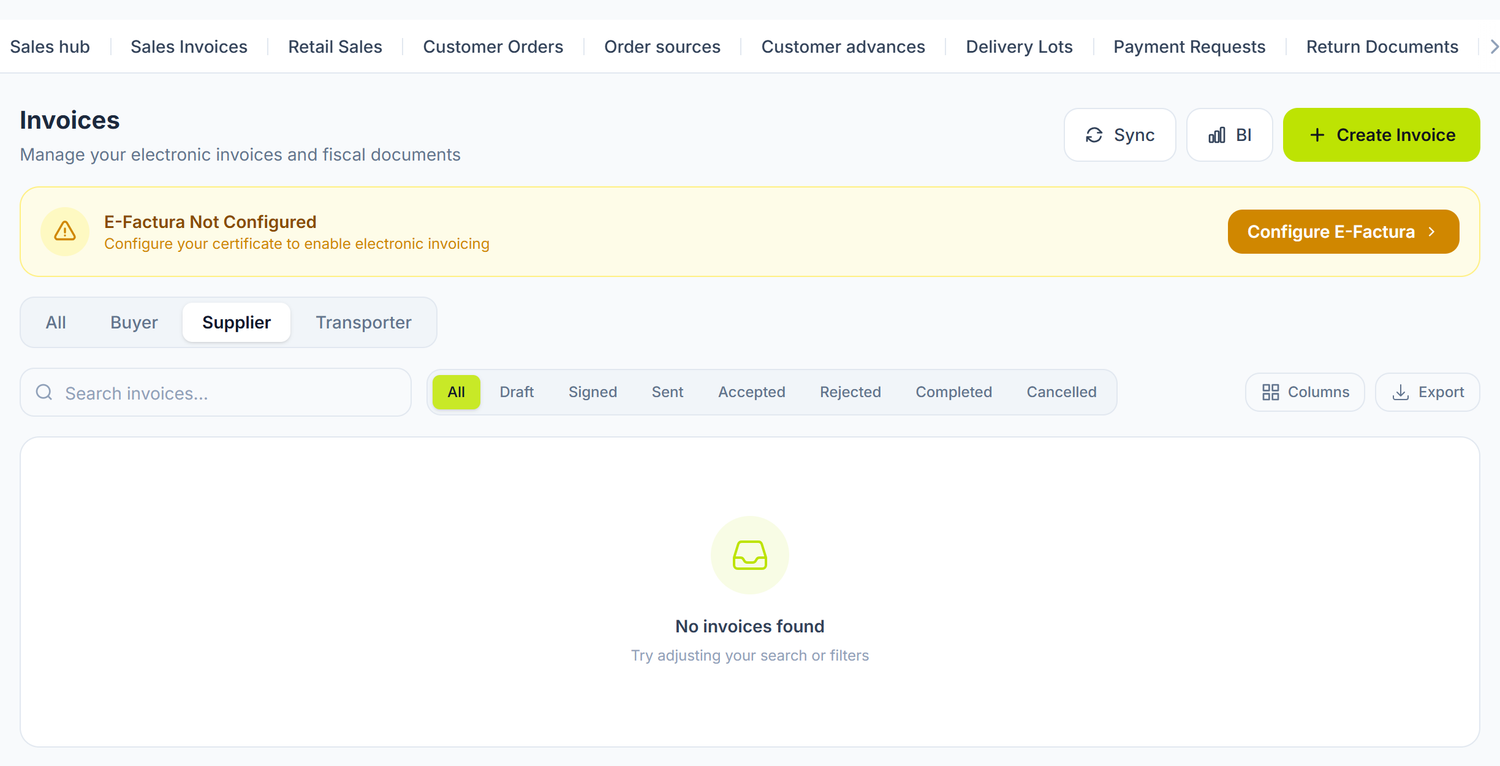
The same invoices are visible from Purchases → the E-Factura tab. The role filter decides what you see.
When you need e-Factura
- You issue fiscal invoices to VAT-paying customers.
- You receive electronic invoices from suppliers and have to accept or reject them.
- You want a complete record of electronic invoices, with the status updated from the SFS system.
Setup, once
The panel connects to SFS with an API user, created by you on the SFS portal.
- Sign in to the e-Factura portal with the company's electronic signature.
- Open the Setări (Settings) menu at the top.
- From the left menu choose Utilizatorii companiei (Company users).
- Click CREEAZĂ UN UTILIZATOR API (Create API user).
- Fill in Login, Name, E-mail and a Password. In the Rol field choose API User.
- Click Register.
- Come back to the panel, to the Integrations menu → the e-Factura card → Set Up Connection.
- Choose the Environment: Production for real invoices, Test for trials with no legal value.
- Enter the API user's Username and Password and press Save.
- Press Test Connection to check the credentials.
The banner at the top tells you E-Factura Configured or E-Factura Not Configured. The Delete Credentials button removes the access data.
Responsible persons are not configured here. They are managed from Settings → the Organization Settings tab, under responsible persons.
There is no signing in the panel. When you press Submit to SFS, the invoice is uploaded to SFS as a draft. The signature goes on at the SFS portal, with the company's electronic signature. After that, the sync brings back the Signed by supplier status and the fiscal number.
What you do here — a new invoice
- Open Sales → the E-Factura tab and press Create Invoice.
- Fill in the Invoice Details:
- Invoice Number — assigned by SFS on signing, you don't type it;
- the Issue date and the Delivery date;
- the Currency;
- the Invoice Type: Delivery or Non-delivery.
- Check the Supplier Information — your own data and your Bank Account.
- Fill in the Buyer Information — the partner, their fiscal code, address and bank account.
- If the goods are transported, click Transporter Details to unfold the section — it is collapsed when the form opens. Inside you pick the carrier from your own partner register, and their name, IDNO and address fill themselves in.
- Add the lines: description, unit of measure, quantity, price without VAT, VAT rate.
- Press Save as Draft while you are still checking, or Submit to SFS when it is ready.
Simpler still: you start the e-invoice straight from the posted sales invoice, with the Generate e-Invoice button. The form opens filled in, with the message "Pre-filled from sales invoice. Review the data and submit."
The invoice lifecycle
| Displayed state | What it means | Who acts |
|---|---|---|
| Draft | It exists only on your side, not uploaded to SFS | you |
| Uploaded to SFS (unsigned) | The XML is at SFS, waiting for the signature from the portal | you, on the SFS portal |
| Signed by supplier | The supplier has signed. The invoice received its fiscal number | the supplier |
| Sent | It has reached the buyer's e-Factura account | the supplier |
| Accepted | The buyer has accepted it | the buyer |
| Signed by buyer | The buyer has signed it. The cycle is closed | the buyer |
| Rejected | The buyer has refused it | the buyer |
| Cancelled | The supplier has cancelled it | the supplier |
| Signed by carrier | The carrier has signed the transport document | the carrier |
| Deleted in SFS | It had been uploaded, but was deleted on the portal | — |
The invoice list
Above the table you have the role filter: All, Buyer, Supplier, Transporter. Under it, the state filters: All, Draft, Signed, Sent, Accepted, Rejected, Completed, Cancelled.
The Sync button brings the updated statuses from SFS and discovers the new invoices received from suppliers.
The BI button opens an analysis screen over the electronic invoices. At the top you have the figures: how many you received and how many you issued, how many stayed Unmatched — that is, with no internal invoice behind them — plus deductible VAT, collected VAT and the sync errors. Below you have the charts: Daily invoices, Monthly VAT by rate, Top suppliers, Top products and the Reconciliation funnel. This is the screen where you find out what slipped past you, before the month-end close.
Invoices received from suppliers
On sync, the invoices addressed to your company appear in the list with the Buyer role.
- Open the invoice and check the supplier, the amounts and the lines.
- Press Accept Invoice or Reject Invoice.
- On the lines card press Map products and link every line that came from the supplier to an item in your own catalog. The ones that don't exist are created from there.
- Press Generate purchase invoice to create the internal supplier invoice, with the data carried over.
Map first, generate afterwards. Without Map products, the purchase invoice comes out with free-text lines: correct amounts, but no catalog product. The goods don't enter stock and have no cost, and you catch the mistake late, at the first stock report that doesn't add up.
If the supplier on the invoice is not in your catalog, when you generate the invoice you get the banner "The invoice supplier is not in the nomenclature", with the Create and Skip buttons.
On an invoice you issued, the equivalent button is Generate sales document.
What you can do on an invoice
| Action | When it appears |
|---|---|
| Save as Draft | While the invoice is a draft |
| Submit to SFS | While the invoice is a draft |
| Accept Invoice / Reject Invoice | On received invoices, while pending |
| Map products | On the lines card, while some line isn't linked to the catalog |
| Cancel Invoice | On your own invoices, before the buyer accepts |
| Generate purchase invoice / Generate sales document | Once the cycle has advanced far enough |
| Print PDF | Any time, with a choice between portrait and landscape |
| Delete | On local drafts and on invoices deleted at SFS |
The detail panel also has a Status Timeline, where you see when it was created, uploaded, signed, sent and completed.
The link with internal documents
e-Factura is the fiscal document in the SFS system. The journal entry comes from your internal documents:
| Internal document | The journal entry | The e-invoice's role |
|---|---|---|
| Sales invoice | revenue, receivable, stock release | the fiscal justification of the sale |
| Supplier invoice | cost, payable, deductible VAT | the data source for the internal invoice |
The e-invoice generates no journal entry, and the internal invoice never reaches SFS. Every sale with an electronic invoice has both documents, linked to each other.
A worked example
SRL „Vinăria Codru" sells 500 bottles of wine to SRL „HoReCa Plus", at 85 lei each without VAT.
- Value without VAT: 500 × 85 = 42.500 lei
- VAT 20%: 42.500 × 20% = 8.500 lei
- Total: 51.000 lei
The steps:
- Create and post the sales invoice for 42.500 lei plus VAT.
- From the posted invoice press Generate e-Invoice.
- Check the data and press Submit to SFS. The state turns Uploaded to SFS (unsigned).
- Sign the invoice on the SFS portal.
- At the next sync, the state turns Signed by supplier and the invoice receives its fiscal number.
- When the buyer accepts and signs it, the state turns Signed by buyer.
Special cases
Correcting an uploaded invoice
| Current state | What you can do |
|---|---|
| Draft | Edit it freely or delete it |
| Uploaded to SFS or Sent | Cancel it with Cancel Invoice and issue a correct one |
| Accepted or Signed by buyer | You can no longer cancel it. You issue a correction invoice with negative values, then the correct invoice |
When the buyer refuses
The invoice moves to Rejected and stays in the register. You check the reason in the invoice detail, correct the data and issue a new one.
Returned goods
You create the internal return document for the journal entry, then issue through e-Factura a correction invoice with negative values on the returned lines.
Syncing
The Sync button brings each invoice's status, the signing, sending and acceptance dates, the reason for refusal or cancellation, plus the new invoices received. Run it before the month-end close.
Common mistakes
| Mistake | Consequence | How to avoid it |
|---|---|---|
| You wait for the panel to sign the invoice | The invoice stays unsigned at SFS | You sign on the SFS portal, then sync |
| You don't create the internal document | The sale never appears in the books | You start the e-invoice from the posted sales invoice |
| Wrong fiscal code for the buyer | The invoice reaches another company or is rejected by SFS | You check the code in the partner card |
| You don't check the received invoices | Unaccepted invoices that block reconciliation | You sync regularly and process the invoices with the Buyer role |
| You try to cancel an accepted invoice | It can't be done | You issue a correction invoice with negative values |
Troubleshooting
| Problem | Cause | Fix |
|---|---|---|
| The banner says "E-Factura Not Configured" | The API user's credentials are missing | The Integrations menu → the e-Factura card → fill in the Username and the Password. |
| Invoices go nowhere, although everything looks fine | The Environment is on Test | Switch to Production. Invoices from the test environment have no legal value. |
| Test Connection fails | The API user's credentials are wrong or expired | Recreate the API user on the SFS portal and update the credentials. |
| The invoice number is empty | The number is assigned by SFS on signing | That's normal. It appears after signing on the portal and syncing. |
| The invoice stays Uploaded to SFS | It wasn't signed on the portal | Sign in to the SFS portal, sign it, then press Sync. |
| The status doesn't update | You haven't synced | Press Sync at the top of the list. |
| The invoice doesn't reach the buyer | It wasn't signed and sent | Check the state. Only from Signed by supplier onwards does it reach the buyer. |
| I can't delete the invoice | It is already at SFS and wasn't deleted there | Deletion works only on local drafts and on invoices in the Deleted in SFS state. |
| The supplier on a received invoice doesn't exist on my side | They aren't in the catalog | Press Create from the banner on the generated supplier invoice. |
Frequently asked questions
Does the e-invoice replace the sales invoice?
No. The e-invoice is the fiscal document in the SFS system. The sales invoice is the accounting document that produces the entry. You need both.
Who signs the invoice?
You do, on the SFS portal, with the company's electronic signature. The panel only uploads the XML and tracks the status.
Where does the invoice number come from?
SFS assigns it on signing. The field stays empty until then.
Can I cancel an invoice already sent?
Yes, as long as the buyer hasn't accepted it. After acceptance, you issue a correction invoice with negative values.
How do I receive invoices from suppliers?
You press Sync. Invoices addressed to you appear with the Buyer role. You accept or reject them, then generate the internal supplier invoice.
Can I create the e-invoice straight from the sales invoice?
Yes. On the posted invoice you press Generate e-Invoice. The data is carried over automatically.
Is e-Factura mandatory in the Republic of Moldova?
The obligation is set by category of supply, not for every supply by every VAT payer.
It is certainly mandatory on taxable supplies made within public procurement on the country's territory: there you are obliged to present the buyer with the electronic fiscal invoice.
For other supplies, check the regime applicable to your company on the SFS portal before you give up the paper invoice.
Cash sales to individuals are documented with a fiscal receipt. The fiscal invoice is issued at the buyer's request.
Can I issue an e-invoice in foreign currency?
Yes. You pick the currency at creation. The exchange rate applies to the internal accounting document, not to the electronic invoice.
What happens if the SFS system is unavailable?
The invoice stays in its local state. You retry the upload later. The last sync error is visible on the invoice.
Can I see an invoice's history?
Yes, in the Status Timeline panel of the invoice detail: creation, upload, signing, sending, acceptance or refusal.
Related pages
- Sales documents — the accounting invoice you generate the e-invoice from
- Supplier invoices — the internal invoice generated from a received e-invoice
- Partners — the fiscal codes and bank accounts on the invoice
- Returns — the internal storno for the correction invoice
- Integrations — where you configure the SFS API user