What to order
The screen shows what runs out in the coming days, based on what you actually sell, and how much to order from each supplier. You tick what you want, and the panel makes the purchase orders.
It orders nothing on its own and does not look only at the minimum stock. The orders it makes are drafts: you check them and send them.
Where to find it: Sidebar → Purchases → What to order tab
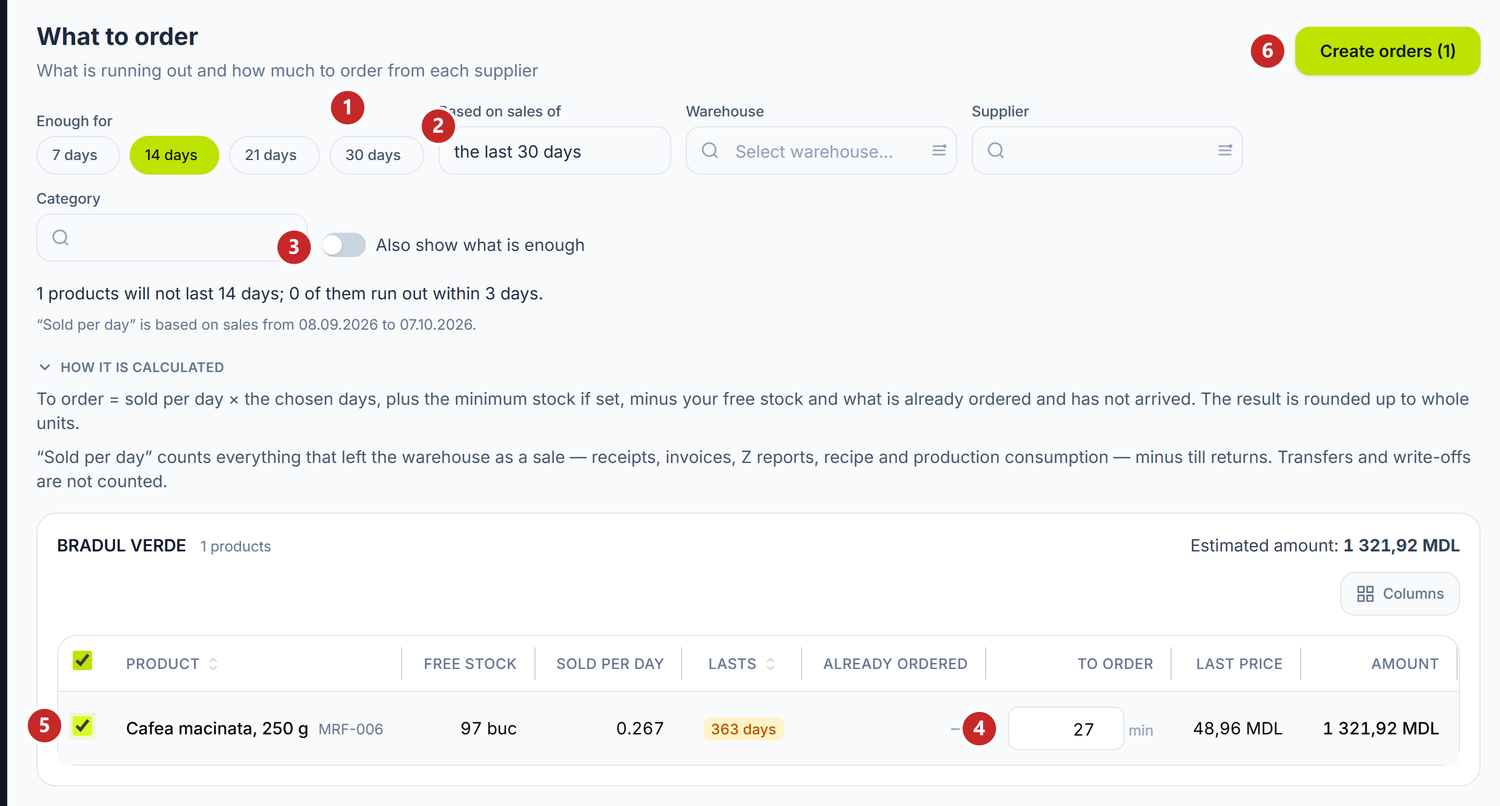
1 how many days it should last · 2 which days of sales the pace comes from · 3 also show what is enough · 4 the quantity to order · 5 the product's tick box · 6 makes the orders
How it is calculated
For each product the panel does the same sum:
To order = sold per day × the days chosen + the minimum stock (if set) − free stock − what is already ordered and has not arrived
The result is rounded up to whole units. Example: you sell 2 packs a day, you want it to last 14 days, you have 10 in stock and 5 already ordered. You order 2 × 14 − 10 − 5 = 13.
Sold per day counts everything that left the warehouse through sales: receipts, invoices, Z reports, recipe and production consumption, minus till returns. Transfers and write-offs do not count.
Already ordered is the remainder on the purchase orders still waiting for goods. That is why, after you place an order, the product does not ask for the same quantity a second time.
You also have the sum on the screen, under the filters, in the folding section How it is calculated.
To order what is missing
- Under Enough for choose 7, 14, 21 or 30 days.
- Under Based on sales of choose the last 30, 60 or 90 days — the period the pace is taken from.
- If you like, narrow down to a Warehouse, a Supplier or a Category.
- Check the quantity in To order. You can change it on the row.
- Tick the products to order.
- Press Create orders. The panel makes a purchase order for each ticked supplier, as a draft.
Products are grouped by supplier, and each group shows the Estimated amount, at the last purchase price. On the row you also see Free stock, Sold per day, Lasts (in days) and Already ordered.
What the columns mean
- Lasts — how many days the stock holds at the current pace. The badge is red when the product runs out within 3 days, amber when it needs ordering and green when it is enough. A product can last hundreds of days and still ask for an order: it is below the minimum stock (see min).
- min under the quantity — the minimum stock set on the product is included. Hover over it to see how much.
- A dash under Lasts — the product did not sell in the period; it is on the list only because of the minimum stock.
- Last price — the price of the last invoice from the supplier. Hover over it to see the invoice.
The minimum stock is set on the product card in the nomenclature. Without it, a product that does not sell never appears here.
Products without a supplier
A product that never came from a supplier sits in the No supplier group. On its row you choose the supplier. The choice is remembered for the product, so next time it goes straight into the right group.
A product's supplier is chosen in this order: the one you picked, then the last one you bought from, then the one you bought from most often.
Also show what is enough
By default you only see what is not enough. Also show what is enough adds the products that last, with their days — useful to see the pace of the whole range.
Related pages
- Purchase orders — what happens to the orders created here
- Product catalogue — where you set the minimum stock
- Overview — the current stock and days, next to each product's sales