Reconciling receivables and payables
Reconciliation shows you, for one partner and one period, every movement of receivables and payables, with the balance to date. You use it to compare your records against the partner's and to print the reconciliation act.
Where to find it: Sidebar → Sales → the Reconciliation tab
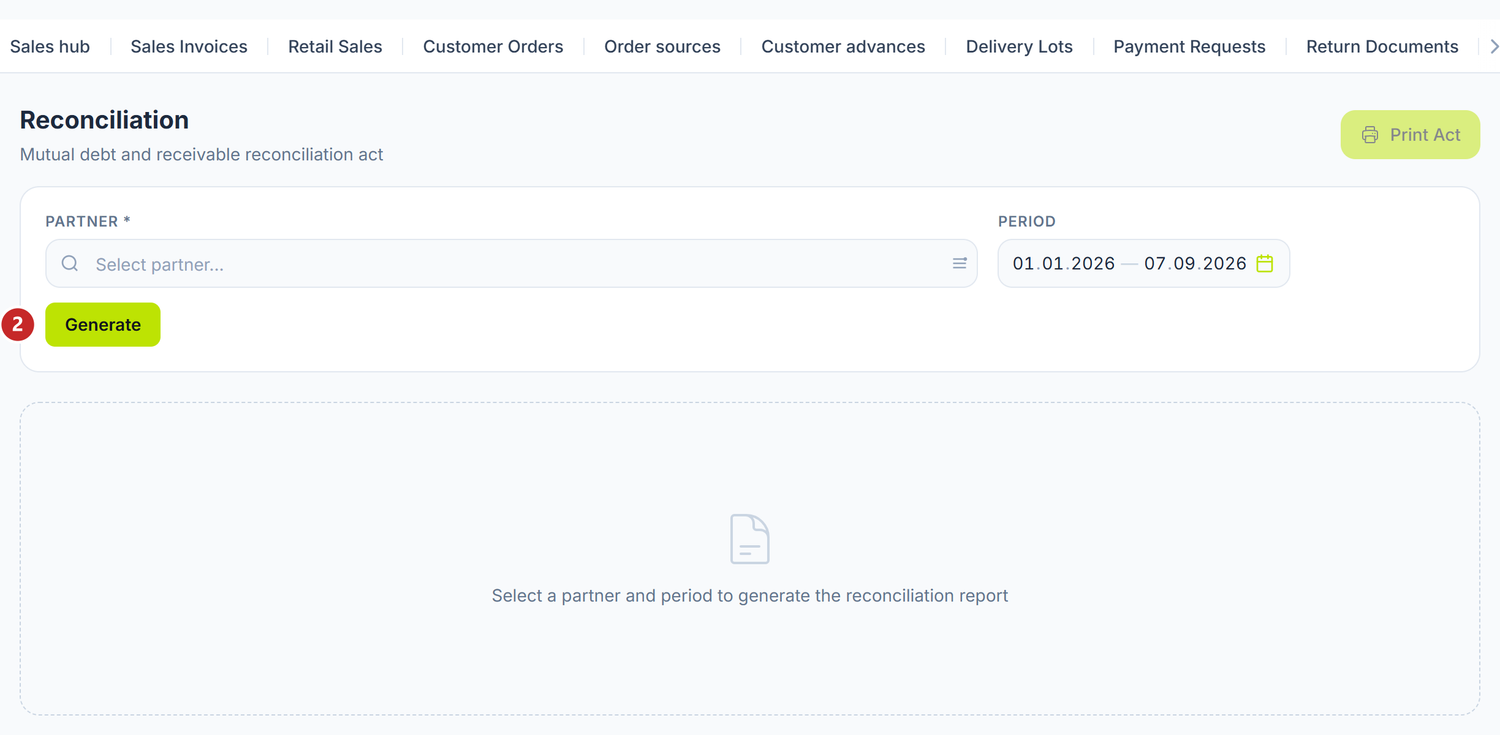
1 the partner you are reconciling with · 2 generates the statement for the chosen period
When you need it
- Before a debt adjustment — you check the exact balance.
- At the annual stocktake of receivables and payables.
- When the partner sends you their act and you have to confirm it or contest it.
- Before writing off a time-barred receivable.
- At a tax audit, when reconciliation acts are asked of you.
What you do here
- Open Sales → the Reconciliation tab.
- Pick the Partner.
- Pick the Period. The default is the current year.
- Press Generate.
- Compare against the partner's act.
- Press Print Act for bilateral signing. The button stays greyed out until you generate the report — there is nothing to print from an empty screen.
It creates nothing and changes nothing. It reads the journal entries already recorded. If you find differences, you correct them through separate documents and regenerate the report.
What the report contains
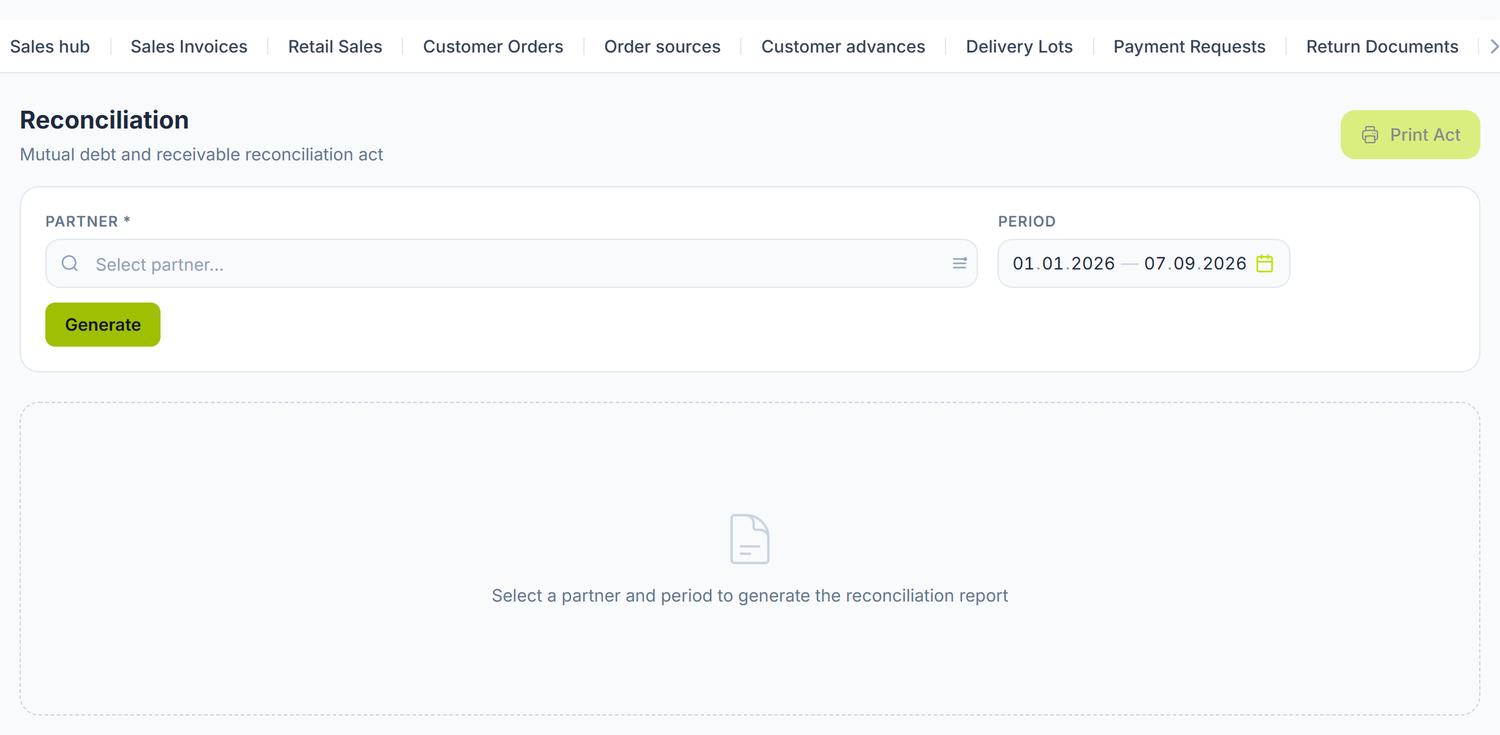
Until you press Generate, there is nothing under the filters — the report does not load itself when you pick the partner. After generating, two things appear: the green band with the four figures and, under it, the list of the documents that make them up, row by row, from the opening balance to the closing one. Under the closing balance it says in favour of whom it is — the sentence you read first when you call the partner. The document number in the list is usually a link: it takes you straight into the document that produced the row. Rows coming from manual entries or from currency revaluation stay plain text — they have no document of their own behind them.
The Print Act button at the top right opens the act in a new window, ready to print. If you need a file instead of paper, choose "Save as PDF" in the print dialog — the act comes out identical.
The panel at the top gives you four figures for the chosen period:
| Indicator | What it means |
|---|---|
| Opening Balance | The net balance at the start of the period |
| Debit | Total debit turnover in the period |
| Credit | Total credit turnover in the period |
| Closing Balance | The net balance at the end of the period, with a note saying in whose favour it is |
Under it, the chronological table has the Date, Document, Account, Debit, Credit and Balance columns. The document's name is a direct link to the source document.
Receivables (221.x) and payables (521.x) merge into a single chronological register, with a signed balance. Positive means the partner owes you, negative that you owe them. Each document appears on a single row, with its debit and credit summed.
A worked example
SRL „Vinăria Codru" reconciles with SRL „Ambalaj Plus" for January 2025. The partner is both its supplier and its customer.
| Date | Document | Account | Debit | Credit | Balance |
|---|---|---|---|---|---|
| Opening balance 01.01 | −2.500 | ||||
| 05.01 | Supplier invoice 0000000012 | 521 | 22.000 | −24.500 | |
| 10.01 | Sales invoice 0000000023 | 221 | 12.000 | −12.500 | |
| 18.01 | Payment order 0000000044 | 521 | 25.000 | 12.500 | |
| 22.01 | Bank operation 0000000051 | 221 | 8.000 | 4.500 | |
| Closing balance 31.01 | 4.500 |
Result: the closing balance is 4.500 lei in favour of SRL „Vinăria Codru". The partner owes them that amount.
How to read the balance
Every row moves the balance by the difference between debit and credit:
- the sale (debit on
221) and the payment to the supplier (debit on521) raise the balance; - the collection from the customer (credit on
221) and the supplier's invoice (credit on521) lower the balance.
A positive balance means the partner owes you. A negative balance means you owe them.
What to do when the amounts don't match
- Compare document by document. Every row carries the document number and a link to it.
- Look for the missing documents. Invoices the partner has and you haven't recorded, or the other way round.
- Check the dates. An invoice dated 31.01 on your side and 01.02 on theirs falls in different months.
- Check the drafts. Unposted documents don't appear in the report.
- Check the exchange-rate differences. On foreign-currency documents, different rates give small discrepancies.
Once you have identified the cause, you create the corrective documents, post them and press Generate again.
The reconciliation act
Print Act opens the act in a separate window, ready to print or to save as PDF.
The act contains both parties' details, the period, the opening and closing balances, the list of documents and spaces for signatures. You print two copies: one for you, one for the partner.
The act does not cover the whole settlement position. It reads only 221.x and 521.x. Advances given (224.x) and advances received (523.x) stay outside it. At the annual stocktake you check them separately, from the account ledger, otherwise your position against the partner stays incomplete.
Example. The partner has a receivable of 12.000 lei on 221.1 and an advance received of 5.000 lei on 523.1. The act shows 12.000 lei. The real settlement position is 7.000 lei in your favour.
Troubleshooting
| Problem | Cause | Fix |
|---|---|---|
| The Generate button does nothing | You haven't picked the partner or the period | Fill both fields in. |
| The report is empty although the partner has documents | The documents are drafts | Post them. The report reads only journal entries that exist. |
| A document is missing from the report | It never touched 221 or 521 | Check the document's entry with the J button on its form. |
| A difference of a few bani | Rounding on the exchange rate | Record the exchange-rate difference. |
| The opening balance doesn't match the previous month's closing balance | Documents were added or unposted in the previous period | Regenerate the report for the previous period and compare. |
| A partner has a balance but no rows in the period | The balance comes from earlier periods | That's normal. You see it in the Opening Balance. |
Frequently asked questions
Does reconciliation change the balances?
No. It is a read-only report. You make corrections through separate documents.
Can I reconcile several partners at once?
No. You pick one partner at a time and generate the report.
Which accounts enter the report?
Trade receivables (221 with all its analytics) and trade payables (521 with all its analytics). Advances given (224.x) and advances received (523.x) do not enter this report. You check them separately, from the account ledger.
Does reconciliation include draft documents?
No. Only posted ones, because only they have a journal entry.
Can I filter on a particular account?
No. The report brings together every movement on 221 and 521. For a single account you use the account ledger.
Why is there a single balance and not two columns?
Because the partner can be your supplier and your customer at the same time. The net balance tells you directly who owes whom, which is exactly the figure you negotiate.
How often should I reconcile?
Monthly with big partners, quarterly with the rest, and always at the year-end close. And any time before an offset or at the partner's request.
What legal value does the act have?
Signed by both parties, it confirms the balances on 221.x and 521.x and serves as a supporting document. It is frequently asked for at tax audits. It does not confirm advances — those you document separately.
How do I reconcile if the partner doesn't use POSfix?
Each of you generates the act from your own system. You compare them and resolve the differences.
Related pages
- Offsetting — the adjustment you make on the reconciled balance
- Partners — the partner register
- Supplier invoices — the source of the payables in the report
- Sales documents — the source of the receivables in the report
- The journal register — the journal entries the report reads