The general journal
If the chart of accounts is the map, the general journal is accounting's logbook. Every invoice you post, every payment you record, every salary you calculate generates journal entries that pile up in chronological order in a single place.
In POSfix this ledger is called the General Ledger.
Where to find it: Sidebar → Accounting → the General Ledger tab
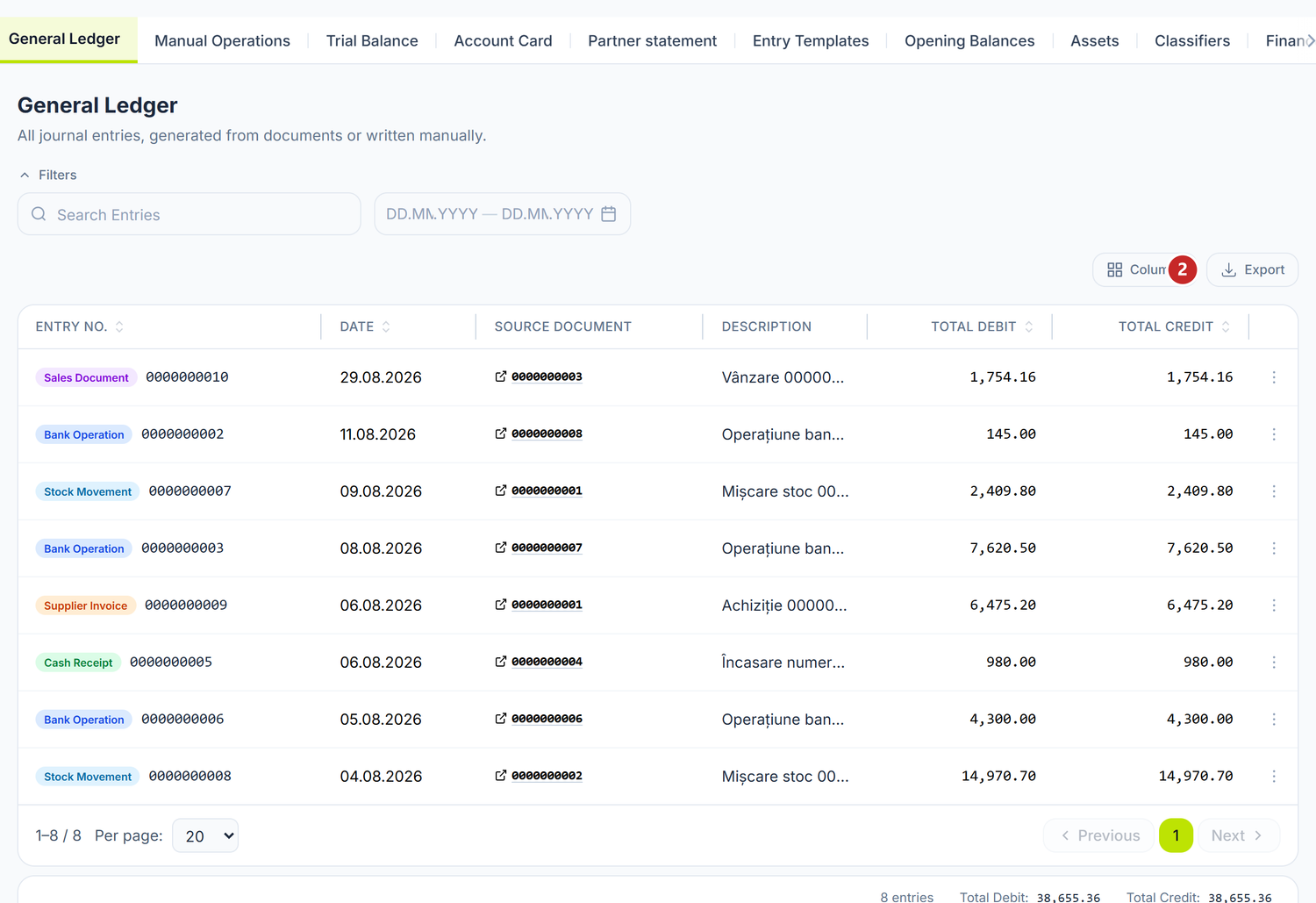
1 search the entry number and the description · 2 download what you filtered
Every row is a journal entry. The coloured badge on the left tells you what kind of document produced it, and the number next to it is the entry's own; the Source Document column takes you to the document that generated it. Hand-written entries carry the grey Manual operation badge.
How it works
What an entry contains
Every accounting entry (journal entry) has the following fields, visible in the list:
| Column | Description | Example |
|---|---|---|
| Entry No. | The number, preceded by a coloured badge with the source type | Supplier Invoice · 0000000142 |
| Date | The entry date (= the source document's date) | 15.03.2026 |
| Source Document | The reference to the original document, as a live link | 0000000034 |
| Description | The entry's text | Sold initial General 2026 |
| Total Debit | The total on the debit side | 12 000,00 |
| Total Credit | The total on the credit side | 12 000,00 |
The number no longer encodes the document type. Numbers are purely ordinal, 10 digits zero-padded (0000000142), with no alphabetic prefix, and they reset to 1 every year. That is exactly why the source type appears as a separate badge, next to the number.
When you open the entry, you see its lines (the journal postings):
| Element | Description |
|---|---|
| Debit Account | The debited account (e.g. 217.1) |
| Credit Account | The credited account (e.g. 521.1) |
| Amount | The value in lei |
| Dimension | The analytical dimensions filled on each leg: counterparty, contract, warehouse, employee and so on |
| VAT ledger | The tax rows attached to the entry, when the document generates them |
How entries appear
Most entries are not written by hand. The usual flow is:
- You create a document (invoice, bank operation, payment order and so on) — it stays in Draft status
- You press Post on the document
- POSfix applies the posting rules and generates the entries automatically
- The entry appears in the General Ledger, and the document moves to Posted status
When you need a hand-written entry
For anything that does not come from a document — a reclassification between accounts, an adjustment, an unusual operation — POSfix has a dedicated screen.
Where to find it: Sidebar → Accounting → the Manual Operations tab
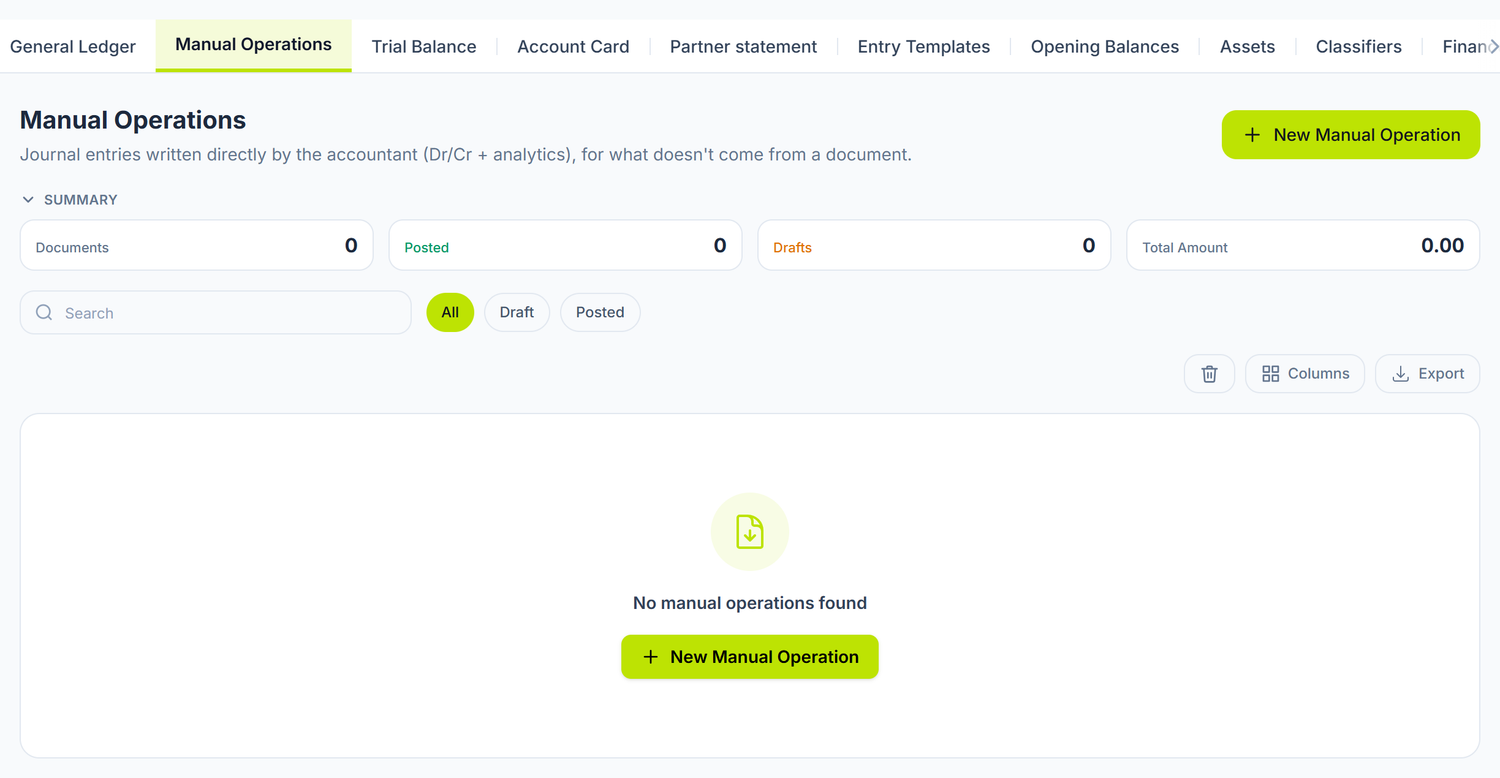
The list shows the number, date, description, amount and status of every hand-written entry. Above it sit the summary cards — Documents, Posted, Draft, Total Amount — and the filter pills All / Draft / Posted.
Right-clicking a row gives you View, Post (on a draft), Unpost (on a posted one) and Delete (on a draft). Deleted documents appear via the bin button, and there the menu has a single action: Restore.
To write an entry:
- Press New Manual Operation — a document tab opens.
- Fill in Operation Date and Content; Comment is optional, at the bottom of the form.
- From Template you can pick an entry template, which fills your Dt/Ct lines.
- Under Postings press Add and fill in the line: Debit Account, Credit Account, Amount (MDL), Description.
- Save. The document stays a Draft until you post it.
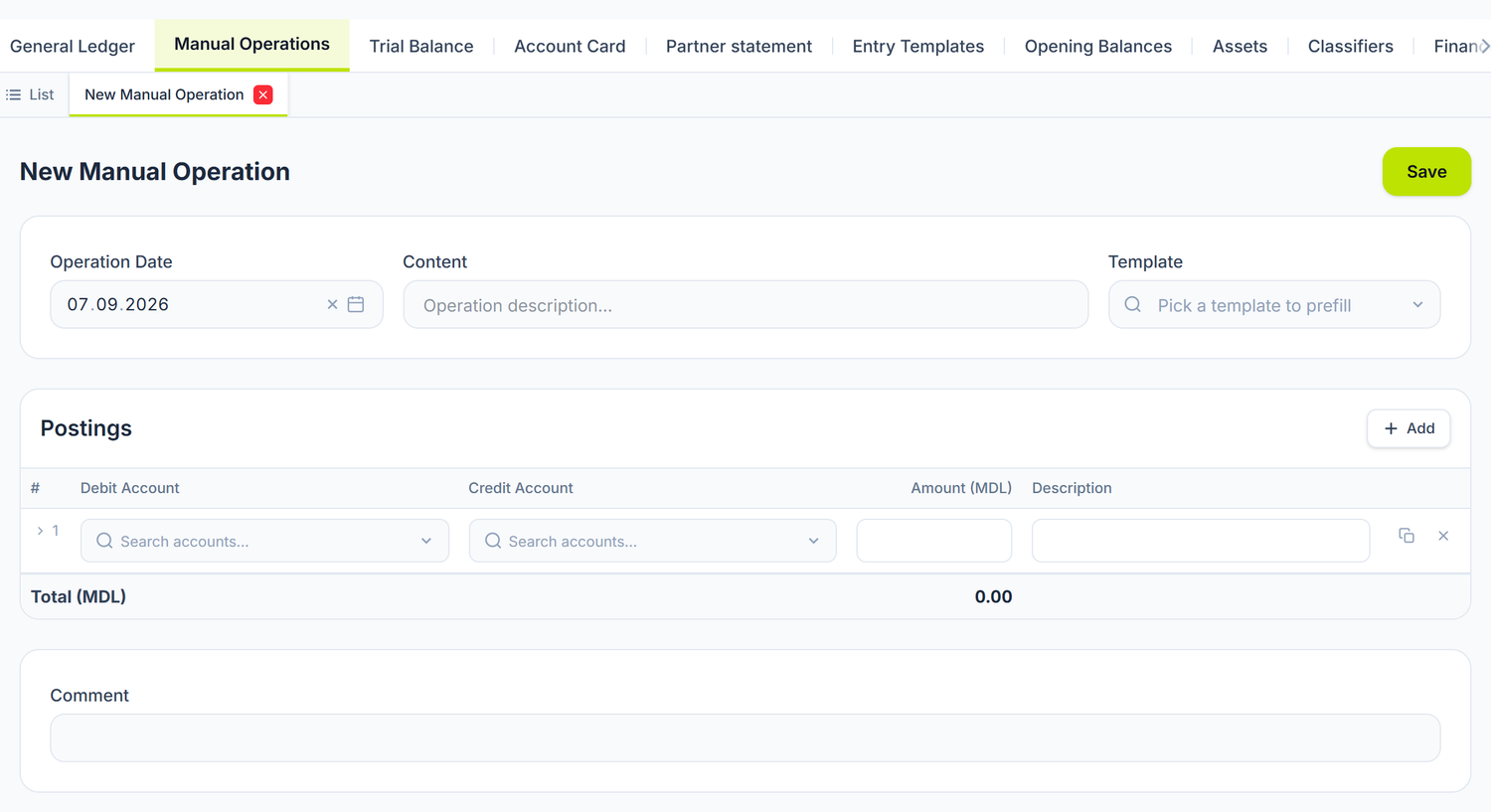
The Template selector offers exactly the templates from Entry Templates, and Postings is the lines section — the Dt/Ct postings of the entry.
Subconto and the exchange rate live in the expanded row
The > arrow at the head of each line opens an extra row underneath. There you enter the subconto — separately for the debit leg and the credit leg — and, if one of the accounts is multi-currency, the Currency, the Currency amount and the Exchange rate.
You cannot skip it. Accounts such as 521.1, 221.1 or 531.1 require subconto, and without them posting is refused. The row opens by itself as soon as you pick an account that requires subconto or keeps currency, but if you closed it by mistake, press the arrow again. On currency lines the amount in lei becomes read-only: the platform computes it from currency amount × rate.
The statuses of an entry
The lifecycle is uniform across every document in POSfix:
| Status | Meaning | What you can do |
|---|---|---|
| Draft | The document exists but has produced no entry | Edit it freely, post it or delete it |
| Posted | The entry is live and affects account balances | You can unpost it, then correct it |
| Deleted | The document was withdrawn together with its entry | It stays visible only in listings with “Show deleted” |
An error spotted after posting is corrected in one of two ways, depending on the situation:
- You unpost the document — the Unpost action in the ⋯ menu of the header — correct the document and post it again. The old entry is deleted and a new one is issued.
- If the period no longer allows changes, you create a new document with negative values, which cancels the effect of the wrong one. There is no reversal button: the correction is a new document, not an edit of the old one.
If the entry was generated by a document from another module (invoice, payment, salary calculation), you unpost it from that document — that is where the side effects are also rolled back (stock, the asset's carrying value, the subledgers). Trying to unpost the entry directly is refused. The exception is entries issued by accounting itself (revaluation, cost allocation, income tax, balance-sheet reform), which are unposted from the entry.
How it works in POSfix
Filtering and navigation
The ledger can hold thousands of entries. Above the table there is a Filters button that opens the filter bar:
| Filter | What it does |
|---|---|
| Search | Catches the entry number and the description. Do not rely on it for the type: it searches the internal code, not the text on the badge |
| Period | The period picker — from / to |
On top of that, the table has per-column filtering, a column chooser and Export Excel.
Below the table you always see the number of entries displayed and Total Debit / Total Credit for the current selection.
Jump straight to the source document. The Source Document column shows the reference as a live link. Press it and the original document opens directly — whether it is a supplier invoice, a receipt or a bank operation. That takes you instantly from “the figure in the ledger” to “the document that produced it”.
Tracing backwards: from a balance to a document
One of the most valuable ways to use this. Say you see a balance of 23.450 MDL on 521.1 and cannot work out where it came from. The shortest route does not go through the General Ledger, but through the account card:
- Open Accounting → Account Card — see The account card
- Pick account
521.1and the relevant period - You will see every movement that touched the account, with amounts, dates and source documents
- Press the source document to see the original invoice or payment
The General Ledger remains the place where you see whole entries, in chronological order, regardless of the account.
Relationship with other reports
The general journal is the source of truth for accounting reports:
- Trial Balance (Sidebar → Accounting → the Trial Balance tab) — computes balances from posted entries
- Account Card (Sidebar → Accounting → the Account Card tab) — extracts the movements of one specific account
If a report shows a figure you do not understand, open the account card for that account over the matching period — you will see exactly which documents produced that amount.
Frequent mistakes
| The mistake | What happens | How to avoid it |
|---|---|---|
| You look for an operation in the ledger and cannot find it | The document is probably in Draft status | Check in the document's list that it was posted — only those generate entries |
| You want to edit a posted document | The document is locked | Unpost it, correct it, post it again |
| You try to unpost an invoice's entry from the General Ledger | The operation is refused | Unposting is done from the document that issued the entry |
| Ledger balances do not match the trial balance | A different period filter | Make sure you use exactly the same period in both |
| You search for an entry by account or by partner directly in the ledger | The ledger searches by number, description and document type | Use the account card or the analytical balance |
Frequently asked questions
Can I edit an entry directly in the ledger?
No. Entries generated from documents are changed only by unposting, correcting the document and posting again. Hand-written entries are corrected from Manual Operations, also by unposting first.
Can I write a journal entry without a document?
Yes — that is what the Manual Operations tab is for. There you enter Dt/Ct, the amounts and the subconto directly. It is the recommended place for reclassifications and adjustments that have no operational document behind them.
Can I filter the ledger for a single supplier?
Not directly from the General Ledger. For a partner's balances and movements use the Account Card on account 221.1 or 521.1, with the partner's subconto.
Does the ledger include documents in Draft status?
No. Only posted documents generate entries. Drafts affect neither the ledger nor account balances.
How do I export the ledger?
From the table, with the export button — POSfix generates an Excel file with the displayed columns.
How many entries can the ledger hold?
There is no limit. The list is paginated (10, 20, 50 or 100 rows per page), and the filters help you navigate efficiently even through tens of thousands of entries.
What happens to entries when I close a period?
They stay visible and can be consulted at any time. Closing a period only prevents adding or changing entries dated in that period. See Accounting periods.
Why is total debit not equal to total credit in the filtered ledger?
The totals in the table footer add up the entries displayed. Each entry on its own is balanced; if you filter on a partial search, the totals reflect only the entries left in the list.
How do I check that an invoice was posted correctly?
Open the invoice and look at the Accounting Entries panel on the document. There you see the generated lines, the filled subconto and, where applicable, the rows in the VAT ledger. If the panel shows “No accounting entries generated for this document”, the document was not posted.
Links to other documents
The general journal connects every document in POSfix:
- The chart of accounts — the structure of the accounts used in the entries
- Posting templates — the default accounts the entries are built on
- Posting rules — how journal entries are generated automatically
- Opening balances — the special opening entry
- Accounting periods — how closing a period affects the entries
- Trial Balance and Account Card — where you read the balances the entries build up