Accounting periods
Accounting periods are the mechanism through which you control which months are open for work and which are already finished. Each period matches a calendar month (January 2026, February 2026 and so on), and its state decides whether you can still post, correct or unpost the documents of that month.
Why it matters: without period control, an accountant could accidentally change a January invoice in May, distorting reports already filed with the Tax Service.
Where to find it: Sidebar → Accounting → the Accounting Periods tab
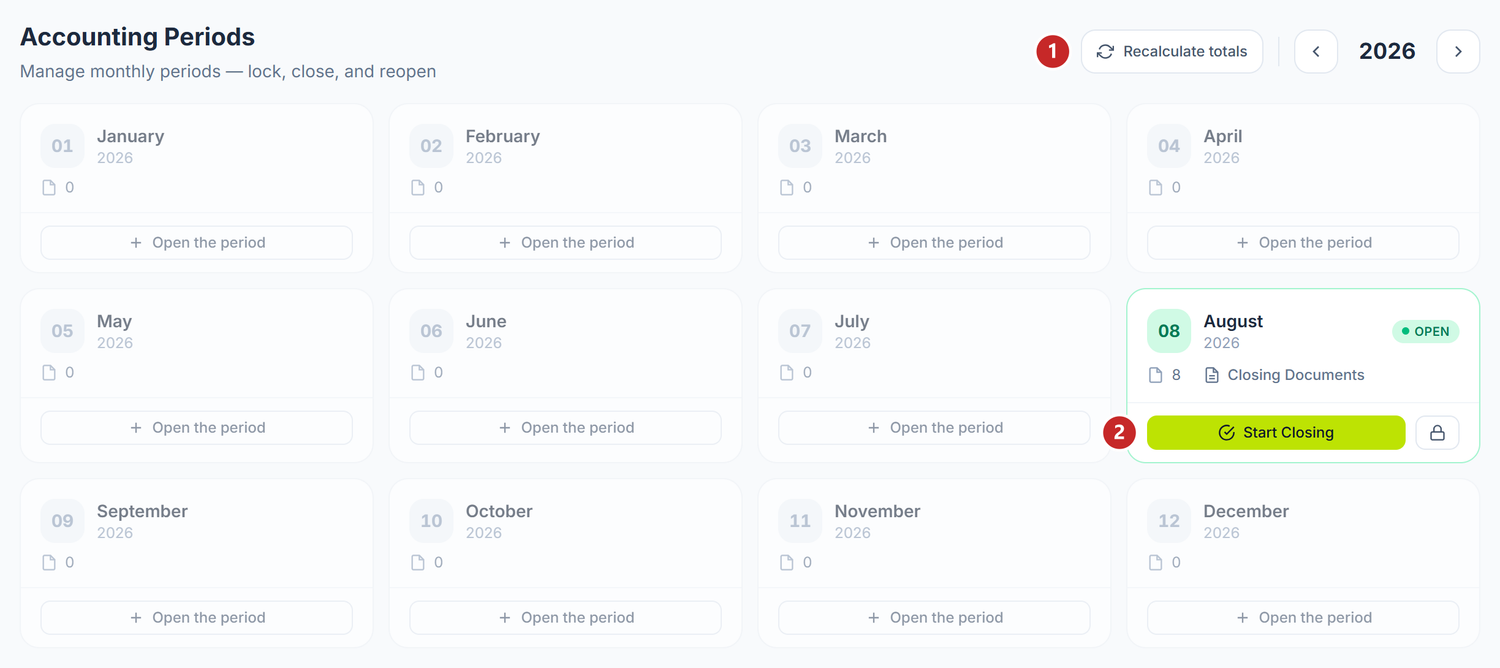
1 rebuild the period totals · 2 start the closing wizard
The padlock button next to Start Closing is the one that locks the month for good. It sits one click away from the main button, so look carefully at which one you press — but it doesn't lock anything on the first press: it asks you for the lock date and a confirmation first.
The ‹ and › arrows in the header, on either side of the year, move you to the previous or the next year. That's how you reach December of last year.
What you see on the screen
The screen shows the selected year as 12 cards, one per month. Each card shows:
| Element | What it shows |
|---|---|
| Month and year | January 2026 |
| The state | Open / Closing / Closed / Locked — or no indicator at all if the month has no period yet |
| The number of entries | How many journal entries the month holds |
| Closing Documents | Link to the register of the month's closing documents |
| The closing date | The moment the period was closed |
Periods create themselves. When the first document of a month is posted, the period appears automatically, in the Open state. If you want to open it explicitly beforehand, the month card has an Open the period button.
The four states of a period
Open  →  Closing  →  Closed  →  Locked
              ↑          ↓
              └── (cancel / reopen)
Open
The normal working state. You can do anything:
- Create, correct and post documents dated in that month
- Unpost documents that are already posted
- Correct the opening balances, if the migration date falls in this period
Closing
The period enters this state on its own when you start the closing wizard. It is the "work in progress" state:
- Posting stays allowed — the closing steps have to be able to emit entries
- The month card offers you Continue closing and Cancel closing
- Cancelling brings the period back to Open and resets the wizard's progress
Closed
When the period is closed:
- You can no longer post documents dated in that month
- You can no longer unpost documents from it
- Documents stay visible, and the reports work normally
- The card shows the closing date and offers Reopen
Corrections in a closed month. You can neither post nor unpost. You have two ways: you reopen the period, if company policy allows it, or you record the correction in the current month, through a new document with negative values. The second one is the recommended one — it leaves the reported month untouched, and the trace of the correction stays visible.
Locked
The terminal state. The padlock button appears on Open months, not on closed ones — after that there is no way back: no reopening, no cancelling, no correcting. The card marks it distinctly and shows Locked for good, with no action available.
Don't lock a month "for the sake of tidiness". Use locking only for financial years that are finished, reported and verified. A closed period gives you the same protection against accidental changes, but stays recoverable.
The padlock button sits right next to Start Closing, on the card of any open month. When you press it, the two buttons are replaced on the spot by a date picker and the Confirm / Cancel pair. With no date filled in, Confirm stays inactive, and Cancel gets you out with nothing having happened.
The month-end closing wizard
Closing is not a simple button. On an open month's card you press Start Closing and the Month-End Closing wizard opens, with six steps:
| Step | What it does |
|---|---|
| Checks | Checks whether the period totals (turnovers) are consistent with the journal entries |
| Currency Revaluation | Previews the entries that revalue the monetary currency balances |
| Depreciation | Previews the depreciation of fixed assets and the amortization of intangible assets |
| Costs | Previews the allocation of indirect production costs |
| Financial Result | Shows the month's turnovers and the year-to-date figure — strictly informational |
| Confirmation | Actually runs the operations, in order, and closes the period |
At the Confirmation step, POSfix runs, one after another:
- Currency Revaluation
- Fixed Assets Depreciation
- Intangible Assets Amortization
- Cost Allocation
- Income Tax Calculation — December only
- Balance Reform — December only
- Lock the period — the final step
The last step is called Lock the period on screen, but it moves the month into the Closed state, not into Locked. Reopening stays possible. Locking is an action separate from closing, and its button is one click away from the main one — mind which one you press.
Every operation is idempotent: if you run it again on a month already processed, nothing happens. The order matters — the allocation reads the balances left by depreciation, and the tax reads the result after the allocation — which is why they run one after another, not in parallel.
The final step refuses to close the month as long as journal entries remain in the Draft state. The Checks step, at the start of the wizard, shows them to you early — check there, so you don't get stopped right at Confirmation.
The "Financial Result" step posts nothing. It only shows you the figures. Revenue and expense accounts are not closed monthly — see below.
Closing the year
Year-end closing exists and is part of the same wizard: in December two extra steps appear, hidden in the other months.
The 6xx and 7xx accounts are closed ANNUALLY
Revenue and expense accounts accumulate over the whole year. They are closed once, in December, through the balance reform. There is no monthly closing of revenue and expenses, and there must not be one.
The wizard runs the whole chain in a single run, in two steps:
Step A   6xx / 7xx  →  351 Total financial result  →  333.1 Net profit  /  333.2 Net loss
Step B   333.1 → 332   (profit)          332 → 333.2   (loss)
Two entries are emitted, both dated 31 December. In the general journal you recognize them by their source type: Revenue/Expense Closing and Balance Reform.
The engine writes on the 333.1 and 333.2 analytics, not on the group code 333.
After December is closed, 333.1 and 333.2 are left with a zero balance. The year's result sits on 332 Retained earnings (uncovered loss) of previous years.
In the Balance Sheet format, the result of the reporting period has a row of its own, separate from the retained earnings of previous years. Distributing the profit is a decision of the shareholders' meeting and belongs to the following financial year.
POSfix does not make this split yet: it moves the result onto 332 right on 31 December. Filed like that, the balance sheet comes out with the current-result row empty and the previous-years row inflated.
What you do. Open the general journal at 31 December and read the amount from the Balance Reform entry. Put it on the row for the result of the reporting period and subtract it from the previous-years row. Make the same correction in the Statement of changes in equity.
Income tax
Also in December, ahead of the balance reform, the wizard calculates the income tax and emits the corresponding entry. In the other 11 months the step is disabled, with an explanation — it does not falsely report "OK".
The closing documents
Every month card has a Closing Documents link. There you find, in a single register, the monthly depreciation and amortization documents (coming from the assets module) and the entries emitted directly by accounting (revaluation, allocation, tax, reform).
Depreciation documents can be corrected while they are Draft. You can change the amount on an asset, take an asset out of the month or add one you missed. The remaining schedule rebalances automatically, so that the asset's total depreciable value does not change because of a correction on a single month.
The recommended monthly routine
- During the month — the period is Open, you post documents as you go
- The first days of the following month — you check completeness:
- Are all received invoices entered and posted?
- Is the bank statement reconciled?
- Are salaries calculated and posted?
- Are there any entries left in the Draft state?
- Check the trial balance — open Accounting → Trial Balance and compare it with what you expect
- Start the wizard — Start Closing and go through the six steps
- Confirm — the operations run, and the period closes
A concrete example: SRL "Codru-Vin" closes March 2026 on 4 April. The chief accountant starts the wizard on 1 April, the team checks for three days — the period stays in Closing, so work can go on — and on 4 April reaches the Confirmation step and the month closes.
Reopening a period
If you find that you have to make corrections in a period that is already closed, you have two options.
Option 1: correct in the current month (recommended)
You record a new document, with negative values, in the current (open) period. This is the preferred method:
- it does not touch the integrity of the closed, already reported month
- it raises no questions at an audit
- the trace of the correction is visible and transparent
It is also the only method the platform offers: the correction is made through a new document with reversed signs, not by changing the old one.
Option 2: reopening
From the closed month's card, Reopen brings it back to the Open state. Use this option only when a correction in the current month is not enough.
Reopening is recorded. Every reopening generates an audit event: who and when. In a tax inspection, frequent reopenings raise questions. A Locked period cannot be reopened at all.
Troubleshooting
| Problem | Likely cause | Solution |
|---|---|---|
| "I can't post the document" | The period is Closed or Locked | Check the month's state in Accounting Periods |
| "I can't unpost" | The period was closed in the meantime | Reopen the period, or make the correction in the current month |
| Closing fails at the last step | Entries are left in the Draft state in that month | Post them or delete them, then resume the Confirmation. You also see them listed at the Checks step |
| I can't correct the opening balances | The migration period is closed | Reopen the period, or enter the correction through a manual operation |
| The period does not show in the list | You have not posted any document in that month | Press Open the period on the month card, or post a document with that date |
| The tax and reform steps do not appear | You are not in December | Correct behaviour — they are annual operations |
| The closing buttons are missing | You don't have permission on the "Period closing" feature | Ask the organization's administrator for write rights on this feature |
How this connects to other documents
Accounting periods interact with almost every POSfix feature:
- General journal — entries are grouped by period; closing blocks adding new entries
- Opening balances — they can no longer be corrected once the migration period is closed
- Posting rules — posting checks the state of the period before generating formulas
- Foreign-currency operations — currency revaluation is the first step run at closing
- Trial balance — check it before you close
Frequently asked questions
Can I skip a month? For example, close March without having closed February?
Technically yes. But it is not recommended: March's opening balances depend on February. Close periods in chronological order.
What happens to Draft documents in a closed period?
They stay visible, but they can no longer be posted with a date in that period. You have two options: you move their date into an open period, or you delete them.
Careful at closing: the wizard starts and runs all the steps even if journal entries are left in the Draft state, but the last step refuses to close the month while they exist. The Checks step lists them for you from the start — deal with them there.
Who can close and reopen periods?
Anyone with write rights on the Period closing feature. Rights are granted from the permission management screen, per user or per role — there is no fixed predefined role for this. Locking for good is reserved for the platform administrator.
Why do I see 0 entries in a period I worked in?
Check whether the documents are posted. Drafts generate no entries.
How do I close the fiscal year?
You close the months in order, and in December the wizard automatically adds the Income Tax Calculation and Balance Reform steps. Revenue and expense accounts are closed exactly there, once a year: 6xx / 7xx → 351 → 333.1 / 333.2 → 332.
The wizard carries the result all the way to 332 in the same run, even though distributing the profit is a decision of the shareholders' meeting. Before filing, you correct the two capital rows by hand — see the "The 6xx and 7xx accounts are closed ANNUALLY" section.
Can I have several periods open at the same time?
Yes. In April, for example, you can have both March (for last-minute corrections) and April (for current work) open. Even so, finish the previous month as soon as you can.
What happens if someone reopens a period while I'm working?
The month becomes available again for all users. Existing documents stay intact.
Do I have to wait for the tax returns to be filed before closing the period?
Not necessarily. You can file IPC, the VAT return and so on, and then close the period. It is however recommended that you finish all checks first, so you avoid a reopening.
How do periods affect the reports?
Not at all. The trial balance, the account card and the financial statements work regardless of the period's state. The difference is only on write operations: posting and unposting.
What do I do if I closed a period by mistake?
Press Reopen on the month card, if you have the permission. Reopening is possible for any Closed period — but not for a Locked one.
I migrated from another program. Do I have to create periods for the previous months?
No. Periods appear automatically as you post. If you enter opening balances at 01.01.2026, you don't need periods for 2025.