Repost documents
Reposting redoes the posting of documents that are already posted: it unposts them and posts them again, in date order. You use it when something the posted documents depend on has changed: a default account, the cost of an incoming document, an invoice entered late. Once reposted, their entries reflect the change.
It changes nothing on the document and doesn't bypass its checks. It runs exactly the actions you would press in the document itself, so a document in a closed month stays as it is.
Where to find it: Sidebar → Accounting → the Repost documents tab
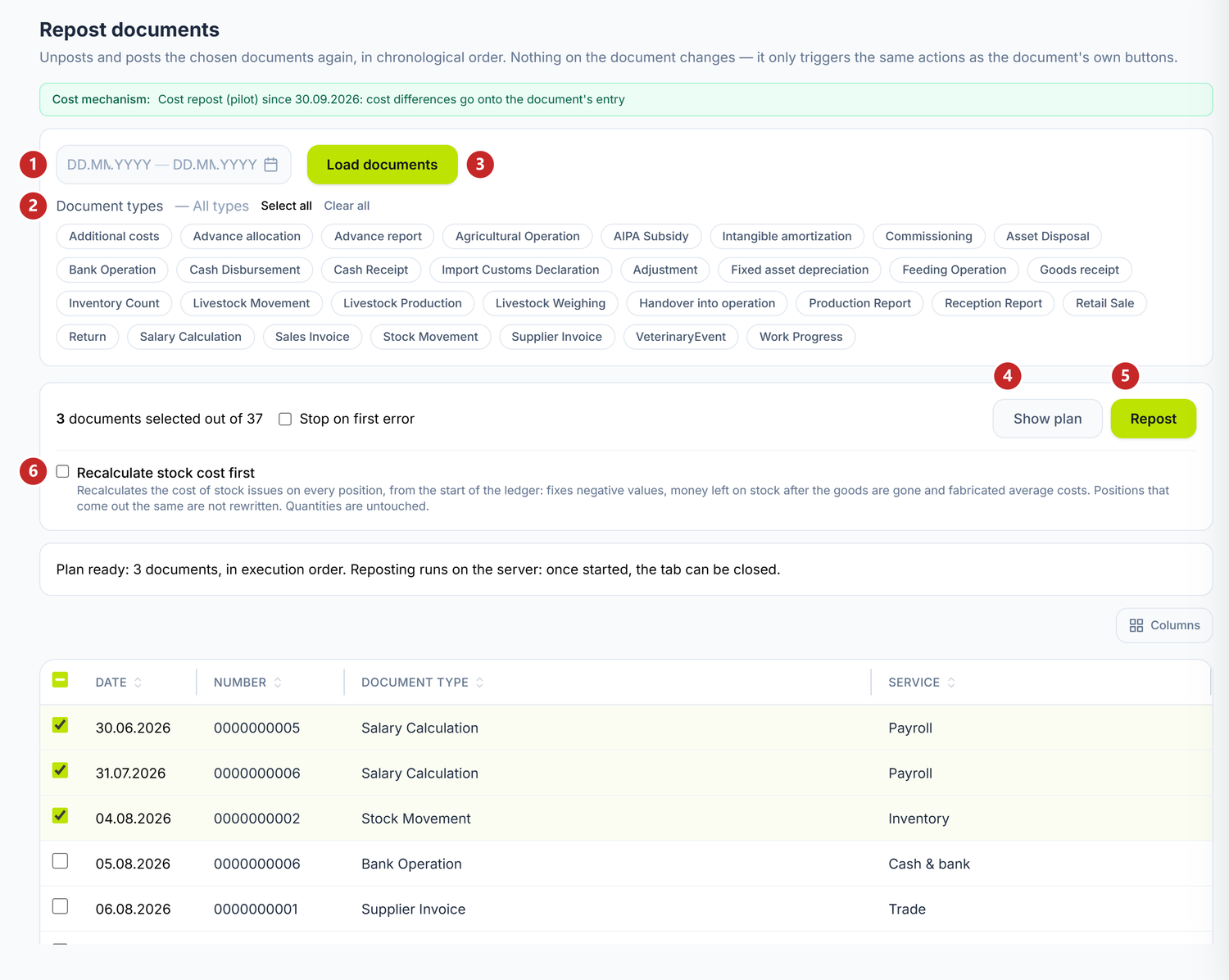
1 the period · 2 the document types · 3 Load documents · 4 Show plan · 5 Repost · 6 Recalculate stock cost first
The Cost mechanism band under the title tells you how a cost difference reaches the accounting: on the document's own entry or on a separate correction entry. Only the platform administrator changes the mechanism.
To repost documents
- Choose the period. If you leave it empty, the list holds every posted document, up to today.
- If you want only certain kinds of documents, press them in Document types. With none chosen, all of them go in.
- Load documents.
- Tick the documents you redo.
- Show plan. The panel tells you how many documents go in and that they are done in the order of the list.
- Repost.
The list is already in the order the work will follow: by date, across the whole company, not module by module. That way each document takes its cost from everything that happened before it.
Repost stays grey until you see the plan. If you change the ticks afterwards, the plan is cleared and you ask for it again — no document you haven't seen gets redone.
The toggles
| Toggle | What changes when you turn it on | If you leave it off |
|---|---|---|
| Stop on first error | The job stops at the first refused document, and the rest stay untouched | Refused documents are skipped, the job runs to the end and gathers them in a list |
| Recalculate stock cost first | Before the documents, the platform recalculates the cost of stock issues in the stock ledger, on every position. The documents then take the corrected cost | The documents are redone on the cost that is in the stock ledger now |
The cost recalculation doesn't touch quantities and doesn't rewrite positions that come out the same. The result shows in the Phase 1 — stock cost panel: how many positions were recalculated and by how much the expense changed.
If you tick Recalculate stock cost first with no document ticked, the button becomes Correct the cost. Then only the cost in the stock ledger is corrected, after a confirmation, with no journal entry redone.
The job runs on the server
Once you press Repost, the Document reposting panel appears above the list. The job goes on even if you close the tab, and when you come back you find it here.
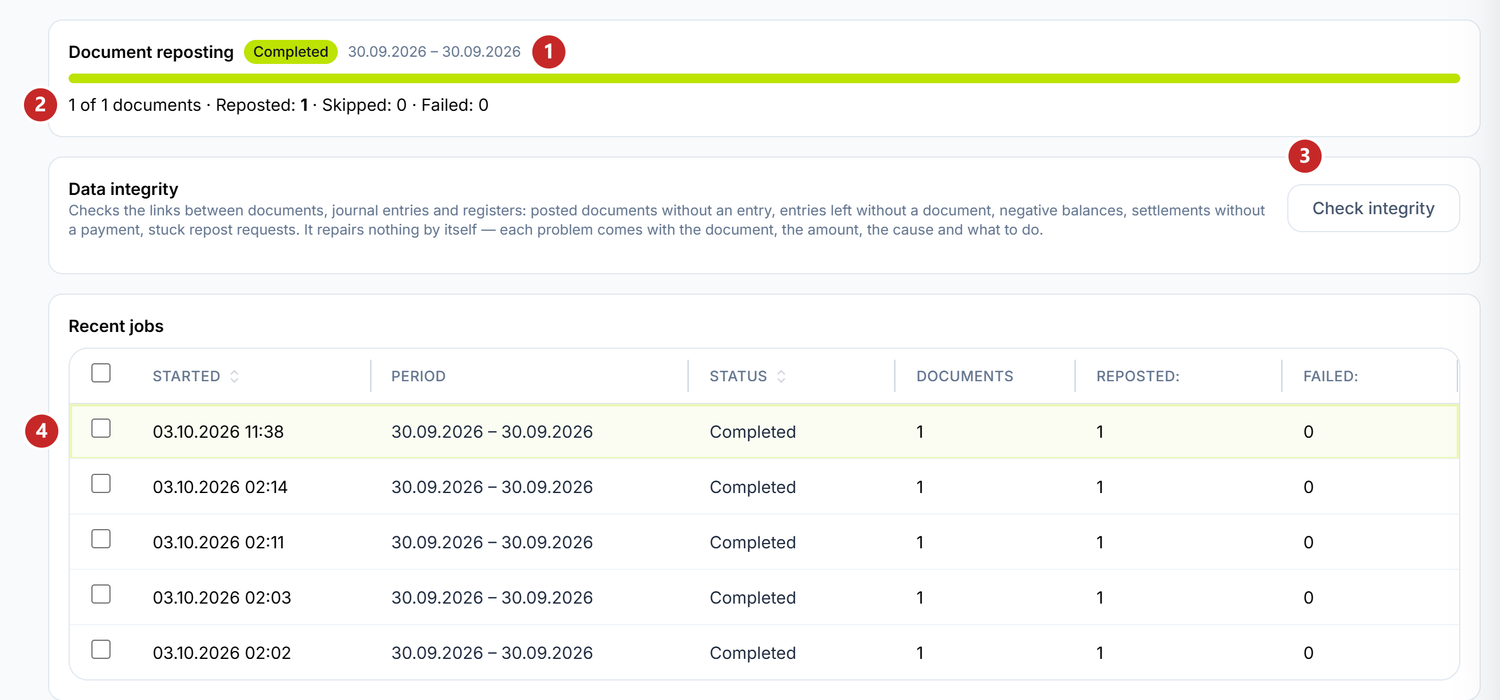
1 the job status and the period · 2 how many documents were reposted, skipped or failed · 3 Check integrity · 4 a job from Recent jobs, opened with a click
While it runs, the status is Running, and the Stop button ends the job after the document it has reached. Completed means it went through every document. If something is left to do — Stopped, Cancelled or completed with refusals —, Resume retries the refused documents and does the remaining ones. Those already reposted are not touched again.
A refused document keeps its previous entry. You find it in the same panel, under Refused or skipped documents, with the reason on its row. You fix the cause in the document, then repost it again.
Only one job runs per company at a time. If you start one while another is working, the screen shows you the one in progress.
What recalculates by itself
Some documents repost without you pressing anything, because something they depend on has changed. For example, the payment of an invoice in lei moves by itself when you correct the invoice and post it again (the limits of that move are in Sales documents).
While the platform works, the panel header, next to the bell, shows Recalculating N documents, with a spinner. A click brings you here, where the documents sit in the Automatic queue list, each with its Cause. When the queue empties, the indicator disappears.
Only those who have accounting in their subscription and the right to see reposting see the indicator.
To resolve
This is where the automatic reposts the platform could not finish end up. The document kept its previous entry, and the Reason column tells you why and what you have to do.
For example, the payment of a corrected invoice, when the payment sits in a closed month. The payment doesn't change, and the message tells you by how much it has to move. In the current month you move it like this:
- a sales invoice went up — you settle the difference from the payment's advance, with Settle from advance, from Customer debts;
- a supplier invoice went up — you move the difference from the supplier's advance onto what you owe them with an Adjustment, from Purchases → the Debt Adjustments tab;
- the invoice went down — you make an Adjustment that moves the overpaid amount onto the partner's advance (see Offsetting and debt adjustments).
Right-clicking a row gives you:
- Put back in queue — once you have fixed the cause, the document is reposted again;
- Close — the document keeps the entry it has and leaves the list, after a confirmation;
- Full repost — only on cost reposts that stopped.
A stopped cost repost cannot be closed, because the entry would stay different from the stock ledger. On it you do the full repost, which redoes the whole entry by today's rules, not only the cost. Revenue accounts or analytics may change too, which is why you are asked to confirm. For several documents of this kind, above the list you have Full repost (N).
Waiting for the month to reopen
Under To resolve sit the documents waiting for a month. The Month column tells you which:
- the month is closed — the document doesn't change and resumes by itself when the accountant reopens the month (see Accounting periods);
- the month is being closed — the repost step of the closing wizard reposts it, and from the row menu you can also Put back in queue;
- the month's VAT return is filed — it resumes after you withdraw the return's confirmation; if the entry stays as it is, you close the request.
Data integrity
The Data integrity panel checks the links between documents, journal entries and registers: posted documents without an entry, entries left without a document, negative balances, settlements without a payment, stuck repost requests. It repairs nothing by itself.
Press Check integrity. Each problem found comes with the document, the amount, the cause and what to do. A double-click on the row opens the document.
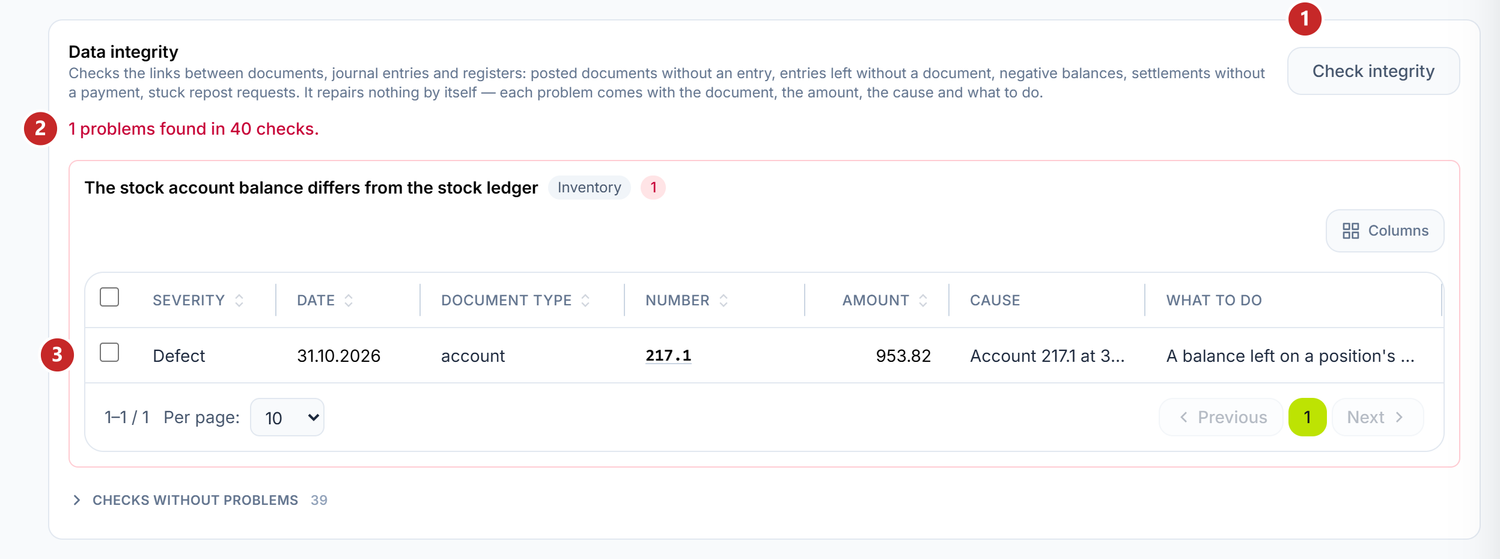
1 Check integrity · 2 how many problems were found · 3 a problem, with its cause and what to do
On the problems the platform can correct you have Simulate the repair. Only after the simulation does Repair appear, which makes the correction, after a confirmation. If something was just reposted, the check may show for a while problems that disappear by themselves — the panel tells you so.
What can trip you up
- "The list is incomplete — these services did not respond: …". One of the modules didn't respond, so its documents are missing from the list. Load the documents again in a few minutes.
- "No repost permission on: …". You don't have the right to redo that module's documents, so they don't appear in the list. You get the right from the company owner.
- "… selected documents are no longer posted and were left out of the job". In the meantime, someone unposted them. The rest were reposted normally.
- The job stopped with "the … service did not respond". The remaining documents were not touched. Press Resume once the service is back.
Related pages
- Sales documents — the invoice corrected after it was paid
- Supplier invoices — the same rule on the purchase invoice
- Accounting periods — closing and reopening the month
- Posting templates — a default account change reaches old documents only through reposting