Posting templates
This screen holds the accounts POSfix proposes when you do not give it any. It has two tabs with completely different roles — mixing them up is the costliest configuration mistake in accounting.
Where to find it: Sidebar → Accounting → the Entry Templates tab
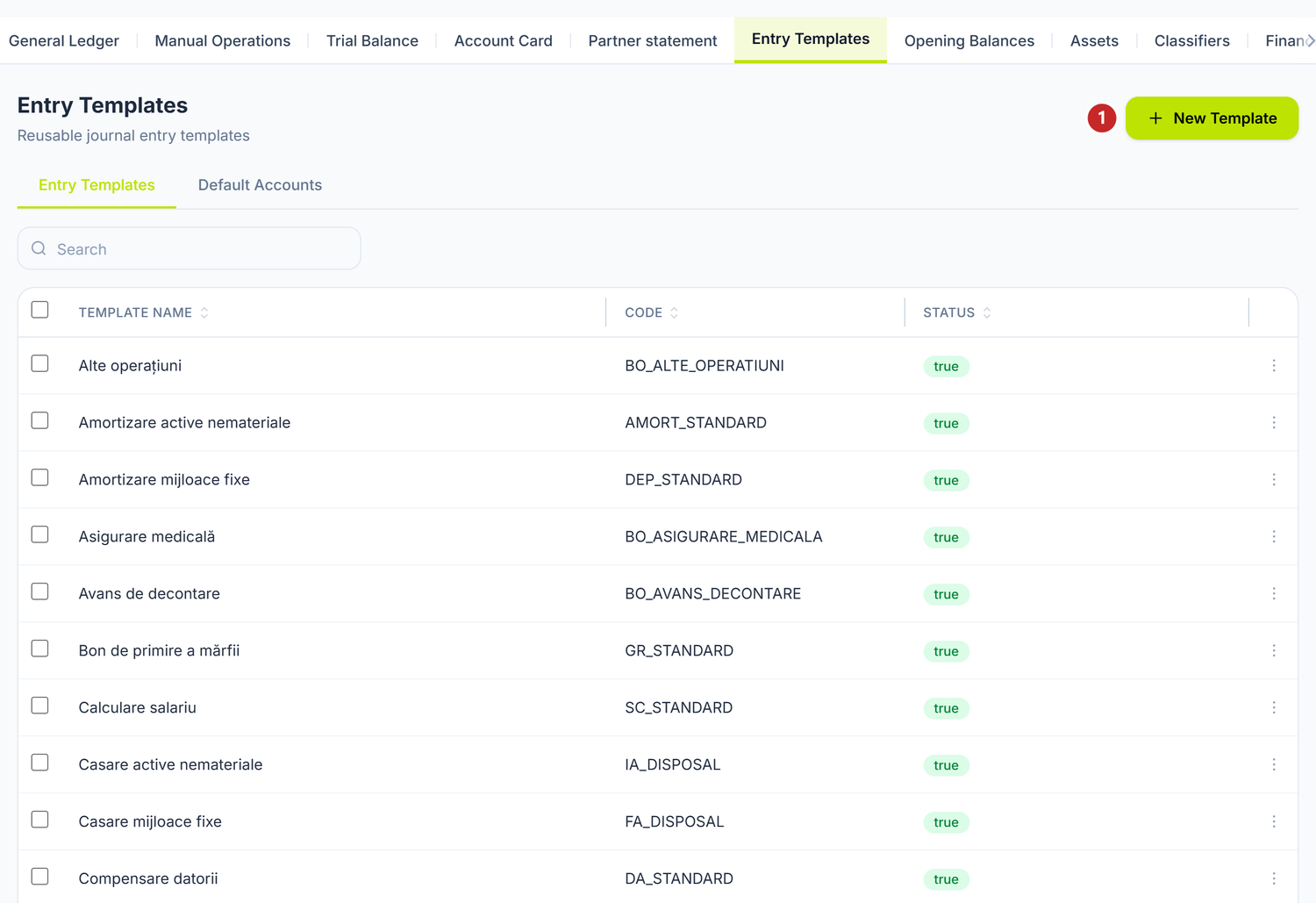
1 create a new template
The first tab is the list of shipped templates, with three columns: Template Name, Code and Status. The Status column prints the raw boolean — true on the active ones, false on the stopped ones. That is the raw value, not bad data.
The second tab, Default Accounts, is the one that matters: that is where you change the account the platform proposes for a given kind of document.
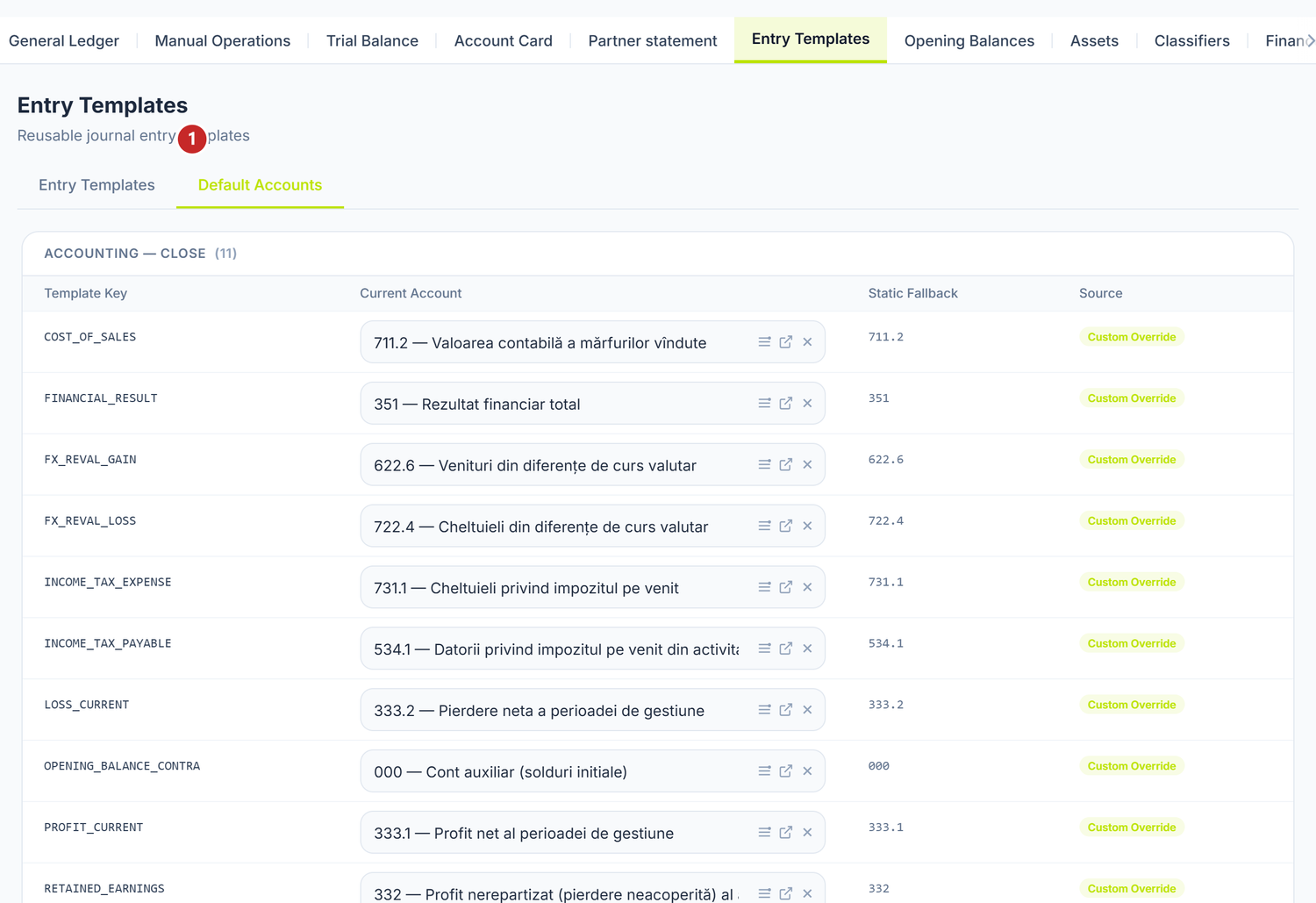
1 the Default Accounts tab
| Tab | What it configures | What it does NOT do |
|---|---|---|
| Entry Templates | Recipes with Dt/Ct lines on roles, which prefill Manual Operations — hand-written entries | Does not change the automatic posting of invoices, payments or salaries |
| Default Accounts | The account each kind of operation proposes: inventory, expense, income, cost, receivable, payable, VAT | Does not override the account picked on a specific document line |
Default Accounts sets the account each kind of operation proposes everywhere on the platform — that is where you change posting in general.
Entry templates additionally fill in the accounts in the header of a few documents when you open them: the supplier invoice reads the „Factură furnizor (achiziție)" template and takes its debit account, credit account and advance account from there.
Remember: on documents that read a template, the accounts filled into the header are the ones used at posting. So after you change a template, open a new document and look at the header before you post it — that is where you see the accounts it actually took.
You are not required to configure anything
Both tabs come prefilled with the standard accounts of the Moldovan plan. If your operations are ordinary — trade, simple services — the shipped values work as they are.
You touch them in two situations only:
- You use different analytical accounts from the shipped ones. Example: you keep goods on your own analytical code, not on
217.1. - You want fewer corrections per document. If you change the same account by hand on every third invoice, move it into Default Accounts.
The “Entry Templates” tab
The list
Every row is a template. The Code column shows the code of the posting rule the shipped template is tied to. Right-click a row for Edit and Delete; the New Template button in the header creates one from scratch.
The template form
The form has Template Name, Description and the list of Template Lines, with the Add line button above it. Each line has four fields:
| Field | Role |
|---|---|
| Role | The posting role — ties the line to a specific part of the rule (e.g. net, vat_input, vat_output, advance) |
| Debit Account | The account proposed on debit (may stay empty when the document decides it) |
| Credit Account | The account proposed on credit (same) |
| Description | Free text, so you understand what the line is for |
At the end of the line there are two buttons: duplicate the line and delete it.
The role is mandatory. A line with no role is ignored entirely. If you add a new line, always fill in the Role field — otherwise the line looks configured but produces nothing.
A template you create has no code. The form has no Code field — it only appears in the list, on the shipped templates. So a template of your own has no link to any posting rule; you use it by picking it by name from Template, in the manual operation form.
The “Active” switch appears only when editing. It does not exist on the form of a new template — a template is born active. To stop it, save it first, reopen it and only then you get the switch.
The shipped templates
POSfix installs 38 templates, one for each kind of everyday operation: invoices, goods receipt, returns, expense reports, cash orders, payment orders, salary calculation, depreciation, commissioning and disposal of fixed assets, exchange differences, plus the bank operation types.
Open the template before you use it. It proposes generic accounts, fit for the ordinary case — not for yours. Three examples that often need changing: the sales invoice (income from resold goods is not the same as income from own production), depreciation (the accumulated depreciation account depends on the asset group) and the return, which on this platform issues the same accounts as the original document with negative amounts, not reversed accounts.
What you see in the template is not what the document will do. Templates prefill manual operations only.
Templates also prefill hand-written entries
When you create a Manual Operation (Sidebar → Accounting → the Manual Operations tab), the form has a Template field. Pick a template and the Dt/Ct lines fill themselves — from there on you only adjust the amounts and the subconto.
The “Default Accounts” tab — this is where you change document posting
This is the tab the posting rules read. Every row ties a key — one concrete accounting situation — to an account. When you post a document, the rule asks for the account of the matching key and puts it on the entry.
The keys are grouped by module: Trade — Achiziții (purchases), Trade — Vânzări (sales), HR — Salarizare (payroll), CashBank — Bancă (bank), Inventory, Assets, Accounting — Close and others. The group headings come from the server and stay in Romanian in every language. A few example keys from the purchases group:
| Key | Which account it proposes | Shipped account |
|---|---|---|
TRADE_SUPPLIER_INVENTORY_GOODS | The stock debited when buying goods | 217.1 |
TRADE_SUPPLIER_EXPENSE_SERVICES | The expense debited when buying services | 713.8 |
TRADE_SUPPLIER_RAW_MATERIALS | The stock debited when buying materials | 211.1 |
TRADE_SUPPLIER_PAYABLE_LOCAL | The payable towards a domestic supplier | 521.1 |
The document picks the key, not you. It is decided by the Operation Type filled on the invoice: „Purchase of goods” asks for the stock key, „Purchase of services” asks for the expense key, „Purchase of materials” asks for the materials key. If an invoice lands on the wrong account, check the operation type first, then the key's account.
The table is grouped by module and has four columns:
| Column | What it shows |
|---|---|
| Template Key | The technical identifier of the account (e.g. the contra-account key for opening balances) |
| Current Account | The account actually used — you can change it straight from the list |
| Static Fallback | The value shipped with the product, which you fall back to if you clear the field |
| Source | Custom Override if you changed the account, Static Fallback if you use the shipped value |
On every row, at the end of the Current Account field, there are three small buttons: open the account list, open the selected account in a new tab, and ×, which clears the field.
You go back to the shipped value with ×. There is no “reset all” button. You clear the Current Account field for that key and POSfix falls back to the value in the Static Fallback column. The Source column goes back to Static Fallback. Saving is immediate — there is no confirmation button, you get a notification with the key and the account left in place.
What changes and what does not
| Element | Can it change? | Effect |
|---|---|---|
| The account on a template line | Yes, any time | Applies only to manual operations created from now on |
| Adding or deleting a template line | Yes | The line counts only if it has a role filled in |
| Deactivating a template | Yes, the Active switch — but only after the first save | The template stays in the list, but is no longer proposed |
| Deleting a template | Yes | Entries already issued are unaffected |
| An account in the Default Accounts tab | Yes | Applies to documents posted from now on. Clearing the field goes back to the shipped value |
| The account on an individual document | Yes, while filling in the document | Takes priority over any default value, for that document only |
The priority order at posting: the account on the document line beats the key's default account, and the default account beats the value shipped with the product.
An account change affects only the documents posted after it. Entries already issued stay unchanged — past accounting is not rewritten when you change a setting. To reflect the change on an old document, unpost it and post it again.
A practical example: a services company
Situation: SRL „Digital Pro" in Chișinău provides IT services. It has no goods — it buys hosting, licences and office supplies.
The problem: supplier invoices land on 217.1 Bunuri procurate în vederea revînzării (goods bought for resale), even though they are services.
The cause, in 90% of cases: the Operation Type on the invoice was left as „Purchase of goods”. Check that first — it is free and it solves the most common case.
- Open an invoice that landed wrong.
- Change the Operation Type to Purchase of services.
- Save and post. The debit becomes
713.8Alte cheltuieli administrative (other administrative expenses).
If you want a different expense account than 713.8 — for example your own analytical account for IT costs:
- Open Accounting → Entry Templates, the Default Accounts tab.
- In the Trade — Achiziții group, find the key
TRADE_SUPPLIER_EXPENSE_SERVICES. - Change the account in the Current Account column. The Source column switches to Custom Override.
From now on, every services invoice proposes your account. For office supplies, set the Operation Type Purchase of materials on that document, which brings 211.1.
The account on the document has the last word. Whatever the default value is, you can pick another account on each line. The global setting gives the starting point, it does not impose it.
Troubleshooting
| Symptom | Likely cause | Fix |
|---|---|---|
| The document posts to the wrong accounts | Wrong operation type on the document | Correct the Operation Type, then the key in Default Accounts |
| I changed the account in the template, but invoices still land on the old one | Templates do not touch document posting | Change the matching key in the Default Accounts tab |
| A line I added to a template produces nothing | The line has no role filled in | Fill in the Role field |
| Posting raises a missing-account error | Neither the document nor the default key has an account | Fill in the account on the document line or in Default Accounts |
| Posting is refused with a locked-account message | The proposed account was locked or deactivated | Unlock it from the chart of accounts or pick another one |
| Old documents have different accounts from new ones | The change only affects future documents | Normal and correct behaviour |
Frequently asked questions
I changed the account in the template and invoices still land on the old one. Why?
Because templates prefill manual operations only. Posting of invoices, payments and salaries comes from the Default Accounts tab. Find the matching key there and change the account.
Can I have several templates for the same document type?
You can create as many as you like, but the manual operation form proposes a single template — the one you pick yourself in the Template field. For different accounts on similar documents, change the account directly on that document.
What happens if I lock an account used in posting?
Posting a document that lands on that account is refused, with an explicit message. Entries already issued are unaffected. Unlock the account from the chart of accounts or pick another one.
Can I reset the templates to their initial values?
For the Default Accounts tab, yes: clear the field and it goes back to the shipped value. For entry templates there is no global reset button — you delete the changed template and rebuild it, or fix the lines by hand.
Do the settings affect corrections?
A correction made by unposting and posting again uses the current default values. A correction made through a new document with negative values uses that document's accounts.
Do I have to configure anything before I start working?
No. Both tabs come prefilled. Start working and customise as you see which accounts you keep changing on documents.
What happens if I have two bank accounts?
You change nothing. The specific bank account lands on the entry line as subconto, and the bank operation takes it from the document itself. The default value only sets the synthetic account (242.1 for lei, 243.1 for foreign currency).
Can I see every configured account in one place?
Yes, the Default Accounts tab shows them all, grouped by module, with the current value and the shipped one side by side. Manual operation recipes open one at a time, from the Entry Templates tab.
How do these settings affect reports?
Indirectly. They decide which accounts the entries are generated on; reports read the entries. A wrong default account, left uncorrected on the document, leads to entries on wrong accounts and to wrong reports.
Links to other documents
Default accounts tie the chart of accounts to operational documents:
- The chart of accounts — the accounts you can pick
- Posting rules — how the automatic rules use default accounts
- The general journal — where the generated entries land
- Opening balances — balances are entered on the same accounts