Purchase orders
The purchase order keeps track of what you asked a supplier for and has not arrived yet. Until the goods come, the ordered quantity shows as already ordered on What to order, so you do not order it a second time.
The order makes no accounting entries and does not move stock. The goods enter stock through the supplier invoice with a receipt, which you start from the order.
Where to find it: Sidebar → Purchases → Purchase orders tab
To make an order
- Purchases → Purchase orders tab → New purchase order.
- Choose the supplier. Their email fills in from the partner card; you can change it. The email is required even if you never send the order: if the card has none, write it here.
- Choose the Receiving warehouse and, if you like, the Wanted delivery.
- Add the products — one by one or with Add from nomenclature —, with the quantity and the price you expect.
- Save. The order stays a Draft until you send it.
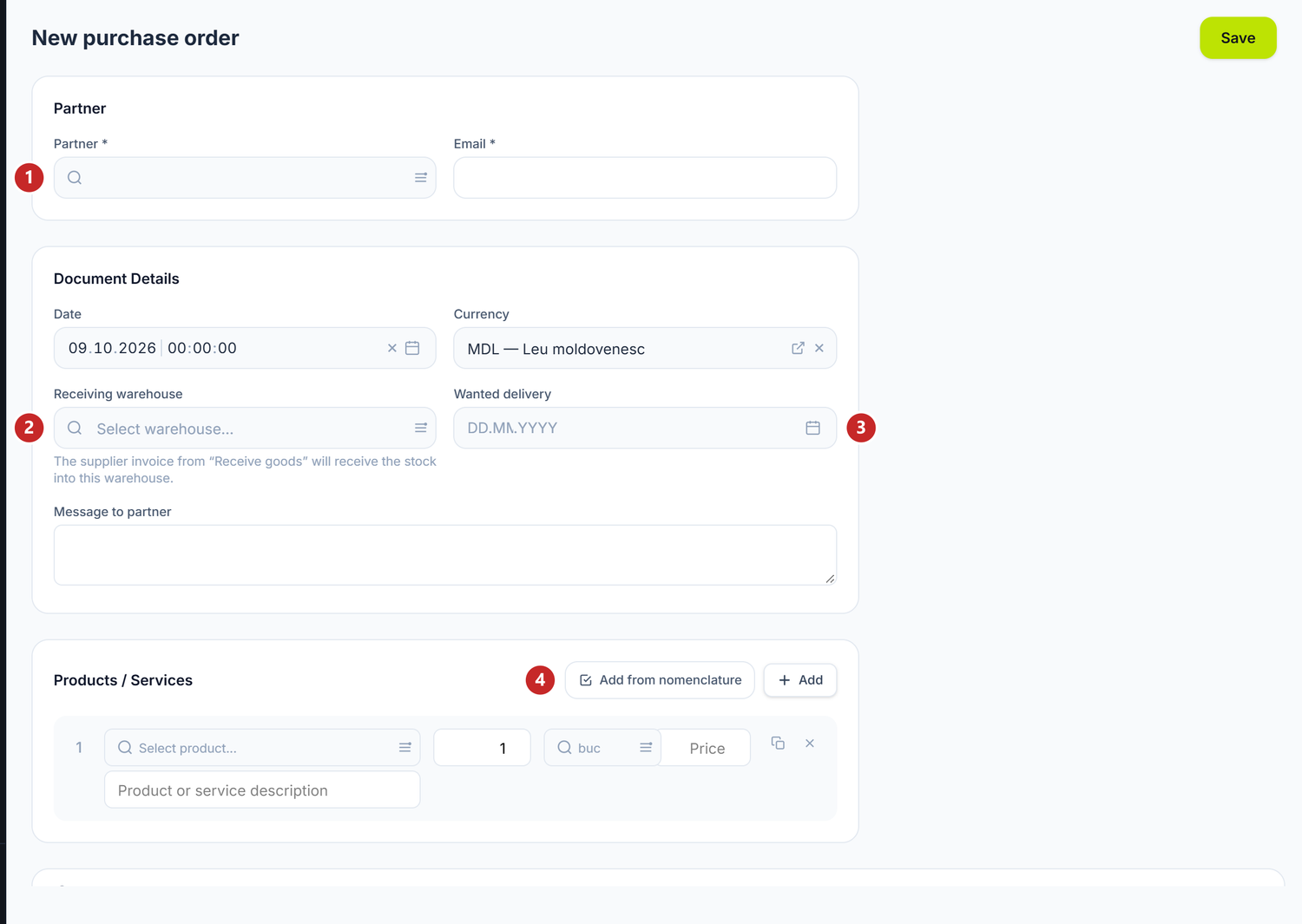
1 the supplier · 2 the warehouse that receives the goods · 3 the wanted delivery · 4 add products from the nomenclature
The warehouse is not just a note: the supplier invoice started from the order gets its receipt in it. The price on the line is yours, an estimate; under the lines you see the Estimated total.
You can also make orders in one go: on What to order you tick the products and Create orders makes a draft for each supplier.
Sending to the supplier
Send to Partner goes to the supplier by email or, if they also work in POSfix, directly through the platform. The supplier gets a form with the products requested, fills in their prices and bank account, then confirms or declines. The order moves to Sent, then to Confirmed or Declined. Sent by email and left without an answer until the deadline, it becomes Expired: the supplier's link no longer works.
A confirmed order gets Create Payment Order — the order comes filled in with the details sent by the supplier.
Sending is not mandatory. If you ordered by phone, you receive the goods straight from the draft.
To receive the goods
- Open the order and press Receive goods.
- A new supplier invoice opens, with the supplier, the warehouse and the lines taken from the order.
- On each line write what actually came — not what you ordered.
- Save and post the invoice, as usual.
On the invoice, the Filled in from order box shows for each line Ordered, Received before, On this invoice and Remaining. The goods count as received when you post the invoice, not when you save it. If you cancel the posting, the quantity goes back to "already ordered".
An invoice linked by mistake is unlinked with Remove the link to the order.
The states of an order
After the first invoice, the order changes its state on its own:
- Partially received — part of the goods came; the rest is still "already ordered".
- Received — everything came.
- Closed — you closed the remainder that is not coming.
On the order, Receiving the goods says the same thing in words and lists the invoices the goods came with.
To close the remainder of an order
When the supplier is not bringing what is missing, you do not delete the order and you do not wait forever:
- Open the order or its menu in the list.
- Choose Close the remainder and confirm.
What did not come is no longer expected and no longer shows as "already ordered" on What to order. The invoices already received stay as they are.
Related pages
- What to order — where orders come from and where "already ordered" matters
- Supplier invoices — the document the goods come in with
- Payment orders — paying a confirmed order