Invoice recognition — my item list
My item list is the list of goods from the software where you keep your stock (1C or another), brought into POSfix. Recognised invoice lines are matched to it, and you download the reviewed invoice for your software, with its codes.
The list is not the POSfix catalog and it does not move stock: it creates no products in Nomenclature and makes no receipt. If you keep your stock in POSfix, lines are linked to POSfix products, as on the supplier invoice.
Where to find it: Sidebar → Invoice recognition → My item list tab
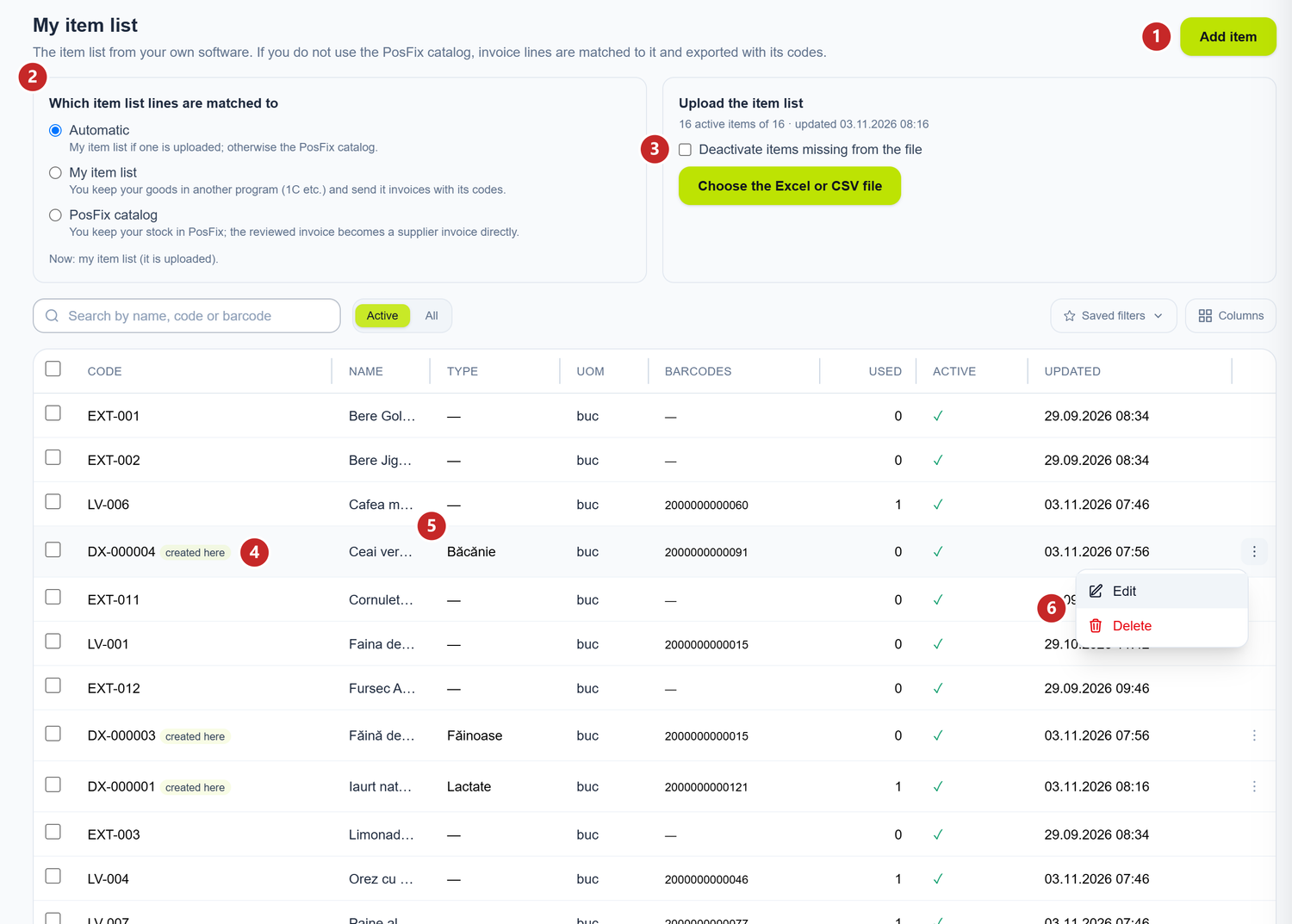
1 add an item · 2 which item list the lines are matched to · 3 uploading from a file and the deactivation box · 4 an item created here · 5 the item type · 6 the menu of an item created here
Which item list the lines are matched to
The top-left card decides where POSfix looks for the item of each recognised line:
- Automatic — your list, if you have uploaded one; otherwise the POSfix catalog. Under the options it says which one is in use now.
- My item list — always your list. This is the choice when you keep your goods in another program.
- PosFix catalog — lines are linked to POSfix products, and the reviewed invoice becomes a supplier invoice directly.
Only someone with admin rights on Invoice recognition can change the choice. Everyone else sees the options but cannot select them.
To add an item
For goods your software does not have yet, you create the item right here. POSfix gives it the code, and your software takes it over from the export file.
- Invoice recognition → My item list tab → Add item.
- Type the Name — the only required field.
- Under Item type, pick a type already used in your company or type a new one.
- Fill in Unit and, if the goods have them, Barcodes — several, separated by commas.
- Save.
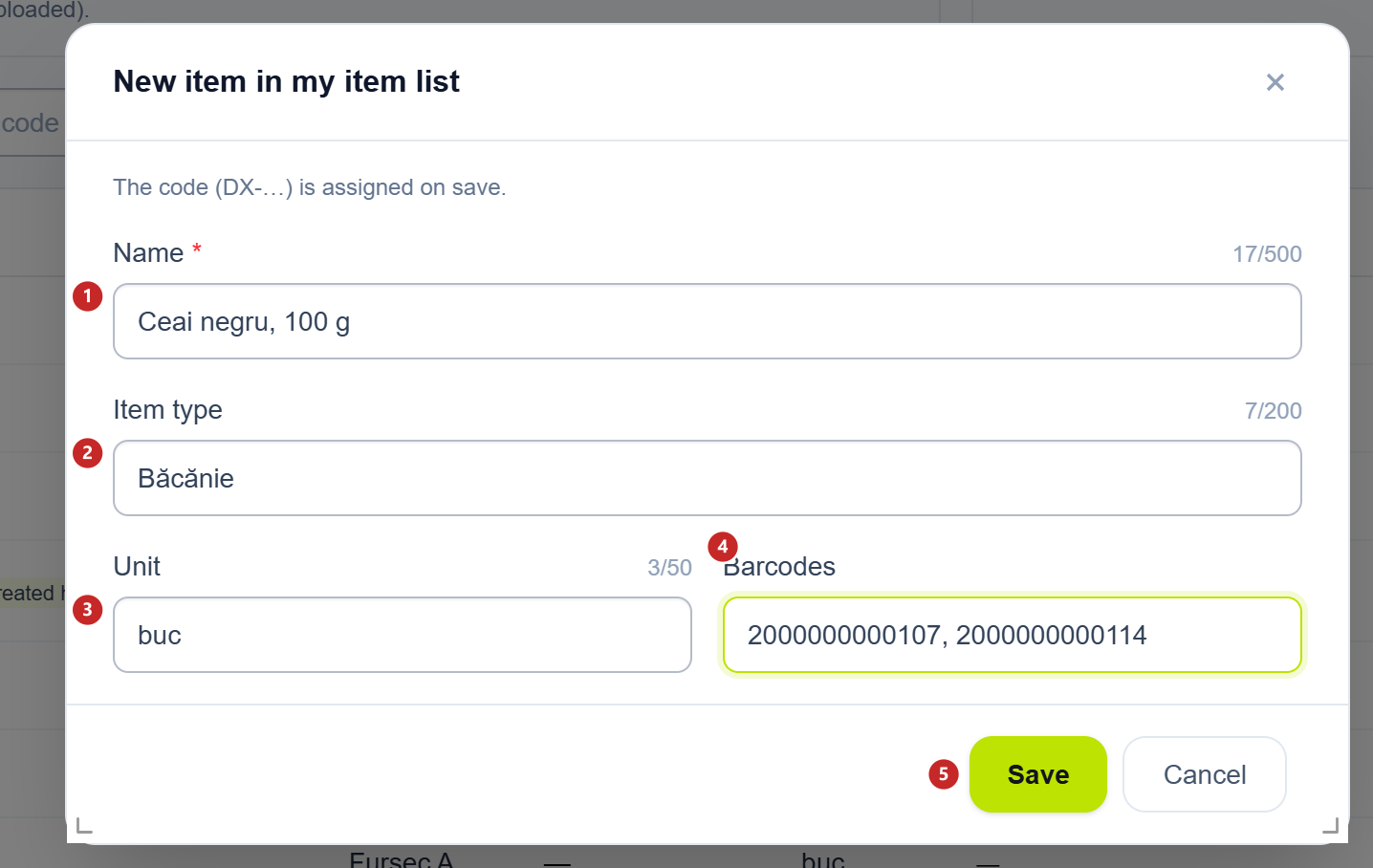
1 the name · 2 the type, picked from the list or typed by you · 3 the unit · 4 the barcodes · 5 saving
The code is assigned on save, in order: DX-000001, DX-000002 and so on. You do not type it and it never changes. In the list the item shows the created here badge, and its type sits in the Type column.
The type is free text on the item, not a separate list to maintain. The list you pick from builds itself from the types already used in your company.
What you can change in the list
On an item created here, a right-click on the row or the ⋮ at its end opens Edit and Delete. Editing keeps the same code.
Items that came from your software, from a file or through the API, have no such menu. You change them in your software, then upload the list again.
Deleting removes the item from the list. Invoices already reviewed keep their link to its code.
Used shows how many times the item was chosen on reviewed invoices. An item deactivated by an import shows as retired in the Active column and appears only under the All filter.
To upload the list from your software
- Export the item list from your software to Excel (
.xlsx) or CSV. - My item list → Choose the Excel or CSV file.
- Read the result under the button: how many items were added, updated, left unchanged or deactivated.
Columns are recognised by their title, in Romanian, Russian or English. Only Code and Name are required. You can add Unit, Barcode and Type, the item type; in 1C that column is usually called Вид.
The column order does not matter. The header row can be any of the first 10, so the rows your software puts above the table do not get in the way.
The code is the key: on the second upload, the item with the same code is updated, not duplicated. A wrong row is skipped and listed under the result, and the rest of the file goes in. A CSV file is read only in UTF-8 encoding.
| Switch | What changes when you tick it | If you leave it unticked |
|---|---|---|
| Deactivate items missing from the file | Items from your software that are no longer in the file become retired. They are not deleted: older invoices keep their codes | The file only adds and updates. Whatever is missing from it stays active |
The box never touches items created here: they do not come from the file, so their absence from it means nothing. Likewise, if your software has taken over a DX- item and sends it back in the file, POSfix leaves it untouched: you change it here, with Edit.
If your software keeps the list up to date through the API, instead of the upload button you see a note that the item list is synced from there. You do not upload files then, but you can still add items here.
To link invoice lines to your item list
Invoices reach the Documents tab: you drop them on Drop your invoices here or choose the files or press Choose files. Photos and PDFs work, one invoice per file. When recognition is done, the invoice appears in the list.
- Open the invoice from the Documents tab with a click. When matching runs on your list, the title is followed by Matching on my item list.
- Pick the line on the right. Under its figures there are three buttons: Link, Create and Skip.
- On Link, choose the item from the suggestions or search your whole list under Or search another product.
- Once every line is decided, Save review.
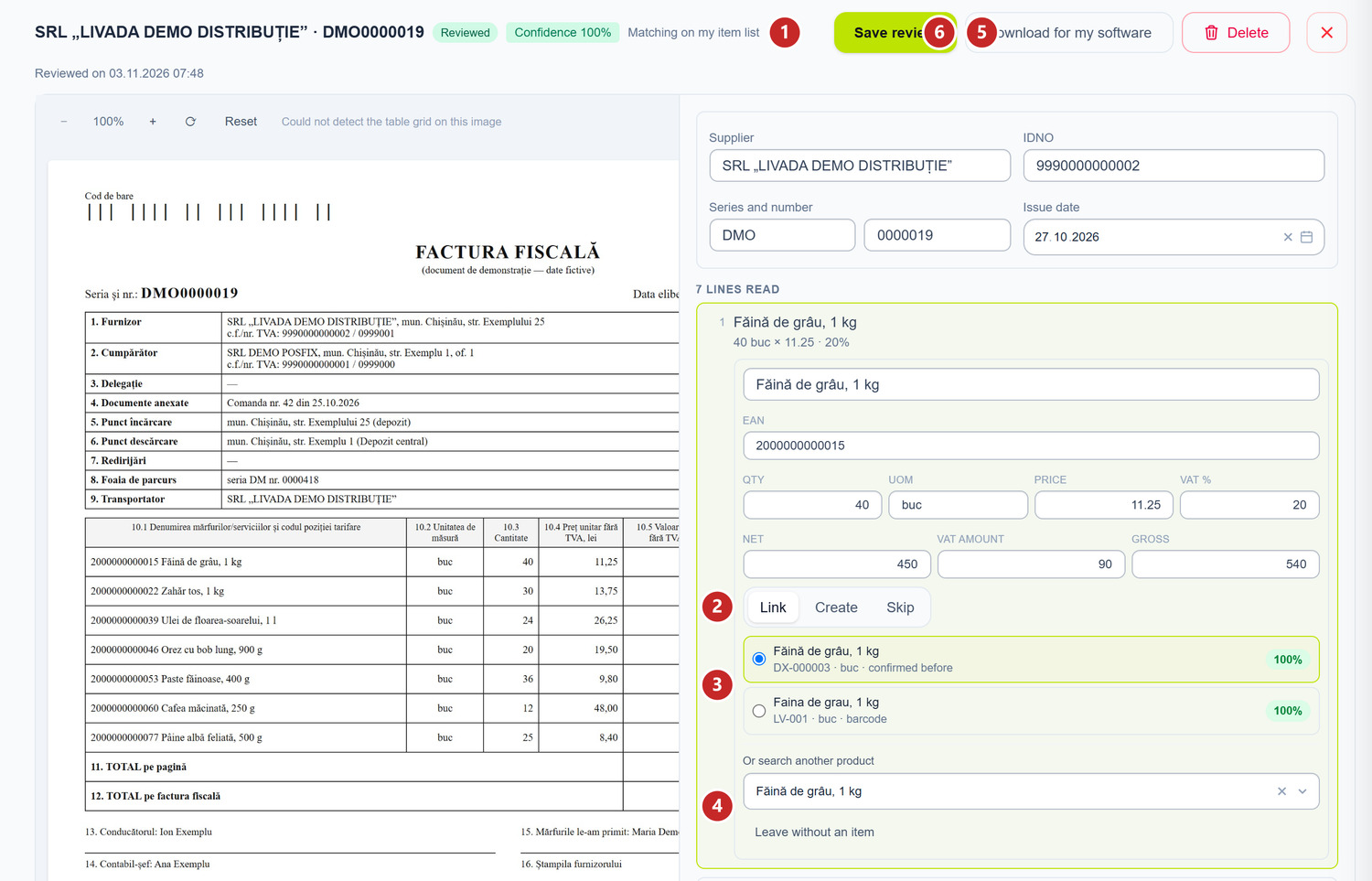
1 the item list the lines are matched to · 2 what you do with the line · 3 the suggestions, with the match percentage · 4 searching the whole list · 5 saving the review · 6 the file for your software
Suggestions come in order of confidence: first what you already confirmed for the same supplier (confirmed before), then the barcode, then the name. On an invoice not yet reviewed, a sure suggestion is ticked in advance. One found only by name, with a low percentage, waits for your choice.
If the unit in your list differs from the one on the invoice, the suggestion says so. POSfix does not convert units, so check the quantity before you save.
Leave without an item removes the choice from the line. Below the lines you see how many are still without an item.
Skip leaves the line without an item, as a decision, and no longer counts it among the lines without an item. You can link it later, when you reopen the card.
To create the item straight from the invoice
When the goods on the line are not in your list yet, you do not add them separately in the tab: you create the item from the line.
- On the line, Create.
- Check the Name. It comes filled in from the invoice, like Unit and Barcode.
- Pick or type the Item type.
- Save review.
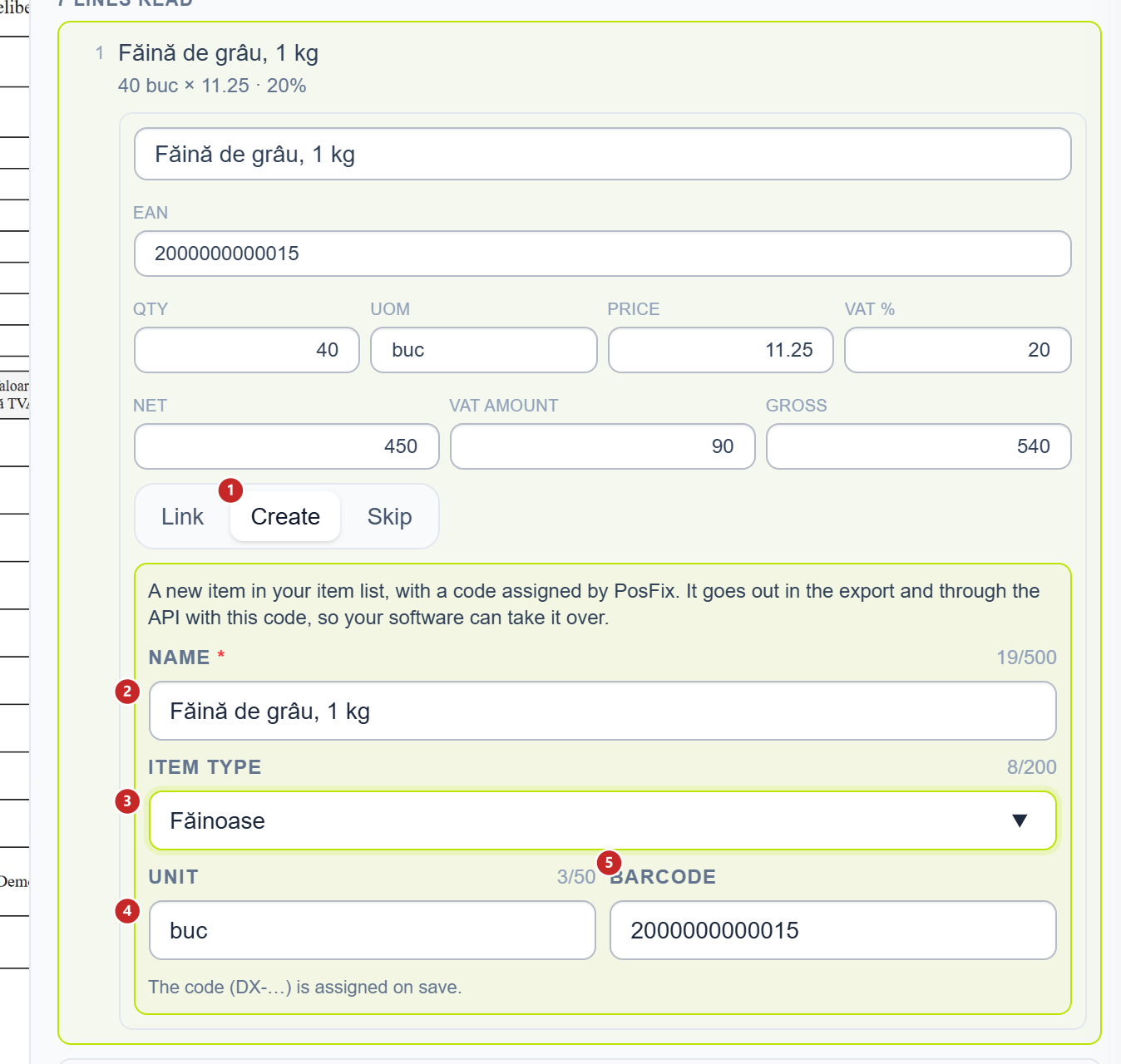
1 create the item from the line · 2 the name, taken from the invoice · 3 the type · 4 the unit · 5 the barcode
The item is created only when you save the card, not when you press Create. The card is saved by Save review and also by Download for my software, which saves before it downloads.
On save, the item gets the next DX- code, the line is linked to it, and it shows in the list as created here. Until then, the line summary reads will be created. If you close the card without saving, nothing is created.
Saving the same card a second time does not create the item again: the line is already linked to its code.
To download the invoice for your software
Download for my software saves the review first, then downloads an Excel file. At the top is the invoice header: the supplier, IDNO, series, number, dates and totals. Below it there is one row per line, with the item code from your list.
The line columns have a fixed order, so an import set up once in your software keeps working next month. The column titles in the file are in Romanian: Nr., Cod poziție, Poziție din nomenclator, Denumire pe factură, Cod de bare, UM pe factură, UM în nomenclator, Cantitate, Preț fără TVA, Cota TVA, %, Valoare fără TVA, Suma TVA, Valoare cu TVA and Tip nomenclator.
Tip nomenclator is the item type. New columns are only ever added at the end, so an import set up by column number does not have to be redone.
Items created here go out with their DX- code, so your software can take them over as new goods.
Learned matches
Below the list, the folded Learned matches section keeps the matches confirmed during review, for each supplier. Thanks to them, the next invoice from the same supplier links by itself. You remove a wrong match from the row menu, with Forget.
What can trip you up
- "The CSV is not saved as UTF-8, so letters would be garbled." Your software saved the file in another encoding. Save it as "CSV UTF-8" or upload it as Excel (
.xlsx). - "The "Code" and "Name" columns were not found…" The file has no recognised titles. Put the titles Code and Name above the columns and upload it again.
- I renamed a
DX-item in my software, but POSfix still shows the old name. Items created here are not rewritten from the file. Change it with Edit. - I pressed Create, but the item is not in the list. It is created only when the card is saved.
- I ticked "Deactivate…", and the items created here stayed active. That is how it should be: the box only concerns items from your software.
- Add item and Choose the Excel or CSV file are grey. You have no write rights on Invoice recognition. The company owner or manager grants them, in the team's rights.
Related pages
- Supplier invoices — recognition on the POSfix catalog, with the supplier invoice filled in
- Moving around the interface — where Invoice recognition sits in the menu