Bank operations
A transfer from a customer, a payment to a supplier, a move between your own accounts — the bank operation is the document that brings them into POSfix. It sends nothing to the bank: the money has already moved, you are only recording the movement. The journal entry and the account balance start from here.
Where to find it: Sidebar → Money → the Bank Operations tab
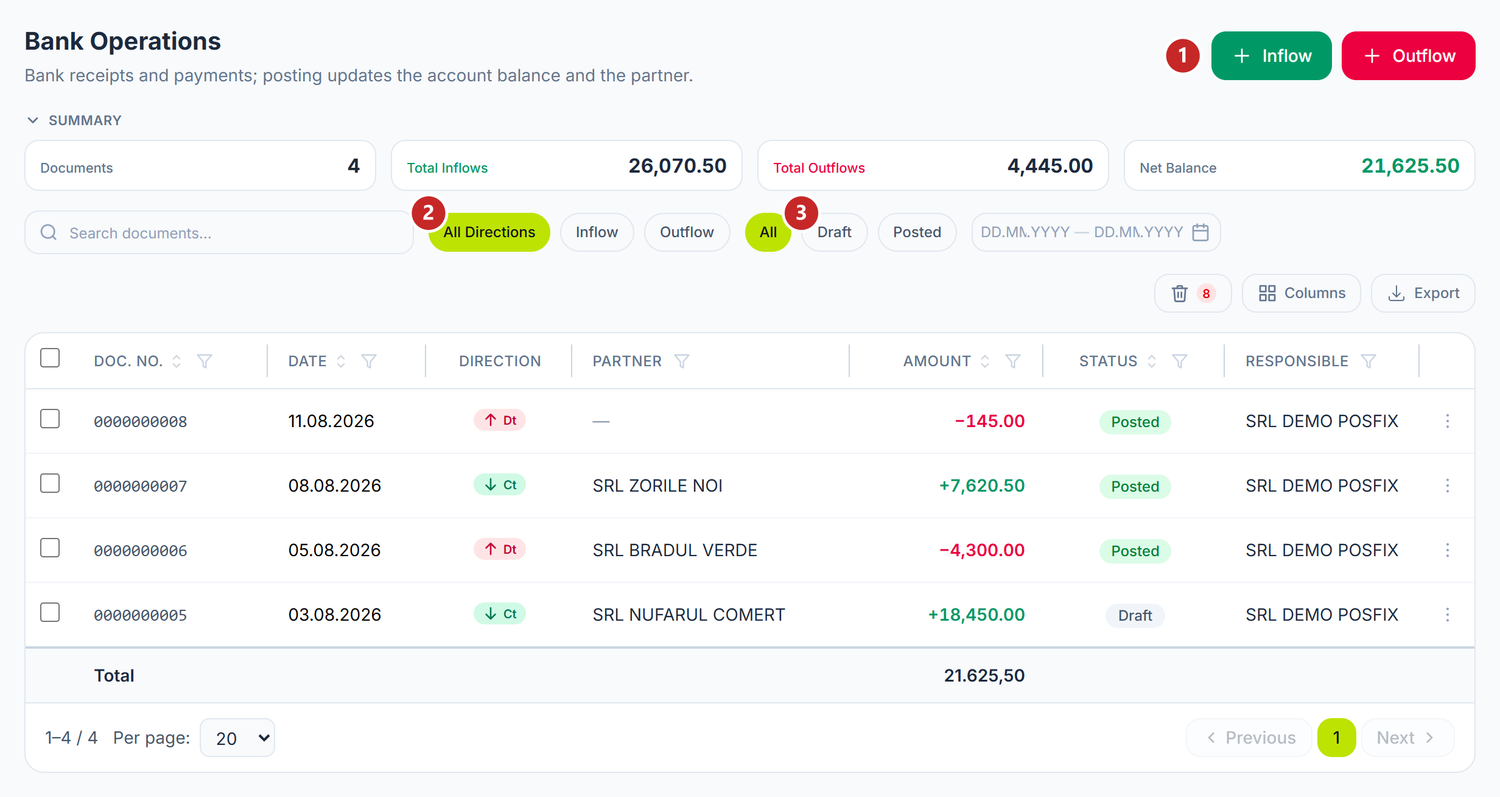
1 the Inflow button · 2 the direction filter · 3 the status filter · 4 search by number
The four figures in Summary — documents, inflows, outflows and net balance — are computed on the filtered set, date range included. They tell you what moved through the filters you have on now, not across the whole month. The Total row in the table shows the net balance, not the gross sum of the column.
Watch out for one difference that surprises people: Summary counts drafts too, because it counts the documents in the list. The account balance, on the Bank Accounts page, does not. If the two figures don't match, the difference is usually exactly the total of the documents left in Draft.
Right-clicking a row opens the menu with View, Post, Unpost, Pin to Dashboard and Delete. From the top bar, Export downloads exactly the list on screen, Columns picks what you see in the table, and the bin icon moves you to the deleted documents. The figure next to the bin counts how many there are.
To record an operation
- Money → the Bank Operations tab → Inflow or Outflow.
- A new tab opens, and the direction stays fixed there — you can no longer flip it from the form.
- Choose the Operation Type. Do it first, because the whole rest of the form hangs on it.
- Check the Date, the Bank Account and the Amount.
- Choose the partner. Their default bank account fills itself in.
- Spread the amount in Allocate to documents, if the section appears.
- Save, then Post.
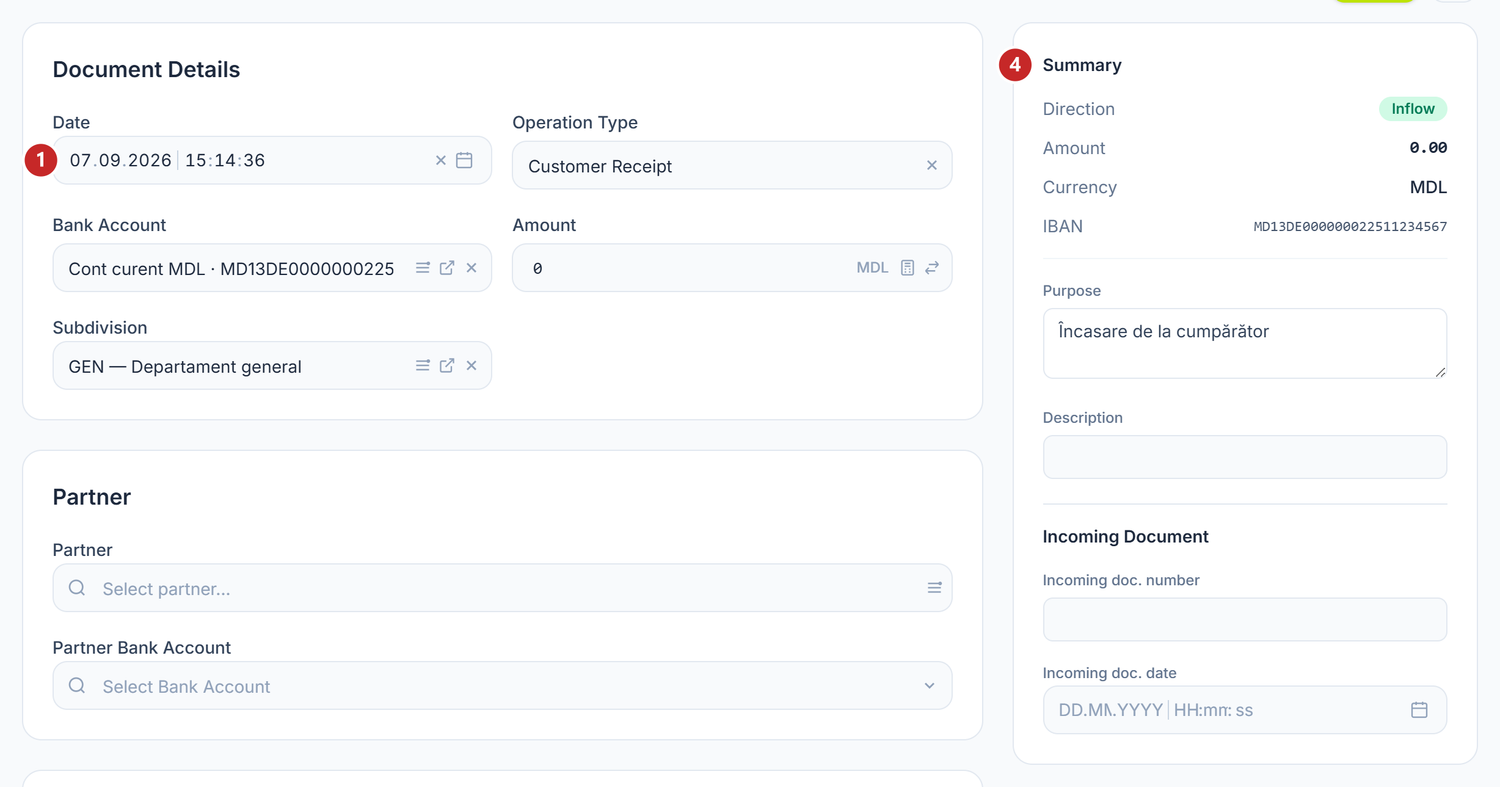
1 the date · 2 the operation type · 3 the subdivision · 4 the document summary
Save leaves the document in Draft, and a draft moves no balance — you can keep it that way as long as you need. The journal entry and the balance appear only at Post, which moves the document into Posted.
Bank Account is required and brings the currency and the IBAN with it. The Date has to fall between the years 2000 and 2100, so a mistyped year is rejected at save.
On a foreign-currency account you enter the amount in that currency, not in lei, and the day's rate is picked up automatically.
Purpose writes itself from the partner, the contract and the invoice, but it stops the moment you edit it. If you then change the partner, the text stays the one you wrote. On Internal Transfer, Cash to Bank Deposit and Bank to Cash Withdrawal the field isn't on the form at all, so you write the reason for the internal transfer in Description.
What you write in Description stays on the document and goes nowhere — it is the place for your own notes or for the accountant. The Incoming Document field disappears on transfers, salaries, dividends and advances to accountable persons; it isn't missing by mistake, there is simply nothing for it to link to there.
The rest fills itself in from the company settings: Subdivision comes from the organisation's default value and applies to both legs of the entry, while Responsible can only be changed by the Owner.
The operation type
The type is the most important field on the form: it decides what fields you see, what accounts are proposed and what cash-flow item is filled in. That's why it deserves to be chosen before any other field.
The list differs by the direction you opened the document with. On Outflow you have thirteen types: Supplier Payment, Salary Payment, Tax Payment, Rent Payment, Dividend Payment, Loan Repayment, Social Contribution, Medical Insurance, Advance to accountable person, Bank commission, Cash to Bank Deposit, Internal Transfer and Other Operations.
On Inflow there are nine: Customer Receipt, Return from accountable person, Card settlement, Retail cash collection, Service Receipt, Loan Receipt, Bank to Cash Withdrawal, Internal Transfer and Other Operations.
Advance to accountable person and Return from accountable person need the Employee — the holder you will settle in the advance report.
On transfers, salaries, taxes and contributions the partner disappears from the form. It isn't a defect — there is nobody to do the operation with there.
Card settlement adds the Card settlement (acquiring) block, and there the Amount is the net received from the bank, that is, the amount the commission has already been withheld from. The block has three fields, but only one is written: Gross amount. Net deposited repeats the amount from the header, and Fee comes out on its own, as the difference between gross and net — both are read-only. You fill in the gross on a partial settlement; if you leave it empty, it is taken at posting from the acquirer's balance.
The block appears only after you choose the type — until then the form doesn't even show it. Of its three fields you fill in at most Gross amount, and only on a partial settlement; left empty, the gross is taken at posting from the acquirer's balance, exactly as it says under the field. Net deposited and Fee stay greyed out: they are computed from the Amount above and from the gross. The text under the block title tells you plainly which account receives each piece.
The Summary panel on the right isn't only for reading. At the top it shows the direction of the operation and the IBAN of the chosen account — the place where you check at a glance that you haven't hit the wrong bank account. At the bottom, though, you fill things in: the Purpose of the payment, which the panel proposes itself from the partner and the document but which you can rewrite, then the Description and the number plus date of the incoming document.
Salary Payment replaces the partner with Employee, and the allocation is then done on payroll orders.
Salary Payment replaces the partner with Employee and brings, instead of the invoice grid, the Allocate on payroll orders section. There you pick the payroll orders the transfer settles, with the period, the number of employees and the balance left on each. The list comes per organisation, not per partner, and the amount has to be allocated in full — otherwise the red Unallocated (the whole transfer must be allocated across payroll orders) label stays.
The partner and the accounts
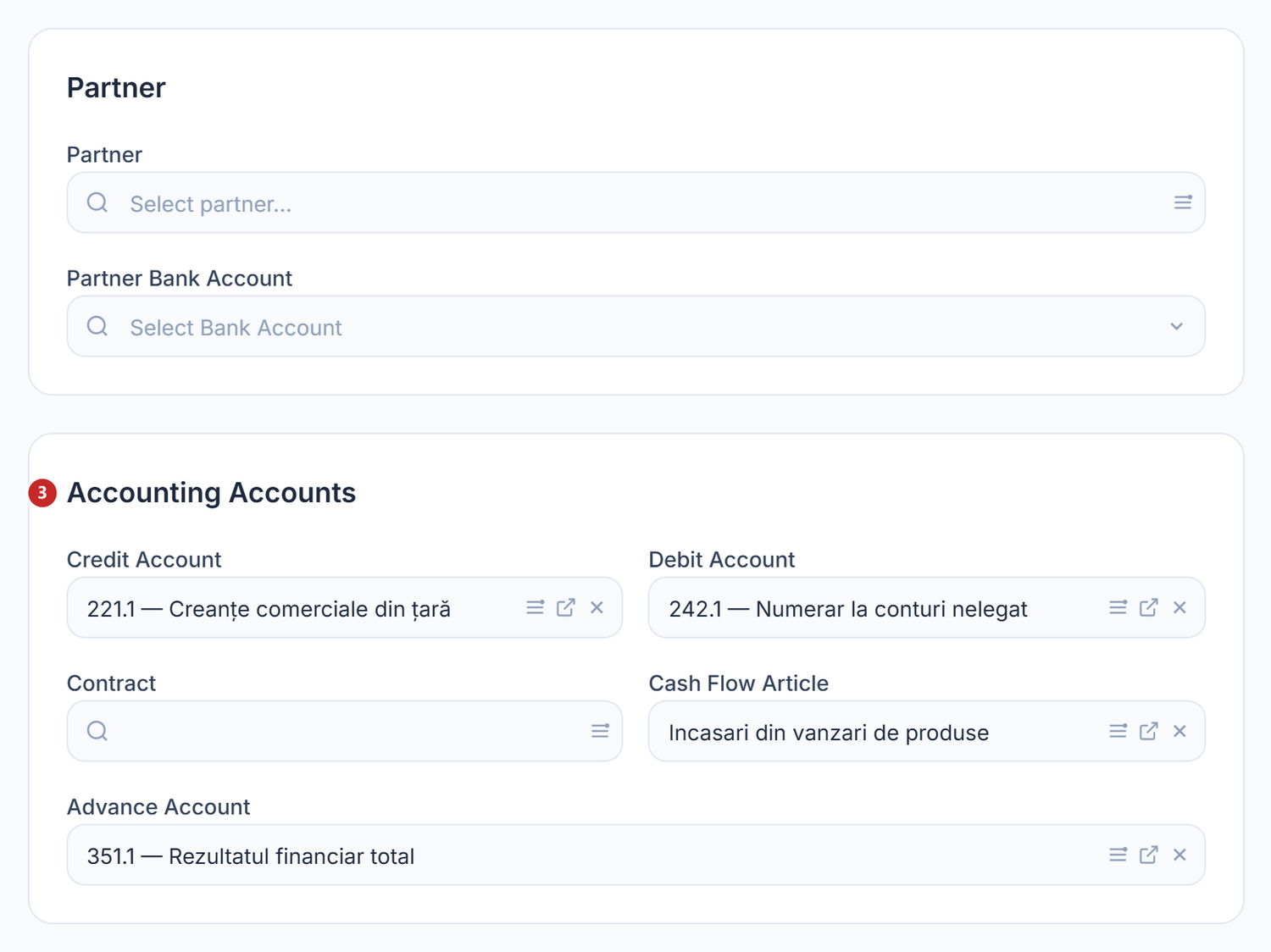
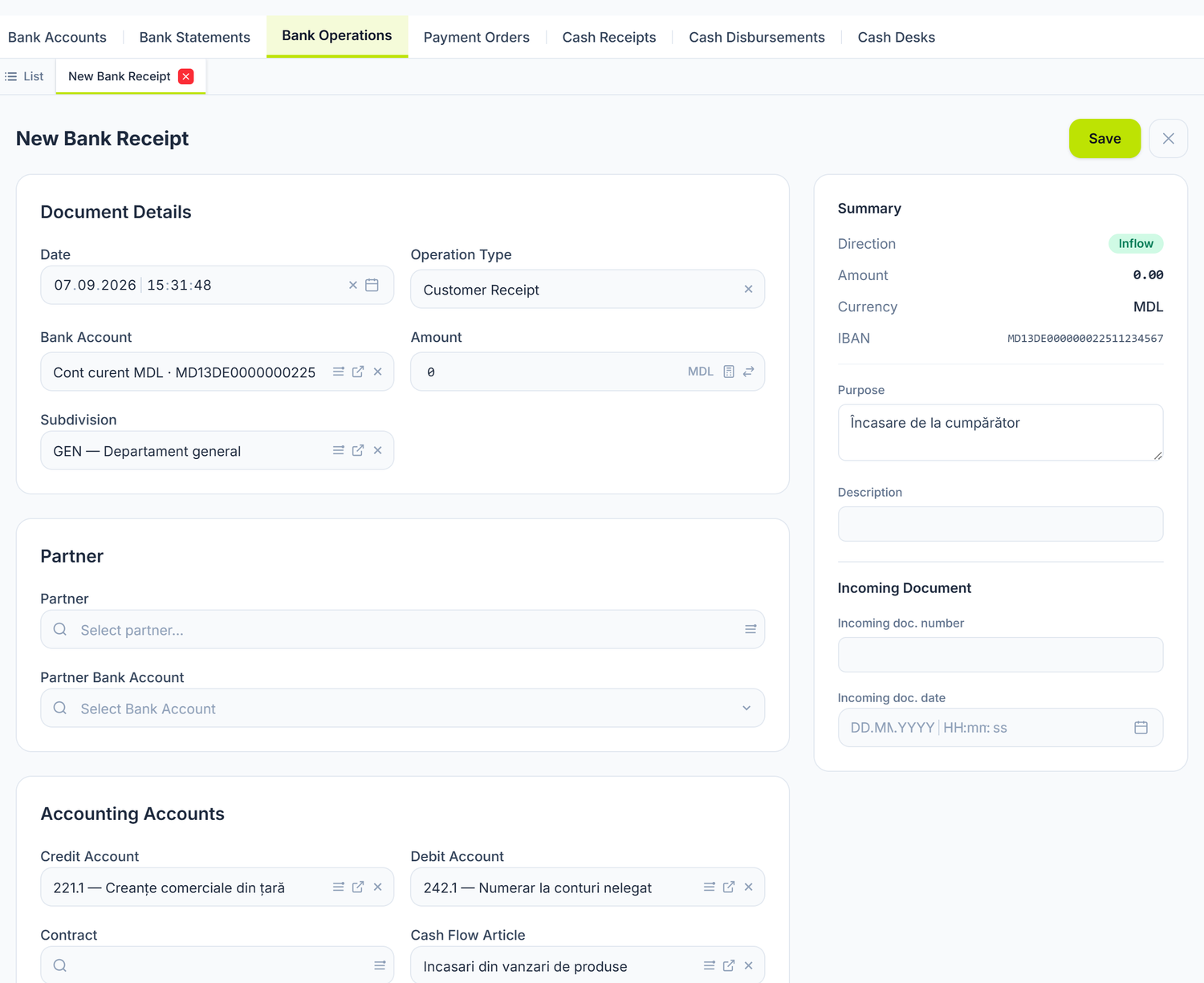
1 the partner · 2 their bank account · 3 the GL accounts
Once the partner is chosen, they load their bank accounts, contracts and open invoices, and from here on the form works with their data. Partner Bank Account is the beneficiary's IBAN, proposed from their default account.
Contracts are filtered on them and on the direction too, and the text of the chosen contract goes into the purpose. Cash Flow Article is the only field in the block that has nothing to do with the partner: it classifies the movement in the cash flow statement and stays empty on transfers, where the money only changes place.
Below, Cost Article and Product Category may appear, but only when the debit account is an expense account — they fill the analytics that account requires. On most operations you won't see them at all.
The bank account comes from the chosen bank account, and the counterpart from the operation type. Both can be changed, if the situation calls for it.
On Supplier Payment, Rent Payment and Customer Receipt the counterpart is given by the type and the allocation. What you write there in Accounting Accounts isn't used: the field lets itself be filled in and gives no error, but the entry comes out on something else.
The "Advance Account" field has no effect. You only see it on Supplier Payment and on Customer
Receipt; on Rent Payment it doesn't appear, although the uncovered remainder settles onto an
advance there too. It saves quietly, but posting ignores it: on a payment it goes to 224.3, on a
receipt to 523.1, whatever you put there. If you need a different advance account, you put it in
through a separate journal entry.
On Outflow, the panel puts the same account on both debit and credit. The entry passes without an error and moves nothing. On Inflow, it proposes 245, which is a group account and doesn't carry the cash-flow item. Put the transit analytical account — 245.1 — on both documents, before posting.
Allocation to documents
The allocation ties the money to the partner's open invoices, so you can see what has been settled and what is still left to pay. The section appears on any inflow, and on payments only on Supplier Payment.
The grid shows the document type, the number, the date, the Open balance column and the column where you write the Allocated amount, and at the bottom you have the Total allocated row. Allocate remainder fills one row up to the amount left.
Overdue invoices carry the red Overdue badge, and next to the ones that came out of a bill to pay it discreetly says "· from payment request", so you know where the document comes from.
You are not obliged to allocate everything. What stays unallocated becomes an advance, and the amber Remaining to advance label only tells you where the money went. The red Over-allocated label is something else and has to be resolved: you have spread more than the document's amount, and posting will fail.
The section talks to you when it is empty, too. Select a partner to allocate means you haven't chosen the partner yet; Partner has no open documents means they are chosen, but have nothing to settle.
An inflow with no allocation at all stays entirely an advance and settles no invoice. If you see the invoice still open after you have received the money, this is where it comes from.
Multiple operations
A single transfer can cover several things at once. Switch to multi-line operations breaks the document into lines, each with its own accounts.
The Accounting Accounts card disappears, and in its place comes the Operations card, with Add Operation at the top and, on each line, the duplicate and delete buttons. The line has Amount, Debit Account, Credit Account, Cash Flow Article and Description. On Supplier Payment, instead of the credit account you have Supplier invoice — you pick the document, not the account. If the debit is an expense account, the line also asks for Cost Article and Product Category; otherwise it shows Contract and, on the types with advances, Advance Account.
The amount in the header becomes read-only and shows the total of the lines, which has to match it. No automatic split between debt and advance happens here — you distribute it yourself, across the lines.
The way back is Switch to single operation, at the top of the card. The first line moves up into the header, the rest are lost, so check what you wrote before pressing it.
The toggles
| Toggle | What changes when you turn it on | If you leave it off |
|---|---|---|
| Trash | You see only the deleted documents, and only Restore is left in the menu | You see only the active documents |
| Switch to multi-line operations | Amount becomes read-only and the line table appears, each line with its own accounts | The document stays on a single line |
What can trip you up
- “Pentru operațiunile «Alte Operațiuni» (plată) alegeți explicit contul debit." (on "Other Operations" payments, pick the debit account explicitly) — no account is proposed on this type, so you choose it yourself.
- “Data operațiunii este obligatorie și trebuie să fie o dată validă." (the operation date is required and must be a valid date) — retype the date in the Date field.
- “Suma brută nu poate fi mai mică decât suma netă depusă." (the gross amount cannot be lower than the net deposited) — the gross includes the commission, so either raise it, or empty the field and let the panel compute it.
- “sum of Lines.Amount … does not match header Amount" — you are on multiple operations: fix the lines until their total matches the header.
- “Period … not open" — the period is closed. Either reopen it, or move the document date into an open one.
- “Linia #1 Ct … lipsește Subconto3 [Nomenclator]" (line #1 Cr … is missing Subconto3 [Nomenclature]) — the account you asked for has an analytical dimension the operation doesn't carry. Choose another account.
- “Documentul a fost modificat de alt utilizator" (the document was modified by another user) — close the tab, reopen the document and repeat the change.
- The balance doesn't match the statement. Filter on Draft — drafts don't count towards the balance, and the difference usually hides there.
Related pages
- Bank accounts — where the account, the currency and the acquiring setup come from
- Import bank statements — creates these operations in Draft, without you typing them
- Payment orders — preparing the payment before it goes to the bank
- Cash receipts and payments — the same thing, through the cash desk