A receipt in my bank statement doesn't show up in Bank Operations. How do I close the customer's invoice?
It doesn't show up because the statement row has no Operation type yet. Until it gets a type, the row stays in the No type status and no bank operation is created from it, so there is nothing to find in Bank Operations.
This happens with rows brought in from a file or from maib that nobody has filled in. You give them a type right in the statement, then tell the operation which invoice it settles.
Where to find it: Sidebar → Money → the Bank Statements tab
To turn the row into an operation:
- Open the statement for that day by clicking its row in the list.
- On the receipt row, under Operation type, choose Customer Receipt. Check Partner too: it must be the customer who paid.
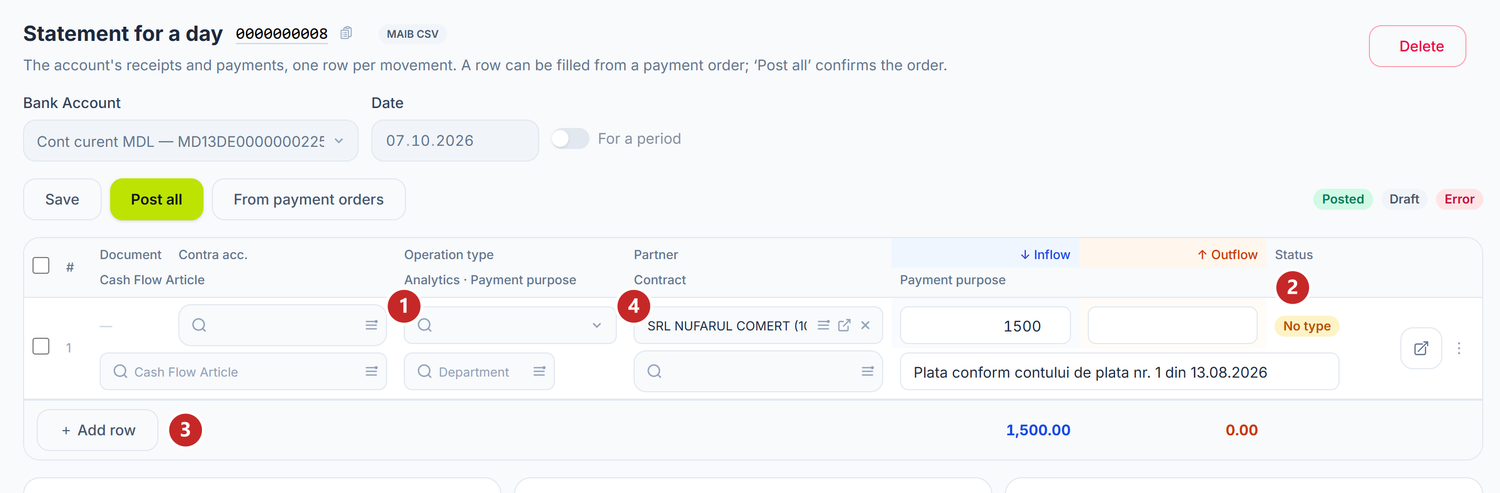
1 Operation type · 2 the row's status · 3 Add row — not for this receipt · 4 Partner
The receipt is already in the table, brought in from the bank. Add row would record it a second time, and the same money would come in twice when you post.
As soon as you choose the type, the platform creates the operation as a draft: the row gets a document number and switches to Draft. From that moment you also see it in Bank Operations.
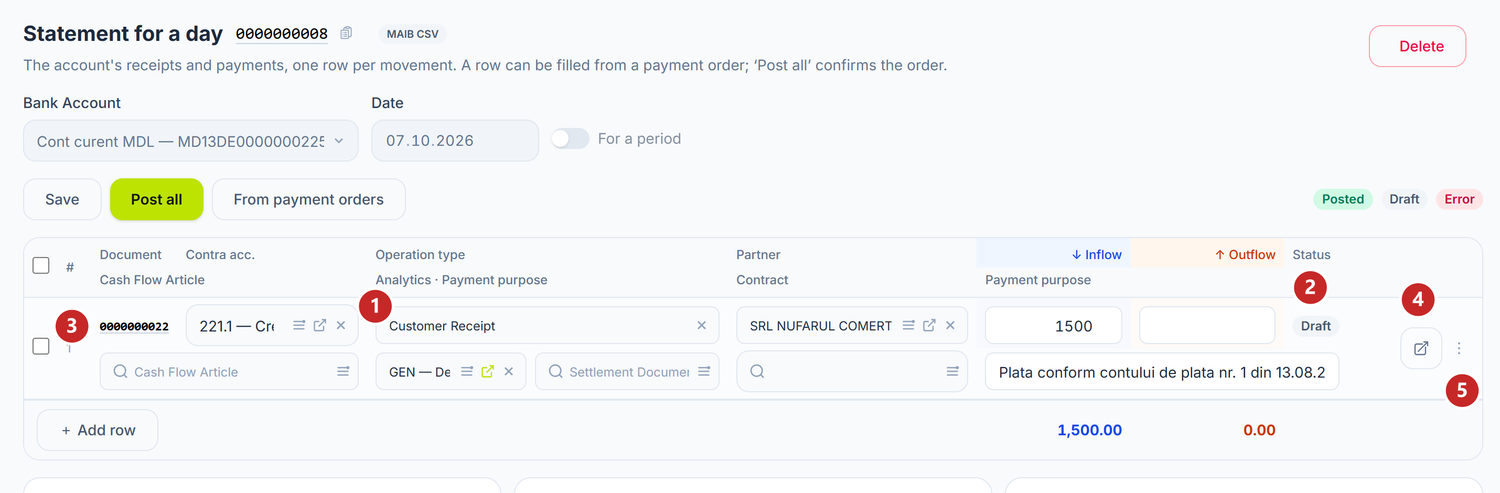
1 the chosen type · 2 the Draft status · 3 the operation number · 4 Open operation · 5 the row menu
- Click the arrow button at the end of the row (Open operation) or the document number itself. The operation opens in a new tab, next to the statement.
On a row that has no operation yet, the same button is called Save the row and open its operation and creates it first. In the ⋮ menu, Invoices settled by this row takes you straight to the allocation.
To settle a specific invoice:
In the operation, scroll down to Allocate to documents. There you see everything the customer has open: sales invoices and payment requests.
On Automatic, the panel splits the amount by itself, starting with the oldest document. If a payment request is older than the invoice, the money goes to it first and the invoice stays partly open, as here:
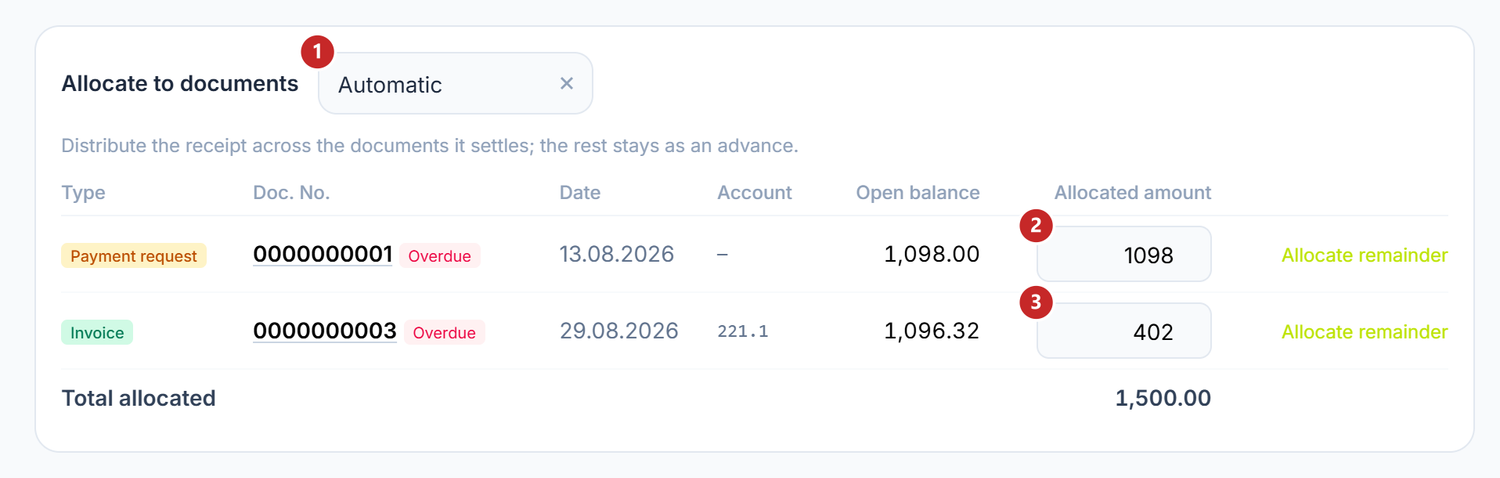
1 the settlement mode · 2 the payment request · 3 the invoice
- On the payment request, type 0.
- On the invoice, click Allocate remainder, or type the amount to settle.
- Click Save.
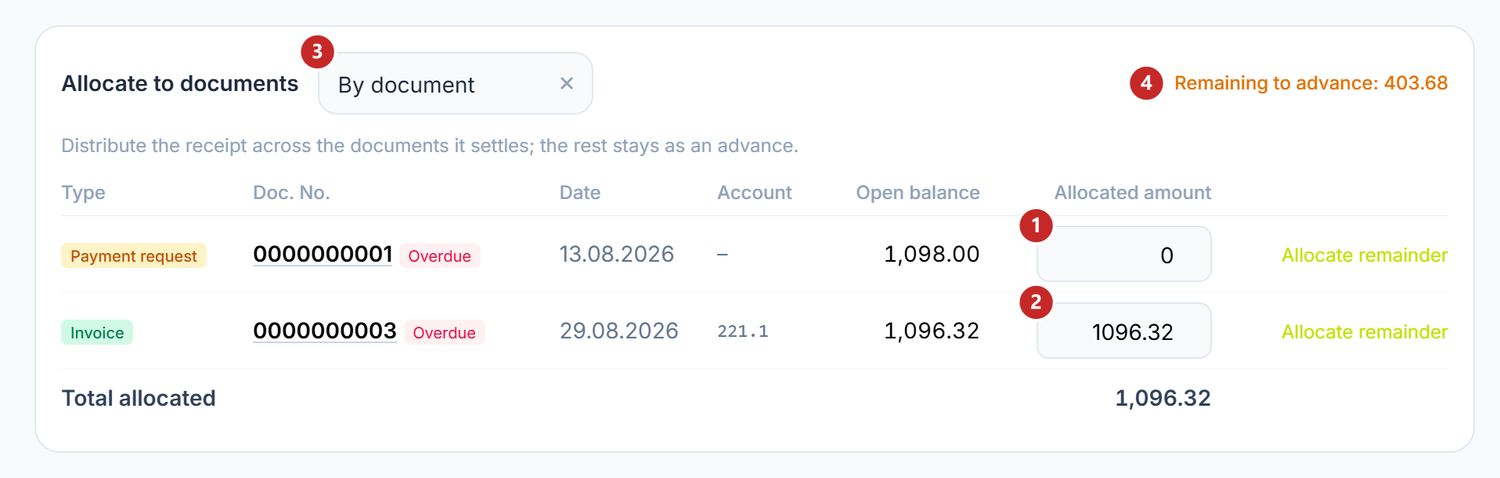
1 the payment request, taken out of the allocation · 2 the invoice, settled in full · 3 the mode switched to By document · 4 what remains as an advance
When you type an amount yourself, the mode switches to By document on its own, and the panel no longer redistributes anything for you. Whatever exceeds the invoice shows under Remaining to advance: the money stays on the customer's advance, ready for the next invoice. Once saved, the statement row shows Completed in the operation — edit it there: your allocation lives in the operation.
A payment request is a request to pay, not a debt. What you allocate to it still stays an advance, so an invoice already issued is settled only if you put the amount on it. When the payment request and the invoice have exactly the same amount, the panel shows only the invoice.
If the invoice hasn't been issued yet, leave the amount on the payment request. When you issue the invoice from it, with Generate sales invoice, the payment moves to the invoice and settles it.
To post:
You have two ways, with the same result:
- from the operation, with Post in the header;
- from the statement, with Post all, which goes through all rows one by one and skips those already posted.
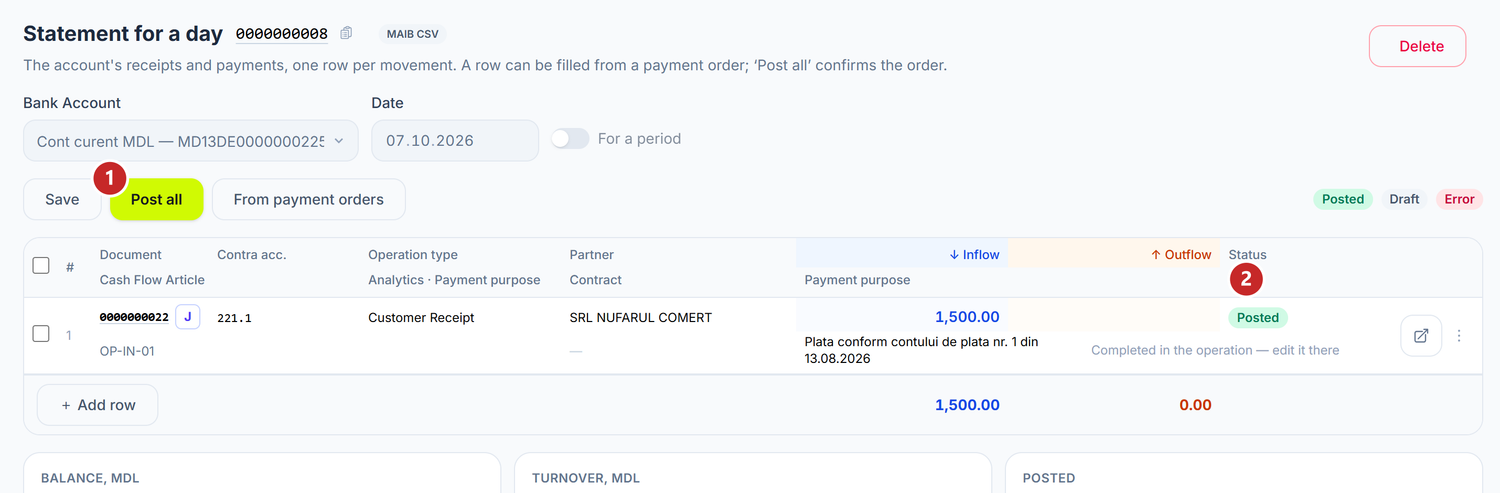
1 Post all · 2 the row switched to Posted
If you click Post all without having opened the operation, settlement runs on Automatic, by the rule above. When the customer also has open payment requests, open the operation first and pick the invoice.
After posting, the letter J next to the number opens the journal entry. To change anything, first choose Unpost this row from ⋮.
Row statuses
| Status | What it means | What you do |
|---|---|---|
| New row | A typed row, not saved yet | Save rows |
| No type | A saved row without an operation | Choose the Operation type |
| Draft | The operation exists but isn't posted and doesn't move the balance | Check and post |
| Posted | The entry is in the books | To change it, choose Unpost this row from ⋮ |
| Error | Posting failed, and the reason is written on the row | Fix it and post again |
What might trip you up
"The month … is closed: its documents can no longer be posted or unposted. The accountant can reopen it under Accounting periods." — the receipt date falls in a closed month, and the row switches to Error. The accountant reopens the month under Accounting → Accounting Periods, then you post again.
The red "Over-allocated" label — you left the amount on the payment request and also put it on the invoice. Type 0 on the payment request.
The invoice is missing from "Allocate to documents" — the list shows only the documents of the partner on the operation. Check that the row has the right customer.
Related pages
- Statement for a day — the statement table, its rows and the balances at the bottom.
- Bank operations — allocation to documents and the operation's accounts.
- Importing bank statements — how rows get into the statement.