Statement for a day
If you are used to entering the bank "by statement" — one document per day, with the receipts and the payments in the same table — this is the shape that suits you. One row means one movement, and out of each row comes a bank operation with its own document, account and partner.
The statement itself posts nothing. It is the table and the control; the posting is carried by each row separately.
Where to find it: Sidebar → Money → the Bank Statements tab → the New statement button
First you turn it on
The button isn't there from the start. It is brought in by a toggle in Settings → Organization Settings → the Preferences tab → Use daily bank statements. While it is off, nothing in the Money chapter changes.
| Toggle | What changes when you turn it on | If you leave it off |
|---|---|---|
| Use daily bank statements | The New statement button appears in Bank Statements and the list opens on the By days view; the same button also appears in Bank Operations, next to Inflow and Outflow | You work the bank as before: file import and operations one at a time |
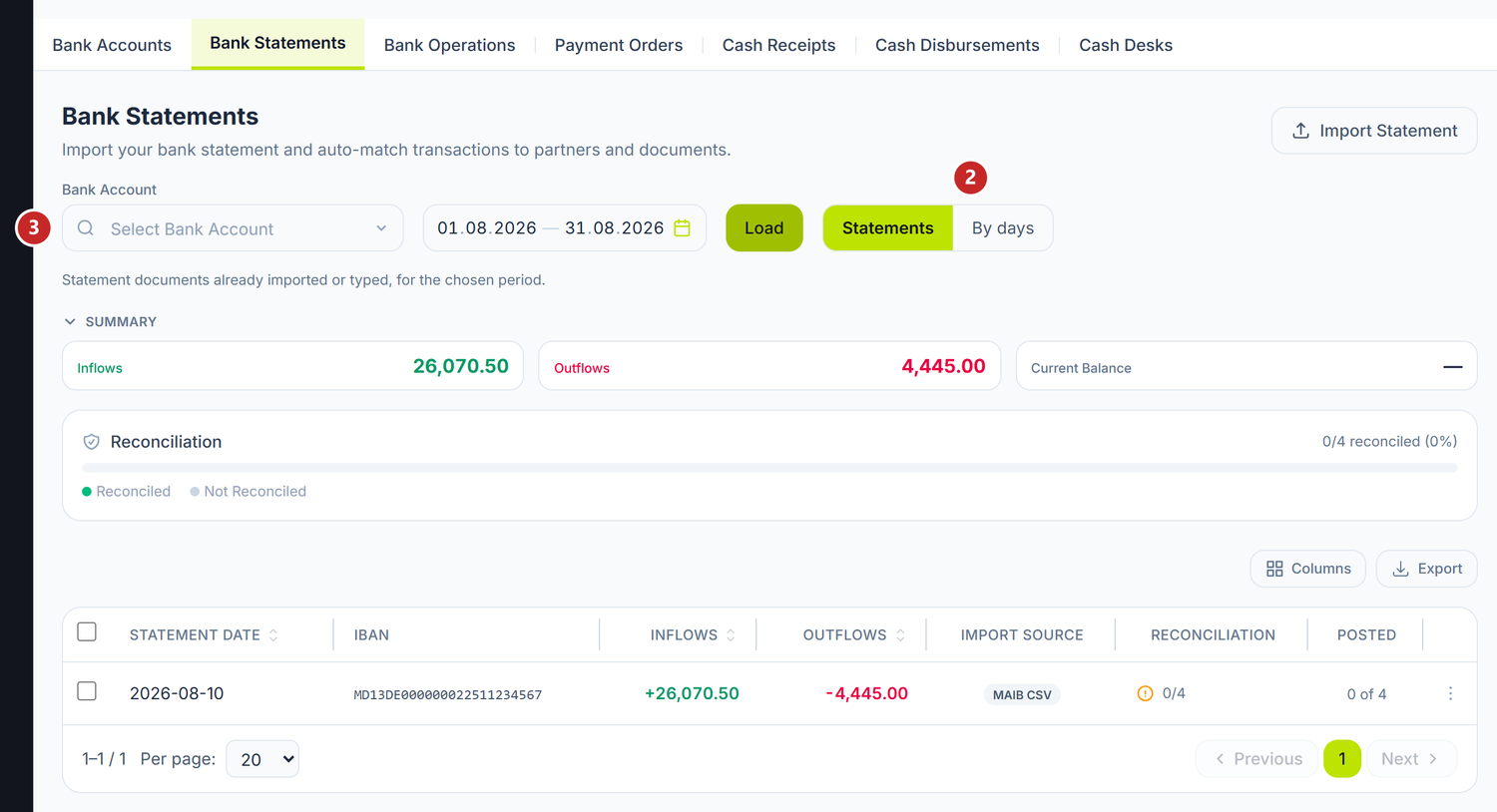
1 opens a new statement · 2 switches between the document list and the calendar of days · 3 the account you are working on
The By days view is a calendar of the account's movements: for each day in the period you see the balance at the start, the inflows, the outflows and the balance at the end. With no account chosen, the table tells you so and stays empty.
The Statement column is the one that shows you where you have work. The green badge — Loaded · MAIB CSV · 0 of 0 in the screenshot above — means the day has a statement, says where it came from and how many of its operations are posted. The amber badge, No statement · 0 of 1, means the day has movements on the account, but no document to gather them. A completely quiet day just says "no movements".
At the end of the row, Open takes you into the existing statement, Create starts a new one on that day.
To type in a statement
- Money → the Bank Statements tab → New statement.
- Choose the Bank Account and the Date. The document number is allocated by itself, at save.
- Press Add row and fill in the movement.
- Save — the first time, the header and the rows go together. On a statement already saved, new rows are sent by Save rows, with their count on the button.
- When the table is complete, press Post all.
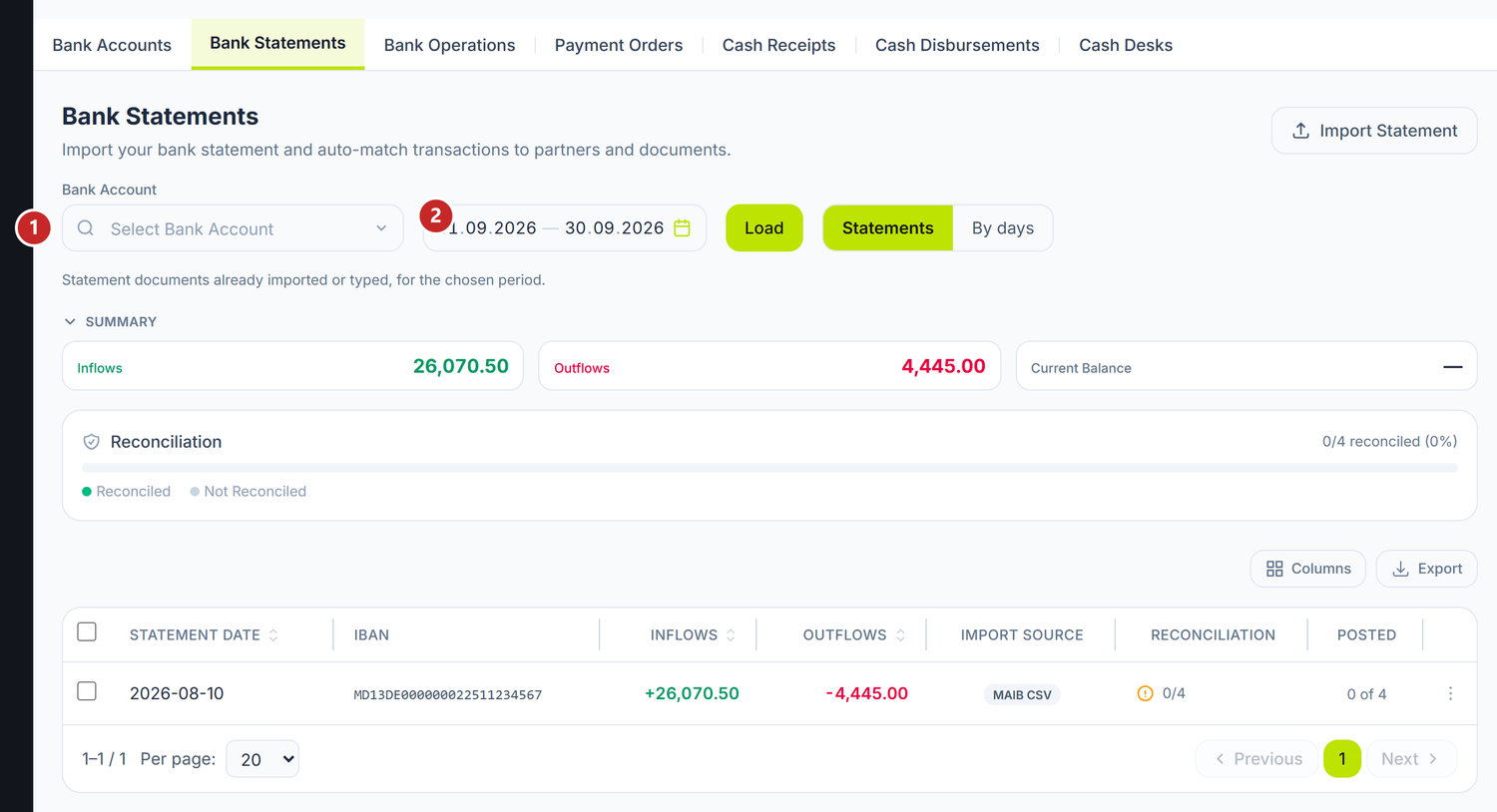
1 the account · 2 the day · 3 switches the document to a period · 4 posts all the rows · 5 brings in rows from payment orders
It opens as its own tab, next to List — you can work on the statement and go back to the list without losing anything.
For one account and one day there is a single statement. If you start one on top of an existing one, the panel tells you A statement already exists for this day; opening it. and takes you into it.
For a period
The For a period toggle in the header changes the document from "this day" into "from — to": the Until field appears, the title becomes Bank statement for a period, and the table gets a Date column on every row. Useful when the bank sends you a single file per week.
Foreign-currency account
On an account in a currency other than the leu, the header gains a Rate field. It is the document's default rate; without it, the rows in foreign currency have nothing to be posted with.
Also on currency accounts, Balance at start of day (declared) sometimes appears. That happens when accounting has a balance on the account in lei but no entry in its own currency — then the opening balance cannot be derived and you type it yourself. The panel says so plainly, under the table.
The row
A row takes up two lines, as in the programs you are used to. On top sit the Document, Contra acc., Operation type, Counterparty, Receipt, Payment and Status; below, Cash Flow Article, Analytics, Contract and Payment purpose.
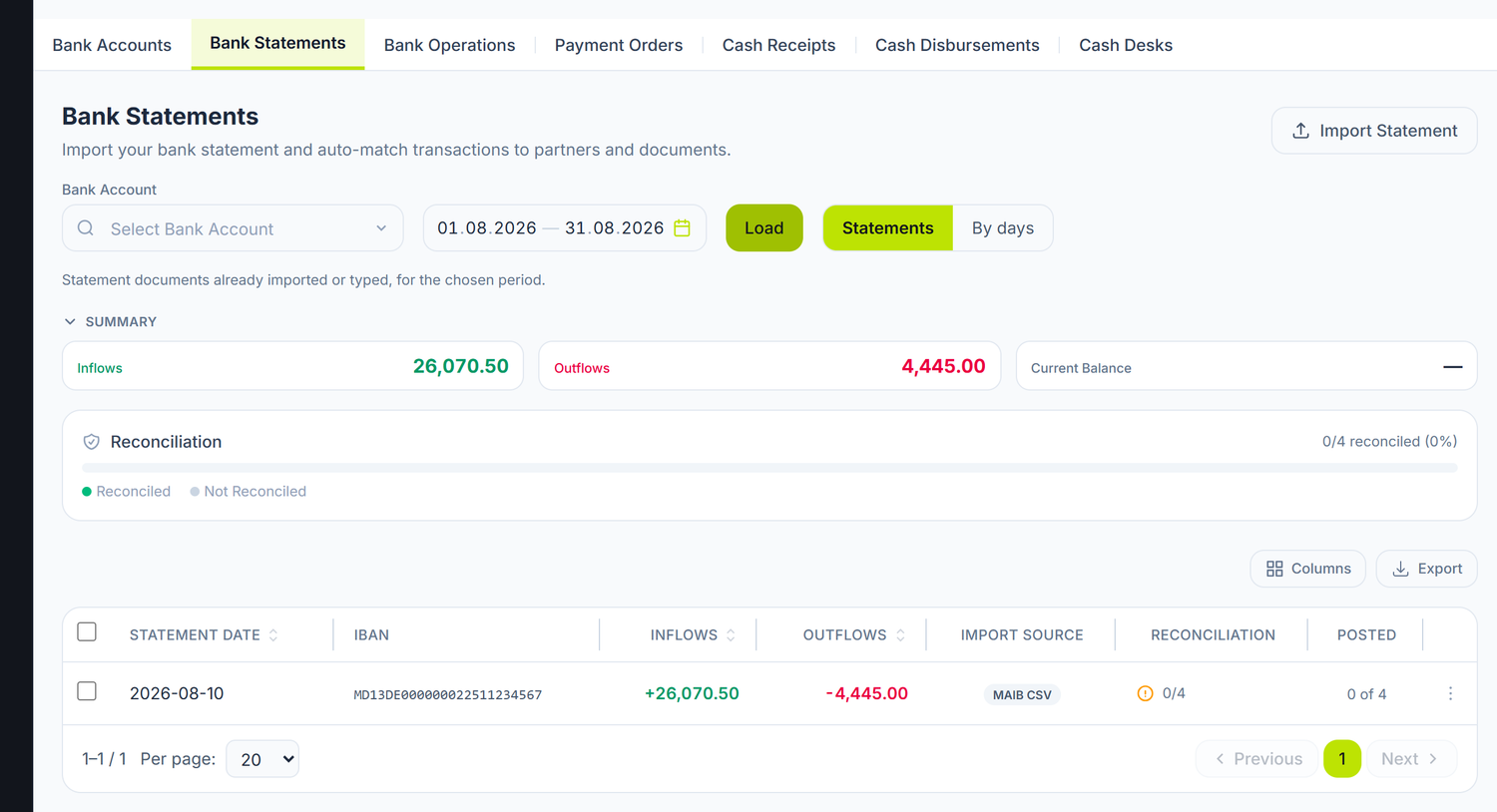
In the header, next to the title, sit the document number and the source badge — here MAIB CSV, because the rows came from a bank file.
The operation type is the field that sets everything in motion — the proposed contra account and the required analytics depend on it. Without it the row keeps the No type badge and gives birth to nothing.
The amount goes either in Receipt or in Payment, never in both. A row without an amount isn't saved: The row needs an amount in Receipt or Payment.
At the end of the row you have its buttons: you create the operation, open it, post it or unpost it, duplicate the row or delete it. A row that has been filled in from its operation carries the note Completed in the operation — edit it there: that is where you change it, not here.
There are four status badges: New row, Draft, Posted and Error.
Post all
The button goes through the rows one by one, in the order of the table, and does not stop at the first problem. At the end it tells you how it went: how many were posted, how many already were and how many failed — {posted} posted · {skipped} already posted · {failed} failed.
The row that didn't go through stays unposted, with the Error badge and with the reason written right on it. Sometimes its operation doesn't even get to be born — for instance when the row has no type. You fix it and press again: the ones already posted are skipped.
To go back, tick the rows and press Unpost. The button only appears when you have ticked posted rows and shows you how many it is working on.
From payment orders
From payment orders opens the list of the approved or sent orders on the chosen account, not yet confirmed. You tick them and they become payment rows, with the amount, the partner and the purpose already filled in.
The link holds further too: when the row is posted, the payment order behind it moves into Confirmed. You no longer have to go back to the Payment Orders tab to close the circle.
If there is nothing to choose, it says exactly that — No approved or sent payment orders on this account.
Import from file brings into the same table the lines of an electronic statement, if you prefer to start from the bank's file and correct things on the spot. The button only appears on a new statement.
The balances at the bottom
Under the table sit three cards, and they are worth reading in this order:
Balance — the start of the day and the end of the day computed, that is, opening balance plus inflows minus outflows.
The start of the day doesn't always come from the same place, and the panel writes where from, in brackets: from the ledger (from accounting) on a typed statement, from the bank statement on one imported with a declared balance, or declared on a currency account whose ledger has no balance in its own currency — then a field also appears in the header, where you type it.
On an imported statement one more row appears: the closing balance the bank gave. The difference from the computed one is coloured.
Turnover — the inflows, the outflows and, separately, how much of them are movements between your own accounts.
Posted — how many rows out of how many have reached accounting, plus the end-of-day balance computed only from the posted ones. It is the figure that tells you whether you still have work on this day.
When the ledger doesn't answer, the warning The ledger did not answer: the accounting balances are missing, not zero. appears under the table, the Posted card hides its balance row, and in the By days list the balance columns show —. A new statement won't even save until the ledger comes back. The footer balance row does stay on screen, though: don't take it as good while the message is there.
What can trip you up
“Choose the bank account first." — the By days view needs an account to know which days to count.
“Save the statement first, then the row can create an operation." — on an unsaved document the rows have nothing to attach to. Press Save.
“Pick an operation type for this row first." — without a type the contra account cannot be derived.
“The row's operation could not be created. Check the operation type and the counterparty account." — the two don't match each other; correct them on the row.
The end-of-day balance doesn't match the bank statement — look at the Posted card. Most often you still have rows in Draft, and those don't count towards the accounting balance.
Related pages
- Bank operations — the document that comes out of each row
- Import bank statements — the route through the file received from the bank
- Payment orders — the payments the rows are filled in from
- Bank accounts — the account and the balance the statement works on