Advance reports
The advance report shows what an employee did with the money received as an advance: what goods they bought, what supplier invoices they paid and what other expenses they had. It gives money to no one. You issued the advance beforehand, with a payment from the cash desk or the bank; after the report, you receive the remainder, or pay the overspend, also through the cash desk.
Where to find it: Sidebar → Money → the Advance reports tab
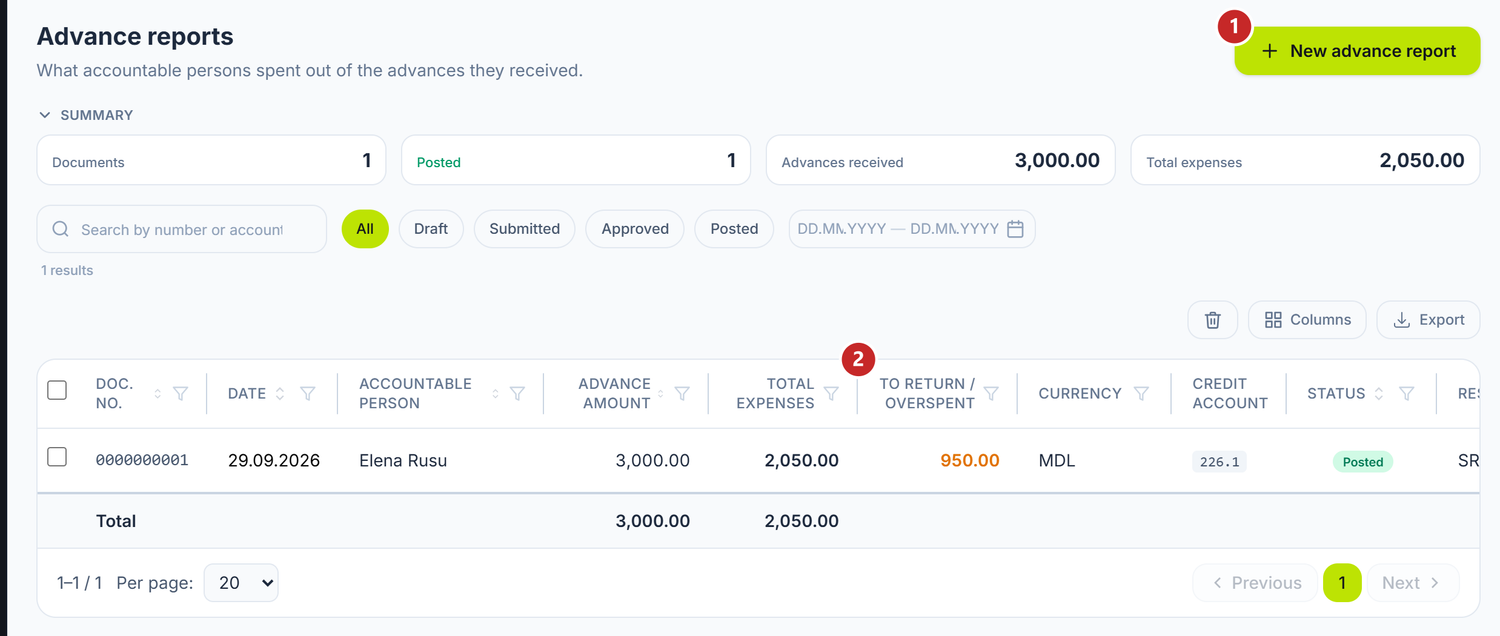
1 new report · 2 what is left after the report
The To return / overspent column says who owes whom. A positive figure means the holder has the remainder to give back; a negative one, that they spent more than the advance and the company owes them the difference.
To draw up a report
If the holder received an advance, it must already be issued and posted: a cash disbursement or a bank operation of the Advance to accountable person type, with the employee chosen. Then:
- Press New advance report.
- Choose the Date and the Employee — the advance holder. Credit Account fills itself in.
- If the holder bought goods, choose the Warehouse.
- On the Advances received tab, press Fill advances.
- Enter what they spent on the Goods, Supplier payments and Other expenses tabs, from the receipts and invoices they brought.
- Save.
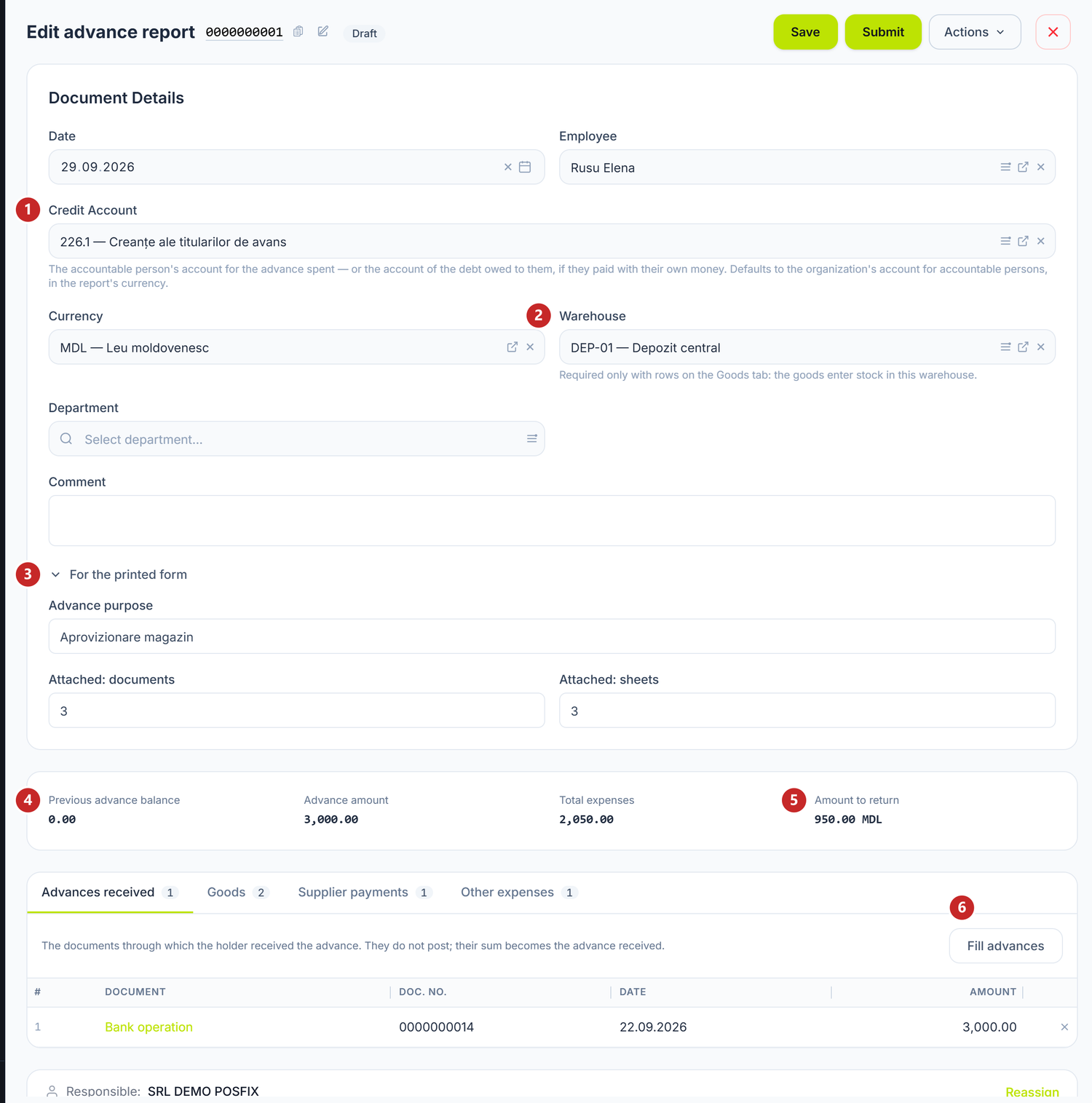
1 the holder's account · 2 the warehouse for the goods · 3 the details on the printed form · 4 what they had left from before · 5 the remainder to return · 6 bringing in the advances
Credit Account is the account on which everything the holder spent is closed. The panel proposes the organization's account for accountable persons, in the report's currency. You change it only when the person paid with their own money, without an advance: then you choose the account of the debt owed to them, and the company will owe them the whole amount.
If the holder spent in another currency, choose the Currency. Exchange rate appears, filled in with the NBM rate at the report date, and you can correct it. Credit Account switches by itself to the foreign-currency account, and Fill advances brings in only payments in that same currency.
Under For the printed form you fill in the advance purpose and how many documents and sheets you received with the report. They appear only on paper and don't enter the accounts.
The advances received and the remainder
Fill advances brings in the posted payments through which the holder received money after their last posted report. It doesn't bring those already on another report, those in another currency, nor those dated after the report. The button is active once you've chosen the employee and the account.
The tab only explains where the money came from: the issue has its own journal entry, so its rows aren't posted a second time. Their sum becomes the Advance amount.
The strip under the header does the arithmetic. Previous advance balance is what the holder had left from older advances, read from the accounts at the report date. Amount to return is Previous advance balance plus Advance amount, minus Total expenses; when the expenses exceed that sum, the label becomes Overspend (payable to the holder).
The figures appear after Fill advances or after saving. If you then change the employee, the account, the date or the currency, "read from the ledger on save" shows in their place until you read them again.
Goods
The goods and materials the holder bought enter stock in the header's warehouse, at the amount paid, VAT included — the report doesn't split out the VAT. If the holder brought a tax invoice in the company's name and you want to deduct the VAT, don't enter it on Goods: record it as a supplier invoice and enter the payment on the Supplier payments tab.
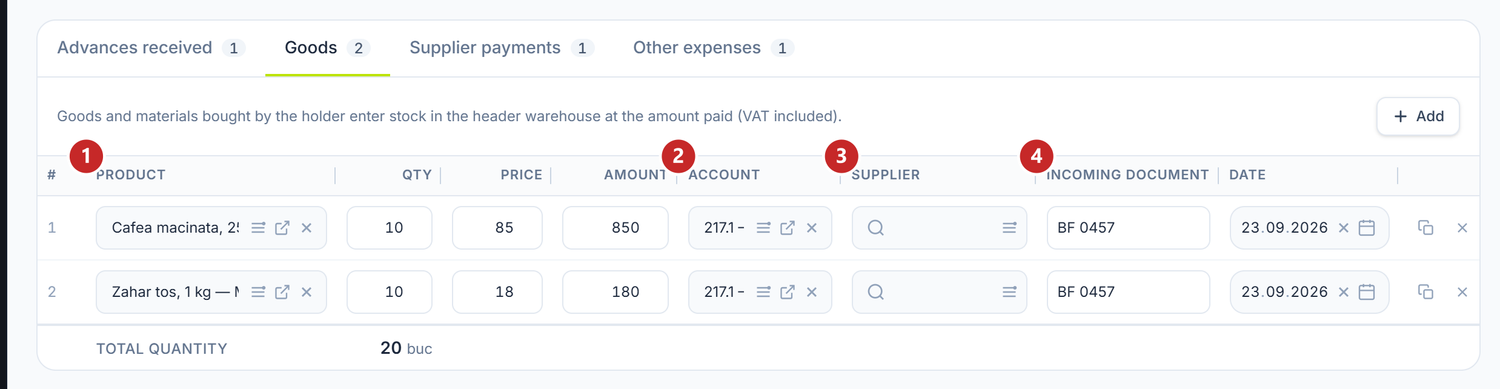
1 the item from the catalogue · 2 the stock account · 3 who they bought from · 4 the receipt or invoice received
The amount is calculated from quantity and price, and if you type the amount from the receipt directly, the price is recalculated. Account comes from the catalogue, as set on the item or on its category. Supplier and Incoming Document are optional, but they help you find the receipt a year later. For a perishable product, Expiry Date and Lot # appear too, so the lot enters stock with its own date.
Supplier payments
On this tab you enter the company's invoices the holder paid out of the advance.

1 the supplier paid · 2 how the debt is settled · 3 withholding at source
If you choose a Contract, the row settles only that contract's invoices, and the rest stays as an advance on it. Left empty, it settles any of the supplier's invoices.
The button in the Advance Settlement column opens the Allocate to documents window, with the supplier's open invoices. The mode starts from the one in the accounting policy: Automatic spreads the payment over the invoices, from the oldest. By document lets you type the amount on each invoice yourself, and Do not settle leaves the whole payment as an advance.
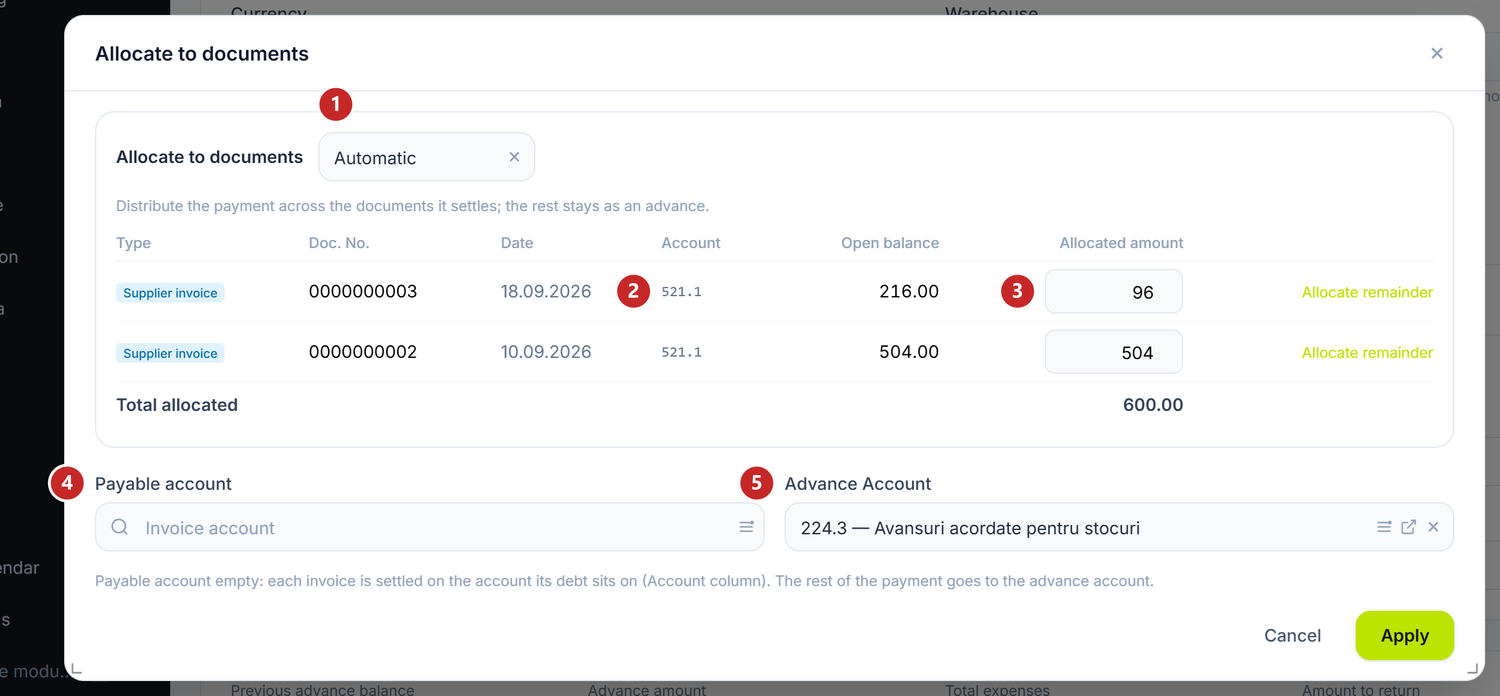
1 the settlement mode · 2 the account the invoice sits on · 3 the amount settled on the invoice · 4 the payable account · 5 the account the rest stays on
If you type an amount on an invoice or press Allocate remainder, the mode switches by itself to By document, so that a later change of the amount doesn't overwrite your choice. Whatever no invoice covers stays as an advance given to the supplier, on Advance Account. You usually leave Payable account empty: each invoice is settled on the account it sits on.
Other expenses
This is where the expenses go that are neither goods nor a supplier invoice: transport, stationery, a business meal.

1 the expense account · 2 the account's analytics · 3 withholding at source
You choose the account on the row. The button in the Analytics column opens a window with what the account requires, for instance the expense item, and with the Department; the figure on the button shows how many you've filled in. A department left empty is taken from the header; for an account without analytics, the column shows "—".
Withholding at source on a row
If the holder paid a private individual — a service, a rent —, the tax is withheld on that row. The row keeps the net, exactly what the person received.
- In the Withholding column, press Add.
- Turn on the Withholding tax at source toggle — only then do the fields appear.
- Choose the Tax type, type the Gross income and check the Tax rate.
- If the row's amount isn't the net yet, press Apply to amount — the button appears only then. Then Apply.
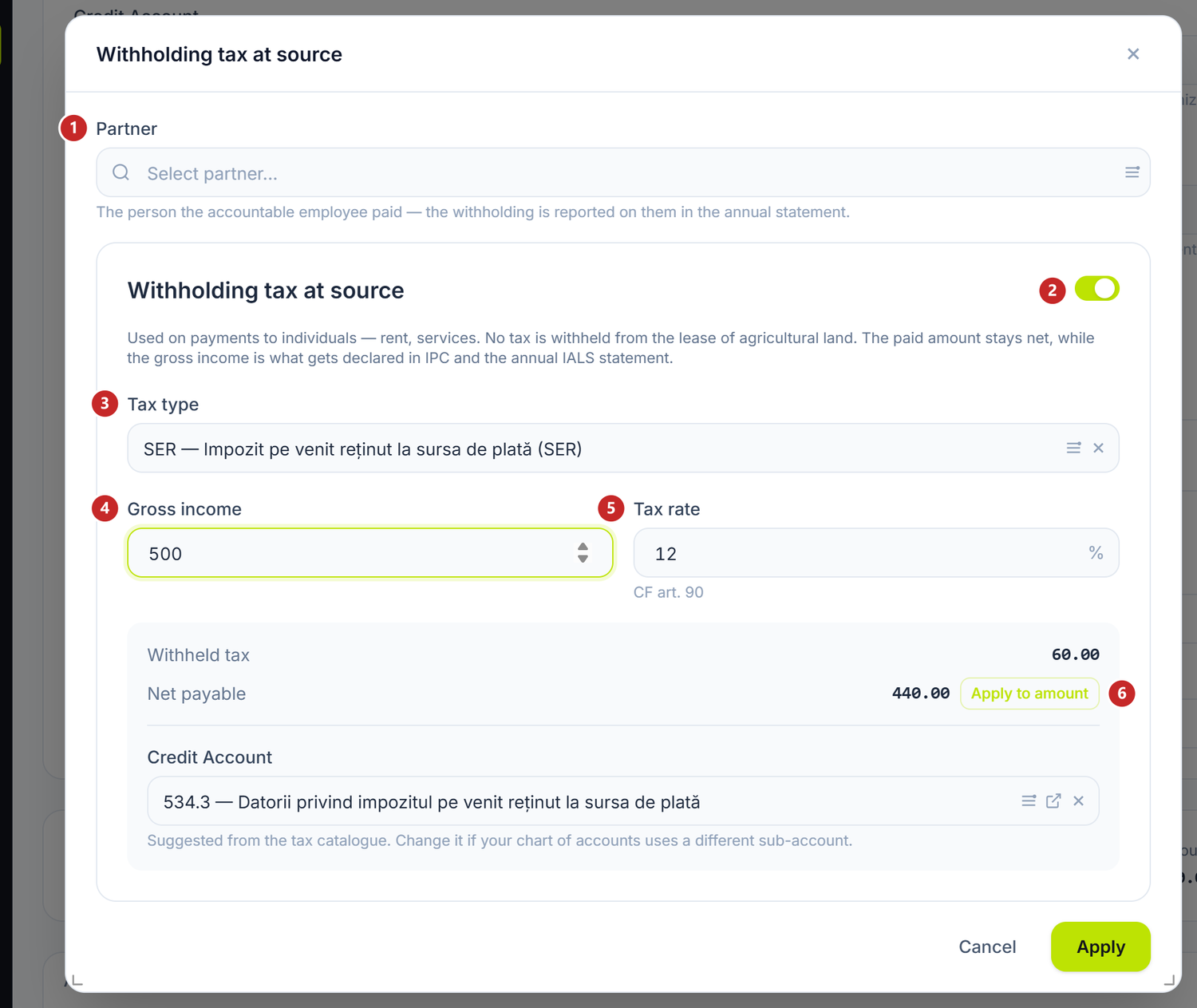
1 the person paid · 2 the withholding toggle · 3 the kind of tax · 4 the gross income · 5 the rate · 6 the net put on the row
On Other expenses you also choose the Partner in the same window: without it, the report won't post. The panel calculates the tax, and on posting the row enters the Withholding ledger.
| Toggle | What changes when you turn it on | If you leave it off |
|---|---|---|
| Withholding tax at source | The kind of tax, the gross income, the rate and the calculated net appear | The row stays without withholding |
From draft to posting
The report goes through four states. The journal entry appears only at the last one.
| State | How it gets there | What you can do |
|---|---|---|
| Draft | On save | Correct it, Submit |
| Submitted | Submit | Approve, or Return to draft from Actions |
| Approved | Approve | Post, or Return to draft |
| Posted | Post | Unpost, which takes it back to Approved |
On posting, the goods enter stock, the supplier invoices are settled and the expenses land on their accounts. The J button in the header shows the journal entry. From Actions you print the report and can delete it in any state; on a posted report, deleting withdraws the journal entry first.
The remainder and the overspend
On a posted report, the Actions menu offers the document that settles up with the holder.
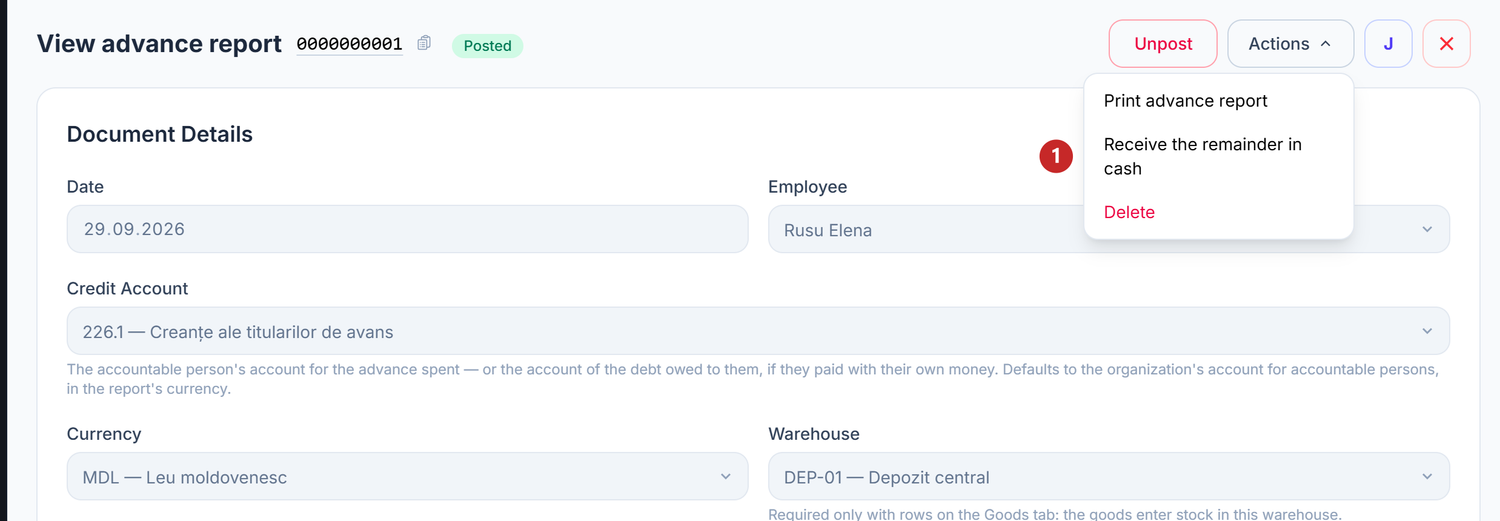
1 receiving the remainder
Receive the remainder in cash appears when the holder has money to give back. It opens a cash receipt of the Return from accountable person type, with the employee, the amount and the account already filled in. If they spent more than the advance, Pay the overspend from cash appears instead and opens the cash disbursement.
What can trip you up
- Fill advances is inactive — you haven't chosen the Employee or the Credit Account yet.
No unsettled advances found for the holder.— the payment you gave the advance with isn't posted, is in another currency, is dated after the report, or is from the day of the person's last posted report or earlier, and that report already settled it.Choose the warehouse in the header — the goods in the report are received into a specific warehouse.— you have rows on Goods without a Warehouse in the header.The advance report has no rows to post.— the expense tabs are empty; Advances received isn't posted on its own.Row … in "Advances received": document … is already on another advance report.— the same advance isn't settled twice. Remove the row or correct the other report.Row … in "Other expenses": the amount paid … plus the withheld tax … must equal the gross income …— the gross stayed on the row. Open the withholding window and press Apply to amount.
Related pages
- Cash receipts and payments — issuing the advance from the cash desk and returning the remainder
- Bank operations — the advance given through the bank
- Withholding ledger — where the tax withheld on a row goes