The employee record
The employee record holds the data that feeds everything else: the timesheet, the salary calculation, the leave and the payroll statements. It computes nothing on its own — it is the source, not the result.
Where to find it: Sidebar → Team → the Employees tab
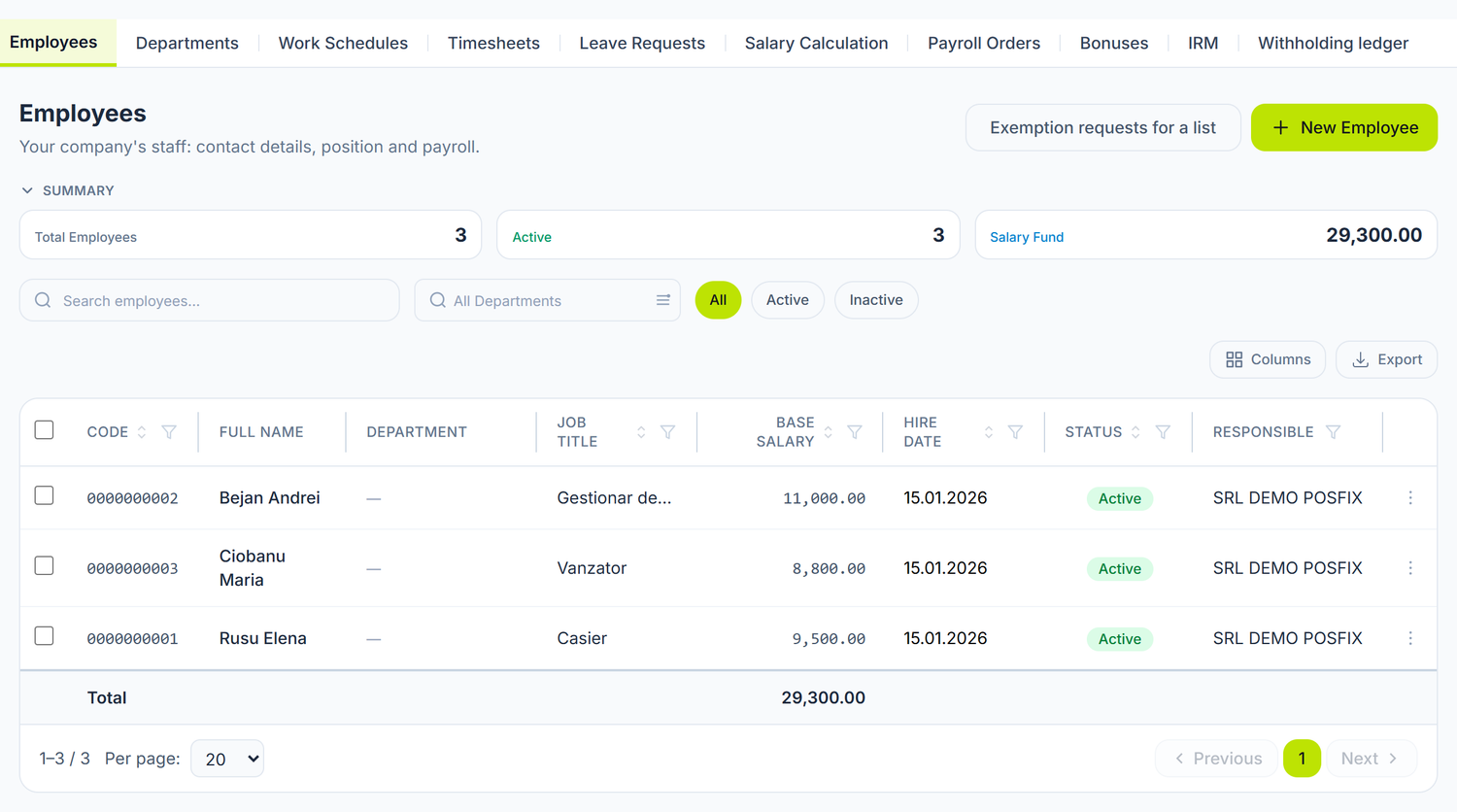
The figures at the top add up the salary fund of the active employees. The Base salary column is the one that enters the monthly calculation, and Status tells you who is still with the company.
The New Employee button opens the record:
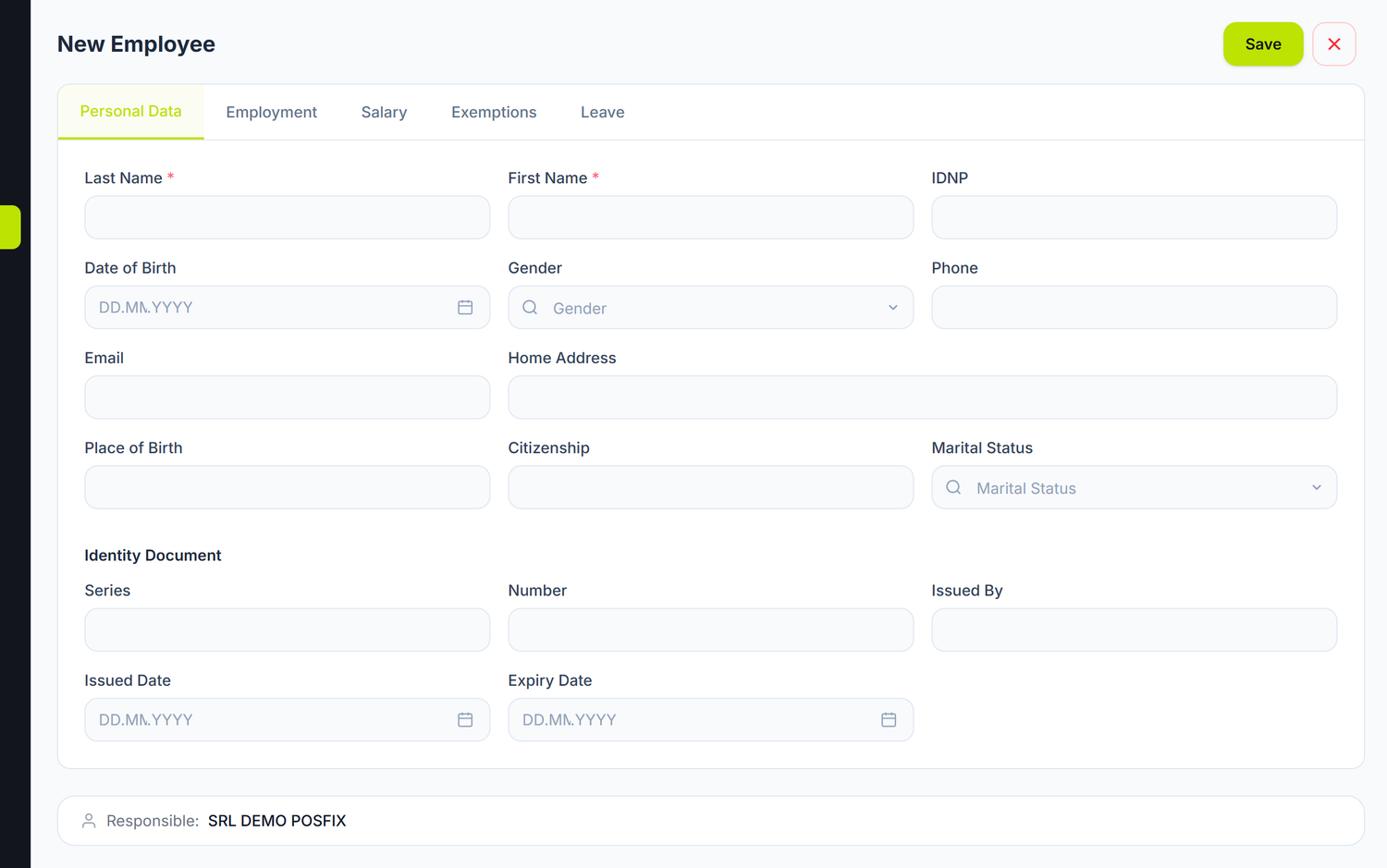
The record opens as a document, with five inner tabs: Personal Data, Employment, Salary, Exemptions and Leave.
Personal Data
Only Last Name and First Name are required. The rest — date of birth, gender, contacts, citizenship, marital status and the identity document — you fill in when you have them. The employee code is assigned by the system; you don't type it.
The IDNP deserves your attention. It has exactly 13 digits and is unique inside the organization, and it is the number under which the employee appears in the declarations and in the IRM report. The record saves without it, but one wrong digit sends the declarations back.
On this same tab, below the identity document, you keep the record of disabilities: the group, the certificate number, the issue date and the validity period (left empty at "to" it means permanent). The section only shows on a record that is already saved. The certificate here does not change the calculation on its own — the increased exemption is brought in by the exemption request, on the Exemptions tab.
Employment
The tab describes the working relationship: the department, the occupation code from the classifier, the insurance category, the insurance codes, the job title, the hire date and the order number.
Four fields change what you see on screen or what comes out of the calculation:
| Field | What changes when you pick otherwise |
|---|---|
| Contract Type | On Definite or on Seasonal the Contract End Date field appears. On Open-ended it does not exist |
| Employment type | On External secondary job or Internal secondary job no income-tax exemptions apply, and the warning appears under the field. On Main job the active exemption request applies |
| Work Norm | It multiplies the calculated amount of the month: 0,5 on a salary of 10.000 MDL means 5.000 MDL for a full month. It is a fraction of the norm, between 0,25 and 2 — not hours per day |
| Work Schedule | The schedule by which the timesheet is auto-populated, and so also the hours put on each day |
Insurance Category looks like a field to fill in when needed, but it is required when you submit the IRM. Fill it in from the start, otherwise the lines proposed there come out without it.
On a saved record you also get the Work Schedule History table. At every change you press Add schedule assignment and set the date it takes effect, instead of overwriting the old one. Schedules are managed in Team → Work Schedules.
Salary
Here you set Base salary (the gross monthly amount from the contract), Bank IBAN, Annual Leave Days — 28 by default — and the allowances.
Allowances are declared as percentages, not as fixed amounts. Each line has a name, a percentage, an active checkbox and a delete button; next to the percentage the panel shows you right away what it means out of the base salary, and below the list you get Total gross calculated for a full month. In the monthly calculation the percentage applies to the calculated amount, so it drops together with the absences — it does not stay at the figure from the preview.
If the employee has no IBAN, their line in the payroll statement stays without a bank account, and the payment order comes out incomplete.
Exemptions
The Exemptions tab has two sections: Family Members & Dependents and Exemption History. It only opens on a saved record — on a new one, the screen asks you to save the employee first.
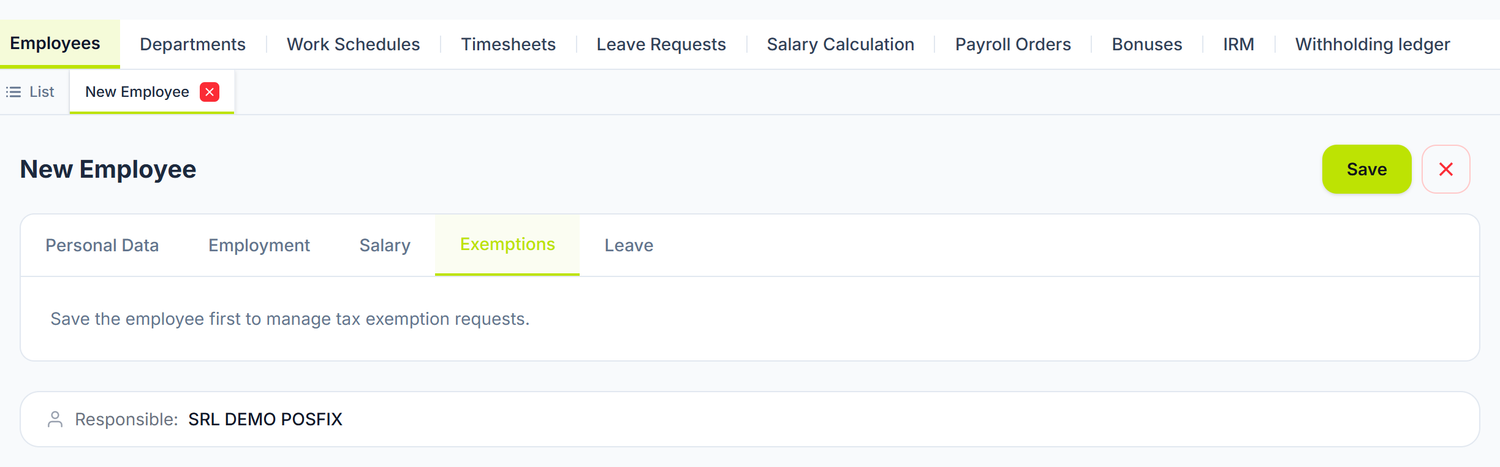
This is what the refusal looks like: the tab is empty and says why. There's no need to look the record up again in the list — after Save you stay on the same record, which switches into editing. It reopens on Personal Data, so go back to Exemptions; this time the tab is active.
Family members
The Add button opens the form: full name, the relationship (Spouse, Child, Parent, Other), date of birth, IDNP and notes. The Dependent (for tax deduction) checkbox is the one that matters — only once you tick it does the second checkbox, Severe disability, appear.
The checkbox checks nothing: whether the person really gives a right to the exemption, you establish on paper before ticking it.
The exemption request
The request is the document that changes the calculation. The family members alone change nothing. You create it with Create Request and it opens as its own screen, with its own number and status.
You fill in Effective From (required) and, if the request has an end, Effective To. Then you have two choices that move the amount:
| Control | What changes when you use it | If you leave it empty |
|---|---|---|
| Personal exemption | You choose P — Personal or M — Increased personal (disability); the amount goes into the card on the right | The employee gets no personal exemption |
| Spouse (S / Sm) | The Sm checkbox appears, for a spouse from the increased-exemption categories who doesn't use their own exemption. Only with it ticked does the exemption lower the tax | Doesn't apply |
The spouse toggle, set without Sm, lowers nothing: the ordinary spouse exemption is no longer granted, and the screen tells you so under the toggle.
Dependents aren't counted by hand. The request shows the employee's family members and takes the counts by itself: N for dependents, H for those with a severe, pronounced or childhood disability — on the family member, the Severe, pronounced or childhood disability checkbox . If you have changed the family members meanwhile, the request shows you the difference and the Take from family members button.
On the right, the Total annual exemption card shows the annual amount and its monthly equivalent. Under it, Exemption amounts (annual, MDL) lists the period's values as configured in the platform. You don't enter them on the employee.
An employee has a single active request. When you save a new one, the previous one goes into Superseded, and the exemptions on the record are rewritten after the new one. If you cancel the active request, its exemptions disappear from the record.
For several employees at once you have, at the top of the employee list, Exemption requests for a list: you set the date and the basis once, the exemptions per person. One request is created per employee, with its own number.
The exemption enters the calculation from the next run. Months already posted stay unchanged — if you want to correct them, unpost and recalculate that month.
Withholding at the maximum rate
Also on the Exemptions tab, the Withholding at the maximum rate section is for a person who asks for tax to be withheld without exemptions from a given month — for instance, because they use their exemptions at another employer. You add a row with the month it starts from and, under Decision, choose Withhold without exemptions. To stop it, you add a new row with Stop withholding.
Leave
The Leave tab shows the rest-day balance by working year. It also holds two registers: Opening balances, for what was left unused when moving to POSfix, and Leave entitlement (days per year), for someone whose number of days changes from a given date. How you fill them in is in Leave.
Termination
To terminate an employee, open the record and press Terminate, at the top, next to Save — or choose Terminate from the row's menu, in the list. In the window you set the Termination Date, the Termination Reason — chosen from the reasons classifier — and the Termination Order No.
The employee is paid up to and including the termination date — an L left in the timesheet after that date is no longer paid — and leaves the payroll of the following months. They disappear from the following months' timesheets, but the history stays: a month's timesheet in which they had entries still shows them. The termination is proposed automatically as a line in the month's IRM report.
If you made a mistake, press Cancel termination: the button appears on the record in place of Terminate. The person becomes active again, and the date, reason and order number are cleared.
How you add a new employee
- Open Team → Employees
- Press New Employee
- On the Personal Data tab fill in the last name and the first name and, if you have it, the IDNP
- Move to the Employment tab: department, occupation, insurance category, job title, contract type, norm, work schedule, hire date
- On the Salary tab enter the base salary, the IBAN, the annual leave days and the allowances
- Press Save
- Reopen the record and, on the Exemptions tab, add the family members and the exemption request
The order is not a formality: the exemption request, the family members and the disabilities attach to an employee that already exists, so on an unsaved record you have nowhere to put them.
How it connects to other documents
| Document | What it takes from the employee record |
|---|---|
| Timesheet | The list of active employees, the work schedule, the norm |
| Salary calculation | The base salary, the allowances, the exemptions, the department |
| Leave | The annual leave days, for the rest-day balance |
| Payroll statements | The IBAN, for the payment orders |
| IRM report | The hire date, the termination date and ground, the insurance category |
Frequently asked questions
Can I have two employees with the same IDNP?
No. The IDNP is unique per organization (the check only applies if the IDNP is filled in). If an employee was terminated and rehired, you reactivate the existing record.
Is the IDNP required?
Not for saving the record. But without it you cannot submit the tax declarations and the IRM report for that employee, so fill it in as early as you can.
What happens to the employee if I delete the department?
You cannot delete a department that has employees assigned — nor one that has sub-departments. Move the employees first, then delete the empty department (see Departments).
Is the department required on the employee record?
No. An employee can stay without a department. The consequence: their expense gets no department dimension on the journal entry, and in the timesheet they appear without a department code.
How do I change an employee's salary?
You edit the Base salary field on the Salary tab. The change applies at the next run of the salary calculation. The record keeps a single current salary value — you see the history in the salary calculations of previous months.
Do allowances enter the contribution base?
Yes. Active allowances are added to the calculated amount and form the gross income, and the withholdings and the employer contribution are computed from it, as for salary.
How does a fractional norm affect the salary calculation?
The norm multiplies the prorated amount. An employee with a 0,5 norm and a base salary of 10.000 MDL, present the whole month, has a calculated salary of 5.000 MDL.
What do I do if the employee has no Moldovan ID card?
You fill in the series and the number of the document they do have, in the Identity Document section, and the IDNP assigned by the Moldovan authorities, if there is one.
How do I configure the exemption for an employee with a disability?
On the Exemptions tab, you create a new request and pick M — Increased personal (disability) at Personal exemption — only if the person falls into a category with an increased exemption, for instance a severe, pronounced, childhood or war-related disability. Not every degree of disability gives it . You register the certificate separately, on the Personal Data tab — but the request is the one that changes the calculation.
What happens to the leave balance on termination?
After termination the balance no longer grows, and the person leaves the Leave Balances tab. You pay the days left with the compensation for unused leave: start it from the record, Actions → Compensation for unused leave.
Does the employee appear in the timesheet of the month they were hired?
Yes. When the timesheet is auto-populated, the days before the hire date and those after the termination date stay empty — no entries are generated for them.
How do I handle an employee with two contracts (internal moonlighting)?
You create a separate record for each contract, each with its own department, salary and norm, and on the second one you choose Employment type → Internal secondary job. Otherwise the person's exemptions apply twice. The calculation runs independently on each record.
Related pages
- Departments — the organizational structure
- Timesheet — the record of worked days
- Salary calculation — from gross to net
- Leave — the leave document, the leave pay and the day balance
- The IRM report — reporting hires and terminations
- Guide: The full payroll flow — from timesheet to paying the salaries, step by step