Leave
The leave document calculates the pay for an absence and sends it to the payroll of the month you choose. It has no approval step. You save it as a draft, and only when you post it does it enter the payroll, the timesheet and the day balance.
Where to find it: Sidebar → Team → the Leave Requests tab
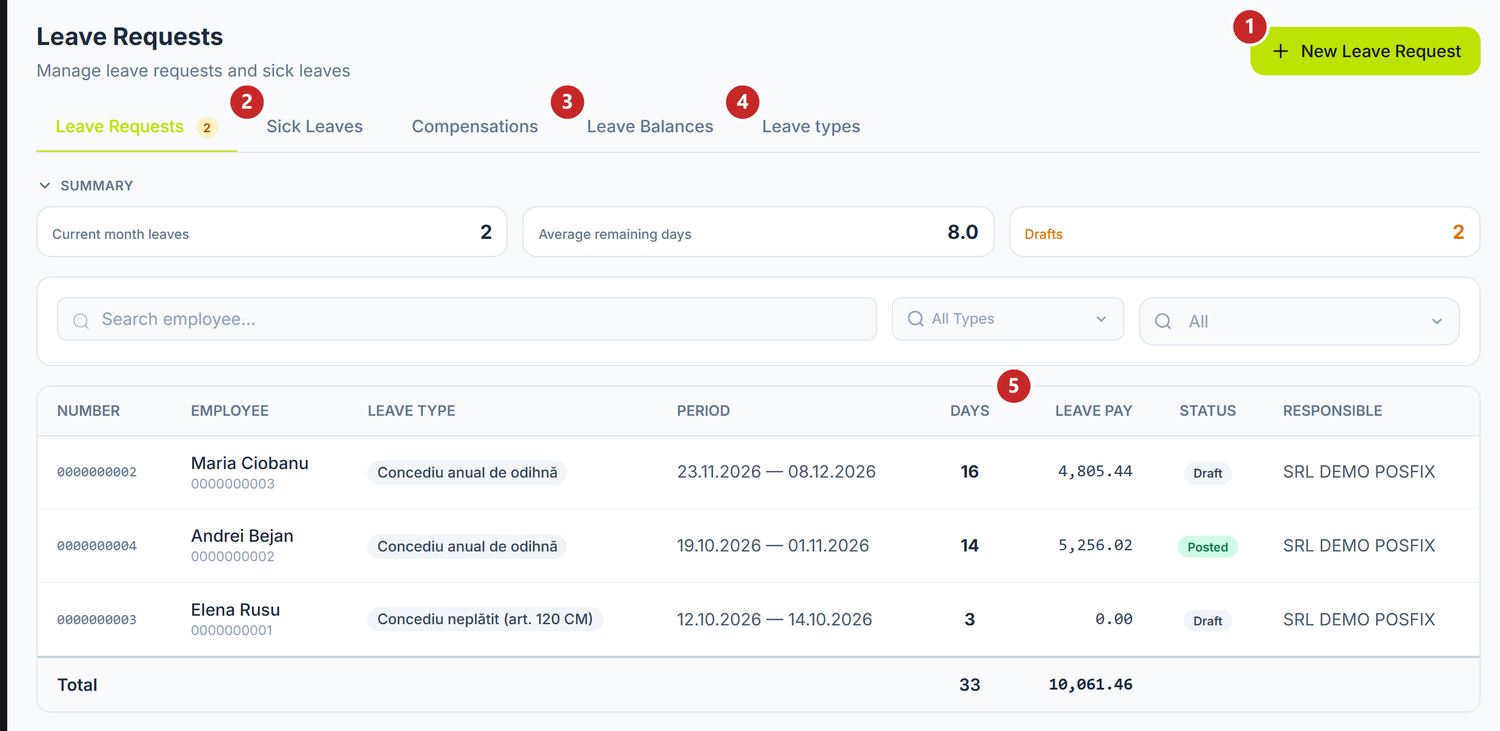
1 new leave · 2 sick leaves · 3 day balances · 4 the leave type catalogue · 5 the leave pay calculated on each document
The list shows the current year's leave. Above it sit Current month leaves, Average remaining days and Drafts; the last number also appears on the Leave Requests tab, so you don't forget unposted documents. The filters at the top search by employee, type and status.
To record a leave
- Press New Leave Request. The document opens in its own tab.
- Choose the Employee and the Leave Type. Under the type it says who pays for the leave.
- Set the period, at From and To.
- On a leave paid by the employer, check Average earnings over and Payroll month.
- If you have them, fill in Order no., Order date and Basis.
- Save, then Post.
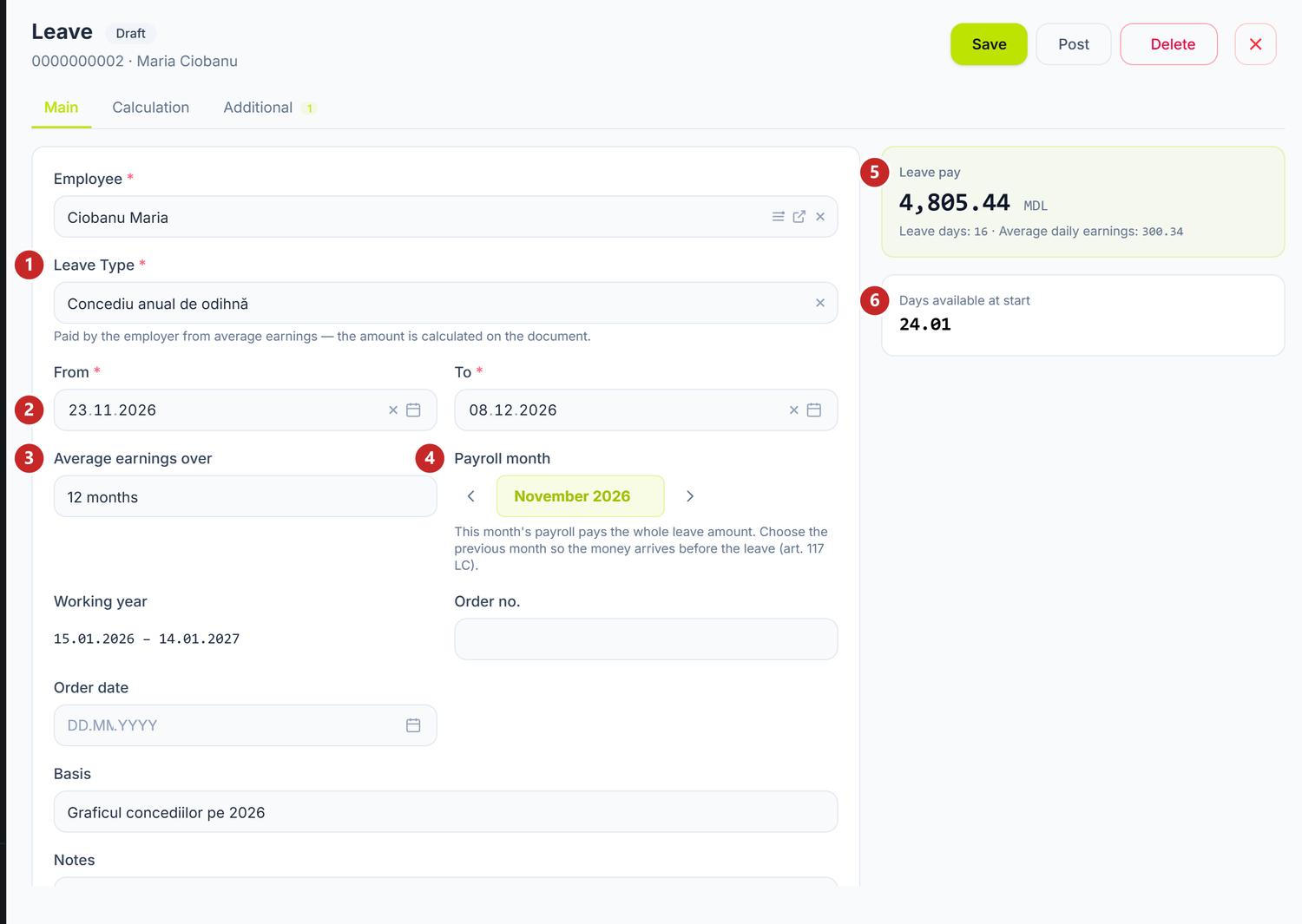
1 the leave type · 2 the period · 3 the average earnings basis · 4 the month it is paid in · 5 the leave pay · 6 the days available at the start
The server does the calculation as you fill in, and the card on the right updates itself: the amount, the days and the average daily earnings. It is the same figure that gets saved — there is nothing to redo on paper.
The type decides whether there is money. On leave paid by the employer, the document calculates the leave pay. On leave paid from social insurance (maternity, paternal, childcare) and on unpaid leave, the document only records the period: the amount stays 0, but the days come off that month's salary.
Days available at start shows how many rest days the person has built up on the first day of the leave. If they ask for more, the figure changes colour and says the days are granted in advance, from the current working year. The panel doesn't stop you — it's your decision.
The Working year field shows which working year the days come off (annual types only).
The payroll month
All the leave pay is paid in the payroll of a single month: the Payroll month. By default it is the month the leave starts.
That month's payroll, though, is paid after the person has left. For the leave pay to reach them before the leave, as the Labour Code requires, choose the month before . At the latest you can choose the month the leave ends. A month outside this range is refused, and the reason appears under the amount card.
The Calculation tab
The Calculation tab shows where the amount comes from.
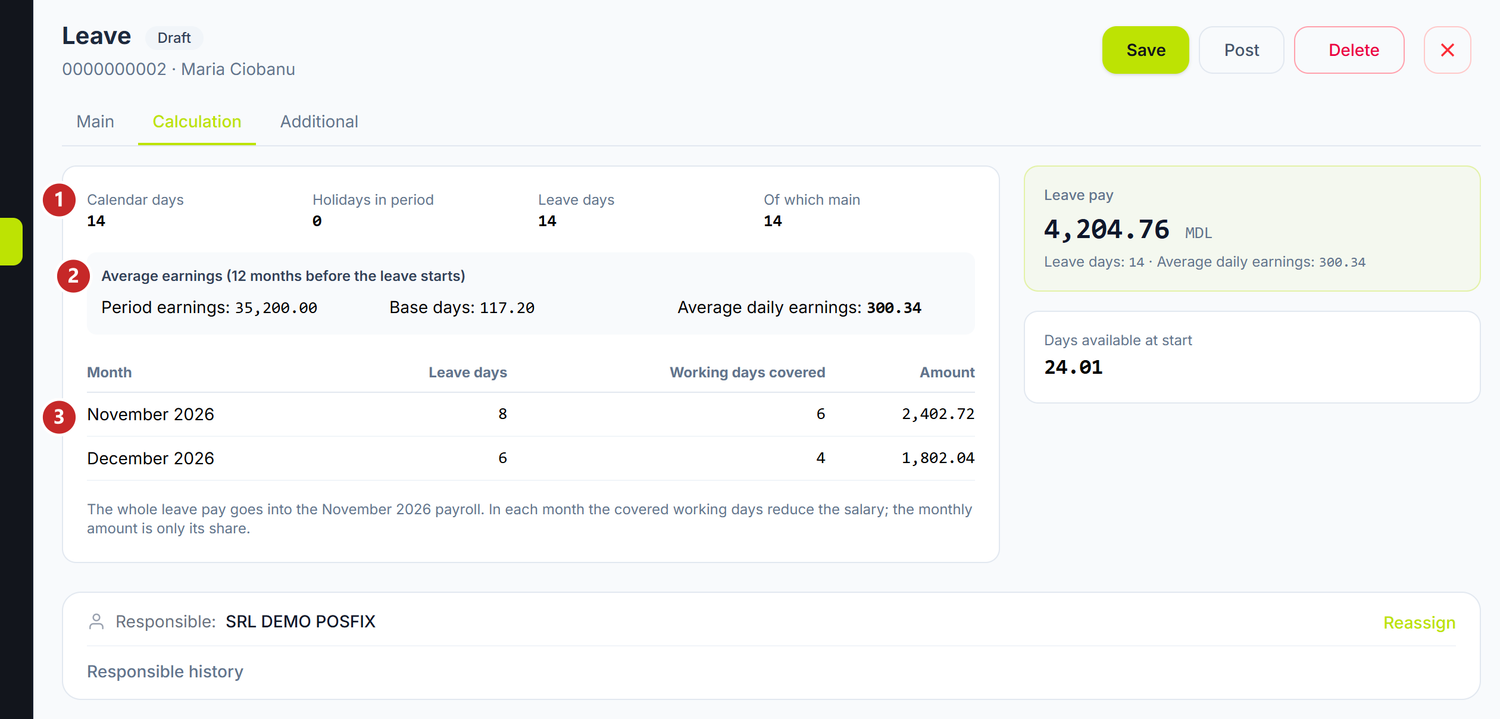
1 the days of the period · 2 the average earnings calculation · 3 the split by month
At the top you see Calendar days, Holidays in period, Leave days and Of which main. Public holidays inside the leave aren't paid and don't come off the balance.
The average earnings come from the posted payrolls of the months before the leave: 12 or 3, as chosen on the Main tab. You see the period earnings, the base days and the average daily earnings. The base days are the calendar days without public holidays of the base months, scaled to how much of the norm was worked; a month without a payroll counts too, with its norm. On the 12-month basis, the vacation pay of the period enters the earnings; on 3 months it doesn't. Without any posted payroll in that period, the average comes out 0 and the panel warns you: post the previous months' payrolls or choose another basis.
The table at the bottom splits the leave across calendar months. Working days covered come off each month's salary. The amount per month is only informative — all the money goes out in the payroll month.
The Additional tab
If the person also has additional leave days, you add them on the same document: Add additional leave, choose the type, the number of days and the basis.
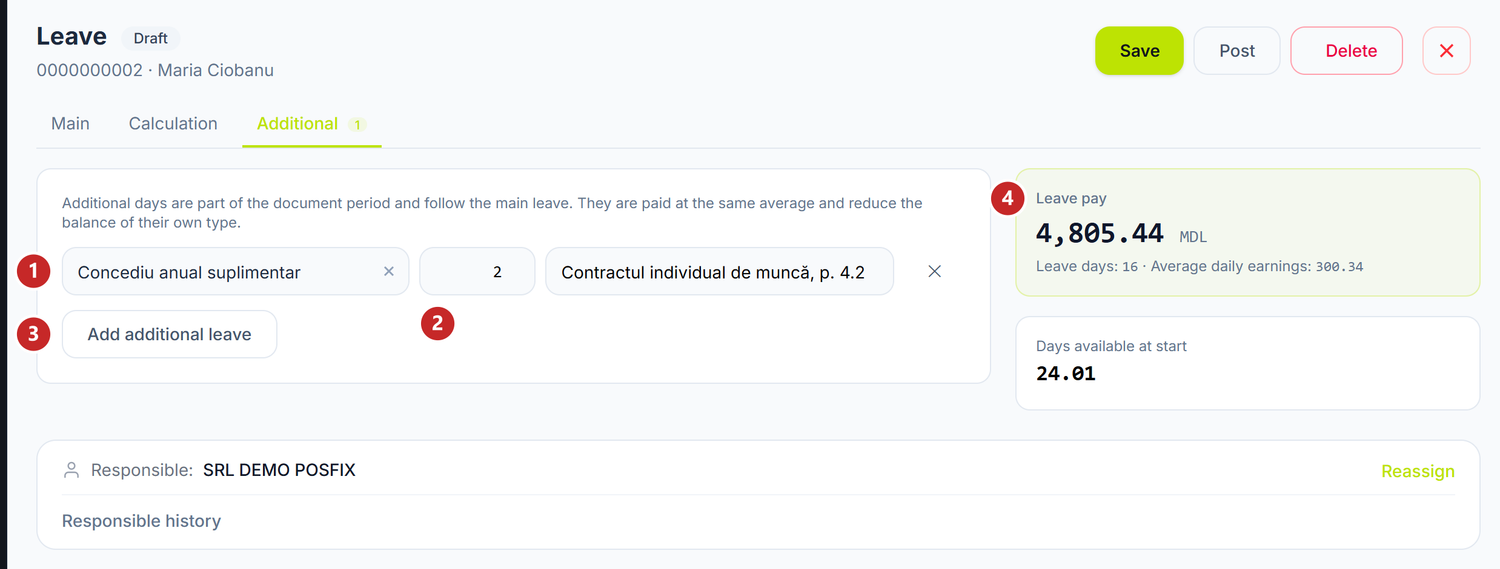
1 the additional leave type · 2 how many days · 3 one more row · 4 the leave pay, for all the days of the document
The document period covers all the days. If the person has 14 main days and 2 additional ones, you put 16 days in From / To, and here you type 2. The additional days are paid at the same average earnings and come off the balance of their own type.
Add additional leave is active only when the main type is paid by the employer.
What posting does
When you press Post:
- the days enter the employee's balance, under Used;
- the payroll of the payroll month picks up the leave pay;
- Auto-populate in the timesheet puts the type's code (CO or CM) on the leave's working days.
Even if L stayed on a leave day in the timesheet, the salary calculation no longer counts it as a worked day. The posted leave is the source, not the timesheet — the person isn't paid twice.
A posted leave can no longer be edited. To correct it, choose Unpost from the menu: the document becomes a draft again, and the days go back to the balance. Correct it and post again.
| Status | How it gets there | What you can do |
|---|---|---|
| Draft | On save | Edit, post, delete |
| Posted | Post | Unpost, or Delete |
| Deleted | Delete | Nothing — a deleted document leaves the payroll and the balance |
Day balances
The Leave Balances tab shows, for each employee, the rest days as of today.
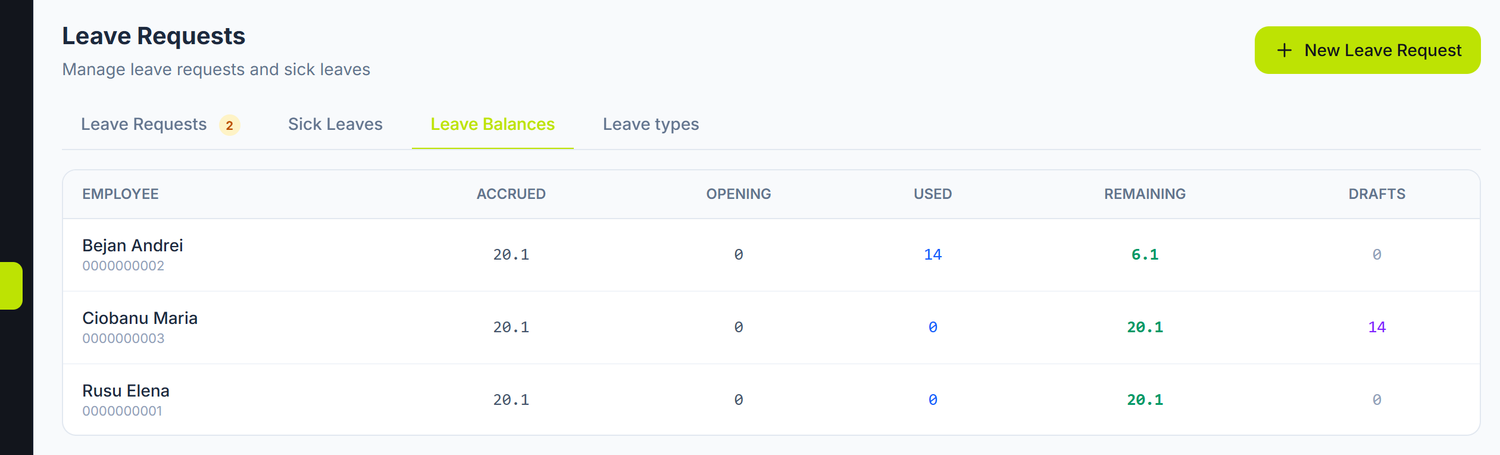
Remaining is what the person can still take: the days built up on the platform plus the opening balance, minus those in posted leaves. The Drafts column shows separately the days in documents not yet posted — they don't come off the balance until you post them.
Only active employees appear in this tab. A dismissed person's balance is on their sheet, in the Leave tab: it stays as it was on the dismissal day.
The balance is kept by working year: the year starts on the anniversary of hiring, not on 1 January. Days build up day by day, from the hire date or from the opening balance date.
The opening balance and a different entitlement
What was left unused before POSfix and the individual entitlement go on the employee's sheet, in the Leave tab.
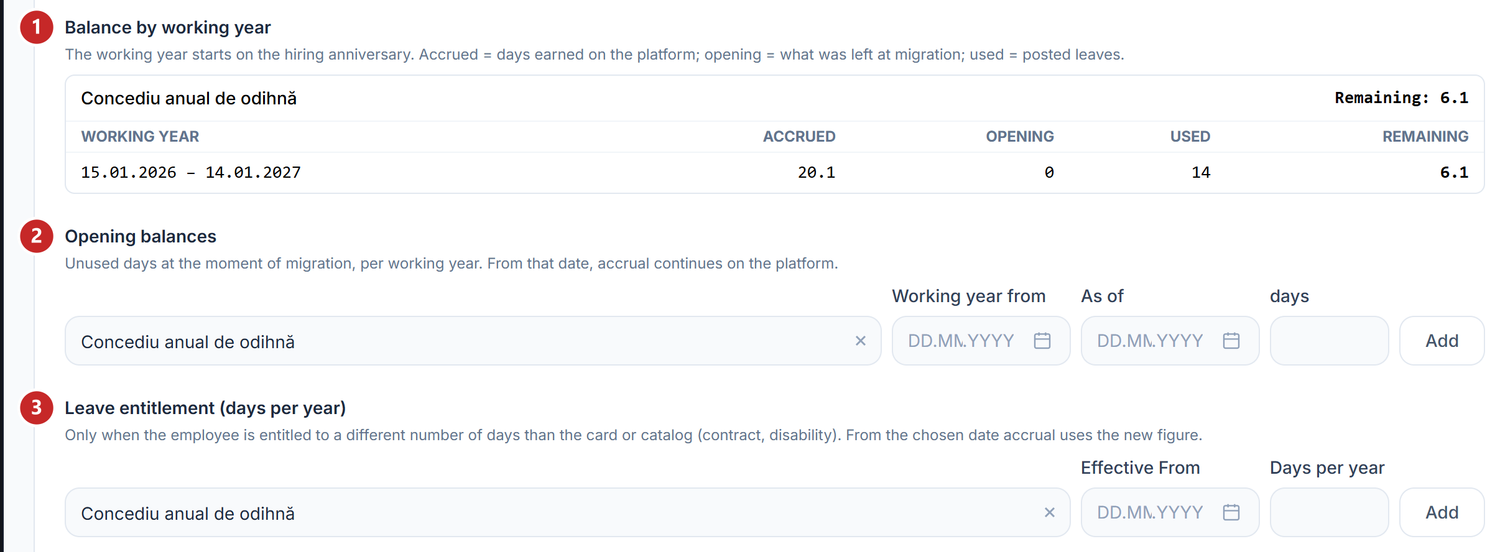
1 the balance by working year · 2 the opening balance · 3 the leave entitlement, when it differs from the usual one
Under Opening balances you choose the type, Working year from, As of and how many days were left, then Add. From that date on, accrual continues on the platform.
Leave entitlement (days per year) is filled in when a person's entitlement changes from a given date: a new contract, a disability. Choose the type, Effective From and Days per year. From the chosen date, accrual runs on the new figure, whatever the sheet or the catalogue says.
Without an opening balance, POSfix accrues days from the hire date. For someone hired years ago that gives dozens of "remaining" days, even though they took their leave in another program. An unusually large balance is the sign that their opening balance is missing.
Leave types
The Leave types tab holds your organization's catalogue. The types from the Labour Code come ready filled in; you can change their name, days and timesheet code, and with New leave type you add others.
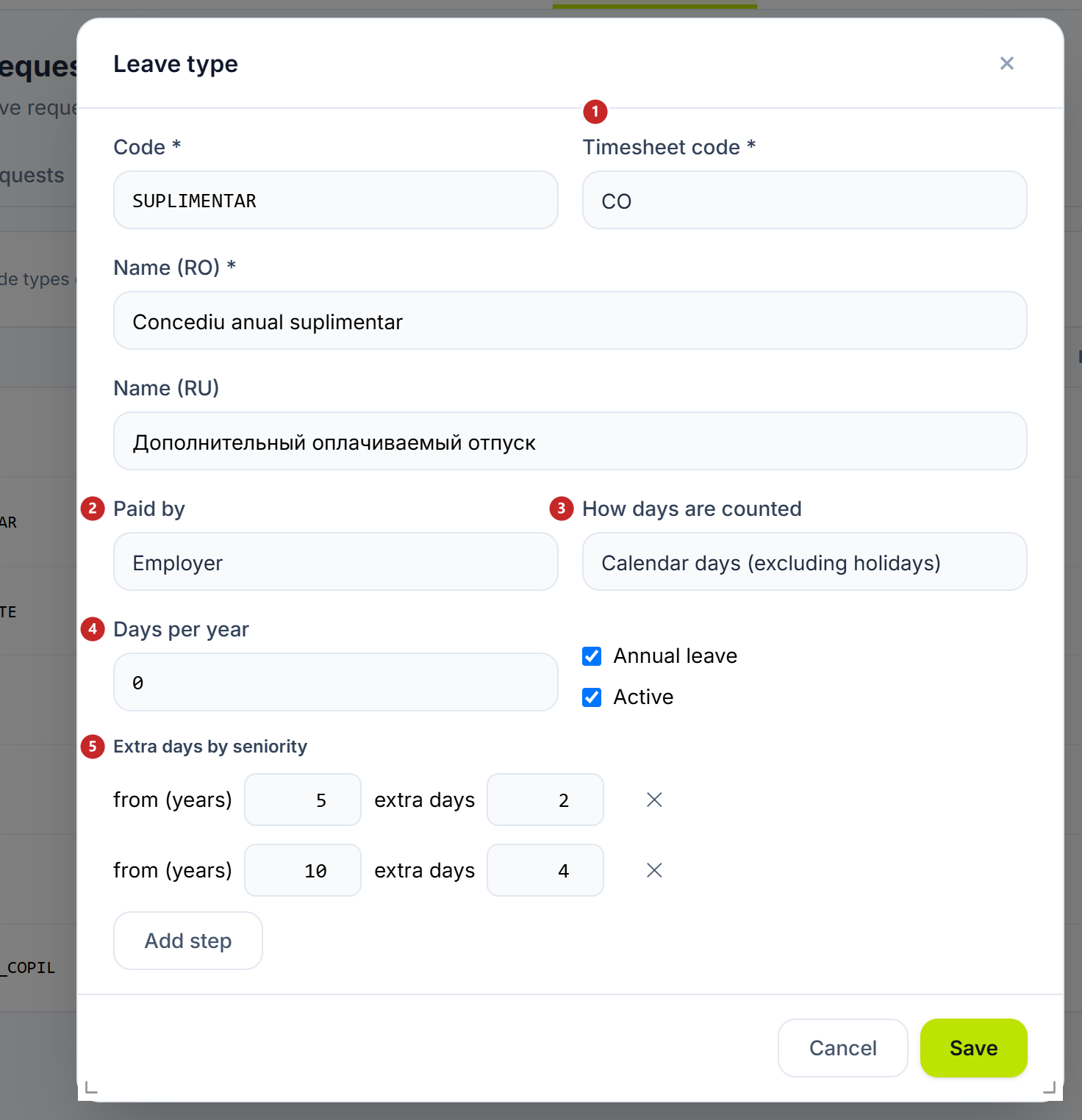
1 the code put in the timesheet · 2 who pays · 3 how the days are counted · 4 the days per year · 5 the extra days by seniority
Paid by decides whether the document calculates money: Employer calculates the leave pay, Social insurance and Unpaid only record the period. On annual rest leave the field is locked, as are the checkboxes, Days per year and the seniority steps: its days come from the employee sheet, the Salary tab, the Annual Leave Days field. The code of the Labour Code types doesn't change.
How days are counted chooses between Calendar days (excluding holidays) and Working days (by schedule). Timesheet code is the letter the automatic timesheet puts in: CO or CM.
Extra days by seniority adds steps: from how many years of seniority the person gets extra days. Add step puts in a new row. The highest step reached applies, added to Days per year: with the steps in the screenshot, the person gets 2 extra days from 5 years of seniority and 4 from 10 years, not 6. Seniority counts from the hire date on the employee sheet. On a type that gives days only for seniority you put Days per year 0; with Days per year empty, the type accrues nothing, not even from the steps.
| Toggle | What changes when you turn it on | If you leave it off |
|---|---|---|
| Annual leave | The type has a day balance by working year and appears under Days available | The type has no balance: days don't build up and don't come off anywhere |
| Active | The type appears in the list you choose from on the document | The type stays in the catalogue and on old documents, but can no longer be chosen |
Sick leaves
The Sick Leaves tab is a separate register, with its own button: New Sick Leave. The window asks for the Employee, Certificate Number, the period and, optionally, notes. Without a certificate number, the record isn't saved.
On save, the panel splits the days by itself: the first 5 calendar days on the employer, the rest on the social insurance budget (BASS) . In the list, under the total number of days, you see how many fall on the employer and how many on BASS. The split doesn't take into account the days the employer already paid in the same year, nor the certificates the budget pays from the first day — care of a sick child, a work accident, an occupational disease, maternity. On those you check the split before calculating the allowance; details in the salary flow guide. On each row you have Confirm, while the record is a draft, and Details.
The register holds the certificate and the split of the days; it doesn't calculate the amount. To pay it, you calculate it by the social insurance allowance rules — base and percentage by contribution record, not the panel's leave average — and record it with a journal entry. You also enter the amount by hand in IPC, in the CNAS table: it doesn't get there from the journal entry.
Don't put it into Calculated pay in the salary calculation: there it would enter gross pay and get the salary's deductions and contributions, even though it is a social insurance benefit.
Compensation for unused leave
When an employee leaves with leave days still unused, you pay for them through a separate document: Compensation for unused leave. The document doesn't terminate anyone — you record the termination in the employee file first, and the compensation starts from its date.
Where to find it: Sidebar → Team → Leave Requests tab → Compensations tab
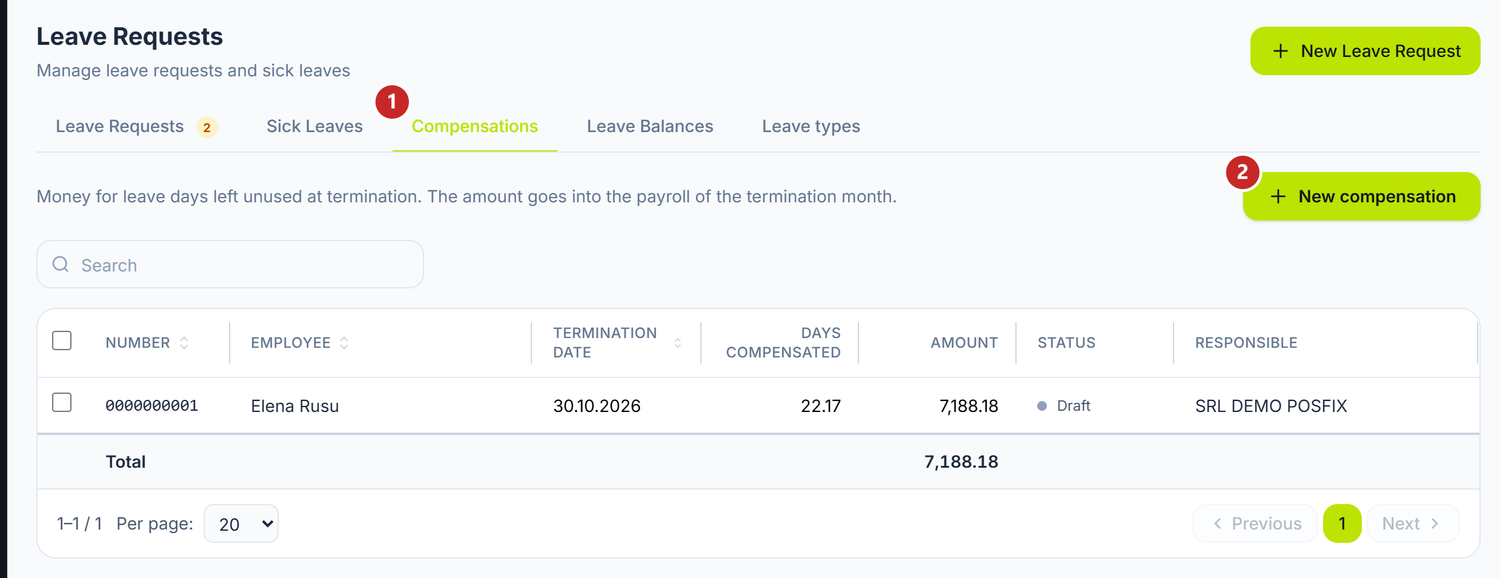
1 the compensation documents · 2 new document
To pay the compensation:
- In the employee file, click Terminate and save the date and the legal ground.
- From the same file, open Actions → Compensation for unused leave. The document opens with the employee already chosen.
- Check the rows. The platform fills them from the leave balance at the termination date, one per annual leave type and working year with days left.
- If you know the balance in the platform is incomplete — the opening balance is missing, say — correct the days row by row.
- Save, then Post.

1 the compensation, started from the file
With a termination date in the future, the file stays Active until then — you can prepare the compensation in advance.
You can also start from the Compensations tab, with New compensation. Then you pick the employee from the list — only people with a recorded termination appear in it.
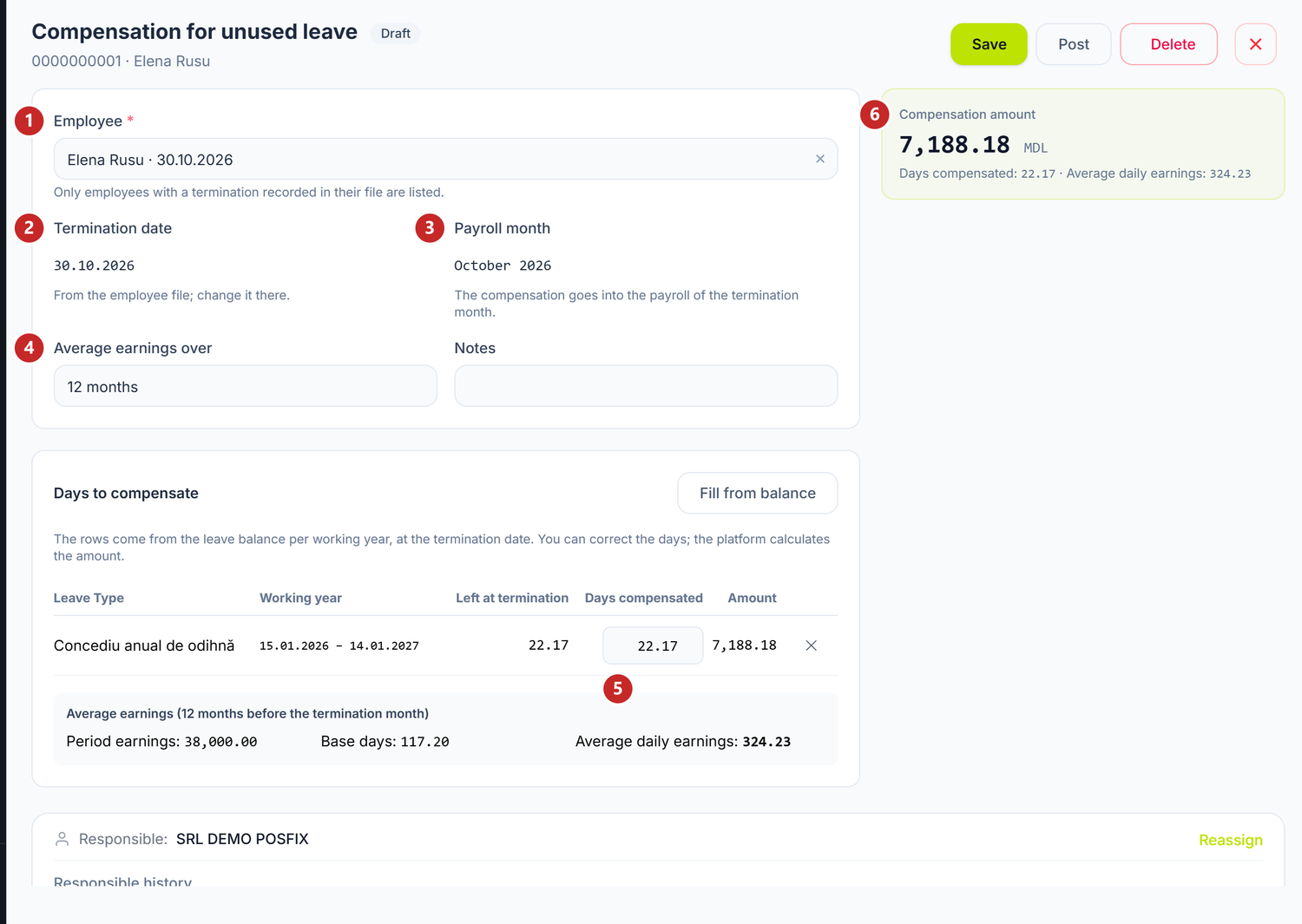
1 the terminated employee · 2 the termination date, from the file · 3 the payroll month that pays it · 4 the average earnings base · 5 the days compensated, per working year · 6 the amount
The days and the amount
Each row is a working year. Left at termination shows how many days the person still had in that year, and Days compensated is how many you compensate. Days can have decimals: a working year that has only started brings days in proportion to the time worked in it.
The money, though, is paid in whole days: the total of each leave type is rounded (29.15 → 29), and Days paid shows each row's share. The balance still loses the exact days, so the person ends at zero.
The platform calculates the amount — the row's days paid times the average daily earnings. Change the days and the amount is redone on the spot. A year you don't pay at all you remove with ✕ at the end of the row — zero days are not accepted. Fill from balance puts the rows from the balance back, over your corrections.
The average earnings come from the months before the termination month: 12, or 3 if you choose that in Average earnings over. The Average earnings block under the table shows the earnings, the base days and the daily average.
What posting does
The compensated days leave the person's balance, just like a leave taken. The amount goes into the payroll of the termination month, on the Unused leave compensation line, and is taxed like a salary. It doesn't enter the average earnings base of later calculations.
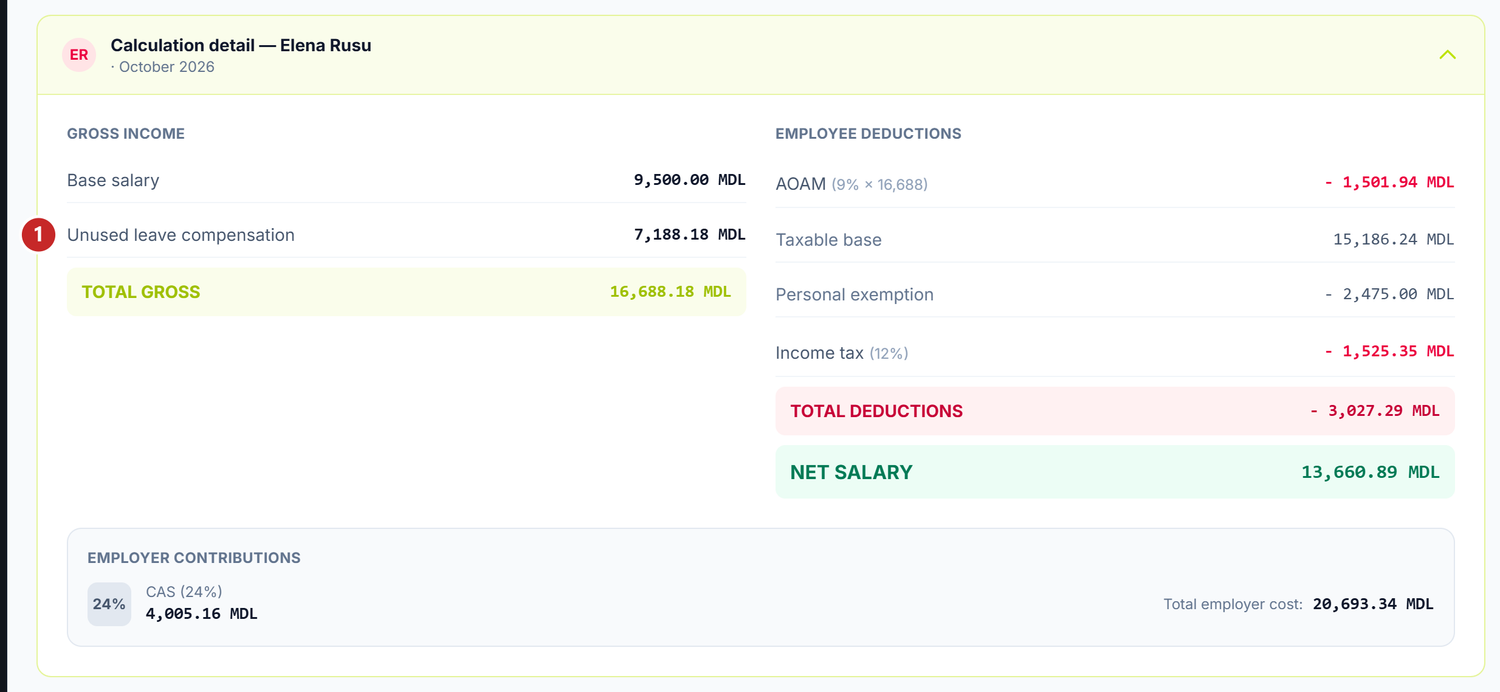
1 the compensation, in the employee's gross income
The Payroll month is the termination month by default. If that month's payroll is already posted, either unpost it or pick a later month of the same year — the person then enters that month's payroll with the compensation only, without an exemption.
If the month's payroll is already calculated, calculate it again after you post the compensation. Otherwise it can't be posted, so it doesn't pay the old figure.
While the compensation is posted, the termination date can't move and the termination can't be cancelled. Unpost the compensation first, from Actions → Unpost.
What can trip you up
The salary calculation for … is posted— a month of the leave, the payroll month or, for a compensation, the termination month already has its payroll posted. Unpost the payroll first, then come back to the document.The period overlaps with leave no. …— the person already has a posted leave on those days. Choose another period or correct that leave.The calculation of leave no. … has changed since it was saved— meanwhile a payroll in the average basis was posted or the schedule changed. Open the document, check the new figures and save it again.- The leave pay is 0 on rest leave — the base months have no posted payrolls. See the warning on the Calculation tab.
- Post is missing — the document isn't saved yet, or it is already posted.
- A long-standing employee's balance is too large — their opening balance is missing, from the sheet's Leave tab.
The average earnings of … come out as zero— the compensation has no base: the months before the termination have no posted payroll. Post them first.The calculation of compensation no. … has changed since it was saved— a payroll from the average base was posted in the meantime. Open the document and save it again.The termination date of … is paid by compensation no. …— you changed the termination date in the file.The termination of … has compensation no. … posted— you chose Cancel termination. In both cases, unpost the compensation first.The termination date changed since compensation no. … was saved— you corrected the date in the file after saving the draft. Open the compensation and save it again.
Frequently asked questions
Can I split annual leave into several parts?
Yes. Make one document per part. Each has its own payroll month and takes its own days off the balance.
What happens if the employee asks for more days than they have?
The document is saved and posted. The Days available at start card changes colour and says the days are granted in advance, from the current working year.
Does sick leave come off rest leave?
No. Sick leaves are a separate register and don't touch the rest day balance.
What do I do with unused days on dismissal?
You pay them through the compensation for unused leave document: the days come from the balance at the termination date, and the amount goes into the payroll of the termination month. After dismissal the person leaves Leave Balances, and their balance no longer grows.
Related pages
- Timesheet — where the days of posted leaves appear automatically
- Salary calculation — the payroll that pays the leave in the payroll month
- Employee sheet — the opening balance and the individual entitlement, in the Leave tab
- Guide: the complete payroll flow — from timesheet to paying salaries