Partner statement
The partner statement gathers into one screen everything the accounts hold in a partner's name: every account where he appears as the first analytical dimension and has a balance or a movement in the period, with the settlement documents underneath and with the age of what is left.
Usually these are the settlement accounts — 221, 224, 521, 523 — but the table shows any account configured with the partner on the first analytical dimension. It is worth a glance over the list of accounts before you read the total at the top as a receivable or a payable.
It is not a reconciliation and it is not sent to anyone. A reconciliation is signed in Reconciliation; the statement is the tool you use to make sense of things yourself, beforehand.
Where to find it: Sidebar → Accounting → the Partner statement tab
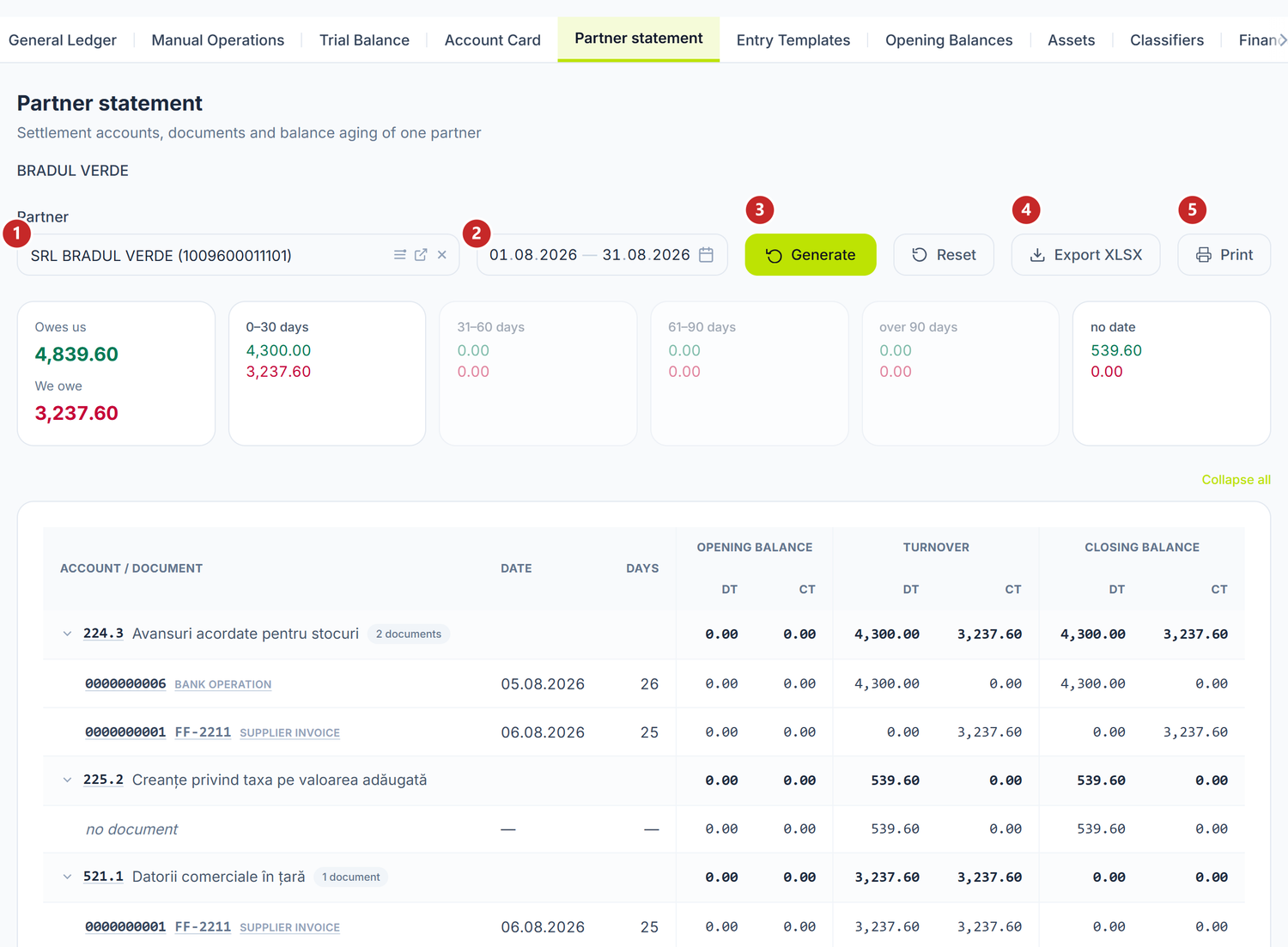
1 the partner · 2 the period · 3 generates the report · 4 downloads it to Excel · 5 prints it
To see a partner's statement
- Sidebar → Accounting → the Partner statement tab.
- Pick the partner in Partner. The report starts on its own, you do not have to press anything else.
- Change the period if you are after something other than the current month, then press Generate.
The partner picker searches among customers and suppliers alike — you do not have to know in advance in which capacity you worked with the company.
Reset clears the partner and takes the period back to This Month.
Balance aging
The row of cards at the top is the part the report is worth opening for.
The first card adds up the balances in the table, as they are: the remaining debits under Owes us, in green, the credits under We owe, in red. It is a sum of the rows below, not a confirmed receivable — the figure means exactly as much as the accounts in the table mean. The next ones split the remaining balance into ranges: 0–30 days, 31–60, 61–90 and over 90 days.
The days are counted from the document date to the end of the chosen period, not to today. If you generate the statement for August, a document dated 15 August is 16 days old, even if you are reading it in October.
Ranges with no amount stay on screen, just dimmed — so you can see at a glance that there really is nothing there, not that the column is missing.
One more card appears, no date, and only when it has something to show: the balances recorded without a settlement document behind them. You cannot place them in an age range, because they have nothing to count from.
How to read the table
The bold row with the grey background is the account: the code, the name and a badge with how many documents sit under it — only the rows that actually have a document are counted. The rows underneath are the documents.
The three pairs of columns are Opening Balance, Turnover and Closing Balance, each with debit and credit. On the settlement accounts the reading is simple: a remaining debit means the partner owes you, a remaining credit means you owe him. On the other accounts that end up in the table, the meaning is the account's, not the commercial relationship's.
The Days column counts the age of each document. Past 90 days the figure turns red — it blocks nothing, it just catches your eye.
A document showing as no document, in italics, is the balance recorded on the account with no settlement attached. That is normal on migrated opening balances; on day-to-day documents it deserves a look.
The documents start expanded, because they are what the statement is for. Collapse all, top right, folds them all away if you only want the accounts.
From the statement you go deeper
The account code and the number of each document are links.
- You press the account code → the account card opens, already filtered on your partner.
- You press a document number → the same account card, filtered on that document too.
Ctrl+click (or a click with the wheel) opens them in a new tab, if you want to compare two accounts.
The road runs the other way as well: from the Trial balance, the partner row opens his statement. When you arrive that way, Back to trial balance appears at the top and returns you exactly where you left off.
Print and export
Export XLSX and Print produce the same table, built from the same rows as the screen — the paper cannot say anything the statement does not. On paper, Series/no. and the document Type get columns of their own; on screen they are squeezed onto the same row as the document number.
Printing opens the preview in landscape, with the balance aging carried as a note under the table. From there you save the PDF.
What can trip you up
"The partner has no balance and no movement in the selected period." — the statement is generated on posted entries. Documents left in Draft do not appear here; post them and generate again.
Balances and aging do not read the period the same way. Balances and turnovers add up over whole months: 10 to 20 August gives you exactly the figures for the whole of August, documents after the 20th included. Aging, on the other hand, is counted up to the day you chose — an invoice from 21 July is 30 days old on 20 August and 41 on 31 August, so it jumps from one range into another. Choose the period in whole months and the two will say the same thing.
The cards are read by column — their green adds up what is owed to us, their red what we owe, and each column gives exactly the total at the top. If the sum does not come out, you are adding diagonally.
Related pages
- Account card — the movements of a single account, with the corresponding account
- Trial balance — where you reach the statement from, with a click on the partner row
- Reconciliation — the statement you sign with the partner
- Partners — the company's commercial record, with its contact details