VAT in the Republic of Moldova
The panel calculates VAT on every document line and keeps a tax register separate from the journal entries. The declaration is filled from it — not from the accounting turnovers, because there VAT is not broken down by rate and does not carry the tax invoice number.
This page shows you where the panel takes the rate and the treatment from, what it does not fill in by itself, and how you check the figures before you file.
The VAT rates in the panel
The panel ships four preconfigured rates, with the code printed on the fiscal receipt:
| Code | Name | Percentage | Where it applies |
|---|---|---|---|
| A | VAT 20% | 20% | the standard rate — everything without a reduced rate, a zero rate or an exemption |
| B | VAT 8% | 8% | only the items for which the law provides the reduced rate |
| C | VAT 0% | 0% | supplies with the right of deduction — export, international transport |
| D | VAT exempt | — | exempt supplies |
You can edit them and you can add others, if your activity requires it.
The reduced rate does not apply to a whole category of goods. The law gives it on a list of items, and what is not on the list stays at the standard rate. A shop that taxes its whole food aisle at the reduced rate invoices wrongly, and pays the difference itself. Check every product group you sell before you configure the rates.
Where to find it: Sidebar → Merchant Center → the VAT Rates tab
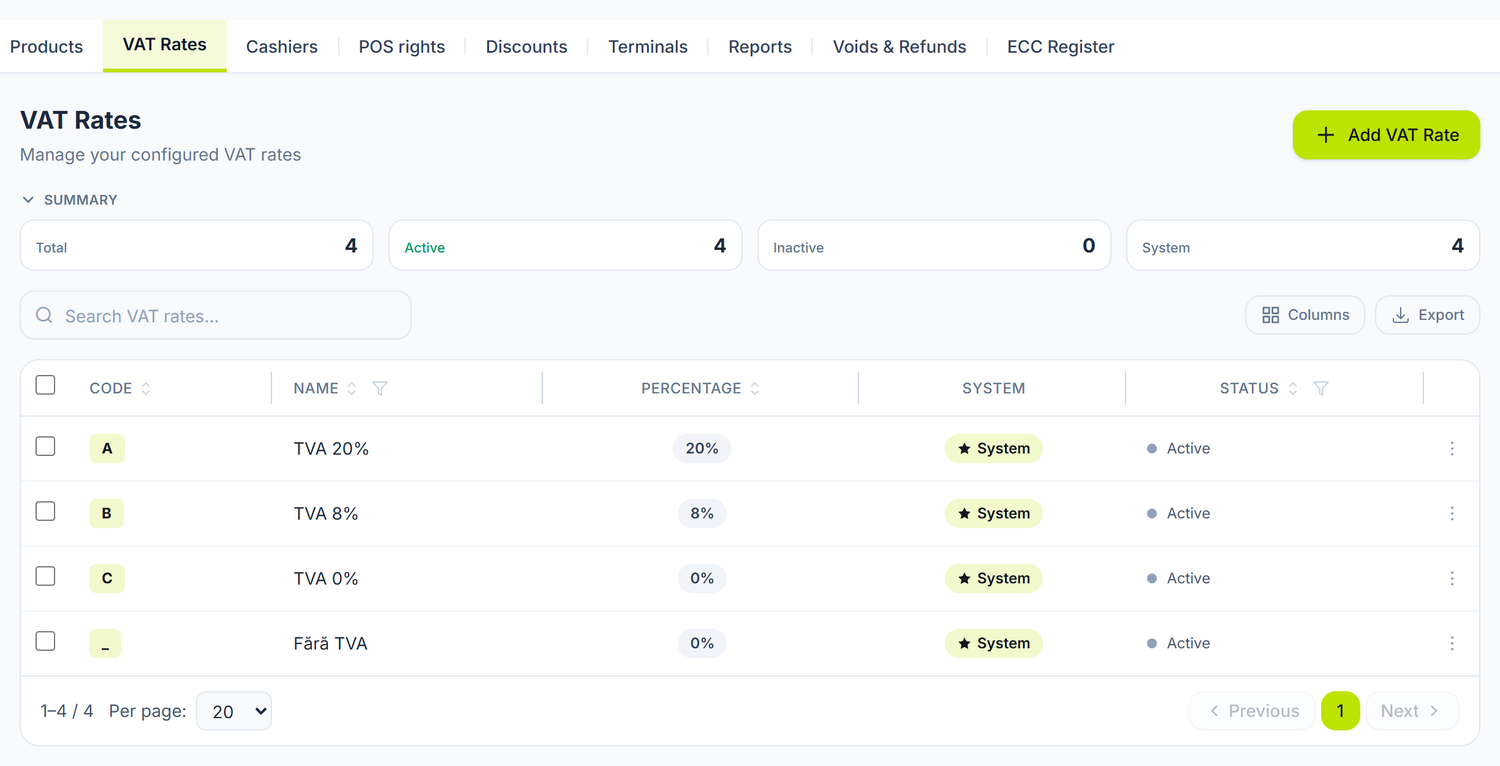
Each rate has its letter — the letter is what reaches the fiscal receipt and the document line, and the VAT register is built on it.
To add or correct a rate, you open the form from the list. Besides the name and the percentage, it has three more fields that change the result:
| Field | What changes when you fill it in | If you leave it empty |
|---|---|---|
| SFS VAT code (e-Factura) | this value goes to SFS on the electronic invoice — 20, 8, 0 or - for no VAT | the rate's percentage is sent |
| Default | the rate is pre-filled on the lines of new documents | you pick the rate every time |
| Active (available for sale) | the rate appears in the pick lists | it stays in history, but can no longer be chosen |
Fill in the SFS code on the "No VAT" rate. Without it, the invoice would go to the portal as rate 0%, which lands in a different line of the declaration. The panel stops you at submission and tells you which line has the problem, but that is one piece of work per rate against an error on every invoice.
The code on the fiscal receipt (A, B, C, D) is a label you attach to a rate. What counts in the accounts and in the declaration is the percentage on the document line, not the letter. Check the percentage, not the label.
Rate 0% is not the same thing as an exemption
Both give zero VAT on the invoice, but they differ fundamentally:
- Rate 0% (export) — you have the right to deduct the VAT paid on the related purchases.
- Exempt — you have no right of deduction. The VAT on purchases becomes cost.
Which accounts the panel puts it on
You need them at reconciliation: the totals in the VAT register must match the turnovers on the accounts below.
| Account | What it holds |
|---|---|
225.2 | input VAT, on domestic purchases and on imports |
225.5 | VAT on advances received, until delivery |
225.6 | VAT claimed for refund |
534.4 | output VAT on sales |
Do not confuse 534.4 with 534.1, which is the company's income tax.
When the input VAT exceeds the output VAT, the surplus is carried into the next period. It does not carry over by itself — you confirm it, from Reports → VAT Declaration. Details below, under Carrying VAT forward from one month to the next.
The tax treatments in the panel
The rate and the treatment are different things. The rate is the percentage; the treatment says how the operation enters the declaration.
The treatment is not picked from a list. There is no treatment selector at all, neither on the line nor in the header. The panel deduces it at posting from the line's rate, from the document's two toggles and from your taxpayer status. You see it only afterwards — as text, in the Treatment column of the VAT register and in the entry window.
The six treatments it can assign:
| Treatment | What it means |
|---|---|
| Standard rate | an ordinary domestic supply or acquisition, at the line's rate |
| Zero rate | supply with the right of deduction (export, international transport) |
| VAT exempt | supply without the right of deduction |
| Import | acquisition from abroad — on goods the VAT is paid at customs, on services you calculate it yourself. From this treatment the panel fills in only the deduction; see How do I record import VAT? |
| Reverse charge | the VAT is calculated by the buyer, not by the supplier |
| Advance payment | an advance received before delivery |
The seventh treatment, for operations from before you registered as a taxpayer, the panel also assigns on its own. It has no box in the declaration, because someone not registered does not file TVA12.
The eighth, Deduction adjustment, appears when you write off, or find short, goods on which you deducted VAT at purchase: the restored VAT leaves the deduction. The row sits on the purchases side, with negative amounts, and lowers the deduction in boxes 14 / 15 without adding output VAT. The VAT register writes it as Deduction adjustment — restored VAT. Where it comes from: Stock movements and Physical inventory count.
The same treatments, two sets of words. The VAT register writes them as in the table above. The window opened with the J button uses different labels for the same values: Taxable instead of "Standard rate", Exempt instead of "VAT exempt", Advance instead of "Advance payment", Deduction adjustment instead of "Deduction adjustment — restored VAT". It is the same information, written differently.
What the treatment decides, concretely
On the line, the rate's letter separates "zero rate" from "exempt" — two things that look identical on the invoice (zero lei of VAT) and land in different lines of the declaration. The rest is decided by two toggles in the document header.
| Toggle | What changes when you turn it on | If you leave it off |
|---|---|---|
| Import invoice | the operation type locks on "Import of goods" and the document requires a linked customs declaration | the document stays a domestic acquisition |
| Document without VAT | the rates on every line move to "no VAT" and the printed values are emptied | each line keeps its rate |
"Document without VAT" is not the same thing as rate 0%. It empties the lines onto "no VAT" — exempt, without the right of deduction. If you sell for export, do not use it: you pick the rate with the zero-rate letter.
On reverse charge the supplier issues the invoice without VAT, and you calculate the VAT yourself. The amount does not cancel itself out. In the declaration it appears in distinct boxes: the base and the VAT in boxes 9 and 10, the VAT payable to the budget in box 22, and the deduction leg in box 15. Box 22 is a separate amount to pay, next to box 21, not an automatic offset.
On acquisitions, the register also shows the deduction mode: Deductible, Included in cost or Pro-rata allocated. This one is not chosen on the document either — it comes from the posting rule for acquisitions, configured once per organization. On rows that are not purely deductible it appears as a yellow label next to the treatment.
The taxpayer status has a date from which it applies
VAT taxpayer status is not a checkbox without time: it has a validity date and you can sync it from SFS. The change applies to documents dated from that day onward, and the ones issued earlier keep their treatment. If the organization is not a taxpayer, posting a document with lines carrying a rate is refused.
Where to find it: Sidebar → Settings → the Organization Settings tab
How you check the VAT before you file
Where to find it: Sidebar → Reports → the Sales and purchases register tab
The register shows every row of the tax plane: the tax invoice, the rate, the treatment, the amount excluding VAT, the VAT, the declaration box and the journal entry it came from. You have two tabs, Sales and Acquisitions, and a Partner filter for when you want to follow a single supplier or customer.
The panel at the top can be read in three ways, from its buttons:
- TVA12 declaration boxes — the figure of each box and how many rows go into it. You press a box and the list below filters down to its rows.
- By document type — useful when a box doesn't come out and you want to see which registers it comes from.
- By rate — the quick check that you have no goods at the reduced rate where they shouldn't be.
The Print button produces the register with the company header and signature fields, in the form required at an inspection.
The monthly checking steps:
- Open the register for that month, the Sales tab, then Acquisitions.
- Tick Show rows on unposted journal entries — if anything appears, you have documents left in Draft. The declaration reads only posted entries.
- Tick Show rows excluded from the declaration — these are the rows the panel keeps in the register but carries into no box. You check them once, so you know why they are there.
- Compare the totals with the balances in the trial balance:
534.4on credit,225.2on debit. - Reconcile with e-Factura: every invoice received must have a match in the register.
- Generate the declaration and check the boxes.
Where to find it: Sidebar → Reports → the VAT Declaration tab
The declaration is generated in three pages: the TVA12 form, Annex 1 (supplies) and Annex 2 (acquisitions). You pick the period, the language and the orientation from the right-hand bar, then you press Generate.
From there you also take the file you actually upload to the portal: Download XML (SFS). Do not retype the declaration in the cabinet — if the values do not match the SFS schema, the panel refuses the export and tells you what to correct.
When you fill boxes in by hand, save the report: the Open Saved button brings back your filled-in version, together with everything you typed. Without it, a regeneration wipes your work.
Carrying VAT forward from one month to the next
When the input VAT exceeds the output VAT, the surplus appears in box 23 — "VAT amount to be deducted in the following period". It does not carry forward by itself: you confirm it, with the Confirm VAT carry-forward button. The next month's declaration picks it up in box 19 — "VAT amount to be deducted from the previous period".
That way the figure stays the one you actually filed, even if in the meantime you correct documents from the closed month.
The confirmation dialog counts rows, not boxes. It writes you "the amount from row 18… the next month's declaration will pick it up on row 14". These are the same two positions: box 23 sits on row 18, box 19 on row 14. Do not look for other figures in the form.
VAT on advances
When you collect an advance from a customer, the VAT is due before delivery. The panel puts it on 225.5, a distinct receivable account, and clears it at delivery — it does not mix it with the input VAT from purchases.
At delivery the advance is cleared, and the VAT on the advance is withdrawn from 225.5. In the
declaration, advances have their own box, separate from ordinary supplies — so an advance collected
and delivered in the same month appears twice in the register, once on each line.
Common mistakes
| Mistake | Consequence | How you avoid it |
|---|---|---|
| Wrong rate on a line | VAT declared incorrectly | you check the rate on every line — one invoice can have both 8% and 20% |
| You confuse "Exempt" with "Rate 0%" | you deduct VAT without the right to | an exemption gives no right of deduction; a zero rate does |
| A document left in Draft | the row is missing from the declaration | you tick Show rows on unposted journal entries in the register |
| No reconciliation with e-Factura | differences against the SFS data | you compare the register with the portal invoices monthly |
You confuse 534.4 with 534.1 | VAT recorded on the income tax account | 534.4 is VAT, 534.1 is the company's income tax |
| You forget to confirm the carry-forward | box 19 of the next month stays empty | you press Confirm VAT carry-forward after you file |
| Import of services left on the deduction only | you deduct VAT without declaring it as due | you fill in boxes 7 and 8 by hand, then redo box 13 |
| You wait for the panel to fill in boxes 11 and 18 | they stay at zero without you knowing | you fill them in by hand, as you do 7 and 8 — but not the VAT restored on a write-off, which the panel already takes off 14 / 15 |
Frequently asked questions
How do I reconcile the declaration with e-Factura?
- Open the list of invoices from e-Factura for that month.
- Compare it with the Acquisitions tab of the register — number, supplier, amount.
- Identify the differences: missing invoices, different amounts, unposted documents.
- Correct them before filing.
Can I see what a declaration box is made of?
Yes. In the register, you press the box in the top panel and the list below shows you exactly the rows that go into it, with the tax invoice and the journal entry of each.
How do I treat VAT on mixed purchases (taxable and exempt)?
You have no per-line button for that. The deduction mode comes from the posting rule for acquisitions; when it is on Pro-rata allocated, the rows appear in the register with that label, and their VAT does not go into the deduction box.
You calculate the ratio yourself and apply it to the general-use input VAT, and the rest becomes cost. The adjustment is made at the end of the tax year. If your rule is on Deductible and you have mixed operations, ask for it to be changed before the first month you file for — retroactively means reposting.
How do I record import VAT?
On the customs declaration, the VAT paid at customs also goes to 225.2, as input VAT, if you are a VAT taxpayer. If you are not a taxpayer or the activity is exempt, you untick Import VAT deductible and the VAT is capitalised into the cost of the goods.
On the import of services there is no customs. You calculate the VAT yourself on the non-resident's invoice and pay it to the budget together with the month's declaration. On the line you also pick the Import treatment. Deduction is allowed on the amounts calculated, not conditioned on payment — unlike imported goods.
From the Import treatment the panel writes a single row, on the acquisitions side. It reaches boxes 16 / 17 — the deduction leg. Boxes 7 / 8, "Import and acquisition of services", which raise the output VAT in box 13, stay empty.
You fill them in yourself in the declaration grid, before filing. The totals are not recalculated after a manual edit, so you redo box 13 and the final result as well.
Box 11 on supplies and box 18 on acquisitions (errors from past periods, bad debts, pro rata) stay at zero — you fill them in if you have such adjustments, and redo the totals. VAT restored on a write-off or shortage doesn't go there: the panel already takes it off boxes 14 / 15. Don't enter it a second time.
Example. SRL "Tehno Plus" from Bălți receives a service from a non-resident: 50.000 lei, VAT 20% = 10.000 lei.
- The panel puts 50.000 in box 16 and 10.000 in box 17.
- You write 50.000 in box 7 and 10.000 in box 8.
- Then you raise box 13 by 10.000 lei; the final result — box 21 or, if you are on a deduction surplus, box 23 — moves by the same amount.
If you skip this, you declare a deduction of 10.000 lei without the liability that justifies it.
Where to find it: Sidebar → Purchases → the Customs Declarations tab
Do exchange rate differences enter the VAT base?
No. They are recorded on 622 Financial income or 722 Financial expenses and do not appear in the VAT declaration.
My company is not a VAT taxpayer. What changes?
You neither collect nor deduct VAT; purchases go in with the total amount as cost. If you leave the status on "non-taxpayer" and a document has lines with a rate, posting is refused with a message that lists the offending rows.
Can I issue invoices without VAT while being a VAT taxpayer?
Yes — for exempt operations or for export at the zero rate. You pick the right treatment on the line, and the declaration carries them into different boxes. Careful: at the zero rate you keep the right of deduction, on an exemption you don't.
What happens to VAT when an invoice is corrected?
You record a correcting document with negative values (a return or an adjustment). Both rows stay in the register, and the net effect appears in the declaration of the period in which you made the correction.
Related pages
- Tax obligations — filing deadlines and the fiscal calendar
- The document lifecycle — why only posted documents enter the declaration
- Classifiers — the types of taxes and duties
- Statistical and tax reports — generating the returns